Configuring a site-to-site VPN for IPsec VPN sites
Use Lumen® Private Cloud on VMware Cloud Foundation™ to configure a site‑to‑site VPN (virtual private network) for IPsec VPN sites. Use this VPN to connect Lumen Private Cloud on VMware Cloud Foundation™ to your Lumen® Edge Private Cloud service. After you configure this, you must configure your Lumen Cloud to finish the connection. For more security, consider enabling distributed firewalls on your networks.
To configure a site-to-site VPN for IPsec VPN sites:
- Sign in to your Lumen Private Cloud on VMware Cloud Foundation™ environment.
- Click Networking.
The Lumen Private Cloud on VMware Cloud Foundation™ portal shows the Networks screen.
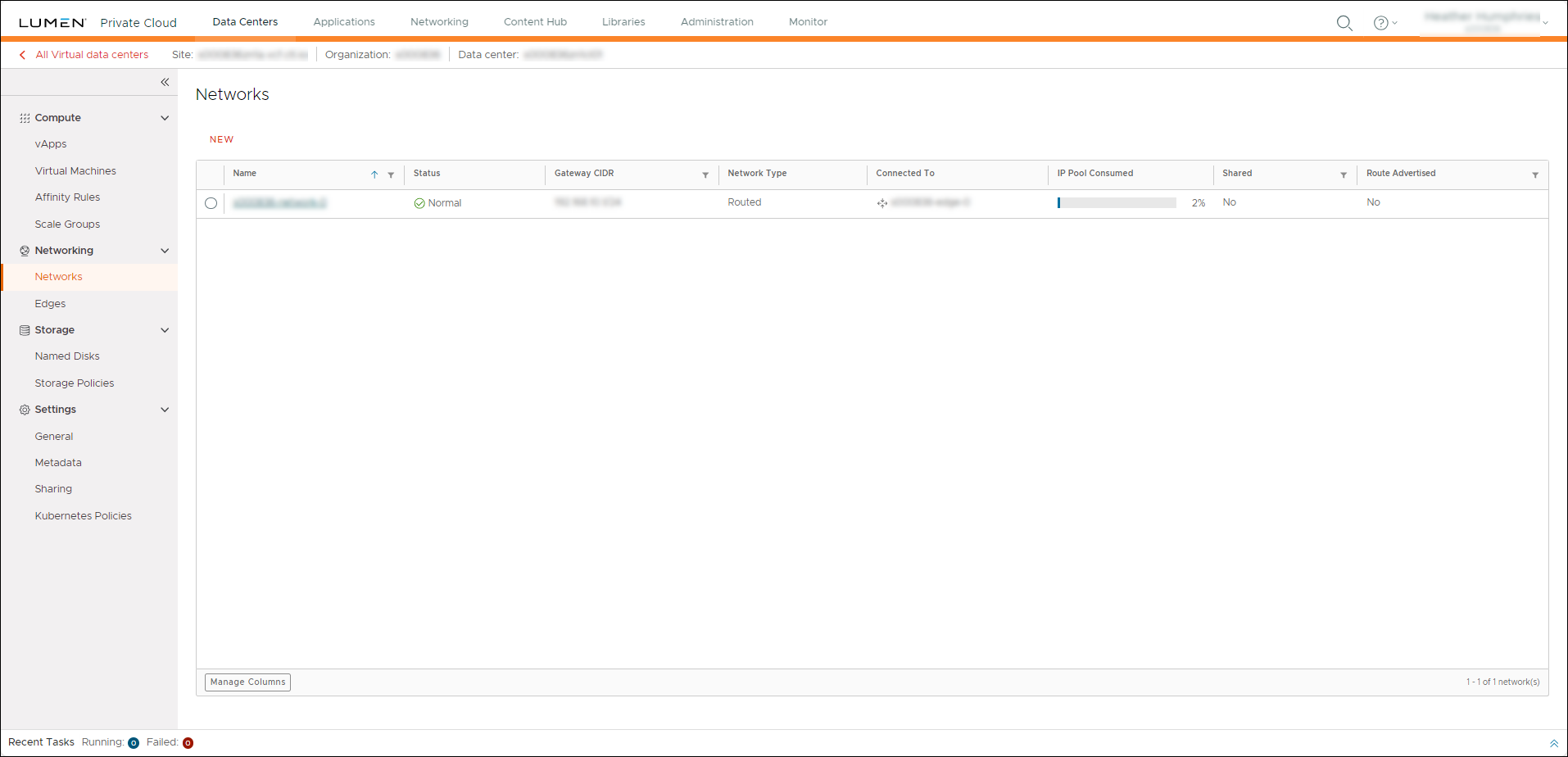
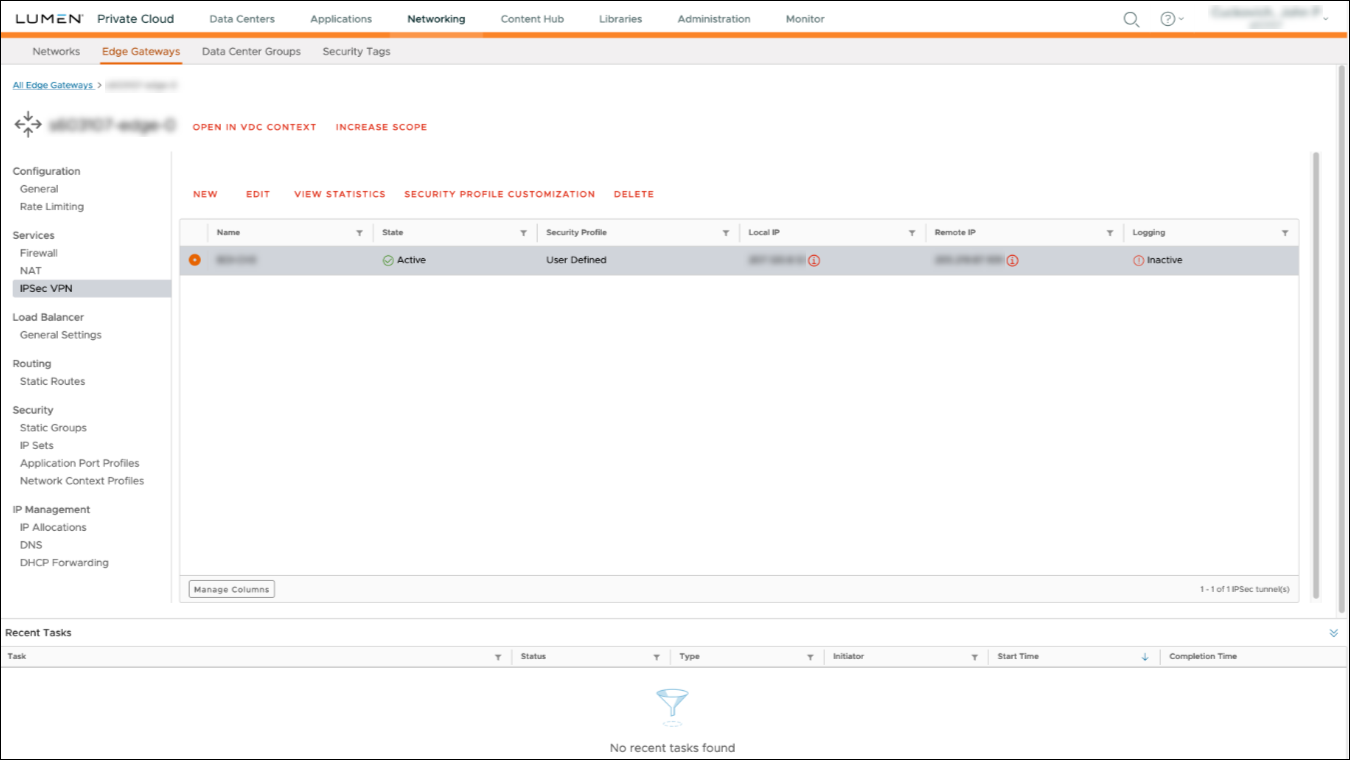
- Click Edge Gateways, then click the edge gateway you want to configure the site-to-site VPN for.
- Click IPSec VPN.
- Click NEW.
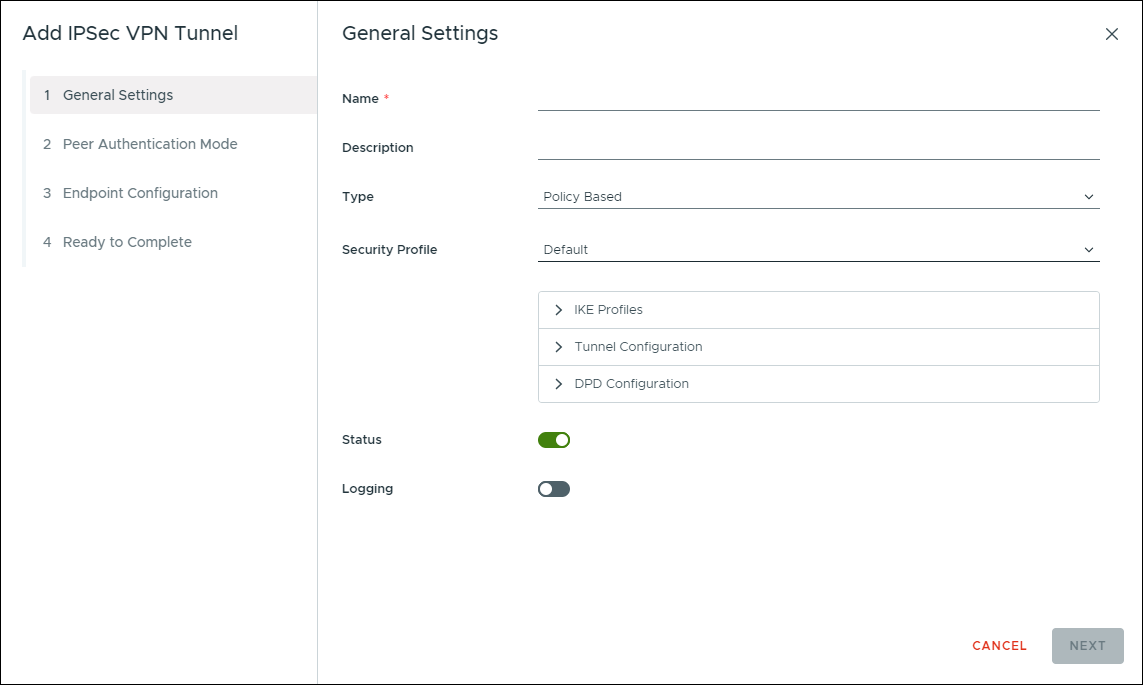
- In the General Settings section, complete the following fields to begin configuring the IPsec VPN tunnel:
- Name—Type a name for the IPSec VPN tunnel.
- Description—Type a description for the IPSec VPN tunnel.
- Security Profile—Select the security profile for the IPSec VPN tunnel. To expand the profile details, click located next to the profile.
- Status—To enable the IPSec VPN tunnel, turn this option on.
- Logging—To enable logging activity on the IPSec VPN tunnel, turn this option on.
- Name—Type a name for the IPSec VPN tunnel.
- Click NEXT.
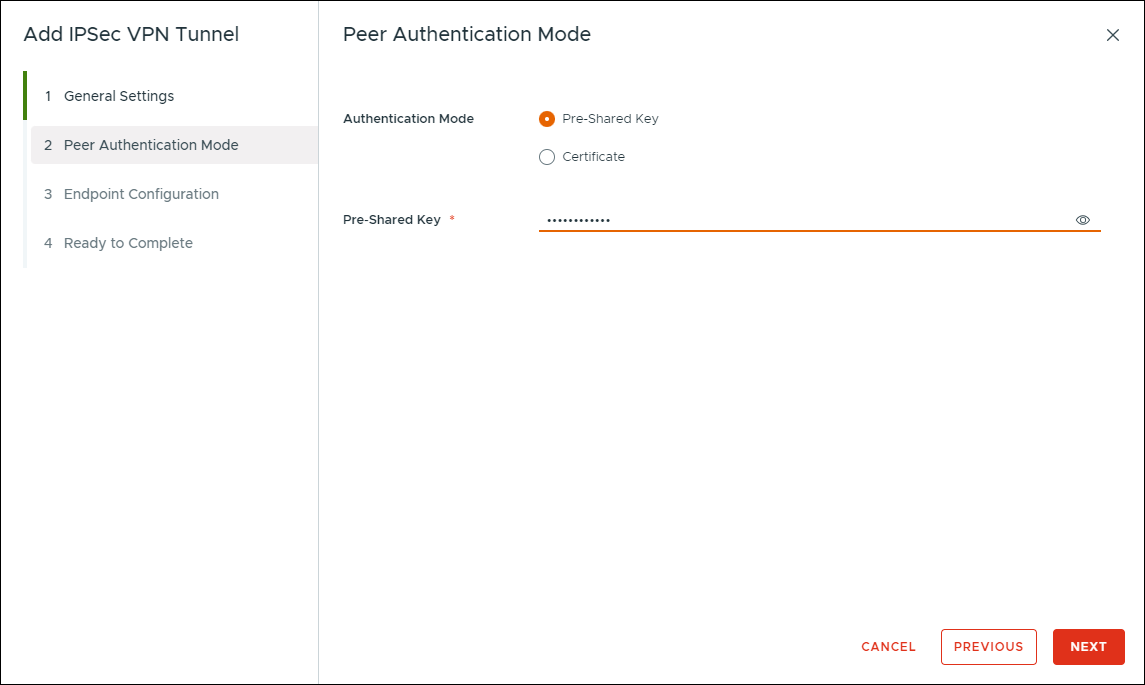
- In the Peer Authentication Mode section, complete the following fields to determine the authentication:
- Authentication Mode—Select one of the following options:
- Pre‑Shared Key—Use a pre‑shared key for authentication. The configuration of NAT (network address translation) determines the pre‑shared key. If you configure NAT on the remote ID, enter the private IP address of the remote site. Otherwise, use the public IP address of the remote device.
- Certificate—User certificates for authentication. The remote ID must match the certificate SAN (Subject Alternative Name). If the certificate SAN is not available, the remote ID must match the distinguished name of the certificate used to secure the remote endpoint.
- Pre‑Shared Key—Use a pre‑shared key for authentication. The configuration of NAT (network address translation) determines the pre‑shared key. If you configure NAT on the remote ID, enter the private IP address of the remote site. Otherwise, use the public IP address of the remote device.
- Pre‑Shared Key—If your authentication uses a pre‑shared key, type the pre‑shared key for the IPSec VPN tunnel.
- Server Certificate—If you are authenticating using a certification, click Select, then select the server certificate in the Use VMware Cloud Director Certificate section.
- CA Certificate—If you are authenticating using a certification, click Select, then select the CA (certificate authority) certificate in the Use VMware Cloud Director Certificate section.
- Authentication Mode—Select one of the following options:
- Click NEXT.
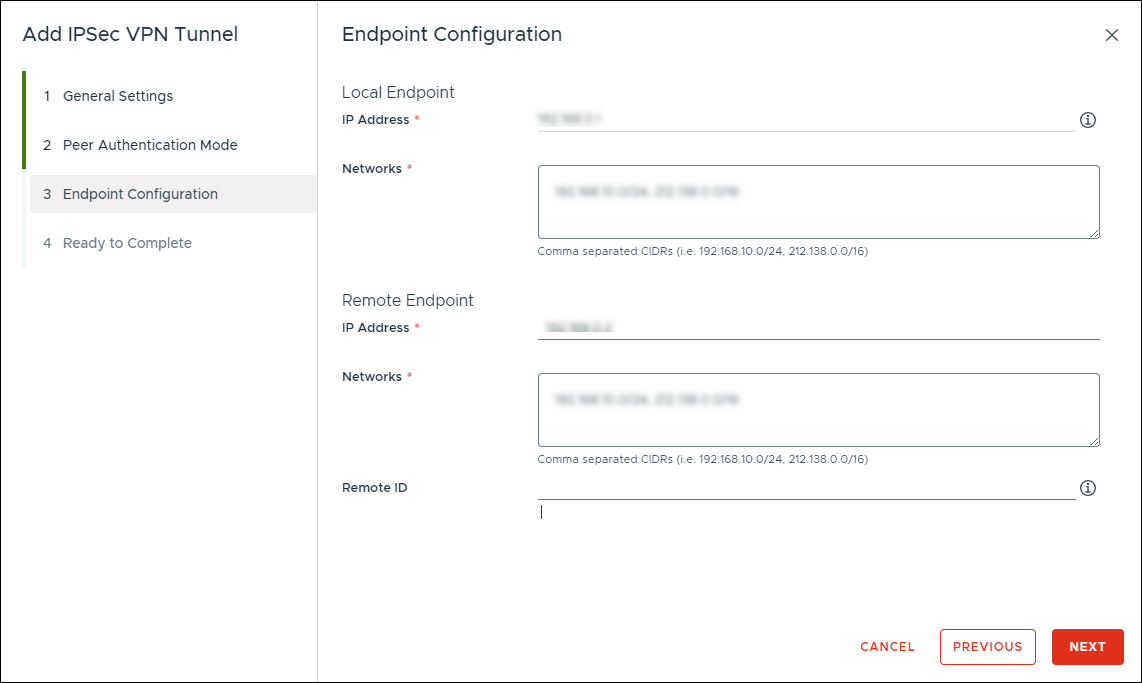
- In the Endpoint Configuration section, complete the following fields to configure the endpoints:
- IP address—Type the IP address of the local endpoint for the IPSec VPN tunnel.
- Networks—Type the network CIDRs, separated by commas, for the local endpoint that the IPSec VPN tunnel will use.
- IP Address—Type the IP address of the remote endpoint for the IPSec VPN tunnel.
- Networks—Type the network CIDRs, separated by commas, for the remote endpoint that the IPSec VPN tunnel will use.
- Remote ID—Type the unique identified for the remote endpoint. This remote ID depends on the authentication mode selected for the tunnel. If you do not set it, the remote ID defaults to the remote IP address.
- IP address—Type the IP address of the local endpoint for the IPSec VPN tunnel.
- Click NEXT.
- In the Ready to Complete section, review the configuration, then click FINISH.
Lumen Private Cloud on VMware Cloud Foundation™ configures the IPSec VPN tunnel.
- After the tunnel is created, click IPSec VPN to view the status.