Get ready for Lumen® NaaS Port
Use this page to learn how to order a NaaS Port and what happens once the port is ready. The NaaS Port is your on‑ramp to the Lumen network. Once it's available, you'll be able to add connections and services to the port using Lumen Connect℠.
Ordering a NaaS Port
When you order a port, you'll be asked to provide information about configuring the NaaS Port to connect to your equipment and who to contact to make your NaaS Port ready. Gather this information before you begin your order.
- A Lumen technician readies your port using the configuration you provide.
- UNI handoff type: Determine whether you'll use fiber or copper to complete the connection to your equipment. Lumen recommends fiber because it supports higher bandwidths and distances. If you select copper, your equipment cannot be more than 328 feet from the Lumen NaaS Port, and you won't be able to access speeds over 1 Gbps.
Not sure which to select? Bandwidth needs increase over time. For this reason, Lumen recommends using fiber. If your current equipment supports a copper connection, you can still select fiber and ask your property manager or vendor to install a media converter to complete the connection.
- Fiber type: Fiber cables can be single mode or multi‑mode. Lumen recommends single mode unless you have a specific requirement for multi‑mode.
- Connector type: NaaS Ports support either Lucent or square connectors. Select Lucent unless you have a specific need for a square connector.
- UNI handoff type: Determine whether you'll use fiber or copper to complete the connection to your equipment. Lumen recommends fiber because it supports higher bandwidths and distances. If you select copper, your equipment cannot be more than 328 feet from the Lumen NaaS Port, and you won't be able to access speeds over 1 Gbps.
- Contacts assist Lumen with making your port available.
- Property manager: The property manager is a property or facilities management employee who can schedule access to the secured telecommunications equipment in your building. They'll let our technician in to ready your NaaS Port. Having accurate property manager contact information is critical to making your NaaS Port available as soon as possible. Without the correct contact, our technician may not be able to access the secure telecommunications room, causing your order to be canceled.
- Building access information: The organization or company that manages the building, the hours the building is accessible for the technician, and any special instructions about access, such as calling ahead or authorization requirements.
- Local site contact: Someone who represents your company on‑site who can help resolve building issues and answer questions about your suite or equipment.
- Technical contact: Someone at your company who is familiar with technical specifications related to Lumen services.
- Property manager: The property manager is a property or facilities management employee who can schedule access to the secured telecommunications equipment in your building. They'll let our technician in to ready your NaaS Port. Having accurate property manager contact information is critical to making your NaaS Port available as soon as possible. Without the correct contact, our technician may not be able to access the secure telecommunications room, causing your order to be canceled.
Connecting to your equipment (inside cabling)
Once the Lumen technician makes your port ready, work with your property management or a vendor to extend the connection to your equipment. You’ll receive an email letting you know the port is ready along with an Inside Cabling Vendor Specification. Give the specification to your property management or inside cabling vendor so they know the details they need to extend the connection to your equipment. The specification includes the information provided when you placed your order and details about the NaaS Port and its location in the telecommunications room.
If your port is in a data center that requires a letter of authorization (LOA) to complete the inside cabling, use the chat icon in Lumen Connect and type LOA. Lumen will send you a PDF of the LOA to provide to the data center.
Adding and managing connections
Use Lumen Connect to create and manage connections over your NaaS Port. To ensure your equipment is ready, refer to On‑Demand services configuration guidelines.
- Sign in to Control Center using the account number and enterprise ID that the parent product was ordered under.
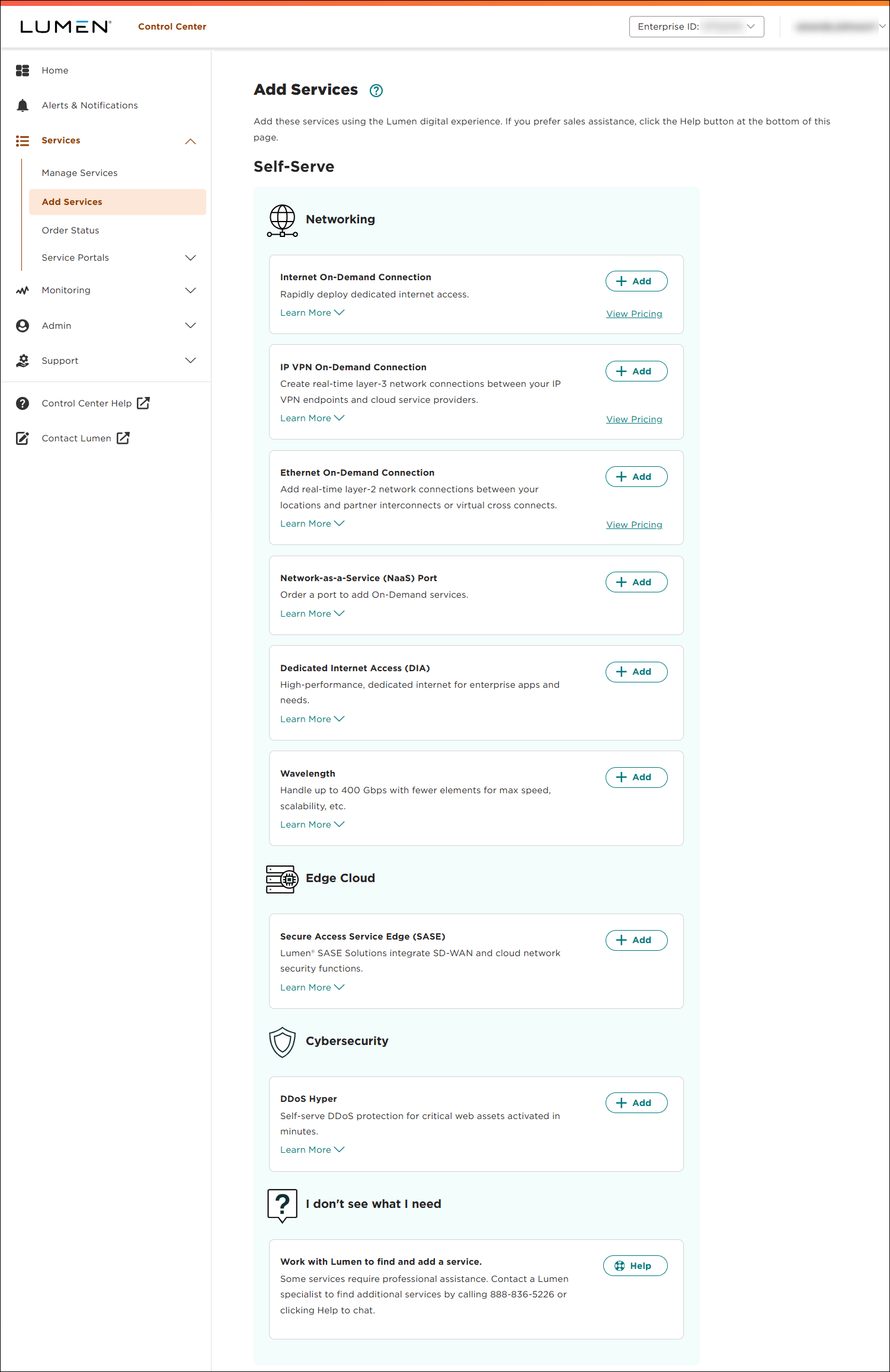
- Using the left menu, click Services, then click Add Services.
Lumen Connect shows services you can add with the Lumen digital experience.