

Get ready for Lumen® SASE Solutions
As we set up your Lumen SASE Solutions service, use this guide to learn about the service delivery and support processes and how to work with Lumen to have your SASE service delivered and installed as efficiently and accurately as possible.
Lumen SASE Solutions is built with a digital experience to simplify and improve access to your services and interactions with Lumen. The service is offered as a pro‑managed or self‑managed experience. Please refer to the proper section of this guide based on your service level.
Get ready for your service
After purchasing the elements required to deploy your services, whether through Lumen Marketplace or through your Lumen representative, the first step is to familiarize yourself with Lumen Connect. If you purchased SASE Support Design and Implementation with self-managed, follow the “Get ready for pro-managed SASE” guidance.
Here is what to expect when you have ordered SASE with pro-managed service. Steps of the process are labeled with important ownership to deliver the smoothest experience possible.
| Step | Task | Lumen | You |
| 1 | Sign in and familiarize yourself with Lumen Connect. | ||
| 2 | Software only services and access to the SASE partner portals will be available within 4 hours of your order being confirmed. | ||
| 3 | If you want help from Lumen to configure the services and complete technical data gathering, schedule Lumen design assistance* through Lumen Connect. | ||
| 4 | If you requested design assistance, Lumen works with you to create and implement the default Lumen policies, profiles, and configurations for your service (or as customized based on your request). | ||
| 5 | For location‑based services, use Lumen Connect to configure a new location with the appropriate services selected in the ordering process. | ||
| 6 | Once technical data gathering is complete, Lumen will configure and ship any equipment necessary to provide the service. | ||
| 7 | Prepare for activation. You will need to provide space and power and access to any WAN and LAN connections necessary to provide service. | ||
| 8 | Activate services. For activation assistance, schedule an activation engineer through Lumen Connect scheduling process. A Lumen engineer will join an activation conference bridge to help you activate and verify the service is online and active. | ||
| 9 | Use Lumen Connect to interact with any support after a successful activation. You can also use SASE Manager to monitor support requests and add/upgrade service. |
Here is what to expect when you have ordered SASE with self-managed service. Steps of the process are labeled with ownership. Self-managed customers that need assistance to design and activate a SASE service instance may purchase Lumen design support through Lumen Connect, through Lumen Marketplace, or through their sales professional. This is sold as a one time NRC per instance or location where the assistance is required.
| Step | Task | Lumen | You |
| 1 | Sign in and familiarize yourself with Lumen Connect. | ||
| 2 | Software only services and access to the SASE partner portals will be available within 4 hours of your order being confirmed. | ||
| 3 | Complete technical data gathering and configure your service. | ||
| 4 | Create and implement Lumen default policies, profiles, and configurations—or customize them as needed. | ||
| 5 | For location‑based services, use Lumen Connect to configure a new location with the appropriate services selected in the ordering process. | ||
| 6 | Once technical data gathering is complete, Lumen will configure and ship any equipment necessary to provide the service. | ||
| 7 | Prepare for activation. You will need to provide space and power and access to any WAN and LAN connections necessary to provide service. | ||
| 8 | Follow the steps to configure and software only services or follow the installation steps for any hardware services. Verification of successful activation is available by reviewing the services in the SASE partner portal. | ||
| 9 | Use the Lumen Connect to interact with any support after a successful activation. You can also use Lumen Connect to monitor support requests and add/upgrade service. |
Prepare to activate your service
To help ensure we stay on track and successfully design and activate your SASE services, we recommend you do the following:
- Make sure any transport services required to activate your SASE location are ready.
- Complete any technical design elements (self-managed) or work with Lumen design team (pro-managed) for any configurations required to activate the service.
- Schedule your activation (pro-managed) in Lumen Connect or complete the activation on your own schedule (self-managed).
For location-based services, before you install your device(s), make sure you record the serial number for each. You can find the serial number on the bottom of the device. This is the quickest way for your support member to find your information.
- Unpack the SASE device(s) from the shipping box.
- If applicable, mount the device to the rack.
- Plug in your WAN and power connections.
- Turn on the SASE device.
Activate your service
Once you have completed any technical data gathering required to support your service, you will be ready to activate. For software-only services, such as cloud virtual machines (VMs) or remote access and ZTNA (zero trust network access), you will proceed directly to the SASE partner portals—accessed in Lumen Connect. Here you can view, configure, and activate the services.
Setting up your SASE Solutions equipment
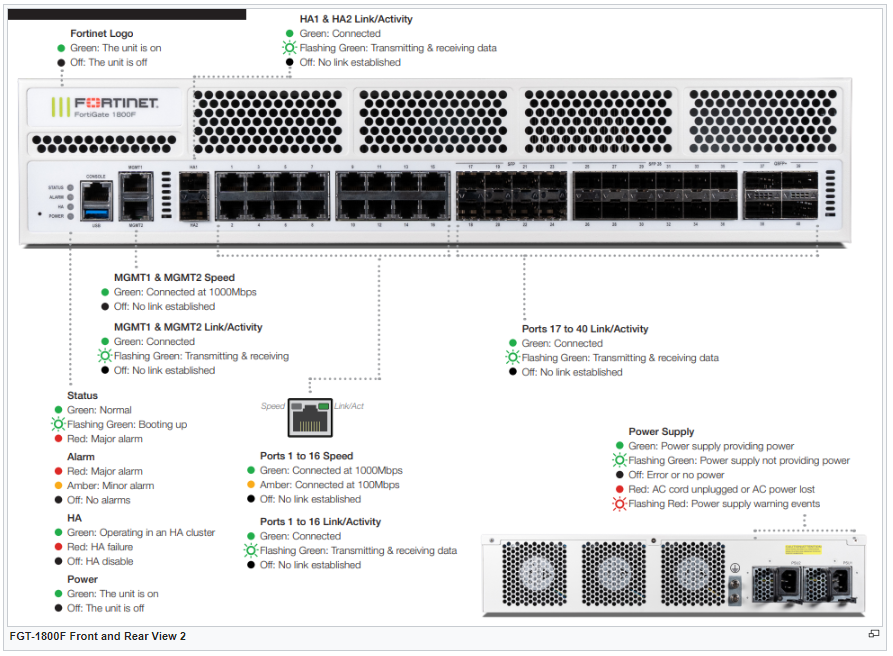
Lumen® SASE with Fortinet
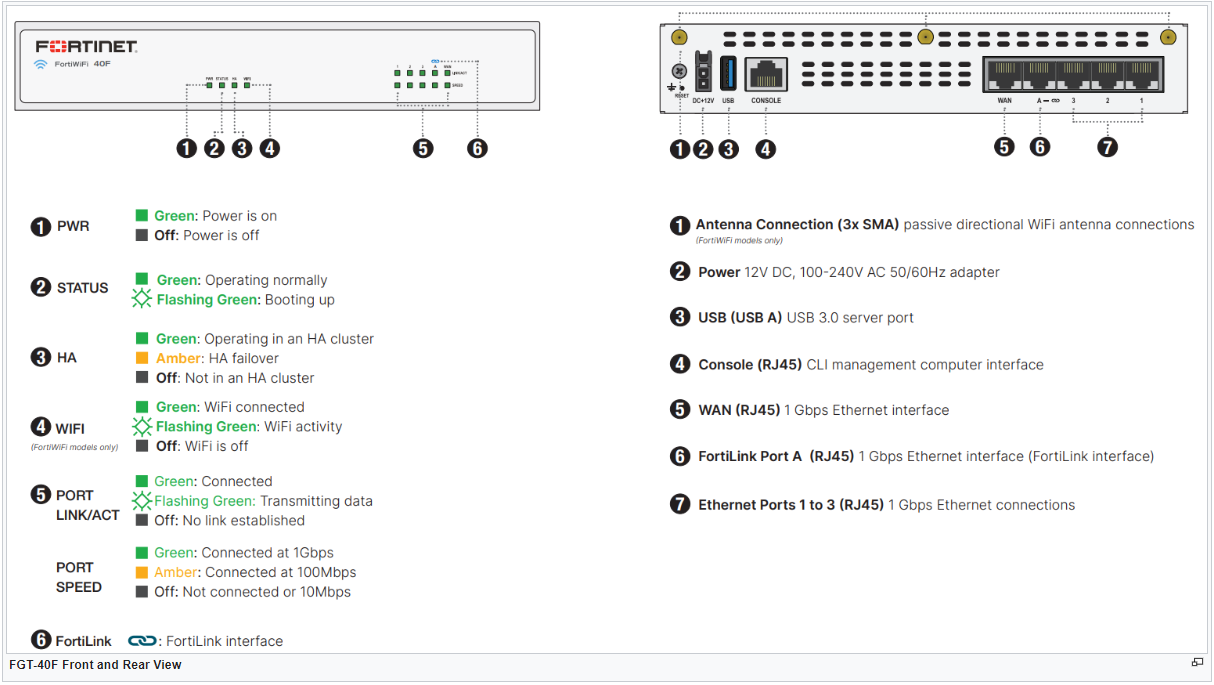
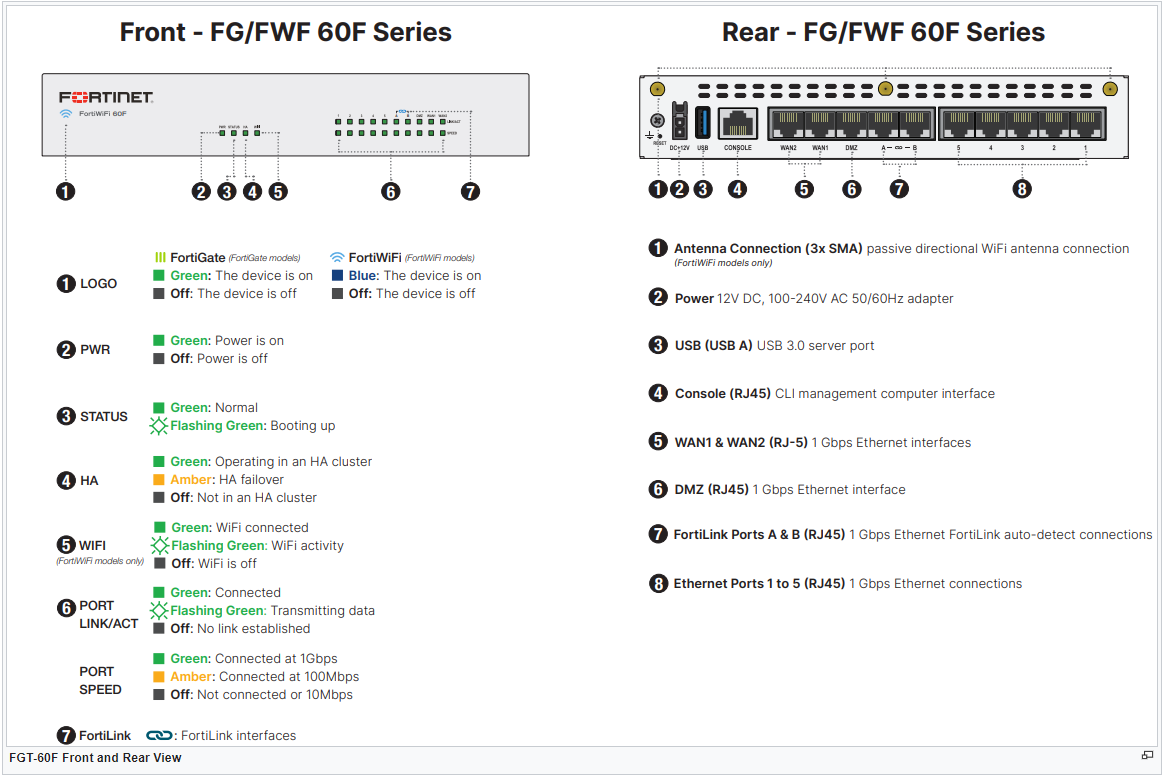
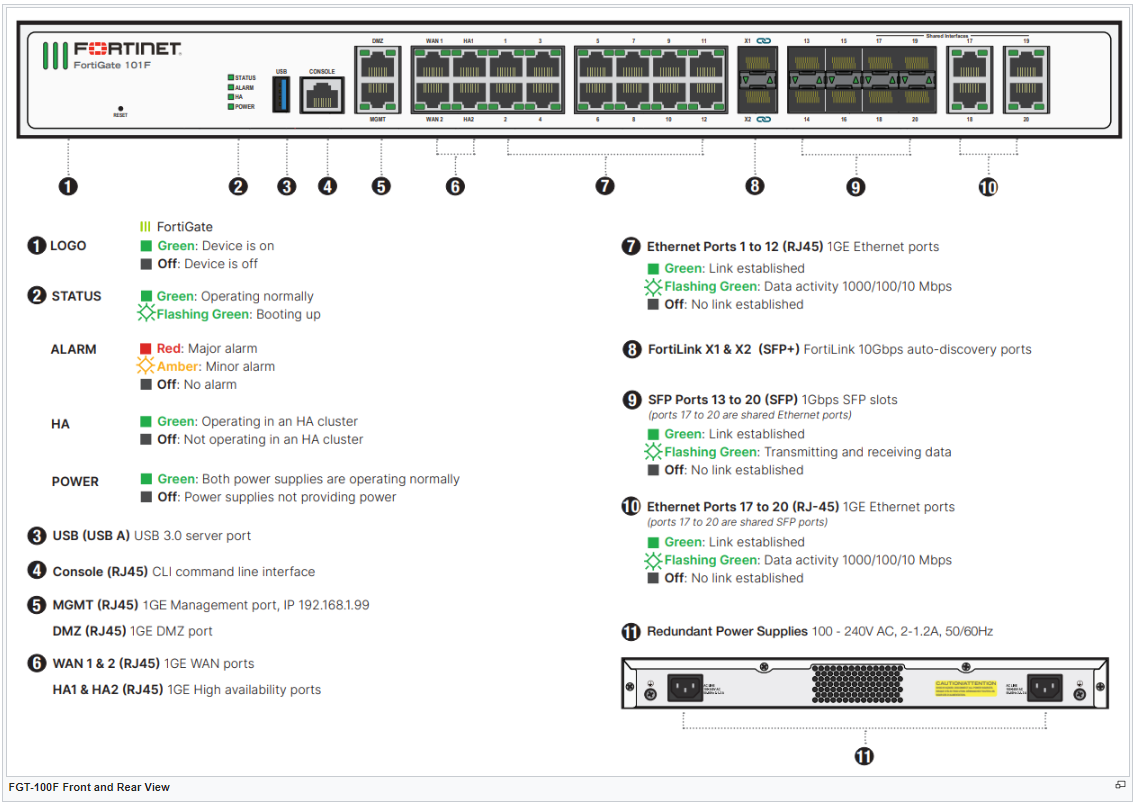
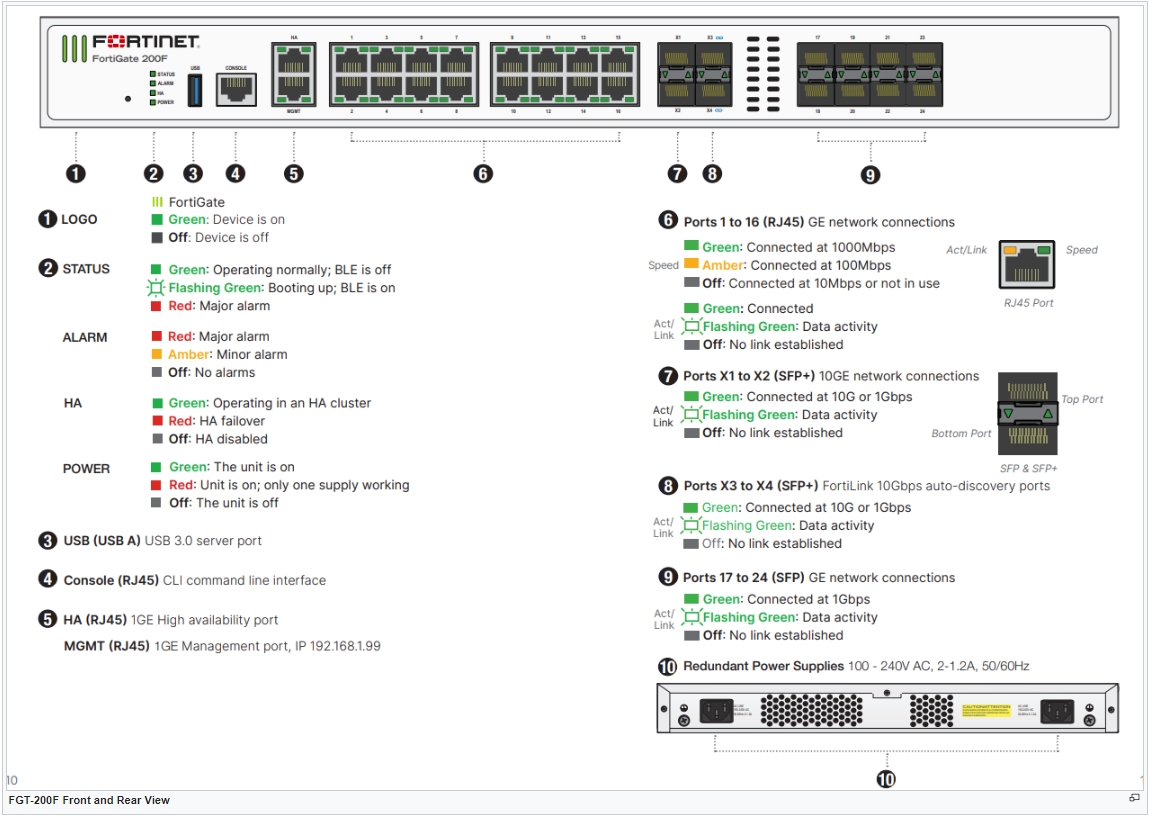
Lumen® SASE with Versa Networks
Ports on the Advantech FWA 1012VC-4C
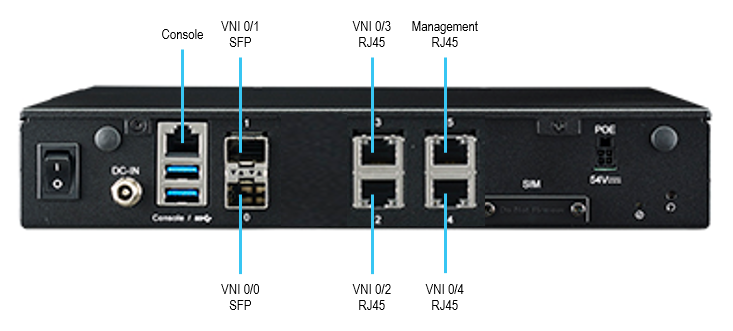
- The default WAN connections are VNI 0/1 (with SFP) or VNI 0/5 (RJ45).
- The default LAN connections are VNI 0/4 for LAN 1 and VNI 0/3 for LAN 2.
- Power is 100-240V 60W with external adapter or 12V 5A, 60W DC.
Ports on the Lanner Lanner NCA-1515B or Lanner NCA-1515A
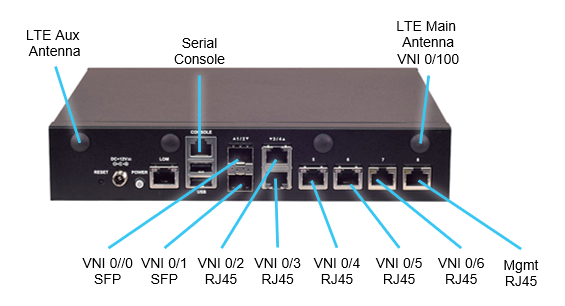
- The default WAN connections are VNI 0/5.
- The default LAN connections are VNI 0/4 for LAN 1 and VNI 0/3 for LAN 2.
- Power is 1 X DC jack with included 60W power adapter.
Ports on the Lanner Lanner NCA-1515B or Lanner NCA-1515A
- The default WAN connections are VNI 0/5.
- The default LAN connections are VNI 0/4 for LAN 1 and VNI 0/3 for LAN 2.
- Power is 1 X DC jack with included 60W power adapter.
Ports on the Advantech FWA 3260
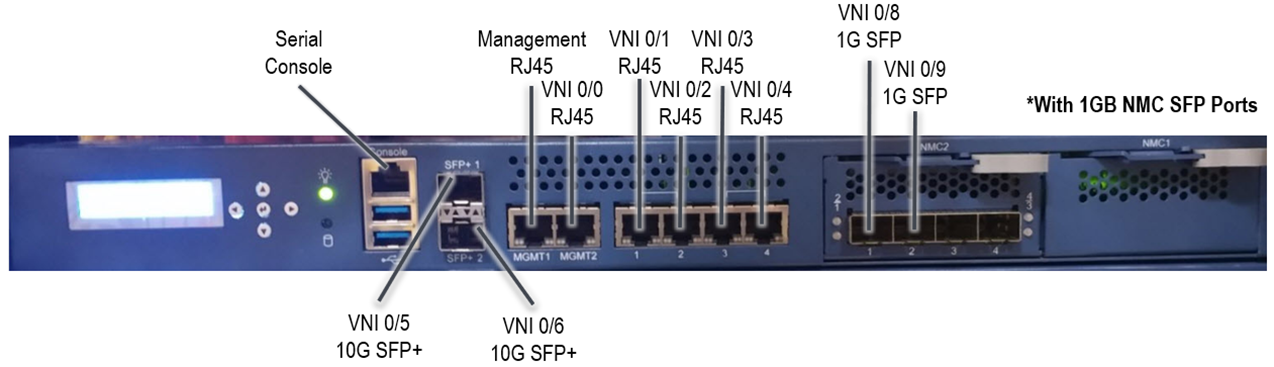
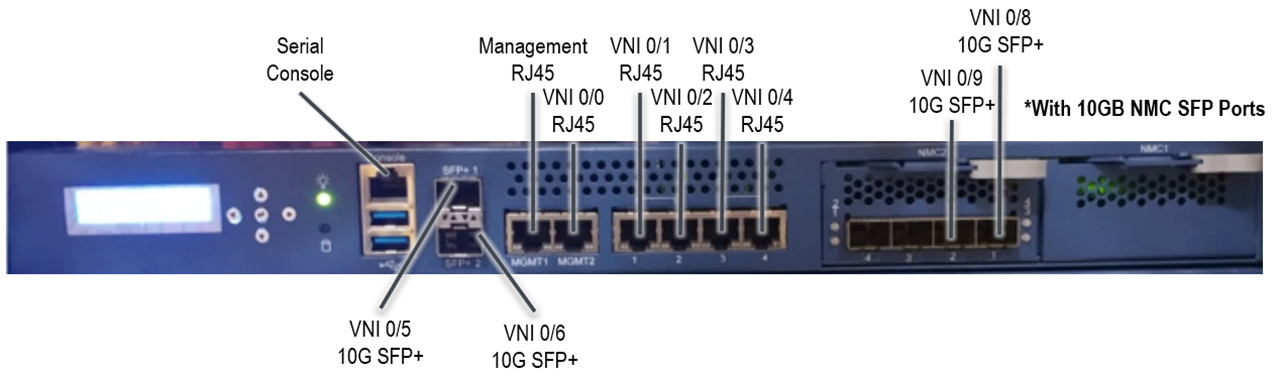
*The Large Versa CPE device is available in 2 possible configurations that provide an expansion NMC (network mezzanine card). It can either provide additional 1G SFP ports or 10G SFP+ ports. There are also 2 on board SFP+ ports listed as VNI 0/5 and VNI 0/6 (shown above).
- The default WAN connections are VNI 0/1.
- The default LAN connections are VNI 0/4 for LAN 1 and VNI 0/3 for LAN 2.
- Power is redundant AC power supply: 300 W, AC 100-240V, 50-60Hz.
Ports on the Advantech FWA 5070
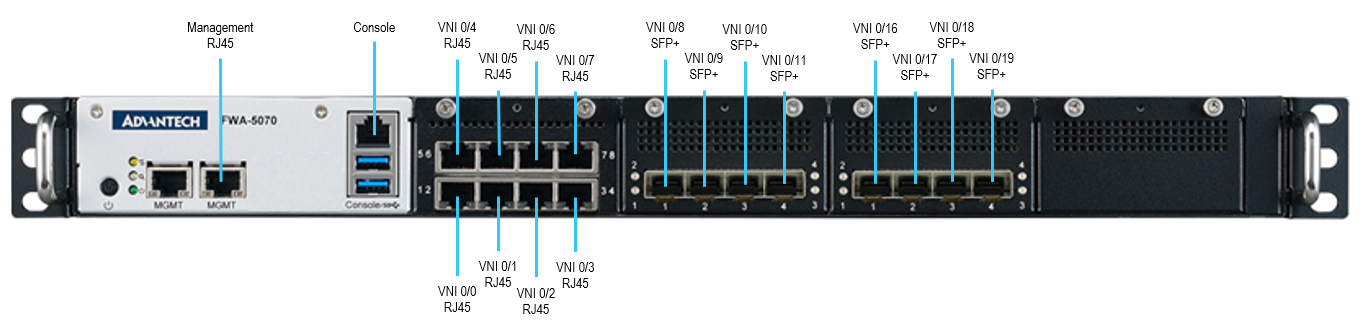
- The default WAN connections are VNI 0/1.
- The default LAN connections are VNI 0/4 for LAN 1 and VNI 0/3 for LAN 2.
- Power is redundant AC power supply. 650 W, AC 100-240V, 50-60Hz.
Lumen® SASE with VMware
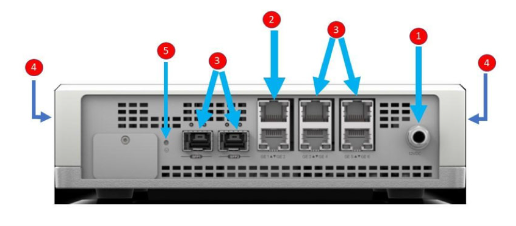
- Power connections: the power connection is threaded, so the power cord can be secured to the box. The power specifications for the AC/DC power adapter are:
- AC input: 100–240V, 50–60Hz
- DC output: 12V
- Default LAN connections: the ports marked GE1 and GE2 are default LAN connections.
- Default WAN connections: the ports marked GE3-6 or SFP1–2 are default WAN connections.
- Wireless WAN connections: the two side USB parts can be used for external USB modems.
- Reset button: resets the Edge to factory settings.
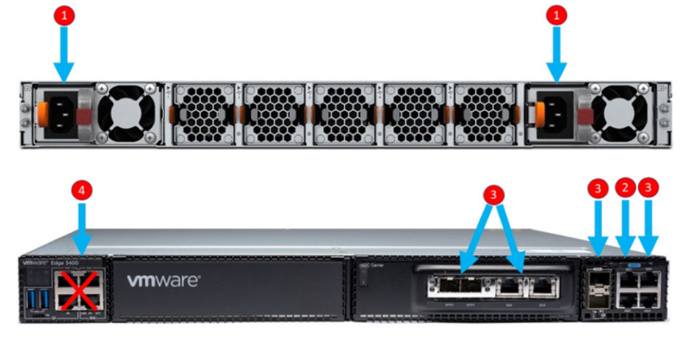
- Power connections: the power supplies are 1+1 redundant; they should be connected to separate circuits.
- AC Input: 100–240V, 50–60Hz
- AC Input: 100–240V, 50–60Hz
- Default LAN connections: the ports marked GE1, GE2, are default LAN connections.
- Default WAN connections: the ports marked GE3-6 or SFP1–4 (additionally SFP5–8 for Edge 3810) are default WAN connections.
- Service ports: do NOT use the 4 RJ45 ports on the left side of the box; these are maintenance ports.
Troubleshooting common problems
To help you quickly resolve a service issue, we recommend that you double-check these items before calling Lumen for support. Here are a list of common causes for not being pass traffic successfully.
- Verify power is correctly connected to your equipment by cycling the power (turning off and then back on).
- Confirm cabling is installed correctly by simply unplugging the cable and plugging it back in.
- Confirm the current state of equipment interface is in an ‘up’ state. The interface setting must match the Lumen configuration speed and duplex.
- Validate that the customer-provided, or local exchange carrier (LEC) circuit is working as ordered. Ensure that you can confirm power to the LEC devices. If there appears to be power and still no service, please obtain the transport circuit ID before contacting Lumen Support.
Service features
Co‑management: For either service level, Lumen allows you to co‑manage the service through the partner vendor portal (secured using SSO through Lumen Connect).
Note: The vendor portal is the approved access method for co‑management. Access is managed and restricted to help ensure security and operational integrity. You may not have direct access to local‑ or command‑line interfaces (CLI) for the services.
Vulnerabilities and firmware upgrades: Lumen takes partner software vulnerabilities seriously and reviews posted CVEs (common vulnerabilities and exposures) from our partners immediately. To help maximize network availability and minimize disruptions, we do not define a schedule for arbitrary upgrades of network operating systems. Rather, we certify new network software based on one of the following triggers:
- a new hardware platform
- an applicable security advisory/vulnerability which cannot be mitigated by a less intrusive method (e.g., ACL or other configuration change)
- a new product feature that isn't available in the current version of software
Lumen vendors operate on a quarterly SIRT/advisory release cycle, which is then reviewed by Lumen Security, IP Engineering, and other stakeholders. If a software vulnerability is identified which can only be mitigated using a code upgrade, we will proactively notify you and schedule upgrades accordingly. Engineering is also engaged with our vendors outside normal channels to be made aware of any issues.
Note: The vendor portal may recommend a version of code that is not yet tested and approved by Lumen.
Additional SASE Solutions resources
SASE Solutions support
- For implementation support, email us to access or schedule time with the SASE Implementation team.
- For issues with your services, create a repair ticket in Lumen Connect.
- For information about escalating SASE repair tickets, see your regional handbook.



