Saving a contact from a call list (VVX 3xx/4xx series)
One way to add a contact who has called you, or you have called, is to save the contact from your call log. You can also add a contact to your directory by creating a contact manually.
To save a contact from a call list:
- Use the navigation keys or press the Callers soft key to access the call lists and do one of the following:
- to view received calls, press the left navigation key
- to view placed calls, press the right navigation key
- to view missed calls, press the down navigation key
- to view all call records at once, press the Callers soft key
- to view received calls, press the left navigation key
- After you find the call list you want to view, use the up and down navigation keys to find the contact you want to save.
- With the contact highlighted, press the Select key (in the center of the navigation keys).
- Press the Save soft key.
- Use the up and down navigation keys to access each field for the contact (First Name, Last Name, Ringtone, etc.) and use the keypad to fill in the field. The First Name or Last Name, and Contact (telephone number) fields are mandatory. All other fields are optional.
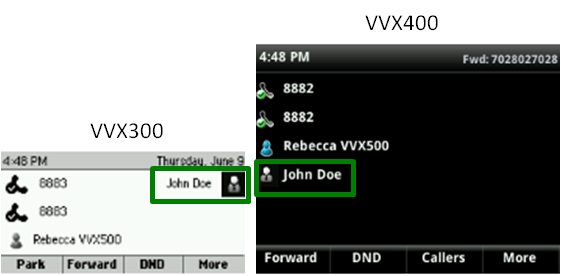
Note: Typing letters using your keypad is like texting prior to smart phones. To type A, press 2 once, and to type C, press 2 three times, etc. Favorites are identified on your display by a grey silhouette.
- Press the Save soft key to save the contact to your directory. (Or to cancel saving this record as a contact, press the Cancel soft key.)
- You can also make your contact a favorite, which allows you to call that individual by pressing one button.