

Saving a contact from a call list on your phone (VVX 50x/60x series)
One way to add a contact who has called you, or you have called, is to save the contact from your call log. You can also add a contact to your directory by creating a contact manually.
To save a contact from a call list:
- Tap the Callers soft key or tap the clock icon at the top of your display to access the call list.
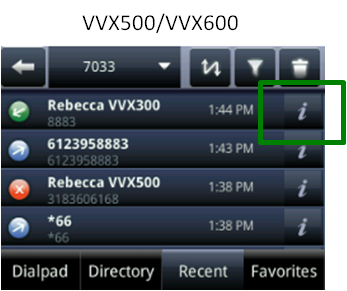
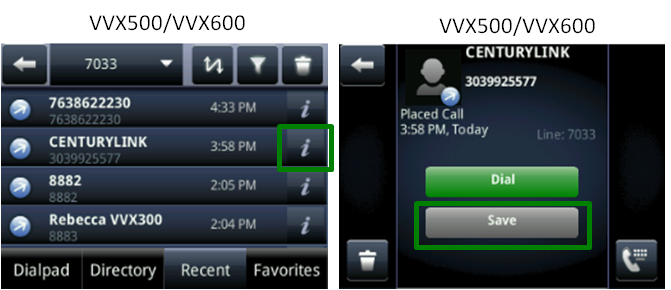
- Swipe the display up or down to locate the call record and tap the i icon.
Note: If you tap anywhere else on the call record, it dials the number.
- Tap the Save button.
- To make changes to a field, tap the field (First Name, Last Name, Contact, etc.), then tap the Keyboard icon at the top of the display to populate a field.You must fill in at least the First Name or Last Name fields, and provide a valid number in the Contact field. All other fields are optional.
Note: If you make a mistake in a field, use the delete icon (X) to remove incorrect characters and return to the keyboard to correct your entry.
- Tap the checkmark icon in the upper-right corner of the display, to save information for each field.
- Tap the next field to continue customizing the entry or tap the Save soft key. (To cancel saving the contact, tap the Cancel soft key.)



