

Adding a VNF to an Edge Gateway device
Use Lumen Edge Gateway Manager to add a VNF (Virtual Network Function) to an Edge Gateway™ device. You must connect each VNF to its respective vendor‑specific orchestrator. After you add a VNF, you can view details of the Edge Gateway device to ensure proper functionality or add an LTE connection to the device. If you no longer need a VNF on an Edge Gateway device, you can remove it.
Note: Before you begin, make sure you have the download URL, checksum type, and checksum ready to enter for the vendor and OS you use. To find this information, refer to the vendor sites and documentation or contact your Lumen solutions engineer.
To add a VNF to an Edge Gateway device:
- Sign in to Lumen Edge Gateway Manager.
- Use the search field to search for Edge Gateway devices.
Lumen Edge Gateway Manager shows Edge Gateway devices in the list section.
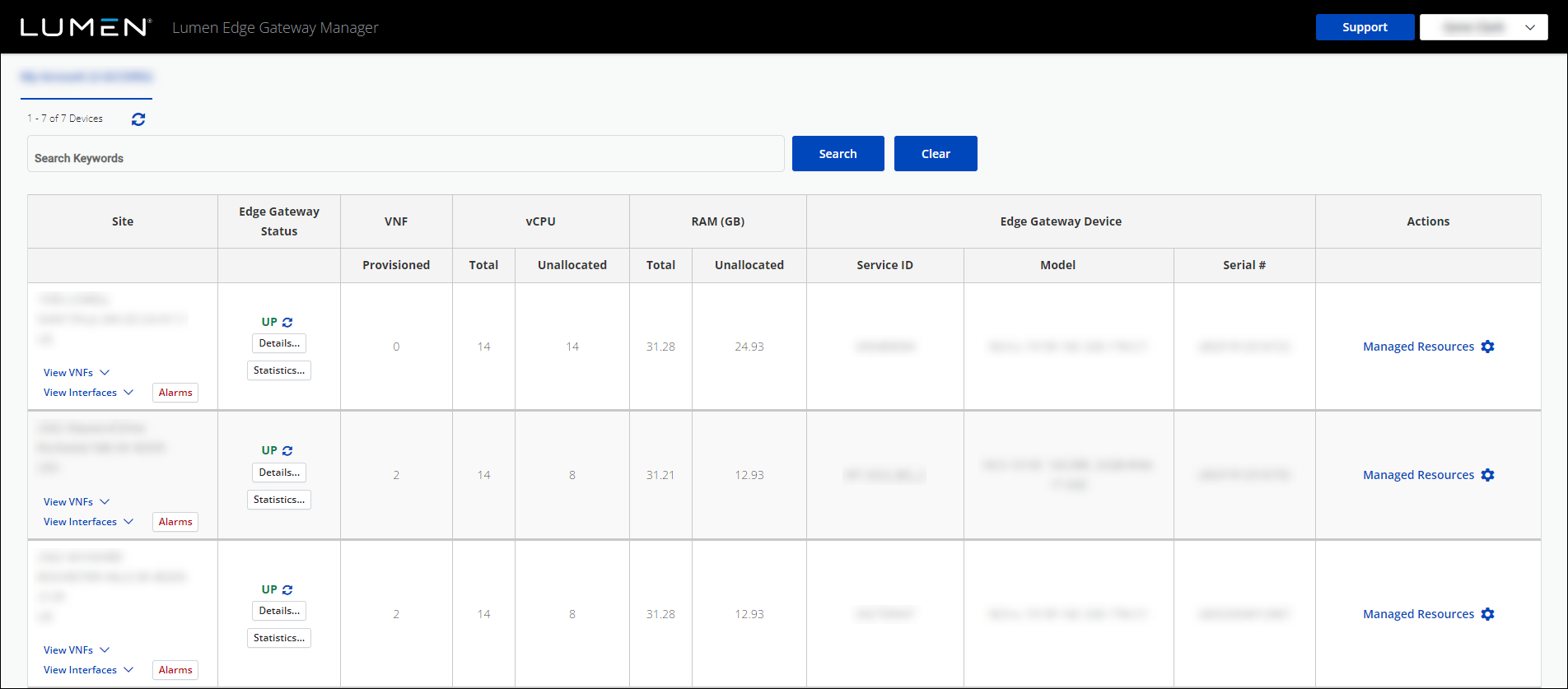
- Click Manage Resources next to the Edge Gateway device you want to work with.
- Click Manage Resources, again, (in the Order Summary window), to manage the resources for that Edge Gateway device.
- Click Add new VM.
- Select IT Payload for the Choose VM field.
- Select the OS image for the Select VM Image field.
- Complete the following detail fields for the VNF:
- Enter the manufacturer, model, and description of the Edge Gateway device.
- Enter the download URL, checksum type, and checksum for the OS you are using.
- Provide the contact information for the owner of the VNF.
- Provide the allocated resources for the VNF.
- Click Add.
The request for the VNF is submitted and added to the Order Summary window.
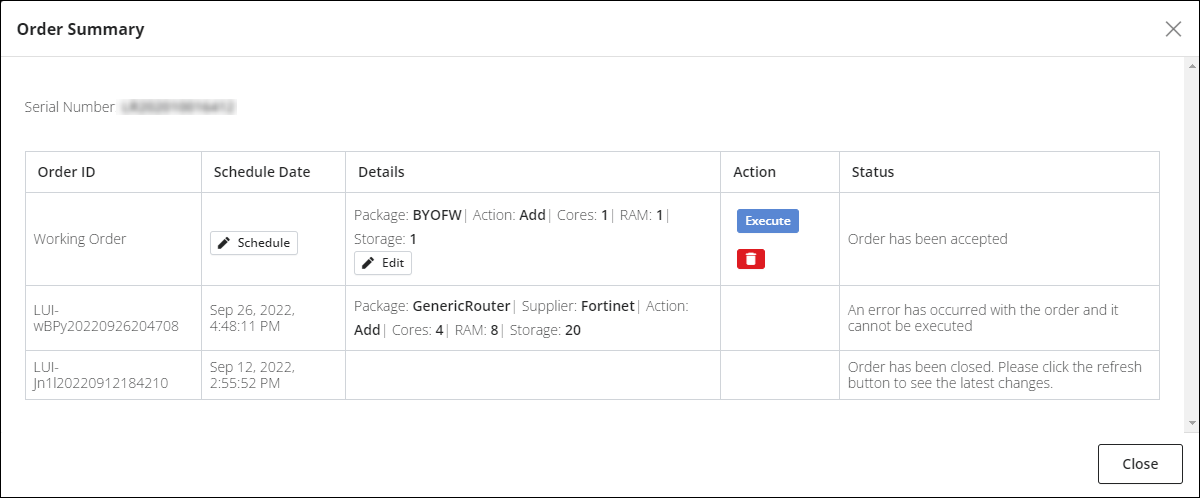
- In the Order Summary window, complete one of the following tasks:
- To execute the request for the VNF, click Execute.
Lumen Edge Gateway Manager executes the request.
- To schedule the request for execution, click Schedule, then select a date and time for the execution.
Lumen Edge Gateway Manager executes the request on the scheduled date and time.
- To edit the request for the VNF, click Edit, edit the details for the VNF, then click Update.
Lumen Edge Gateway Manager saves the updates to the request.
- To delete the request for the VNF, click the icon.
Lumen Edge Gateway Manager deletes the request.
- To execute the request for the VNF, click Execute.



