

Changing the password for a user
Use Lumen® Private Cloud on VMware Cloud FoundationTM to change the password for yourself or another user for your Lumen® Edge Private Cloud service. You must have organization administrative permissions to change the password for a user.
Changing the password for a user
To change the password for a user:
- Sign in to your Lumen Private Cloud on VMware Cloud Foundation™ environment.
- Click Administration.
The Lumen Private Cloud on VMware Cloud Foundation™ portal shows the users in your organization.
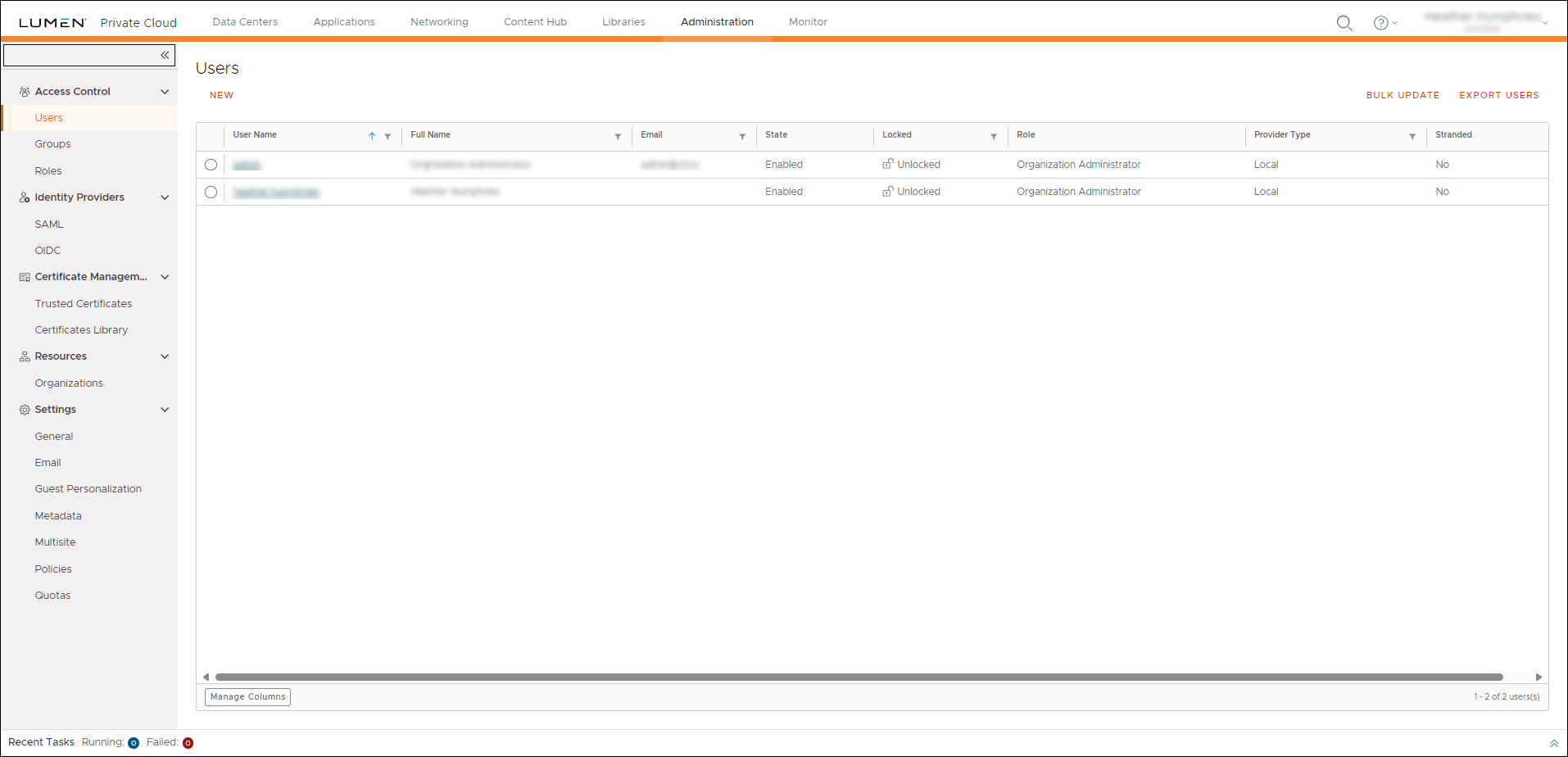
- Select the user you want to change passwords for, then click EDIT.
- In the Password field, type a new password for the user, retype the new password in the Confirm password field, then click SAVE.
Lumen Private Cloud on VMware Cloud FoundationTM changes the password.
Changing your password
To change your password:
- Sign in to your Lumen Private Cloud on VMware Cloud Foundation™ environment.
- In the upper-right corner, click your username, then click Change Password.
- In the Current Password field, type your current password.
- In the New Password field, type a new password, retype the new password in the Confirm New Password field, then click SAVE.
Lumen Private Cloud on VMware Cloud FoundationTM changes your password. You are signed out after changing your password. To sign back in, you must use the new password.



