

Creating an organization administrator
Use Lumen® Private Cloud on VMware Cloud FoundationTM to create a new user as an organization administrator or change an existing user into an organization administrator. You need organization administrators to use your Lumen® Edge Private Cloud service to its full potential including creating API authentication tokens to run API calls for your clouds and changing user passwords. Organization administrators use the VMware Cloud Director Web Console, tenant portal, and vCloud OpenAPI to manage users and groups in their organization and assign them roles, including the organization administrator role.
Creating a new user as an organization administrator
To create a new user as an organization administrator:
- Sign in to your Lumen Private Cloud on VMware Cloud Foundation™ environment.
- Click Administration.
The Lumen Private Cloud on VMware Cloud Foundation™ portal shows the users in your organization.
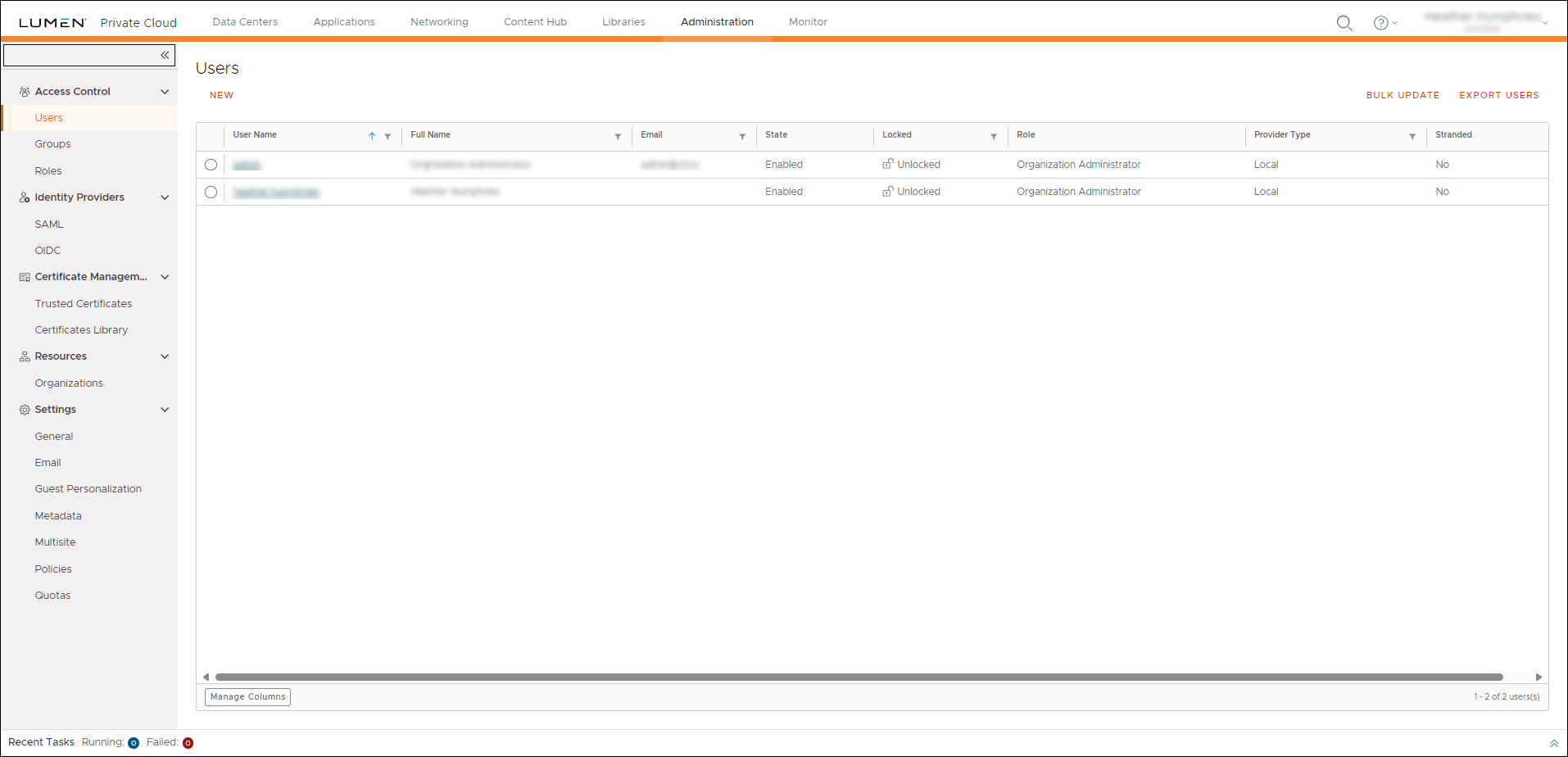
- Click NEW.
- In the Create User window, complete the following fields to create a new user as an organization administrator:
- User name—Type a user name for the account.
- Password—Type a password for the account.
- Confirm password—Re‑type the password for the account.
- Enable—Turn this option on to enable the account.
- Configure user's quota—Select this option to view the Quotas section for a user after creating the organization administrator.
- Available roles—Select Organization Administrator.
- Full name—Type the user's first and last name.
- Email address—Type the user's email address.
- Phone number—Type the user's phone number.
- All VMs quota—Select the number for the quota of the total virtual machines for the user. To set the quota to limitless, select the Unlimited checkbox.
- Running VMs quota—Select the number of running virtual machines for the user. To set the quota to limitless, select the Unlimited checkbox.
- User name—Type a user name for the account.
- Click Save.
Lumen Private Cloud on VMware Cloud FoundationTM creates the organization administrator user.
Changing a user to an organization administrator
To change a user to an organization administrator:
- Sign in to your Lumen Private Cloud on VMware Cloud Foundation™ environment.
- Click Administration.
The Lumen Private Cloud on VMware Cloud Foundation™ portal shows the users in your organization.
- Select the radio button of the user to change, then click EDIT.
- In the Edit User window, edit the following fields as needed:
- User name—Type a user name for the account.
- Password—Type a password for the account.
- Confirm password—Re‑type the password for the account.
- Enable—Turn this option on to enable the account.
- Available roles—Select Organization Administrator.
- Full name—Type the user's first and last name.
- Email address—Type the user's email address.
- Phone number—Type the user's phone number.
- All VMs quota—Select the number for the quota of the total virtual machines for the user. To set the quota to limitless, select the Unlimited checkbox.
- Running VMs quota—Select the number of running virtual machines for the user. To set the quota to limitless, select the Unlimited checkbox.
- User name—Type a user name for the account.
- Click Save.
Lumen Private Cloud on VMware Cloud FoundationTM changes the user to an organization administrator.



