

Changing the password for a virtual machine
Use Lumen® Private Cloud on VMware Cloud FoundationTM to change the password for your virtual machines. You can change the password for virtual machines that are deployed using the default vApp templates on your Lumen® Edge Private Cloud service.
Note: Before you can change the password on a virtual machine, you must power it off. You must also have VM Tools installed on the virtual machine.
To change the password for a virtual machine:
- Sign in to your Lumen Private Cloud on VMware Cloud Foundation™ environment.
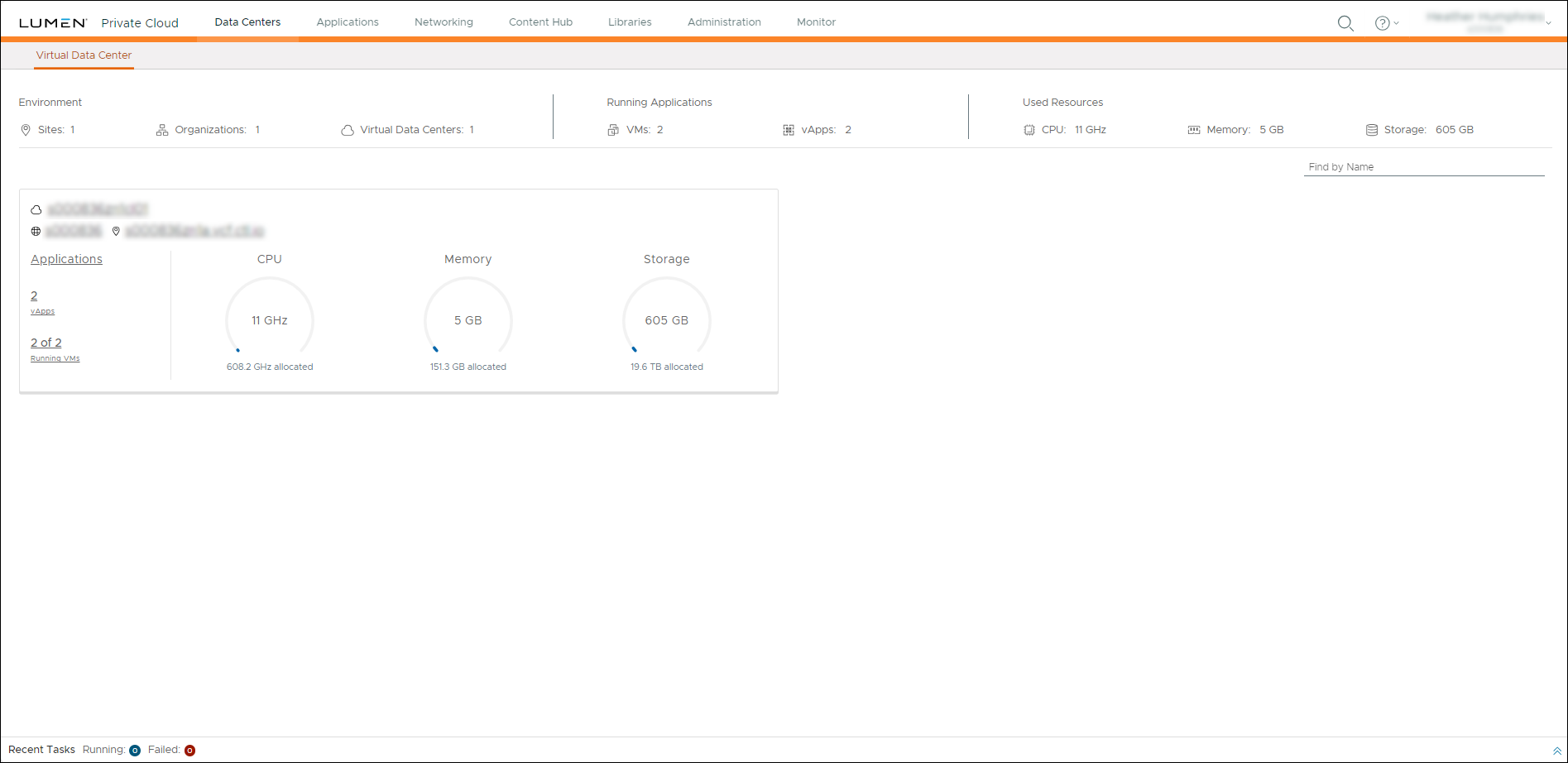
- Click Data Centers.
The Lumen Private Cloud on VMware Cloud Foundation™ portal shows the Virtual Data Center dashboard.
- In the left panel, click Virtual Machines.
- If the virtual machine you want to change the password for is powered on, click ACTIONS, hover over Power, then click Shut Down Guest OS.
- Click the name of the virtual machine that you want to change the password for.
- Click Guest OS Customization, then click EDIT to edit the guest properties.
- In the Edit Guest Properties window, select the Enable guest customization and the Allow local administrator password checkboxes.
- In the Specify password field, type a password, then click SAVE.
Lumen Private Cloud on VMware Cloud FoundationTM changes the password. The virtual machine details screen appears.
- If you want to use the virtual machine, you need to power it on. To power the virtual machine on, select click All Actions, hover over Power, then click Power On and Force Recustomization.
The virtual machine Status changes from Powered Off to Powered On.
- To finalize the change, navigate to the Virtual Machines screen, click ACTIONS, then click Launch Web Console from the VM Console drop‑down.
Lumen Private Cloud on VMware Cloud FoundationTM saves the new password and activates the virtual machine.



