

Configuring a network
Use Lumen® Private Cloud on VMware Cloud Foundation™ to configure a network for virtual machines for your Lumen® Edge Private Cloud service. After you configure a network, you can create a firewall rule for internet access. You can also use the Lumen® Managed Support portal to enable a distributed firewall for your network.
Important: To configure a network, you must have system administrator permissions. If you need permissions, contact someone in your organization who has the Organization Administrator permission within Lumen Private Cloud on VMware Cloud Foundation™.
To configure a network:
- Sign in to your Lumen Private Cloud on VMware Cloud Foundation™ environment.
- Click Networking.
The Lumen Private Cloud on VMware Cloud Foundation™ portal shows the Networks screen.
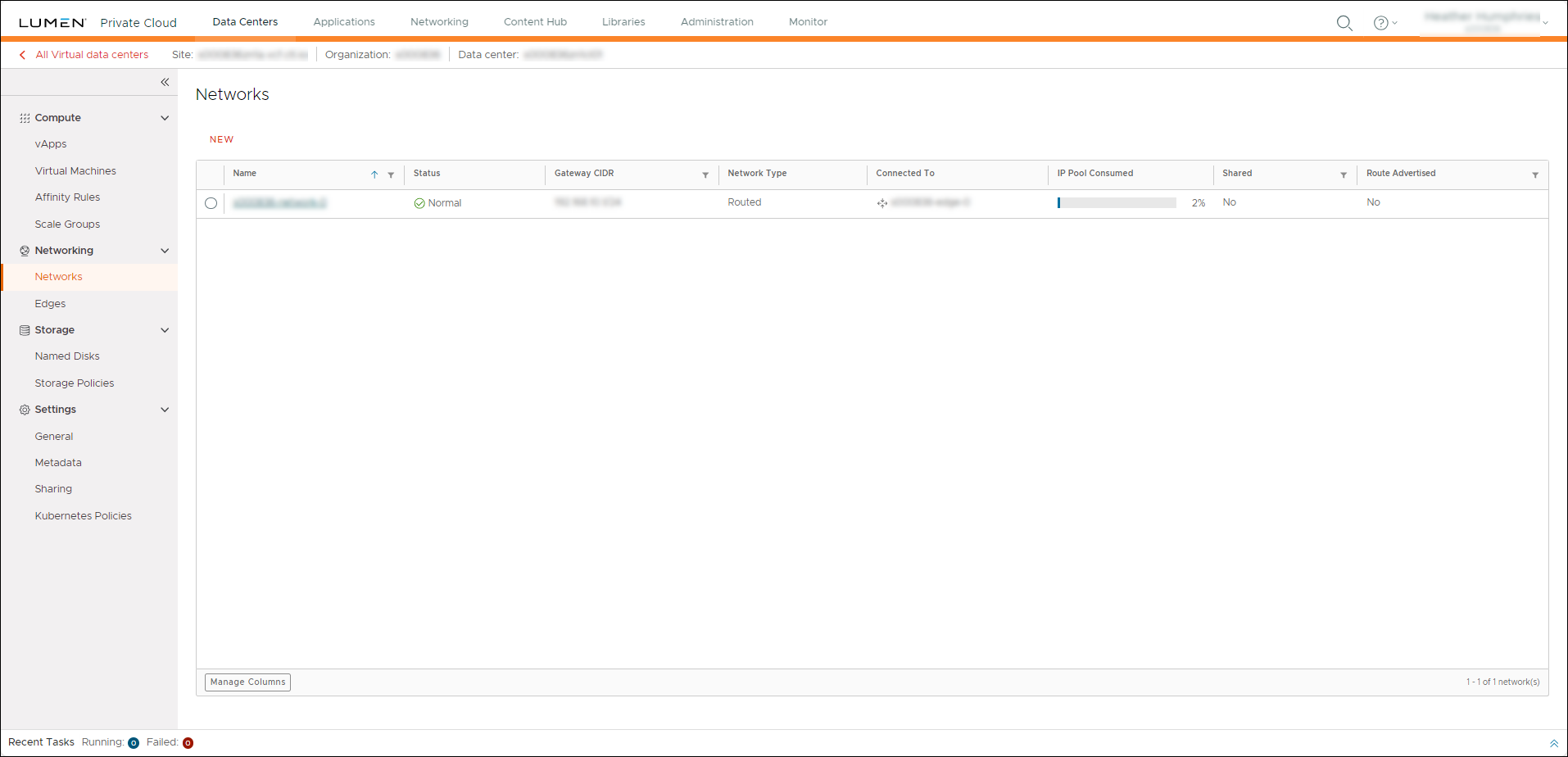
- Click New.
- In the Scope section, select the connectivity for the virtual machine:
- To provide connectivity for virtual machines using the organization virtual data center (VDC), select Organization Virtual Data Center.
- To provide connectivity for virtual machines using all VDCs in the data center group, select Data Center Group.
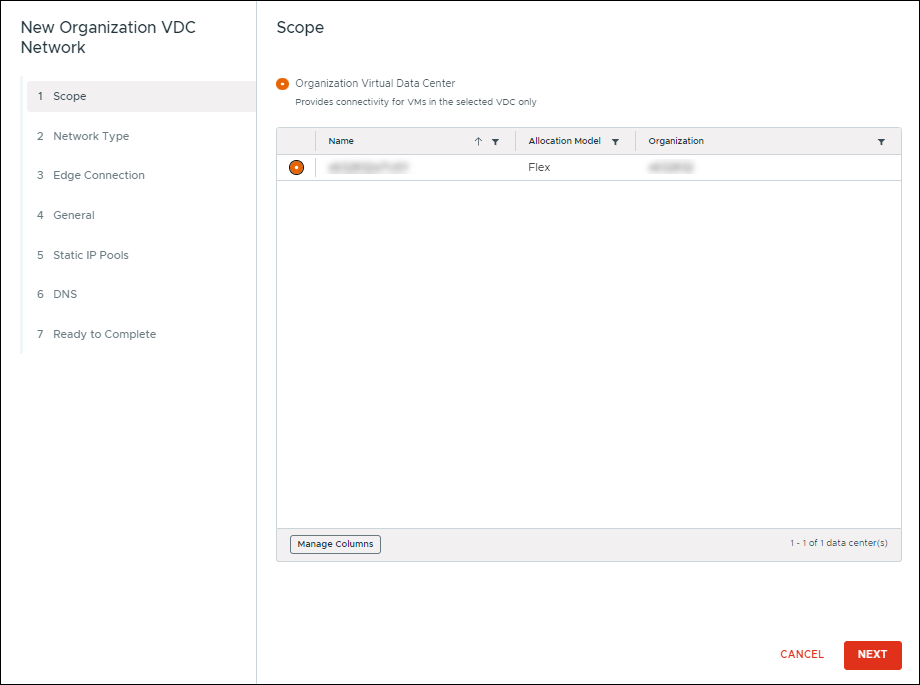
- Click NEXT.
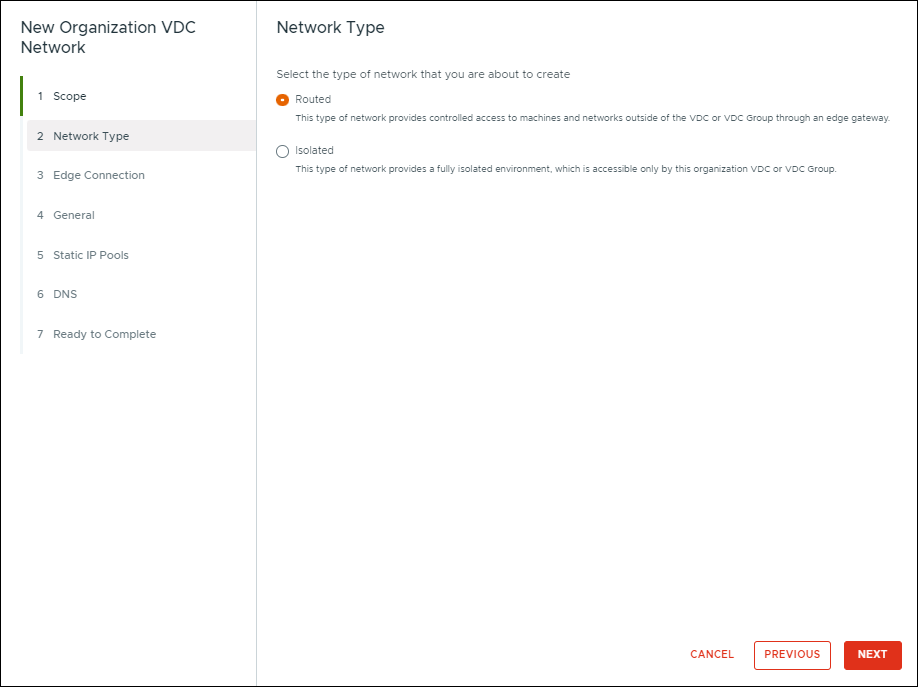
- In the Network Type section, select one of the following options to determine how the network operates in the VDC:
- To enable the network to access machines and networks outside of the VDC or VDC group through an edge gateway, select Routed. This selection enables Edge Connection section.
- To configure the network as an isolated environment that can only be accessed by the current VDC or VDC group, select Isolated.
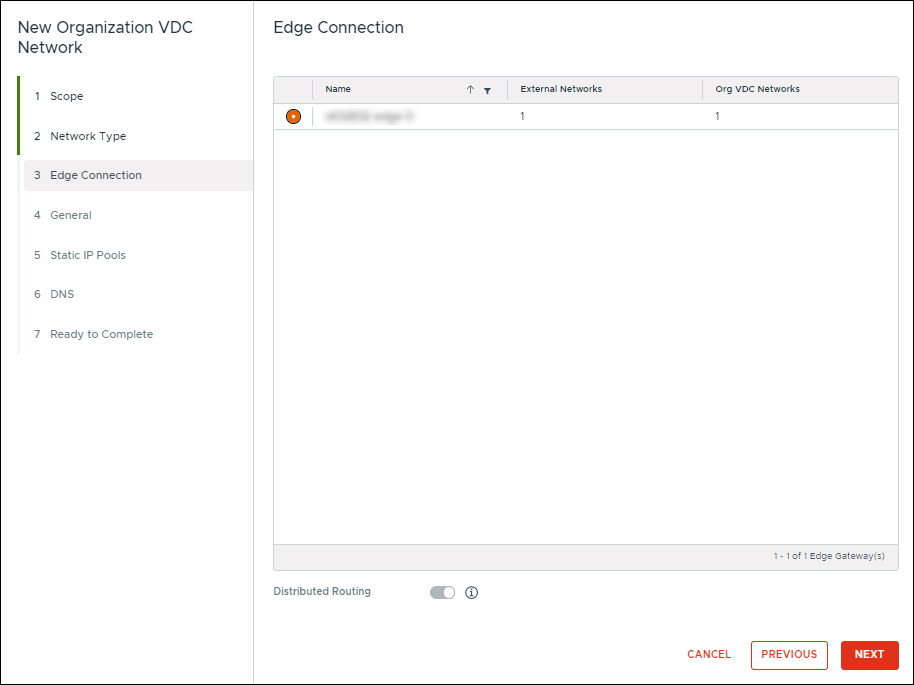
- If you selected Routed for the Network Type, select the edge gateway to use for the network in the Edge Connection section, then click NEXT. Otherwise, skip to the next step.
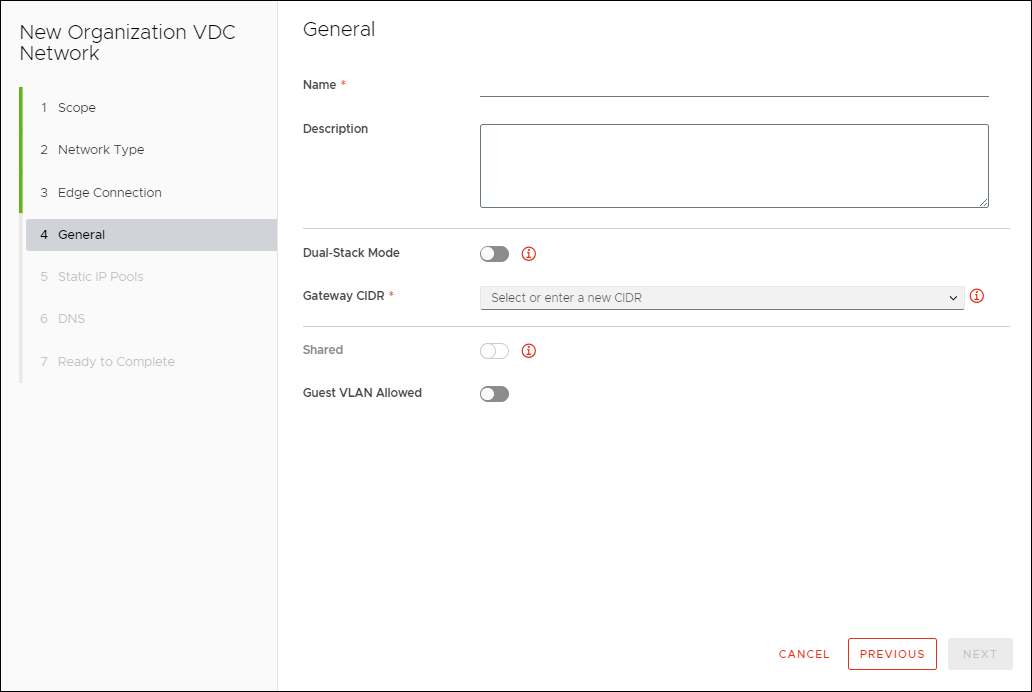
- In the General section, configure the details of the edge connection for the network:
- Type a name and description for the network.
- To enable the network to have both IPv4 and IPv6 subnets, turn on Dual-Stack Mode.
- Type the Gateway CIDR (Classless Inter-Domain Routing) including the IP address of the gateway.
- To have static manual IPs and DHCP bindings come from static IP pools, turn on Strict IP Mode.
- To share the network, turn on Shared.
- To enable a guest VLAN, turn on Guest VLAN Allowed.
- Type a name and description for the network.
- Click NEXT.
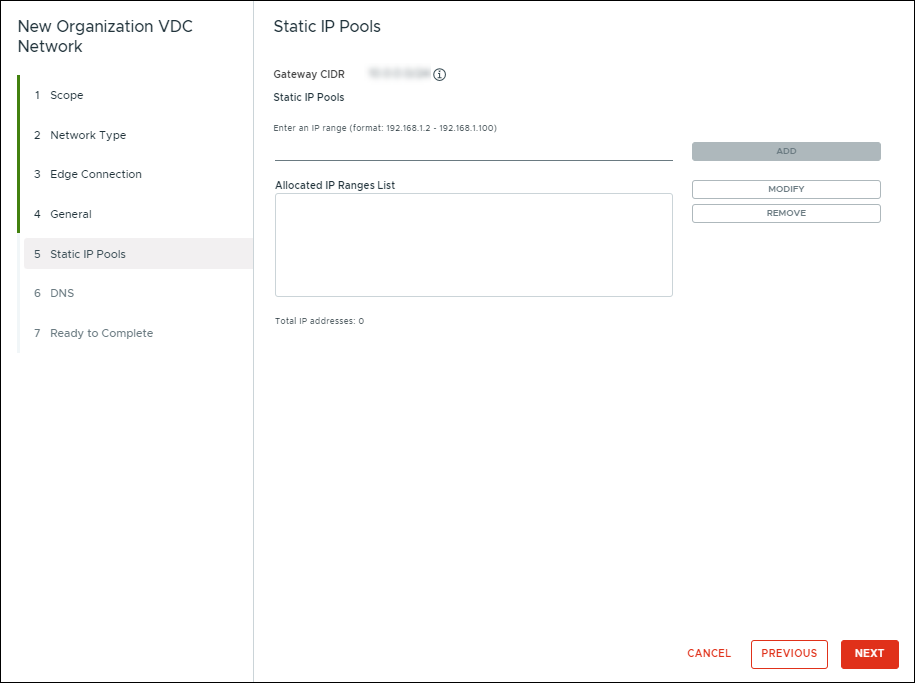
- In the Static IP Pools section, type an IP address range for the status IP pools for the Static IP Pools field. To add the range, click ADD. To modify or remove an IP address range, select the IP address range, then click MODIFY or REMOVE.
The Gateway CIDR field defaults to the gateway CIDR you added in the General section. To change the gateway CIDR, delete the entry and type the gateway CIDR.
- Click NEXT.
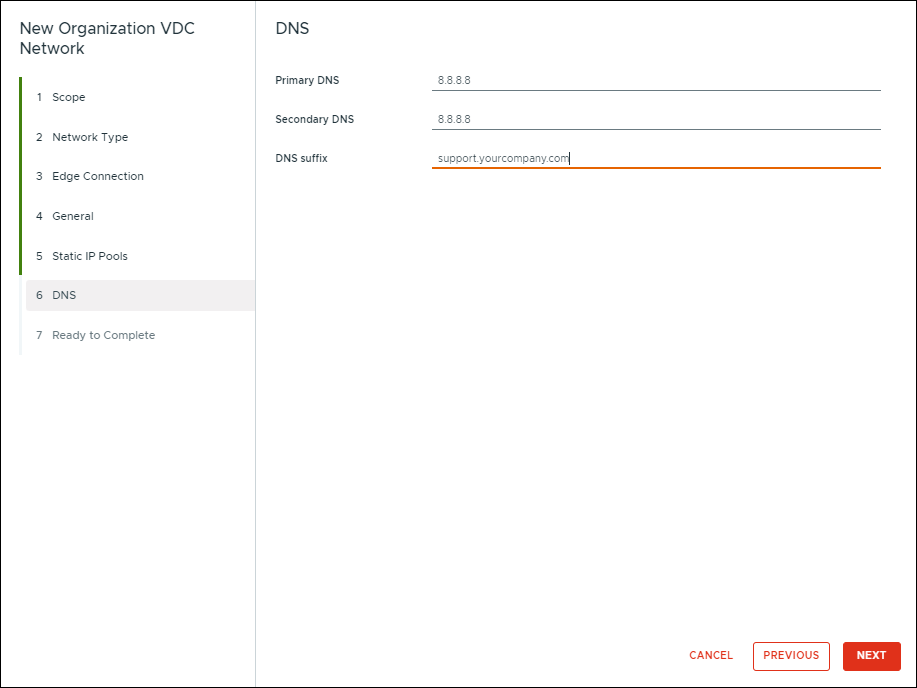
- In the DNS section, type the primary DNS (Domain Name System), the secondary DNS, and the DNS suffix in their respective fields, then click NEXT.
- In the Ready to Complete section, review the network configuration information, then click FINISH.
Lumen Private Cloud on VMware Cloud Foundation™ configures the network.



