

Creating a firewall rule to allow internet access for networks
Use Lumen® Private Cloud on VMware Cloud Foundation™ to create a firewall rule to allow internet access for networks on your Lumen® Edge Private Cloud service. If you do not have a network to add the rule to, you must configure a network.
To create a firewall rule to allow internet access for networks:
- Sign in to your Lumen Private Cloud on VMware Cloud Foundation™ environment.
- Click Networking.
The Lumen Private Cloud on VMware Cloud Foundation™ portal shows the Networks screen.
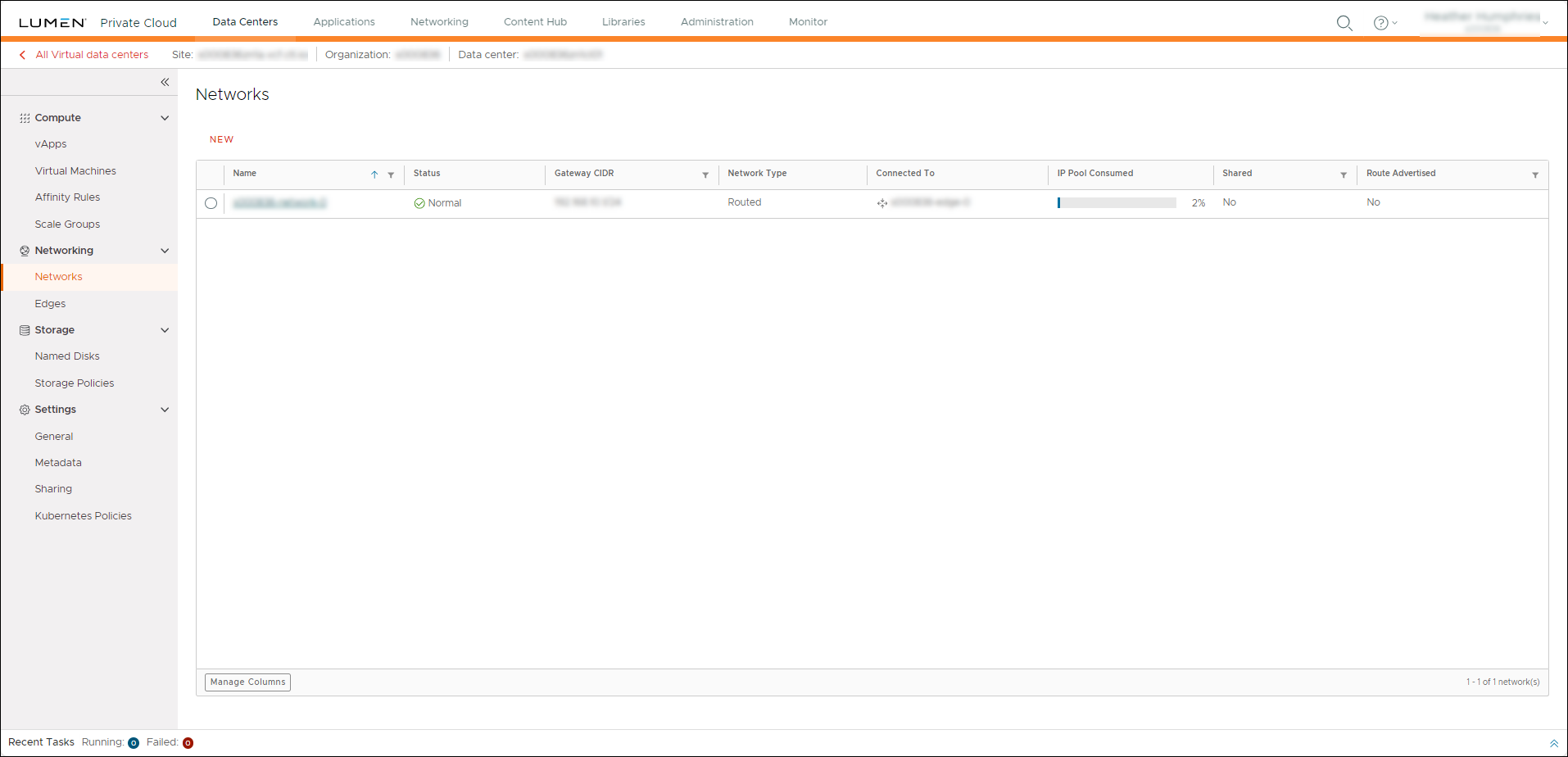
- Click Edge Gateways, then select the edge gateway you want to create the firewall for.
- Click Firewall to view a list of firewall rules.
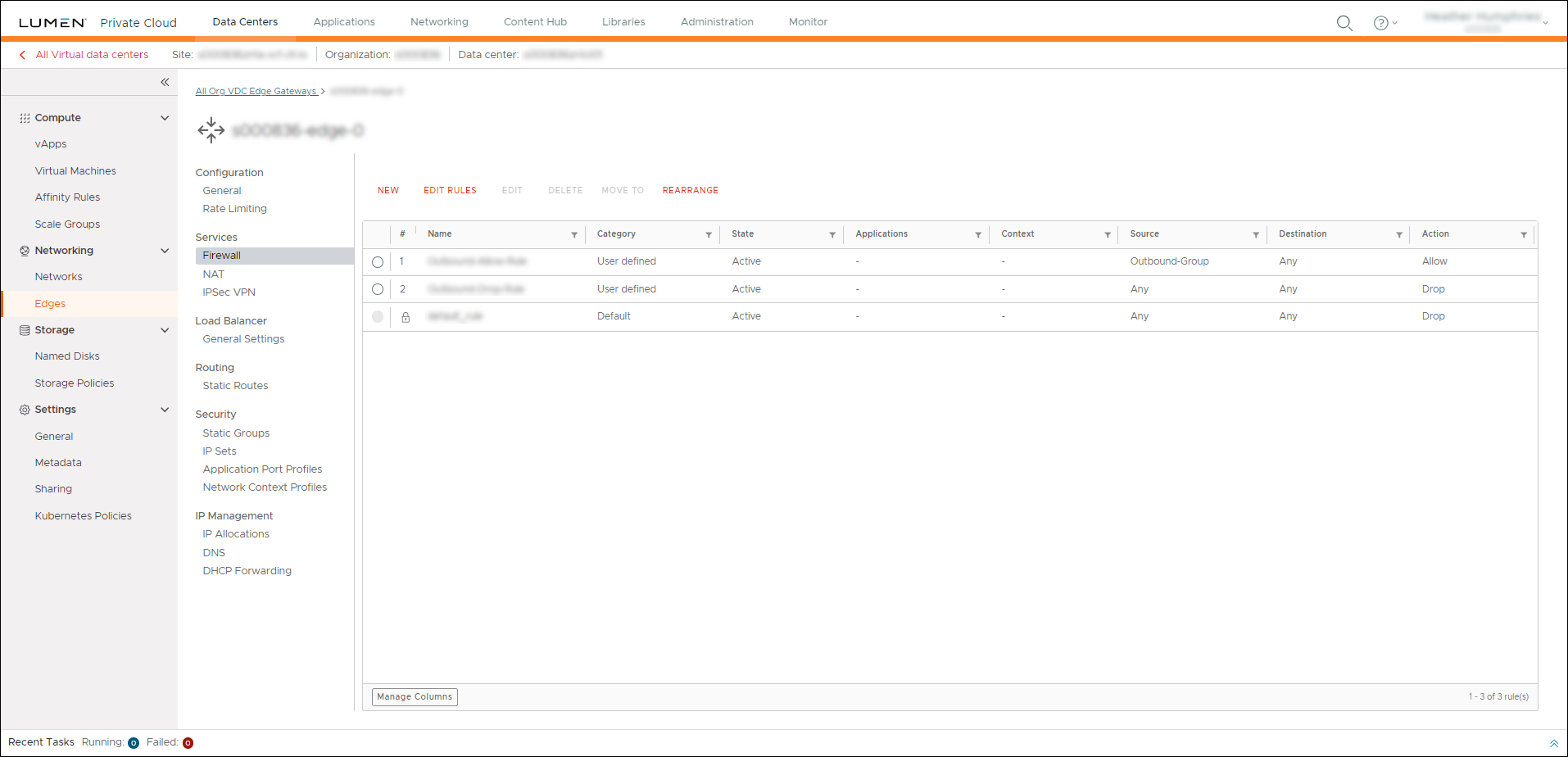
- Click EDIT RULES.
- In the Edit Rules window, click NEW ON TOP, then complete the following fields to configure how a rule applies to a network:
- Name—Type a name for the network.
- Category—Leave this field as User defined.
- State—To enable the firewall rule, turn this option on.
- Applications—Click the icon, turn on the Choose a specific application option, select the applications for the rule, then click SAVE.
- Context—Click the icon, turn on the Choose a specific profile option, select the context for the rule, then click SAVE.
- Source—Click the icon, turn on the Any Source option, then click KEEP.
- Destination—Click the icon, select the destinations for the rule, then click KEEP. To use any destination, turn on the Any Destination option.
- Action—Select one of the following options:
- Allow—Allow traffic matching the rule to pass, but block any traffic that does not match the rule.
- Drop—Discard traffic matching the rule without sending a response.
- Reject—Block traffic matching the rule.
- Allow—Allow traffic matching the rule to pass, but block any traffic that does not match the rule.
- IP Protocol—Select one of the following versions of IP for the firewall rule:
- IPv4
- IPv6
- IPv4 and IPv6
- IPv4
- Applied To—Select a specific network to apply the rule.
- Logging—To enable logging for the firewall rule, turn this option on.
- Logging ID—After the rule is created, the firewall rule ID that generates will show.
- Comments—Click the icon, type your comments for the rule, then click SAVE.
- Name—Type a name for the network.
- Click SAVE.
The Lumen Private Cloud on VMware Cloud Foundation™ creates the firewall rule to allow internet access for the network.
- If you want to create a NAT (Network Address Translation) rule, click NAT, then click NEW.
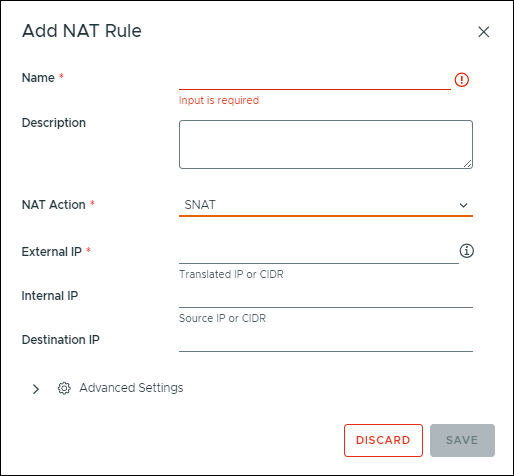
Note: Take note of the public IP listed under External IP. You need this to create a SNAT (Source Network Address Translator) rule.
- Type a name and description for the rule in the Add NAT Rule window.
- Select a NAT Action interface type to configure for the rule.
- Complete the following fields to use Source Network Address Translator (SNAT) to translate the source IP address:
- External IP—Type the external IP address as listed on the NAT screen.
- Internal IP—Type the internal IP address for the rule.
- Destination IP—Type the destination IP address for the traffic.
- External IP—Type the external IP address as listed on the NAT screen.
- Complete the following fields to use Destination Network Address Translator (DNAT) to translate the destination IP address:
- External IP—Type the external IP address as listed on the NAT screen.
- External Port—Type the external port for the rule.
- Internal IP—Type the internal IP address for the rule.
- Application—Click the icon, turn on the Choose a specific application option, select the application to use then click SAVE.
- External IP—Type the external IP address as listed on the NAT screen.
- Complete the following fields to prevent translating the internal IP address of packets sent from an organization VDC to an external network or to another organization VDC network:
- Internal IP—Type the internal IP address for the rule.
- Destination IP—Type the destination IP address for the traffic.
- Internal IP—Type the internal IP address for the rule.
- Complete the following fields to prevent translating the external IP address of packets received by an organization VDC (virtual data center) from an external network or from another organization VDC network:
- External IP—Type the external IP address as listed on the NAT screen.
- External Port—Type the external port for the rule.
- External IP—Type the external IP address as listed on the NAT screen.
- Complete the following fields to use both DNAT and SNAT depending on ingress or egress traffic:
- External IP—Type the external IP address as listed on the NAT screen.
- Internal IP—Type the internal IP address for the rule.
- External IP—Type the external IP address as listed on the NAT screen.
- In the Advanced Settings section, finish configuring the interface type for the rule:
- State—To enable the rule, turn this option on.
- Logging—To enable logging for the rule, turn this option on.
- Priority—Type the priority of the rule. A lower number signifies priority. For example, 1 is higher than 3. Valid numbers depend on the total number of rules for the edge gateway.
- Firewall Match—Select one of the following options to determine how the firewall matches the address during NAT translating if the firewall stage is not skipped:
- Match Internal Address—Applies the firewall to the internal address of a NAT rule. For SNAT, the internal address is the original source address before NAT is done. For DNAT, the internal address is the translated destination address after NAT is done.
- Match External Address—Applies the firewall to the external address of a NAT rule. For SNAT, the external address is the translated source address after NAT is done. For DNAT, the external address is the original destination address before NAT is done.
- Bypass—Firewall stage will be skipped.
- Match Internal Address—Applies the firewall to the internal address of a NAT rule. For SNAT, the internal address is the original source address before NAT is done. For DNAT, the internal address is the translated destination address after NAT is done.
- Applied To—Select Public‑1
- State—To enable the rule, turn this option on.
- Click SAVE.
The Lumen Private Cloud on VMware Cloud Foundation™ creates the NAT rule.



