

Creating a vApp template from an OVF file
Use Lumen® Private Cloud on VMware Cloud Foundation™ to create a vApp template for your Lumen® Edge Private Cloud catalog from an open virtualization format (OVF) file. To create a vApp template, you must have an OVF file or the URL for the OVF file. You can add an existing vApp to your catalog (including vApps with one or more virtual machines). After you create the vApp template, you can use it to deploy virtual machines inside the Lumen Private Cloud on VMware Cloud Foundation™ portal.
A catalog is a container for vApp templates and media files in an organization. Catalogs can be private or public. Organization administrators and catalog authors within Lumen Private Cloud on VMware Cloud Foundation™ can create catalogs in an organization. Catalog contents can be shared with other users within Lumen Private Cloud on VMware Cloud Foundation™.
To create a vApp template from an OVF file:
- Sign in to your Lumen Private Cloud on VMware Cloud Foundation™ environment.
- Click Content Hub, then click vApp Templates.
The Lumen Private Cloud on VMware Cloud Foundation™ portal shows the vApp templates for your organization.
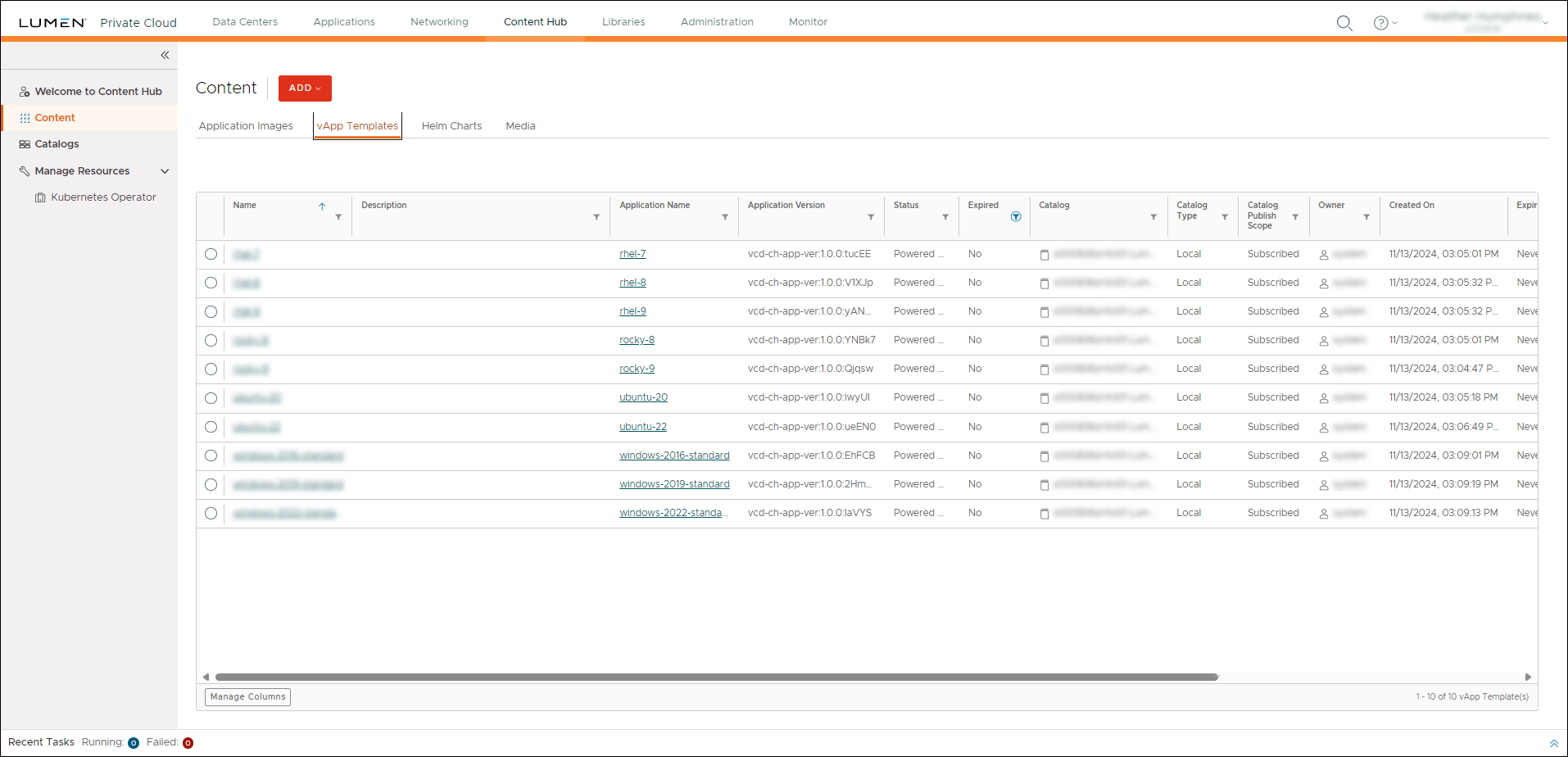
- On the vApp Templates page, click ADD, then select OVA/OVF.
- In the Select Source section, select a location from which to upload the OVF file:
- To upload the OVF file directly from a URL location, select the URL option and type the URL.
- To upload the OVF from another location, select the Browse option, click the upload icon located next to the option, then browse and select the OVF file. If you select this option, the Review Details section is enabled.
- Click NEXT.
- If you selected the Browse option for Select Source, review the details of the uploaded OVF file in the Review Details section, then click NEXT. Otherwise, skip to the next step.
- In the Select vApp Template Name section, type a name and description for the template, then select the catalog to add the template to from the drop-down.
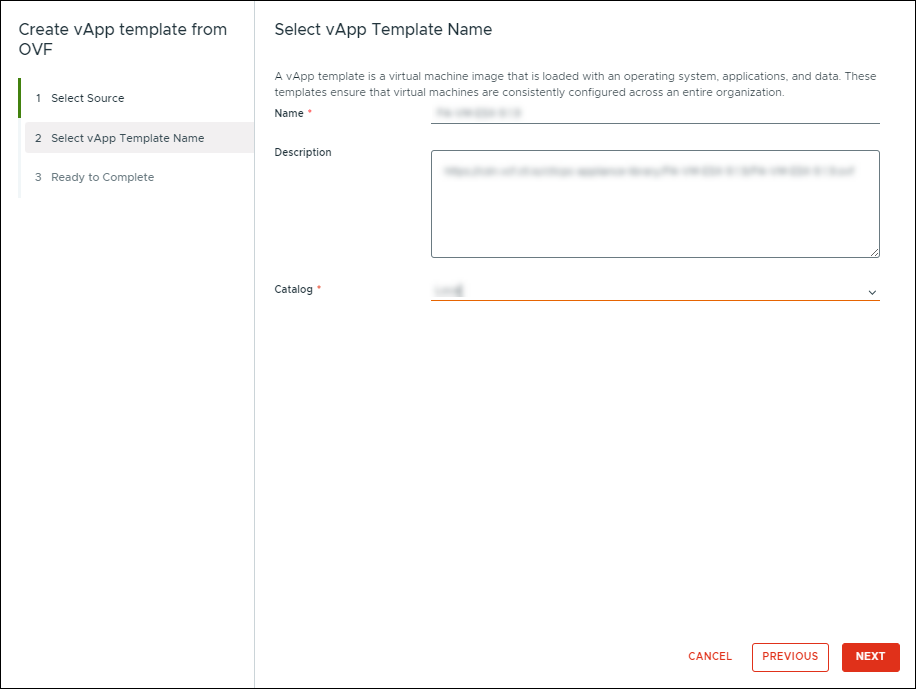
- Click NEXT.
- In the Ready to Complete section, review your configuration, then click FINISH.
Lumen Private Cloud on VMware Cloud Foundation™ creates the template. To view the upload progress, navigate to the vApps Templates screen and view the progress in the Recent Tasks section.



