

Setting the authentication key for Encrypted Wavelength
The network cards for a Lumen® Encrypted Wavelength Service use an authentication key to authenticate each other every time they negotiate a new crypto session key. You can update the shared authentication key for a given card pair as needed (or according to your organization's security policies) using Lumen Connect. You also need to update the shared authentication key after a network outage or fiber cut.
- If the service was installed after December 1, 2019, use the second set of instructions.
- If the service was installed before December 1, 2019, use the first set of instructions.
Circuits installed after 12/1/19
To set the authentication key for Encrypted Wavelength:
- In the Services widget on the homepage, select Wavelength—Encrypted or PROTECTED WAVELENGTH—ENCRYPTED from the Find by Product or Service Tool list.
Lumen Connect shows all Encrypted Wavelength (or Protected Encrypted Wavelength) services on the enterprise ID.
- Search for the service you want to work with. When you find the service you want to work with, click the hyperlinked service ID or click the icon (in the Actions column), then click View Details.
Lumen Connect shows details for the service you selected.
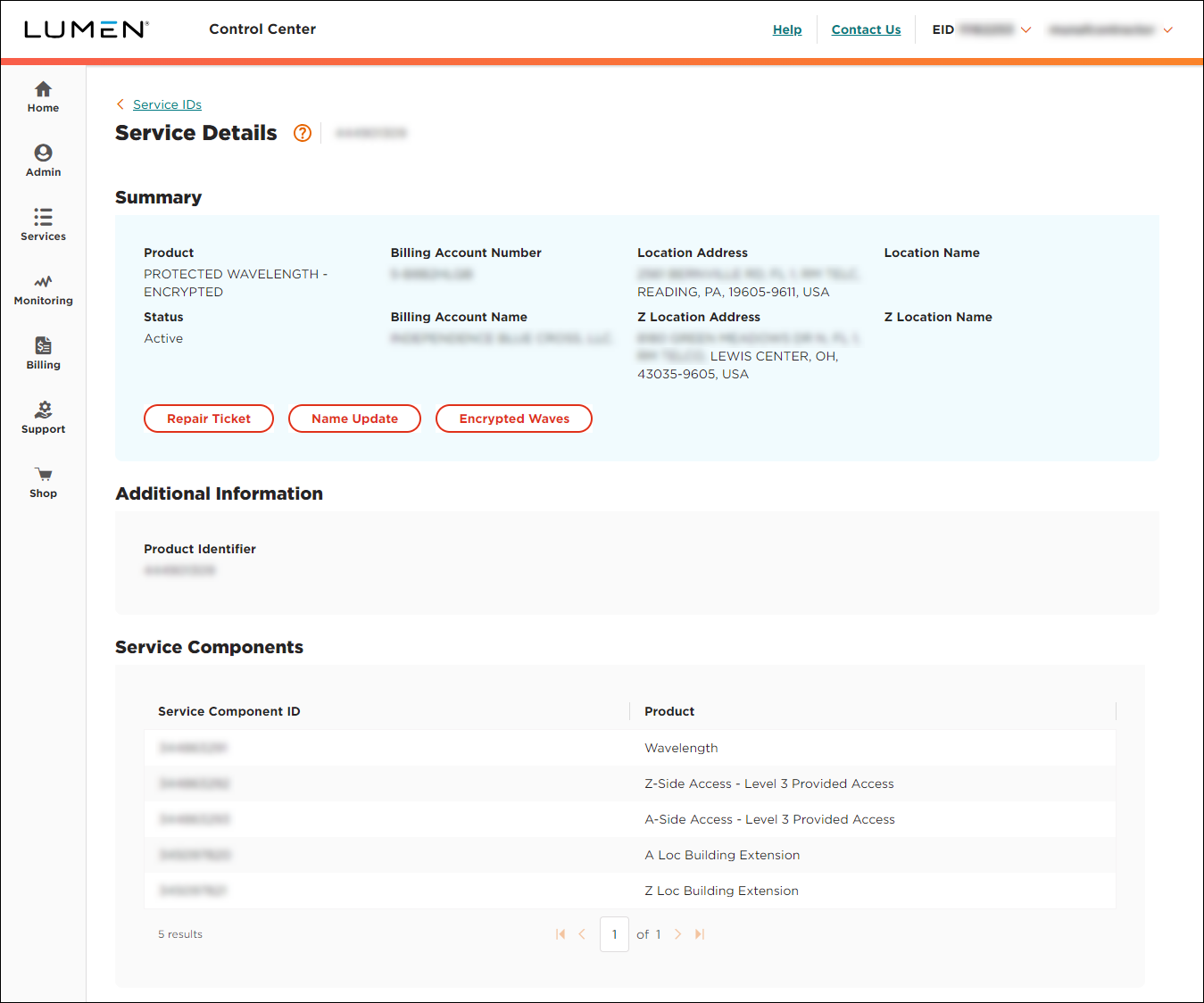
- Click Encrypted Waves.
Lumen Connect shows information for the Encrypted Wavelength service such as the location of the two cards, bandwidth for the service, and whether the service is protected or unprotected.
- If the service is unprotected, you see one path: Work.
- If the service is protected, you'll see two paths: Work and Protect.
- If the service is unprotected, you see one path: Work.
- Click the Authentication Key tab.
- Type the passwords for both cards, then click Initiate.
- Type the passwords for both cards again, then click Pair.
Circuits installed before 12/1/19
To set the authentication key for Encrypted Wavelength:
- In the Services widget on the homepage, select Wavelength—Encrypted or PROTECTED WAVELENGTH—ENCRYPTED from the Find by Product or Service Tool list.
Lumen Connect shows all Encrypted Wavelength (or Protected Encrypted Wavelength) services on the enterprise ID.
- Search for the service you want to work with. When you find the service you want to work with, click the hyperlinked service ID or click the icon (in the Actions column), then click View Details.
Lumen Connect shows details for the service you selected.
- Click Encrypted Waves.
Lumen Connect shows information for the Encrypted Wavelength service such as the location of the two cards, bandwidth for the service, and whether the service is protected or unprotected.
- If the service is unprotected, you see one path: Work.
- If the service is protected, you'll see two paths: Work and Protect.
- If the service is unprotected, you see one path: Work.
- Click the Authentication Key tab.
- Type the passwords for both cards.
- In the Authentication Key field, type the authentication key you want to use for the service, re‑enter the authentication key, then click Submit.
Lumen Connect sets the authentication key for the service.



