Retrieving your Lumen Connect username or password
If you've forgotten your Lumen Connect password, you can easily reset it yourself (instead of relying on a Lumen Connect system administrator for your organization). If you've forgotten your username, you can also retrieve that. (For Control Center profiles created after July 6, 2023, your username is your email address.)
If you've forgotten both your username and password, retrieve your username first, then reset your password. You'll need to access the email address associated with your Lumen Connect user profile.
If you've forgotten your password and have tried to sign in several times, your user profile may be locked. If your user profile is locked, you can still reset your password, but you must wait 30 minutes for your user profile to be unlocked before trying to sign in again.
Note: For security purposes, Lumen Connect deactivates user profiles after six months of inactivity. If it's been a while since you last signed in, your Lumen Connect user profile may be deactivated. If your user profile is deactivated, your Lumen Connect system administrator can reactivate your user profile for you so you can sign in again.
Resetting your password
If you've forgotten your Lumen Connect password, we can send you a temporary link you can use to sign in and reset your password. If you've tried to sign in several times unsuccessfully, note that your user profile may be locked. If your user profile is locked, you can still reset your password, but you must wait 30 minutes for your user profile to be unlocked before trying to sign in again.
To reset your password:
- Open a browser and go to connect.lumen.com.
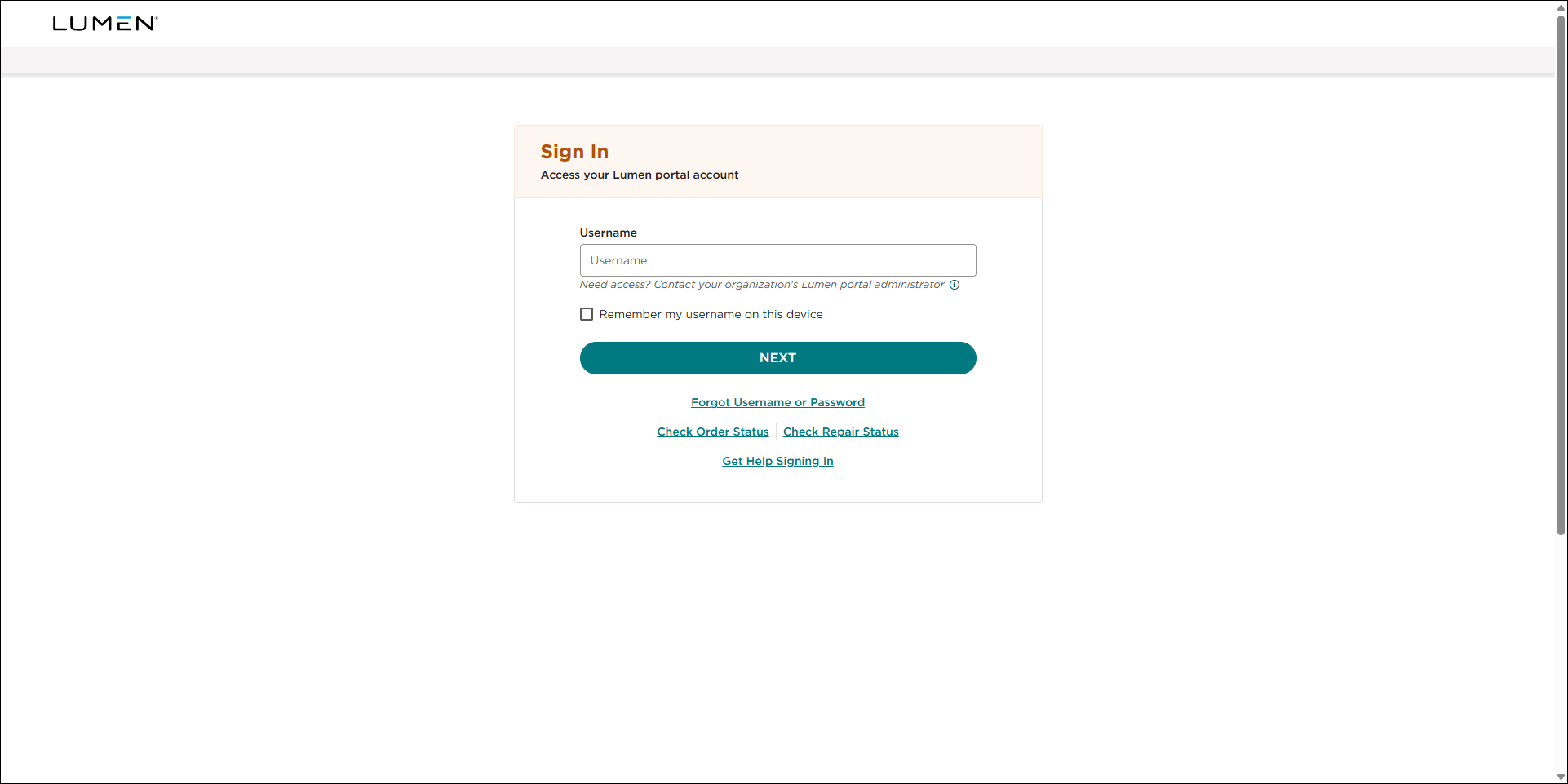
- Click Forgot username/password.
- In the Username field, type your Lumen Connect username.
- Select the I'm not a robot reCAPTCHA checkbox.
- Click SUBMIT.
Lumen Connect sends you an email with a link to reset your password. (The link is valid for 60 minutes.)
- In the email we sent you, click the Reset Passwork link. If you don't receive an email from Lumen, or you have a problem with any part of this process, contact us and we'll help get your Lumen Connect access restored.
Lumen Connect prompts you to choose a new password.
- Type a new password in the New Password and Confirm New Password fields, then click CONTINUE. (Get help choosing a password)
Lumen Connect saves your password, signs you in, and shows the dashboard.
Retrieving your username
To retrieve your username:
- Open a browser and go to connect.lumen.com.
- Click Forgot username/password.
- Select the I forgot my Username radio button.
- In the Email field, type the email address associated with your Lumen Connect username.
- Select the I'm not a robot reCAPTCHA checkbox.
- Click SUBMIT.
Lumen Connect emails you a list of usernames associated with the email address you typed. (Look for Lumen Connect: Forgot username in the subject line.)
- Click PROCEED TO LOGIN.
- Use the instructions in the email we sent you to sign in. If you don't receive the email or you have a problem with any part of this process, contact us and we'll help get your Lumen Connect access restored.



