

Updating card firmware for Encrypted Wavelength
For security, you should periodically request firmware updates for the network cards associated with a Lumen® Encrypted Wavelength Service. When you request a firmware update in Lumen Connect, the updates begin immediately after you submit the request, so you'll want to coordinate the upgrade with Lumen Operations in case you have a problem or need help.
To update card firmware for Encrypted Wavelength:
- In the Services widget on the homepage, select Wavelength—Encrypted or PROTECTED WAVELENGTH—ENCRYPTED from the Find by Product or Service Tool list.
Lumen Connect shows all Encrypted Wavelength (or Protected Encrypted Wavelength) services on the enterprise ID.
- Search for the service you want to work with. When you find the service you want to work with, click the hyperlinked service ID or click the icon (in the Actions column), then click View Details.
Lumen Connect shows details for the service you selected.
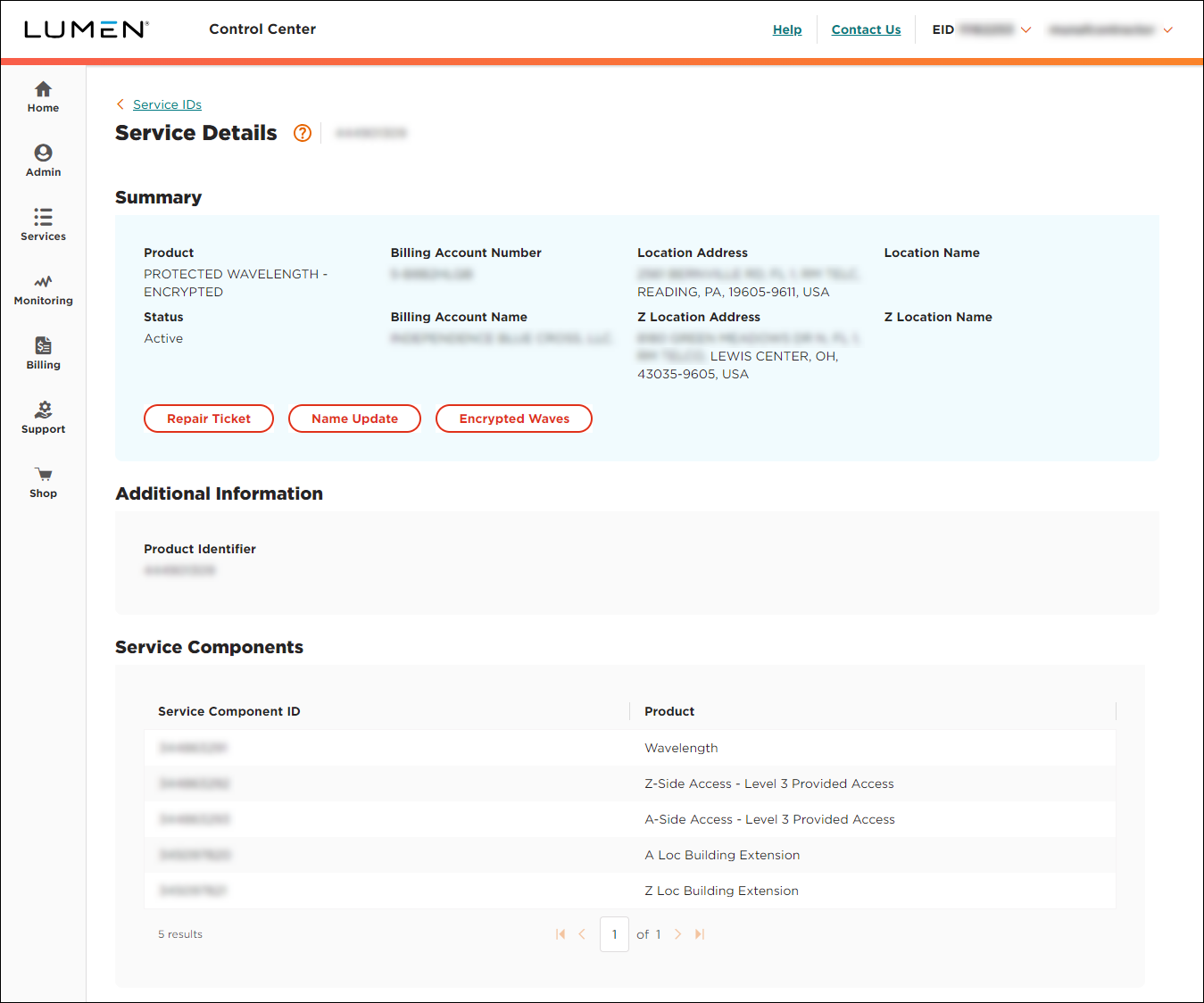
- Click Encrypted Waves.
Lumen Connect shows information for the Encrypted Wavelength service such as the location of the two cards, bandwidth for the service, and whether the service is protected or unprotected.
- If the service is unprotected, you see one path: Work.
- If the service is protected, you'll see two paths: Work and Protect.
- If the service is unprotected, you see one path: Work.
- Click the Firmware Update Request tab.
- Type the password for the first card, type the firmware version you authorize Lumen to update your cards to, click the Update Approved checkbox, then click Submit.
- Repeat step 6 for the second card.



