

Viewing the history of changes to Encrypted Wavelength
When you make a change to a Lumen® Encrypted Wavelength Service in Lumen Connect, Lumen keeps a log of the changes. For an Encrypted Wavelength service, you can view the history of changes to the cards on your service including when the change was made, who made the change, what type of change was made, what cards were affected by the change, and the status of the change requested.
To view the history of changes to Encrypted Wavelength:
- In the Services widget on the homepage, select Wavelength—Encrypted or PROTECTED WAVELENGTH—ENCRYPTED from the Find by Product or Service Tool list.
Lumen Connect shows all Encrypted Wavelength (or Protected Encrypted Wavelength) services on the enterprise ID.
- Search for the service you want to work with. When you find the service you want to work with, click the hyperlinked service ID or click the icon (in the Actions column), then click View Details.
Lumen Connect shows details for the service you selected.
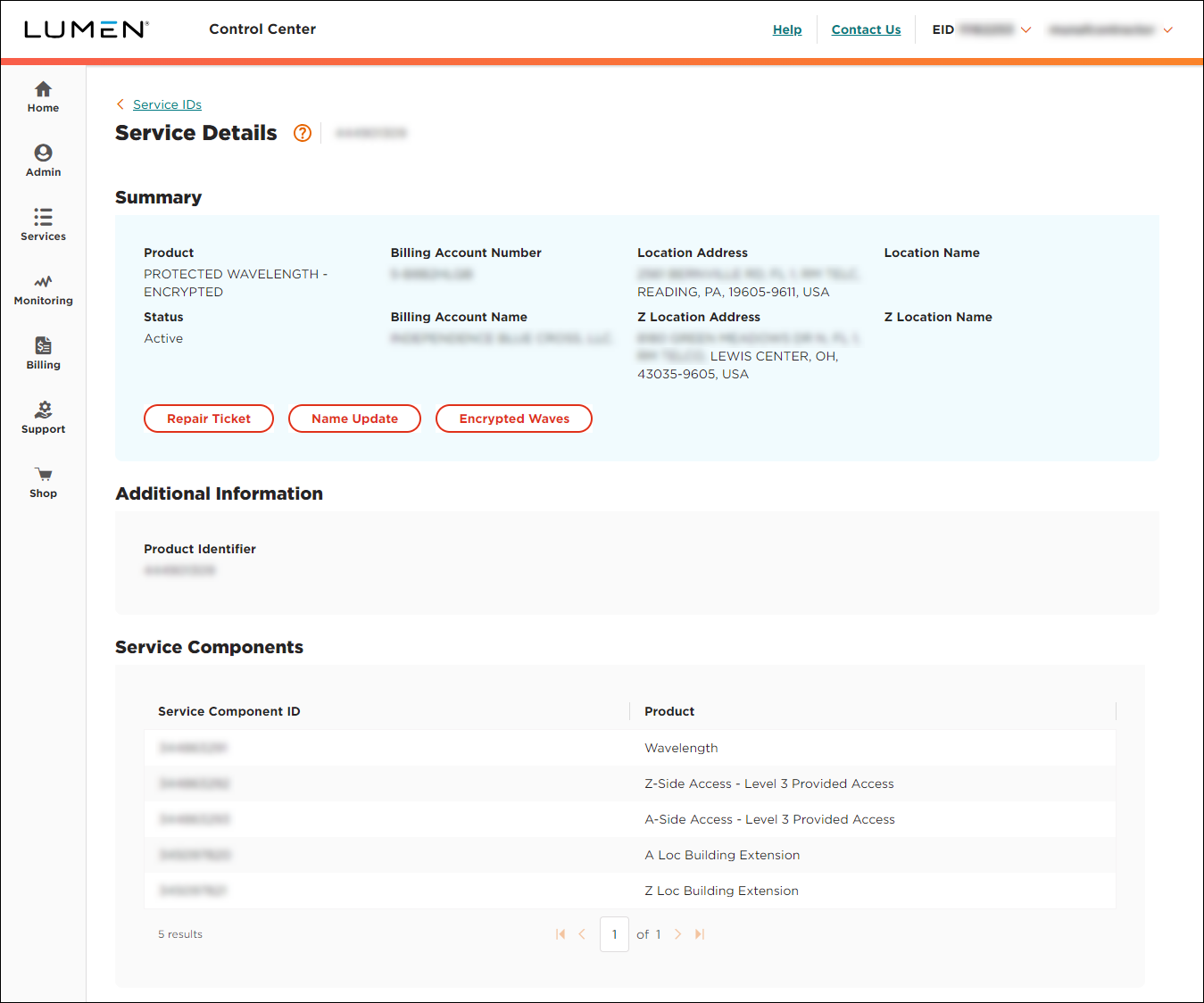
- Click Encrypted Waves.
Lumen Connect shows information for the Encrypted Wavelength service such as the location of the two cards, bandwidth for the service, and whether the service is protected or unprotected.
- If the service is unprotected, you see one path: Work.
- If the service is protected, you'll see two paths: Work and Protect.
- If the service is unprotected, you see one path: Work.
- Click the History tab.
Lumen Connect lists the history of changes to the cards on your service—by default for the last 90 days:
- when the change was made
- who made the change
- what type of change was made
- what cards were affected by the change
- the status of the change requested
- when the change was made



