

Adding an IP VPN On-Demand connection to AWS
With Lumen® IP VPN On‑Demand, you can use Lumen Connect℠ to add a connection from a Lumen VRF to Amazon Web Services (AWS). To add the connection, you'll need your AWS account ID from Amazon. Be sure to have that information handy to type in (or copy/paste).
Note: With Amazon Web Services Hosted Connections, we recommend you create a redundant connection to qualify for better availability SLAs.
There are three steps to successfully create and use an IP VPN On-Demand connection to AWS:
Step 1: Prepare the AWS connection
To prepare the connection in AWS:
- Go to the AWS Direct Connect console page and sign in.
- Create a virtual private gateway or Direct Connect gateway, depending on your connection needs.
- Copy your AWS Account ID. You will paste this when creating the On-Demand connection.
Step 2: Add the connection in Lumen Connect
To add the IP VPN On‑Demand connection:
- Using the left menu, click Services, then click Add Services.
Lumen Connect shows services you can add with the Lumen digital experience.
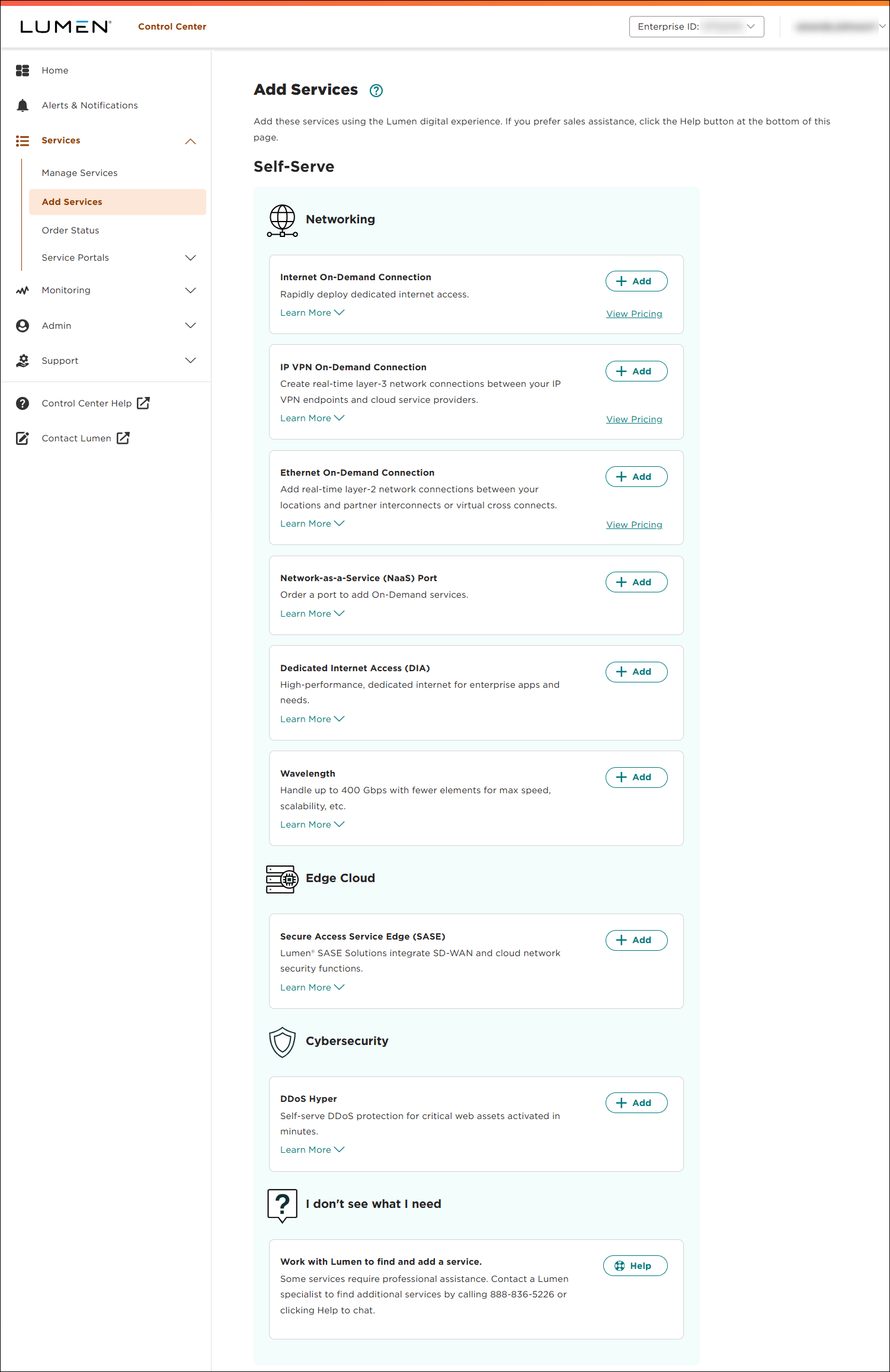
- Click + Add for IP VPN On-Demand.
- From the Customer ID and Billing Account Number lists, select the customer number and billing account number you want to add IP VPN On-Demand to.
Lumen Connect fills in the VRF inventory based on the customer ID and billing account number you selected.
- In the Service Nickname field, type a name for the connection you're creating. (Be sure to use something memorable. This name will appear on your invoice.)
- In the From Location (Select Your VRF) section, select or create a VRF for the other end of your connection.
- Select the VRF to use for the other end of your connection. Click View Details for a VRF to view the VRF's routes.
- Click Create New, then type a description for the new VRF in the New VRF Description field. Lumen Connect will create the VRF and activate your VPN service once you create your connection.
- Select the VRF to use for the other end of your connection. Click View Details for a VRF to view the VRF's routes.
- From the Cloud Provider list, select AWS.
- Fill in the information for the AWS connection:
- In the AWS Account ID field, type your AWS account ID.
- From the Cloud Provider On Ramp list, select an on ramp.
- In the AWS Account ID field, type your AWS account ID.
- Click CONTINUE.
- Use the Billing Method buttons to select whether you want monthly or hourly billing for the connection, then select the bandwidth for the connection. Bandwidth options are determined by the destination (to location).
- Click Continue.
- In the Select Additional Settings section, fill in the additional details for the connection:
- In the AS Number on AWS field, type the autonomous system number from Amazon (ranges from 64512 to 65534 or 4200000000 to 4294967294) used when creating the Direct Connect gateway.
- Select whether this is a primary or backup connection.
- In the IPv4 Routing Option field, select the radio button for the routing option you want to use for the connection. Learn more about routing options for an IP VPN connection
- Use the buttons to select whether you want to advertise default routes.
- In the AS Number on AWS field, type the autonomous system number from Amazon (ranges from 64512 to 65534 or 4200000000 to 4294967294) used when creating the Direct Connect gateway.
- Click CONTINUE.
- Review the order information and correct any missing or invalid selections.
Enter an Offer Code if you have one, then click Apply.
Click Submit Order.
Lumen Connect creates the connection request, sets it to Pending Activation, and routes you to the Services tab so you can monitor its status. To see status updates, click . Once Lumen assigns the permanent VRF (within five minutes), the connection changes to Active status.
- If you want to add resiliency for this connection, repeat steps 2‑12 using the same VRF and same AWS on‑ramp location.
Step 3: Complete the AWS connection
To complete the connection in AWS:
- Go to the AWS page and sign in.
- Locate the Direct Connect gateway with the ID that matches the connection ID in the service details to location in Lumen Connect, accept the connection, and create the virtual interface.



