

Deleting a notification setting
If you no longer need a notification setting, you can delete it from Lumen Connect. If you only want to temporarily stop notifications (e.g., if you are on vacation), you can edit the notification setting to disable it and then activate it again later.
To delete a notification setting:
- Using the left menu, click Alerts & Notifications.
Lumen Connect lists all your notifications. If you're a Lumen Connect system administrator, you see your notifications by default, but you can use the list to select another user in your organization to view their notifications.
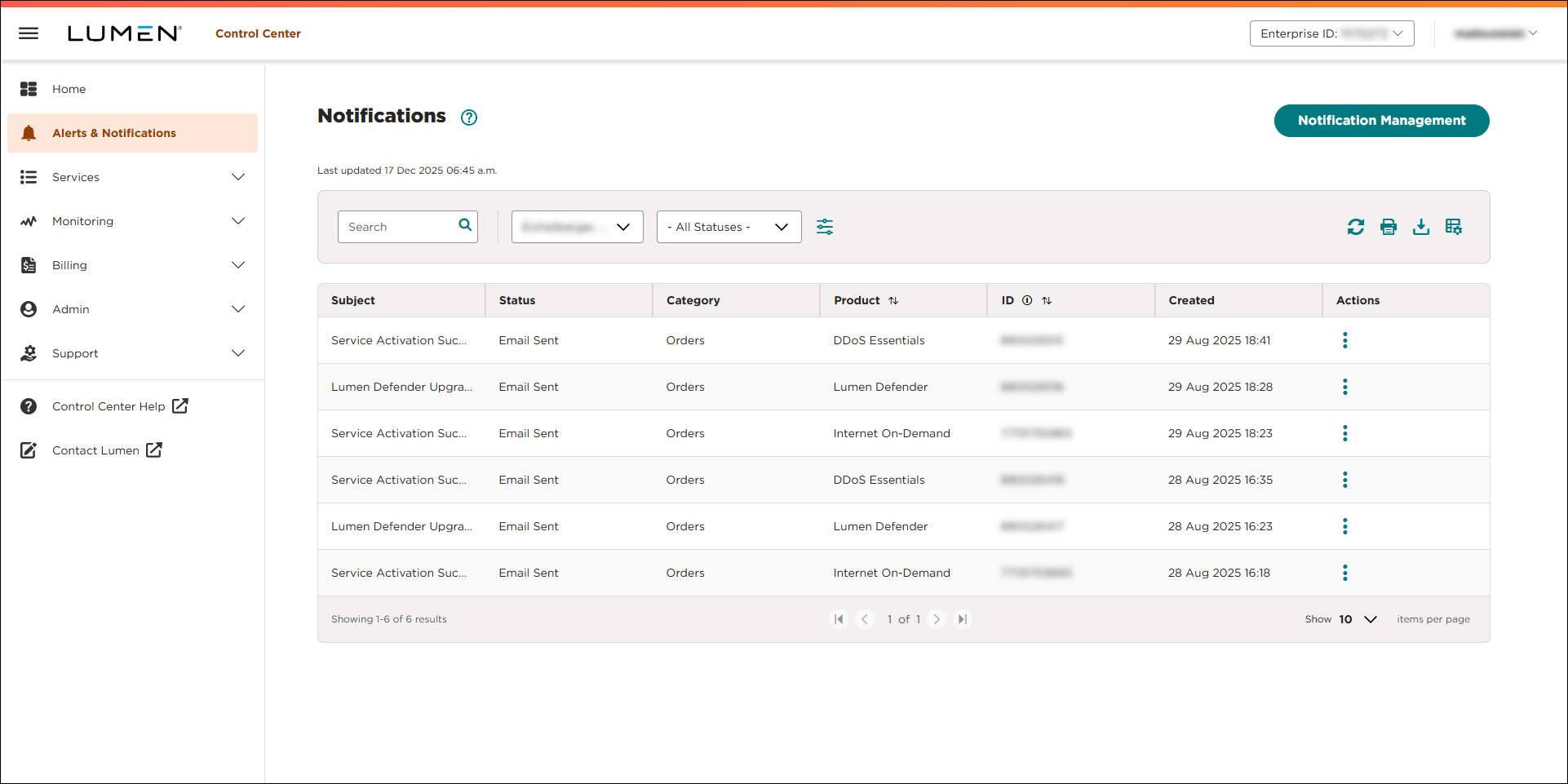
- Click Manage Notification Settings. (If you're a system administrator, click Notification Management.)
Lumen Connect lists all notification settings for your user profile. (If you're a system administrator, you'll see all the notification settings for your organization—including your own.)
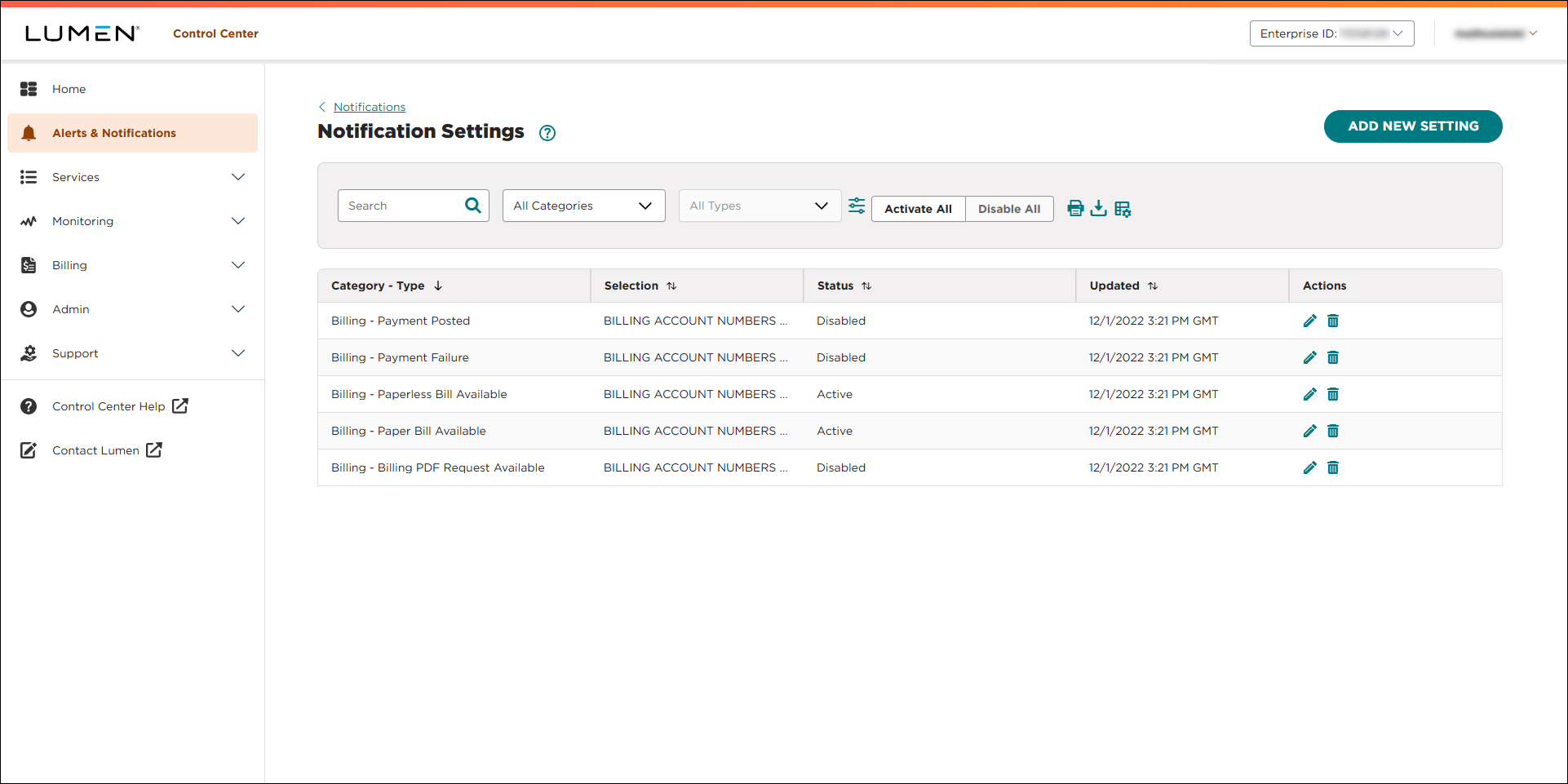
- On the row for the notification setting you want to delete, click the icon.
- In the confirmation window that appears, click OK.
Lumen Connect deletes the notification setting.



