

Creating a request to add a new path to a Wavelength service
Using Lumen Connect, you can create a request to add a new path to a Lumen® Wavelength service. You can save the path or submit your request to have a Lumen representative contact you to complete your order. You can also create a request to add a diverse path to an existing circuit.
To create a request to add a new path to a Wavelength service:
- Using the left menu, click Monitoring, then click Topology Viewer.
Lumen Connect opens Topology Viewer. Review and scroll to the bottom of the terms and conditions, then click AGREE. If you have more than one customer number with Wavelength services, you may also have to select the account you want to work with.
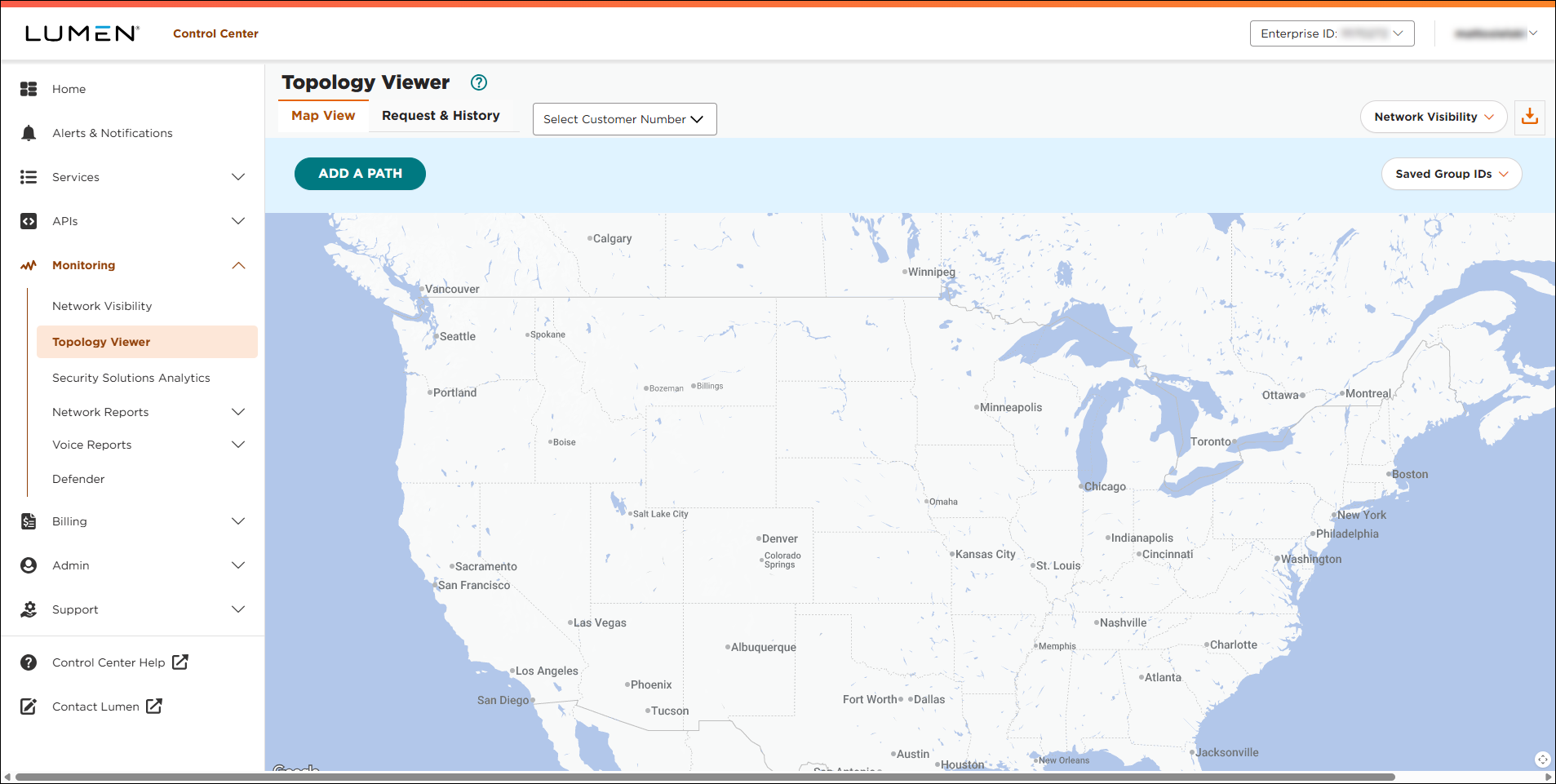
- Click Add a Path.
- Use the radio buttons to select whether you want start the path (A location) from an existing or new location:
- If you select the radio button for an existing location, select the location from the list.
- If you select the radio button for a new location, start typing the address, then select the address from the list when it appears.
- If you select the radio button for an existing location, select the location from the list.
- If you have a location(s) you want the path to include, click the list, select whether you want to include by city/state or by address, then start typing the location information and select the location from the list. If you select a location for the path to include, be sure to select No from the Static Route list. (To include additional locations, repeat this step.)
- Repeat step 4–5 for the end of the path (Z location).
- If you have a location(s) you want the path to exclude, click the list, select whether you want to include by city/state or by address, then start typing the location information and select the location from the list. If you select a location for the path to include, be sure to select No from the Static Route list. (To exclude additional locations, repeat this step.)
- From the Bandwidth list, select the bandwidth for the new path.
- From the Static Route list, do one of the following:
- If you didn't specify locations to include or exclude, select Yes.
- If you selected a location to include or exclude, select No.
- If you didn't specify locations to include or exclude, select Yes.
- Use the Diversity field, to specify whether you need to request a path diverse from an existing Wavelength service:
- To request a diverse path, do the following:
- Select the Yes radio button.
- Select whether you want to create a diverse path from an existing circuit or from a previously requested circuit.
- Use the field that appears to type the circuit ID (for an existing circuit) or sales ID (for a previously requested circuit) of the Wavelength service you want to create a diverse path from.
- Select the Yes radio button.
- Otherwise, select the No radio button.
- To request a diverse path, do the following:
- Click Continue.
Lumen Connect checks for available routes based on your selections.
- Review the path option, then do one of the following:
- To request a quote for the path shown, click REQUEST FINAL QUOTE, type a name for the path, select the radio button next to the term pricing you're interested in, add any notes (or requests) in the field that appears, then click SUBMIT.
- To make changes to the path, click EDIT.
- To cancel the request, click DONE.
- To add another path to the request, click Add a Path, then repeat steps 4–11. (You can add up to four paths on a single request.
- If Lumen Connect is unable to provide pricing for the path you selected, click REQUEST ASSISTANCE to get help.
- To request a quote for the path shown, click REQUEST FINAL QUOTE, type a name for the path, select the radio button next to the term pricing you're interested in, add any notes (or requests) in the field that appears, then click SUBMIT.



