

Creating a custom summary use report for a toll-free number
You can create an 800 summary report in Usage Analyst to examine high‑level use trends. (To view detailed use data for your 800 number, create an 800 detail use report.)
To create a custom summary use report for a toll-free number:
- Using the left menu, click Monitoring, click Voice Reports, then click Usage Analyst.
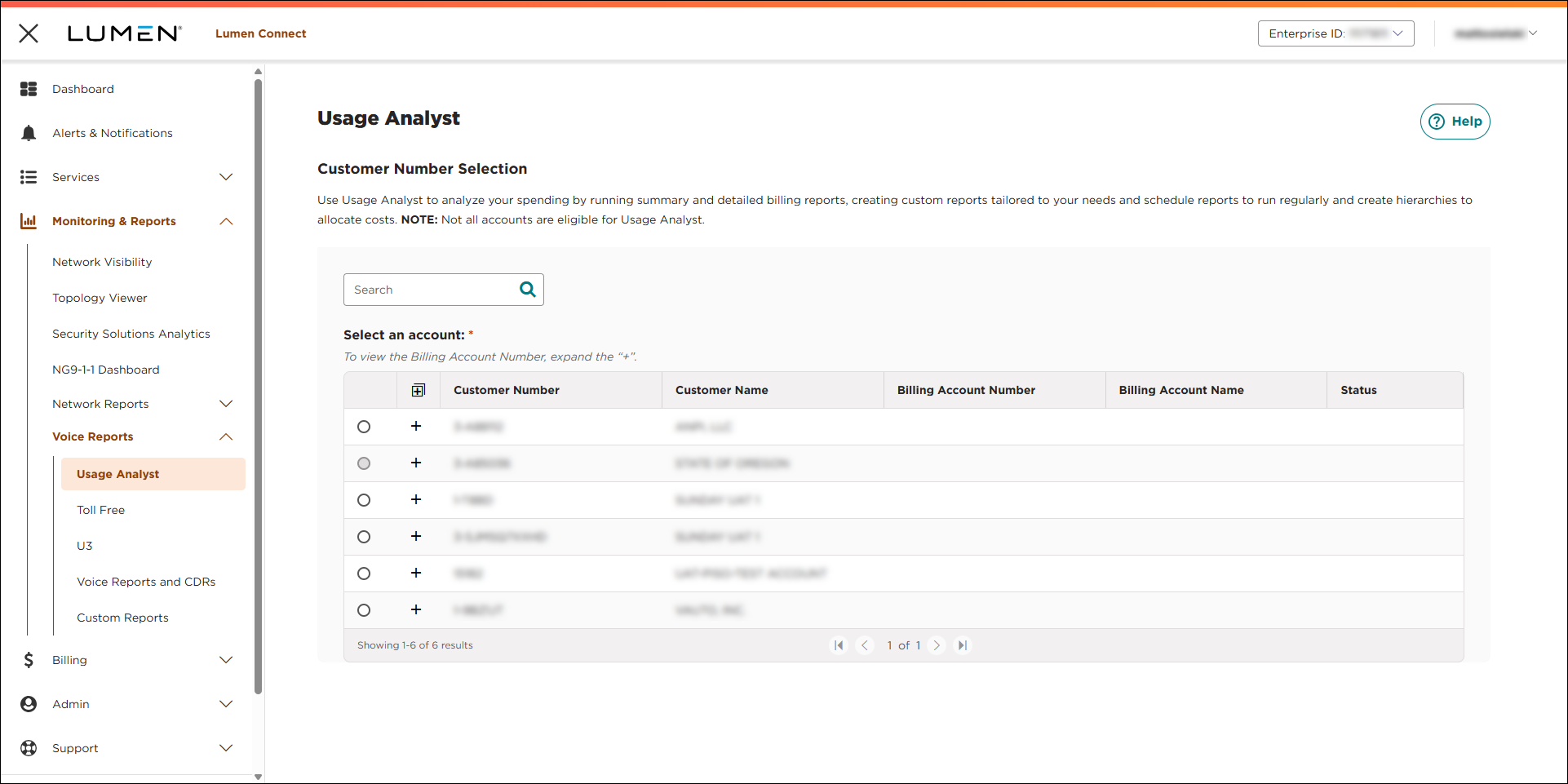
- Select the radio button next to the account you want to view, then click LAUNCH USAGE ANALYST.
Lumen Connect opens Usage Analyst in a new tab.
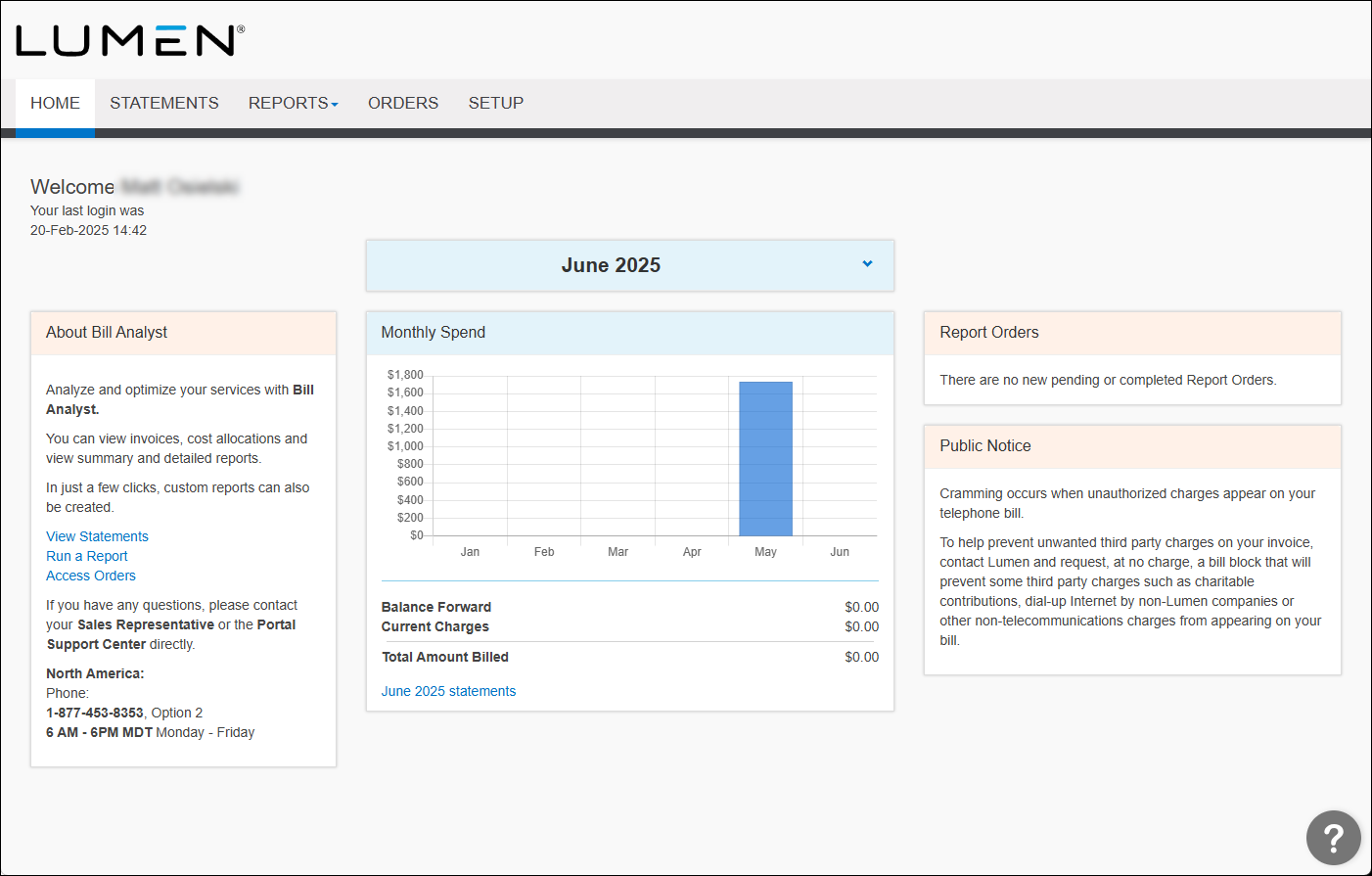
- Click the Reports tab, then click Summary Reports.
- Click the Usage Analyst tab.
Usage Analyst lists the available summary use reports.
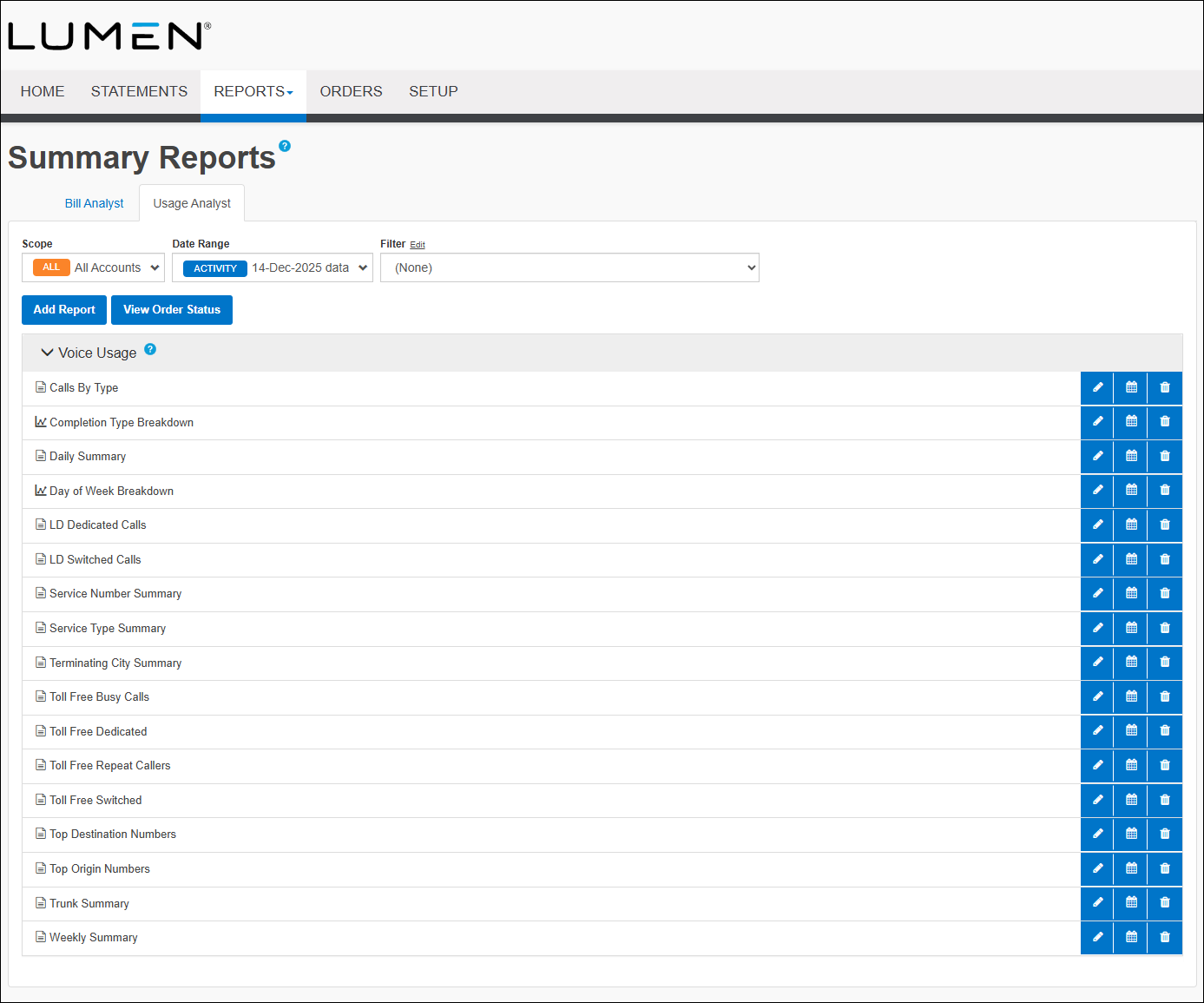
- Click Add Report.
- Name the report and add a filter as needed.
- Complete the Subtotals Display section:
- Select the Subtotal all tiers, Subtotal at the lowest tier, or Don't display subtotals radio button to select the items to subtotal.
- Select either the Show subtotals at top of group or Show subtotals at bottom of group radio button for where you'd like your subtotals placed.
- Select the Subtotal all tiers, Subtotal at the lowest tier, or Don't display subtotals radio button to select the items to subtotal.
- In the Table View section, select the fields you want included in your report by using the > button to move a field from the Exclude list to the Include list. To delete a field, use the < button to move a field from the Include list to the Exclude list.
- In the Additional Options section, if you want to share the report, select the Share this report checkbox.
- Click Save.



