

Editing an account description
After you create a hierarchy, add nodes, and assign accounts to it, you can update account descriptions to reflect changes in your reporting objectives in Usage Analyst.
Make your hierarchy the active hierarchy when you open Usage Analyst.
To edit an account description:
- Using the left menu, click Monitoring, click Voice Reports, then click Usage Analyst.
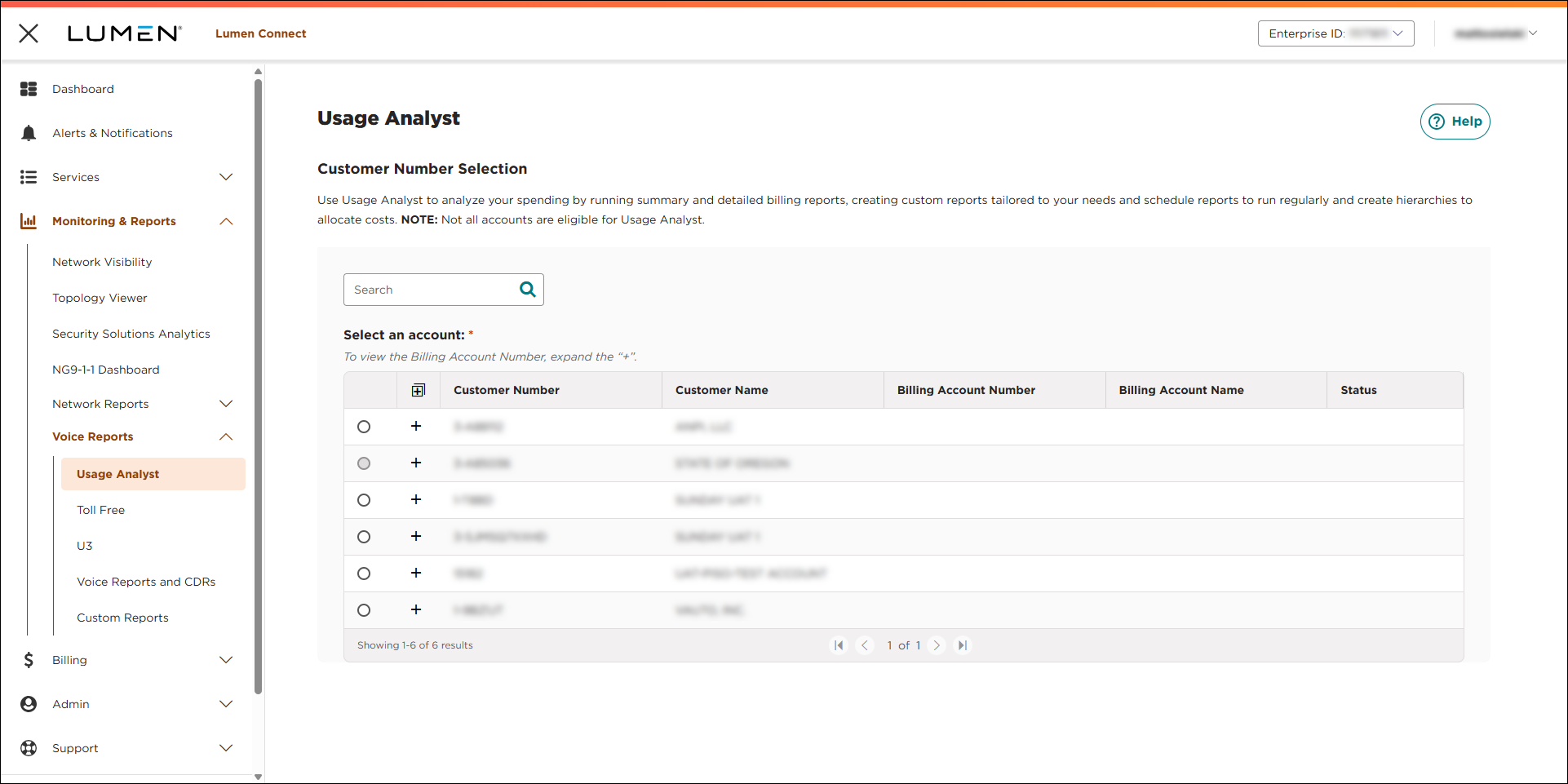
- Select the radio button next to the account you want to view, then click LAUNCH USAGE ANALYST.
Lumen Connect opens Usage Analyst in a new tab.
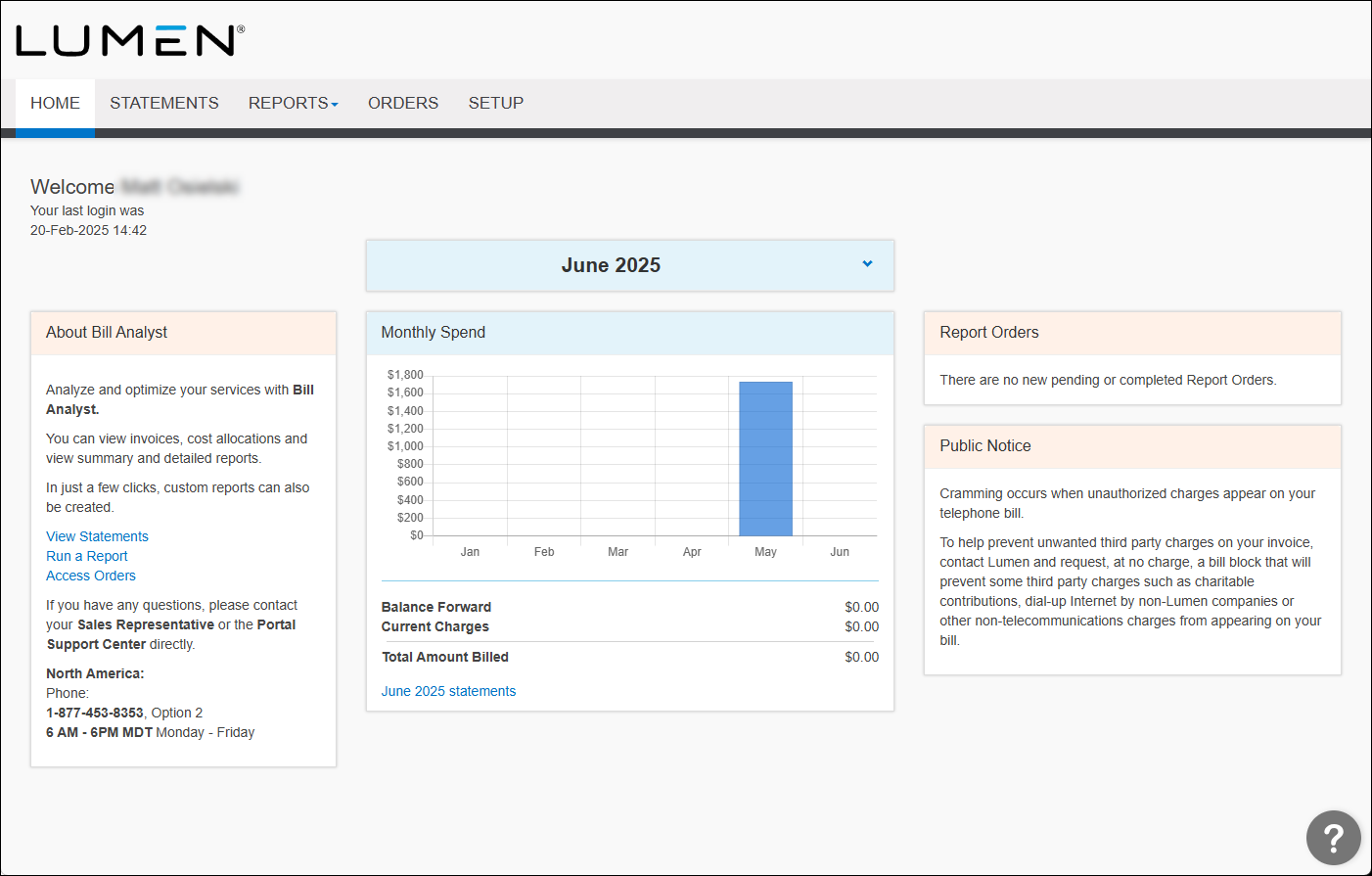
- Click the Setup tab.
- In the Hierarchies box, click Set Hierarchy.
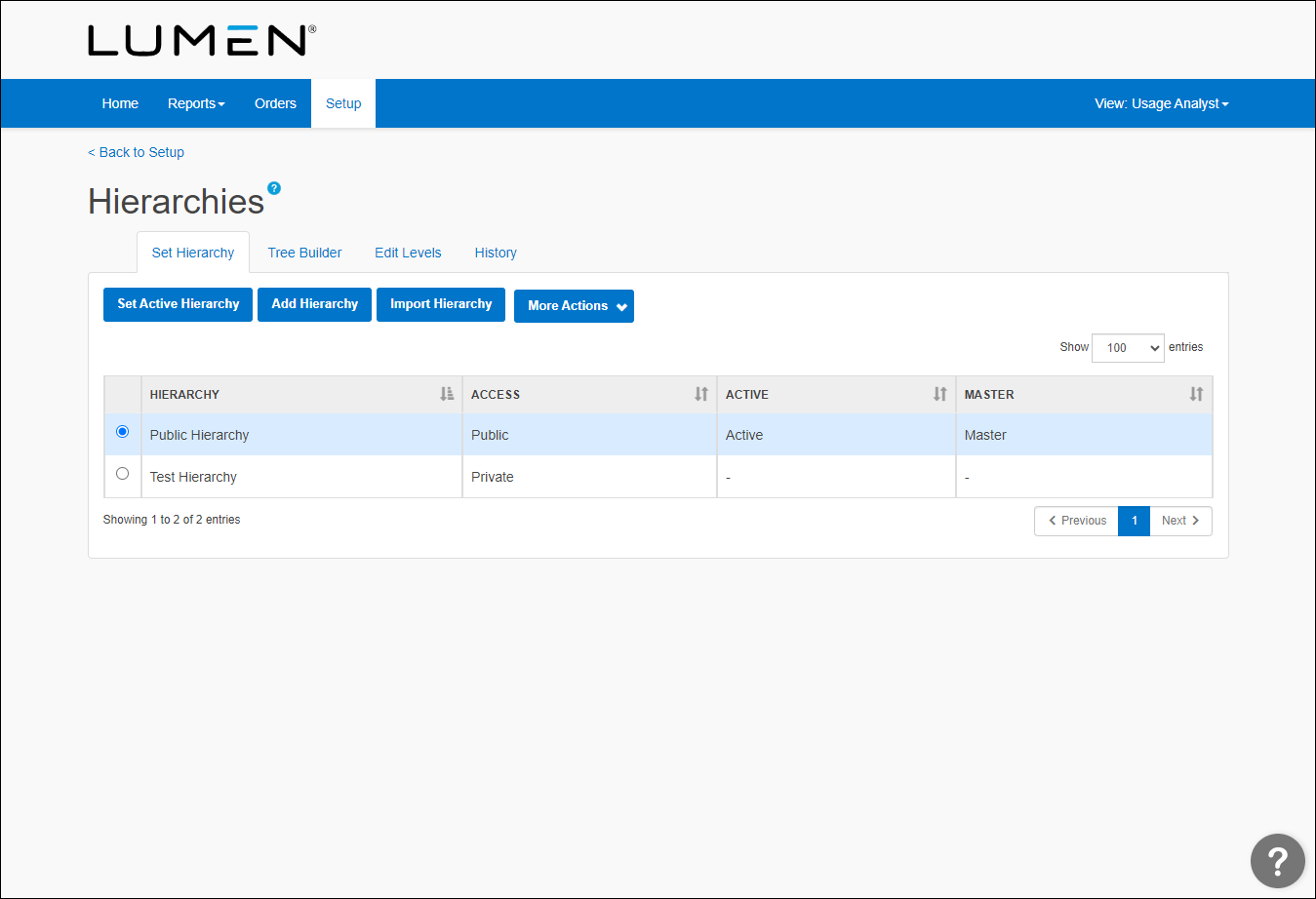
- To make, add, or change a description, you need to make sure the hierarchy is active. (Click Set Active Hierarchy to activate the hierarchy you want to edit.)
- Click Edit Levels.
- From the Display list, select Accounts.
- Select the checkbox next to the account you want to edit, then click Edit Descriptions.
- In the Description 1 field, edit the description for the service. If you want to add or edit the other description, do so in the Description 2 field.
- Click Save.



