

Using Application Performance Management
Within Lumen Connect, use Application Performance Management (APM) to manage and edit the configurable settings for your organization's APM probes by site to refine reporting capabilities and improve your experience.
To use Application Performance Management:
- Click Monitoring, click Network Reports, then click Application Performance Management (APM).
Lumen Connect shows the class of service editor for your organization's APM domain.
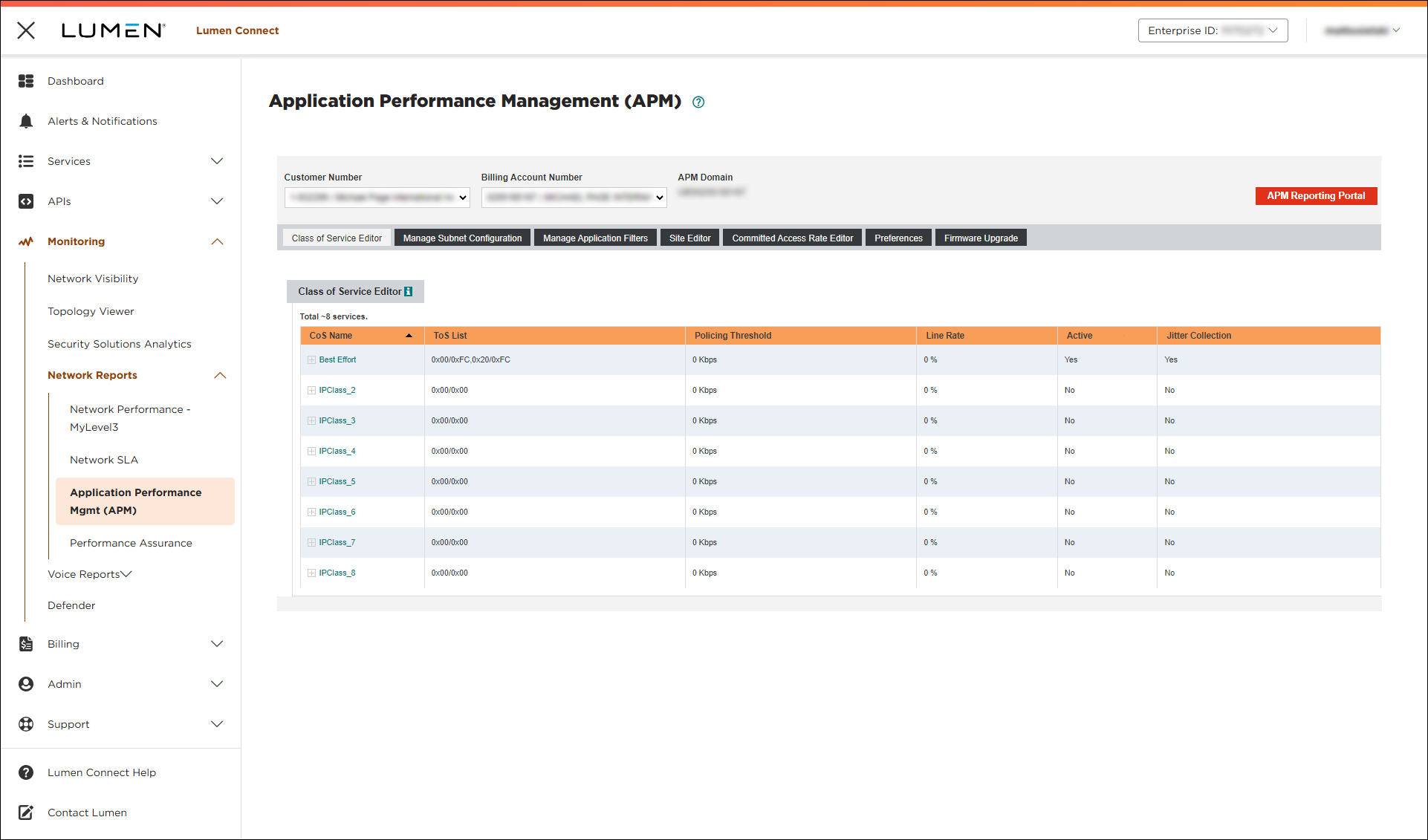
- Use the tabs to manage your service:
Use this tab to change class-of-service classifications in Application Performance Management. You can customize up to eight different class-of-service reporting categories that appear on your end-to-end service level agreement (SLA) reports. The categories are based on traffic at the edge of your network.
You can also customize the policing thresholds which are the basis for some proactive alerts and other generated reports.
To view details for a class of service or to edit it, click the link in the CoS Name column. (To save any changes you make, click Update.)
Use this tab to configure the IP address ranges that the analysis service elements (probes for APM) uses to report on key network or application performance indicators at each associated with your account.
You can manage auto-detected and previously configured IP addresses for each probe.
To view subnet configuration, select a probe from the APM Probes box.
Lumen Connect lists the subnets for the probe. (Rows highlighted in green indicate that the subnet will be used by the probe at the specified site; Rows highlighted in red indicate the at another probe will use the subnet for reporting.)
- To add a subnet, IP address range (in the Add New Subnet to APM Probe field), then click Add Subnet.
- To mark a subnet as permanent, click Mark Permanent on the row for the subnet. (Marking a subnet permanent means it will only be used in reporting for this probe—even if it is detected in association with another probe.)
- To unmark a subnet as permanent, click Un‑Mark Permanant on the row for the subnet.
- To remove a subnet, click Remove SubNet on the row for the subnet.
Use this tab to filter the servers reported on in various application and application flow reports. This option is particularly useful for limiting the size of reports in sites that act as the internet gateway in a VPN. Use this function to specify address space that should be reported on, or to define that only private address space be reported on.
To view application filters, select a probe from the APM Probes box.
Lumen Connect lists the application filters for the probe.
Use this tab to customize the site names shown in Application Performance Management (APM) and in any reports.
To update a site name, type an new name in the New Site Name column, then click Site Name Update.
Use this tab to manage the committed access rate setting for your network. This list contains all sites you can manage. You can adjust the value that Application Performance Management uses as the committed access rate for various reporting and alarming thresholds.
To updated the committed access rate for a network, type the new rate in the New CAR column (on the row for the network), then click CAR Update.
Use this tab to manage proactive notifications for Application Performance Management:
- To turn notifications on, click Enable Proactive Notifications Now.
- To turn notifications off, click Disable Proactive Notifications Now.
- To set a single email address for notifications on all sites, type an email address in the Change notifications for all ASE field, then click Modify Notification Addresses.
- To set a separate email address for a site, type the address Contact Email field on the row for the site (and make sure the Enabled checkbox is selected on that row), then click Modify Notification Addresses.
- To turn off notifications for a site, clear the Enabled checkbox on the row for the site.
Use this tab to manage firmware updates to your analysis service elements (e.g., APM probes) that contain feature enhancements and bug fixes. The list shows APM probes where we recommend a firmware revision and have an available upgrade.
To schedule the APM firmware update, select the Update Available checkbox on the row for the site(s) you want to update, then click Queue ASE for Update.
Lumen Connect starts the firmware update process for the APM probe(s) you selected.



