

Viewing the status of a Dedicated 8XX batch file
Preliminary Order Status shows each Dedicated batch file and all its related files; these should all be available fairly quickly after a valid file is successfully uploaded and processed.
As shown in screenshots below, the submitted batch file will initially show in Upload 8xx File(s). It will move to Archive File when is successfully processed, or to Bad File if the entire batch file fails to process. The DIR.LOG file will also reflect successful processing and processing issues.
The results files that are created from your Dedicated 8XX batch add files (e.g. Results 01, Results 02, and Results 03) will appear under Results Files:
- The Results 01 file indicates billing ready.
- The Results 02 and Results 03 indicate network ready.
Dedicated 8XX batch files from the past 90 days are available in Lumen Connect.
To view the status of a Dedicated 8XX batch file:
- Using the left menu, click Orders, click Order Status, then click Preliminary Order Status.
Lumen Connect shows all pending orders and orders completed within the past 90 days submitted using dedicated/switched batch, DTFO, or OLOF (online order forms). Lumen Connect also lists your view/modify call plan changes.
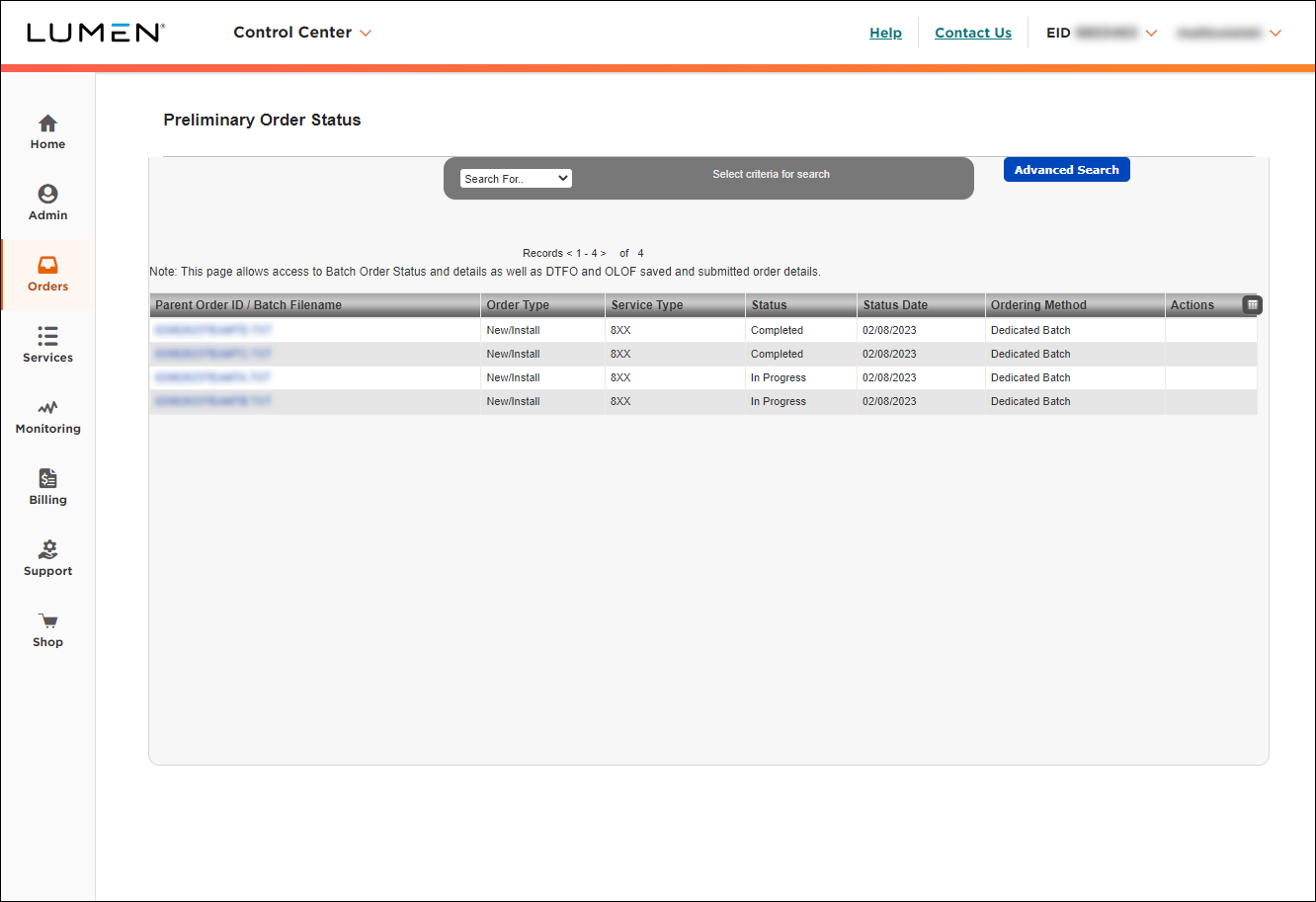
- Locate the Dedicated 8XX batch files or specific file. You can use the batch file name (or other option like Ordering Method) to search/filter the order list. (The search field is case sensitive.) You can search for all of a batch file name or part of a batch file name with an asterisk (wildcard).
The Dedicated 8XX batch files are identified by the Dedicated 8XX batch file name under the Parent Order ID / Batch filename column. For Dedicated 8XX batch:
- The Order Type is always New/Install
- The Service Type is always 8XX
- The Ordering Method is always Dedicated Batch
- To review status of a Dedicated Batch, click the batch file name link under the Parent Order ID / Batch Filename column, and an overlay shows the information for that dedicated batch file. There are three tabs:
- The Order Details tab shows the parent order ID, status, order type, order method, status date, service type, provisioning status, order date, total number of 8XX, and batch ID.
- The 8XX Details tab shows the 8XX number, Orion order ID, Core order ID, EFlow batch sequence, status, and error message.
- The Files tab shows the Results Files, Bad File, Archive File and Upload 8XX File (with DIR.LOG) directories. The submitted batch file initially shows in Upload 8xx File(s) and moves to Archive File (success) or to Bad File (fail) after processing. The results files that are created from a the Dedicated 8XX batch add files (e.g. Results 01, Results 02, and Results 03) appear in the Results Files section. The Results 01 file indicates billing ready. The Results 02 and 03 indicate network ready.
- The Order Details tab shows the parent order ID, status, order type, order method, status date, service type, provisioning status, order date, total number of 8XX, and batch ID.
- To open or save a results file, click link in the Name column.
The Dedicated 8XX batch DIR.LOG file is available in multiple locations (shown in above screenshots):
- Click Orders, click Manage Orders, click Batch. Click the Dedicated radio button.
- Click Order Status, then click Preliminary Order Status. Click the hyperlink for a Dedicated batch file name, then click the Files tab.
The Dedicated 8XX batch DIR.LOG is a text file that opens in Notepad or a text-file reader.
For Dedicated 8XX batch files, the DIR.LOG lists multiple types of messages, including errors and successfully processed confirmations.
Scroll to the bottom of the DIR.LOG file for the most recent files. To make the file easier to read, copy the text into a Word.



