

Updating information in a security change request
You can make updates to security change requests in Lumen Connect without having to close a request and submit a new request. For example, you can add notes to communicate with the Lumen representative assigned to the request, add attachments to help Lumen process your request, or change the contact for a security change request.
To update information in a security change request:
- Using the left menu, click Services, click Service Requests, then click Security Change Requests.
Lumen Connect shows all open and recently closed security change requests (by default, within the past 30 days) for your organization with a status for each request.
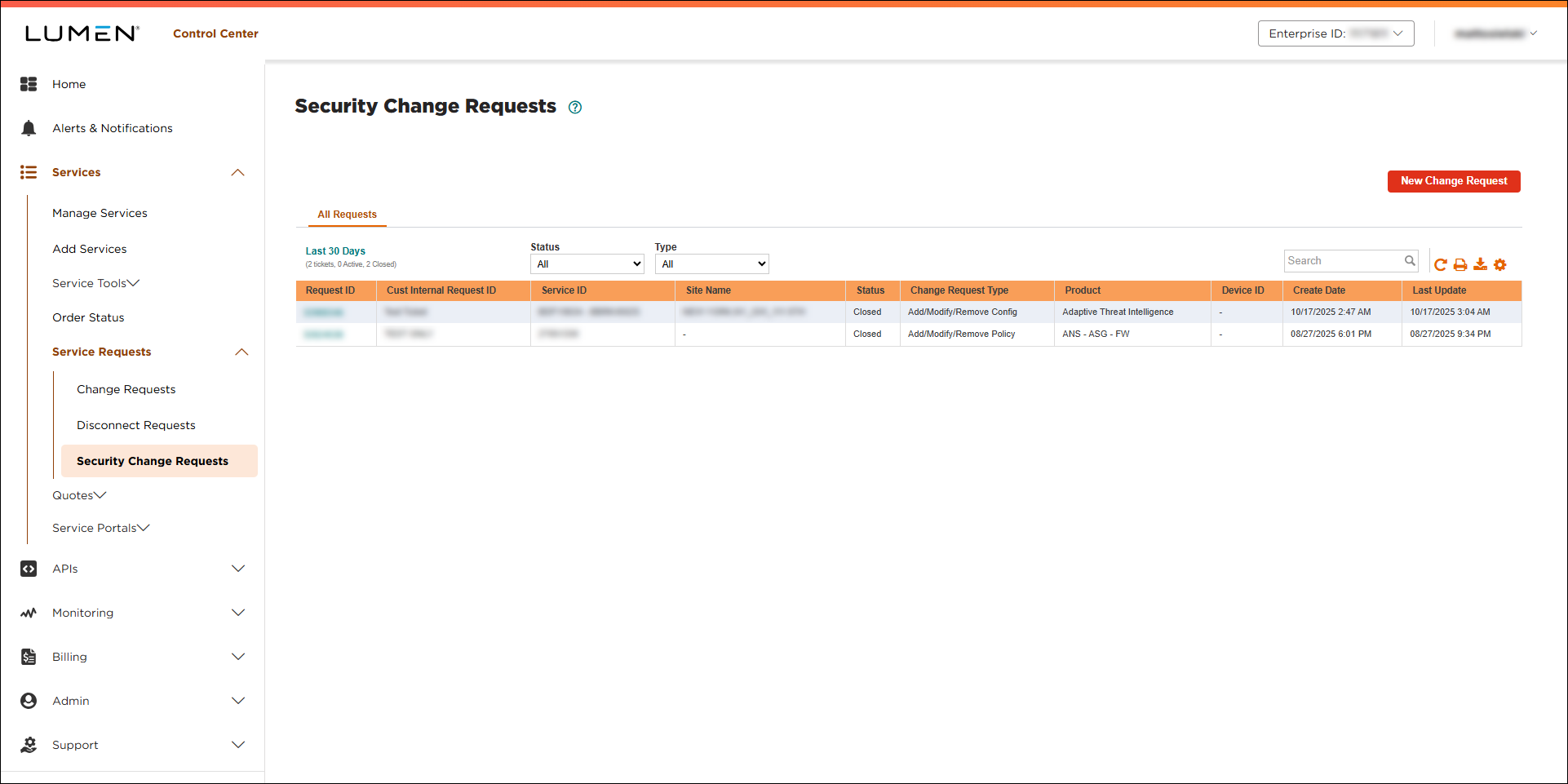
- Search for the security change request you want to work with by doing one of the following:
- Scroll through the security change requests. If you have more than 20 security change requests, you can view the rest of your security change requests by using the arrows at the bottom of the list.
- Search for the security change request by typing search criteria in the Search field.
- Filter the list of security change requests using the Status or Type lists.
- Scroll through the security change requests. If you have more than 20 security change requests, you can view the rest of your security change requests by using the arrows at the bottom of the list.
- In the Request ID column, click the hyperlink for the security change request you want to update.
Lumen Connect shows details for the security change request.
- Do any of the following:
- To add a note to the security change request, type the note in the Add a Note field.
- To add a file to help us process your request, click Browse (under Attachments), locate and select the file(s), then click Open.
- To update the contact information for the request, select the preferred contact method from the list, then update the information for the primary contact. (You can also add or update a secondary contact for the request.)
- To add a note to the security change request, type the note in the Add a Note field.
- When you're done, click Save Changes.
Lumen Connect saves your changes.



