

Downloading a badge holder report
After you create a request for a badge holder report using Lumen Connect, you can download it from the list of documents for your organization. Your badge holder report is an Excel file with a descriptive file name, like Badge report or the request ID. The report also has a category of Colocation to help you filter the list of documents shown.
To download a badge holder report:
- Using the left menu, click Admin, then click Documents.
Lumen Connect lists all documents you have access to for your organization.
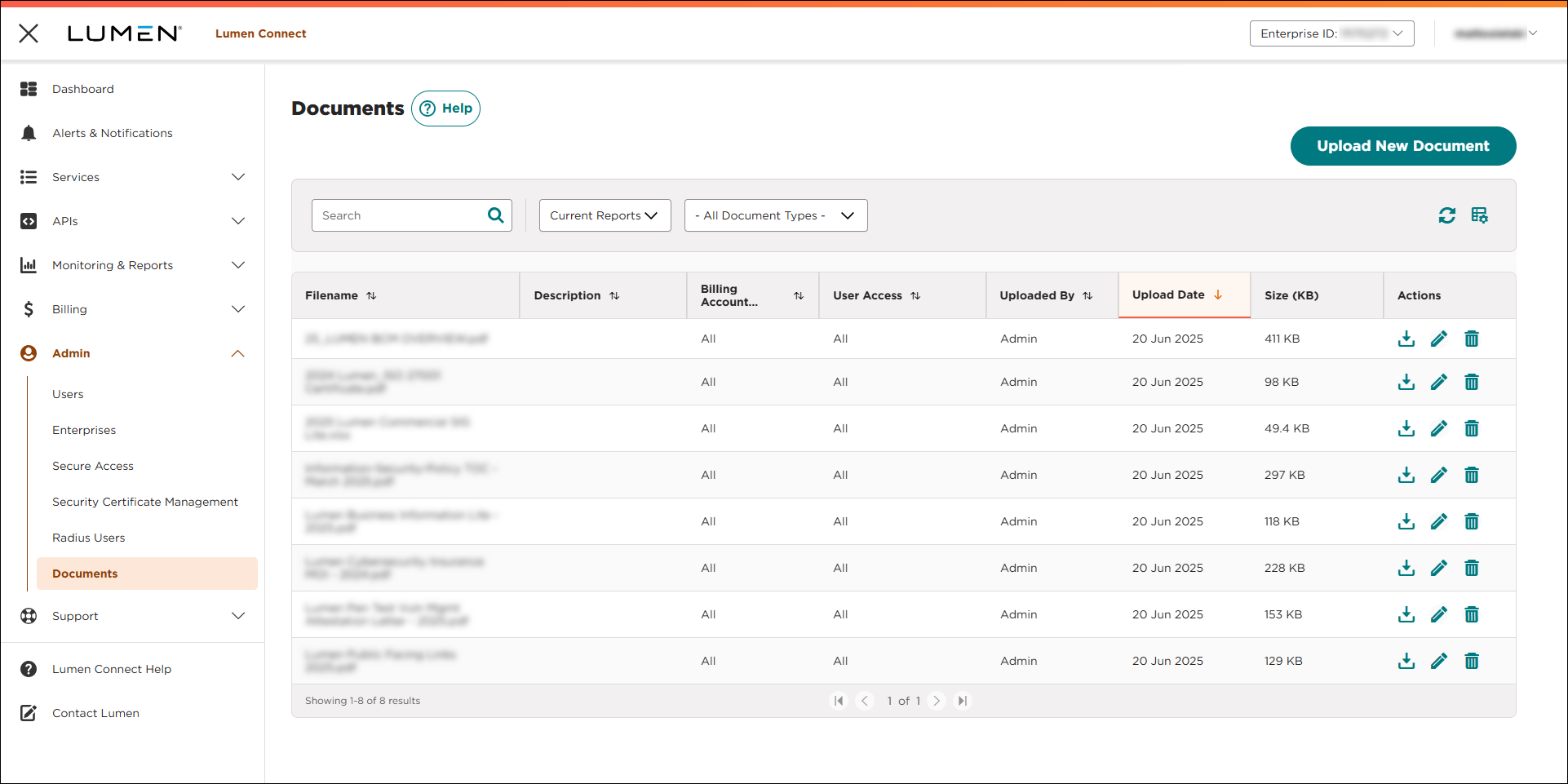
- Find the badge holder report you want to look at, then click the icon (in the Actions column) to download the Excel file. Look for descriptive information in the Filename or Description columns, like Badge report, the request ID (Case#) for your original report request, or both. You can also select Colocation from the ‑All Document Types‑ filter to see only colocation documents.



