

Retrieving and downloading an order in Bill Analyst
You can retrieve the billing reports you've ordered and then download them.
Note: Be sure to download reports as they become available and remove them so you don't exceed your maximum storage limit.
To retrieve and download an order:
- Sign in to Media portal. (Get help resetting your password)
- From the main menu, select Billing > Invoice Management.
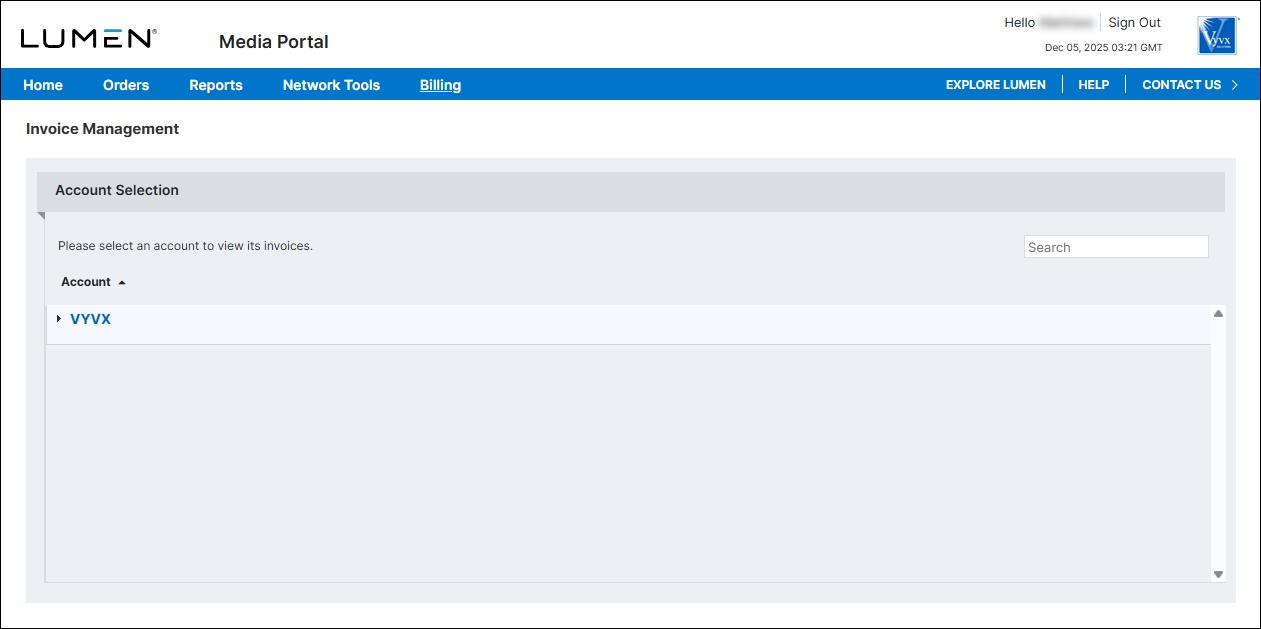
- From the list of accounts, click the blue hyperlink for the account you want to work with.
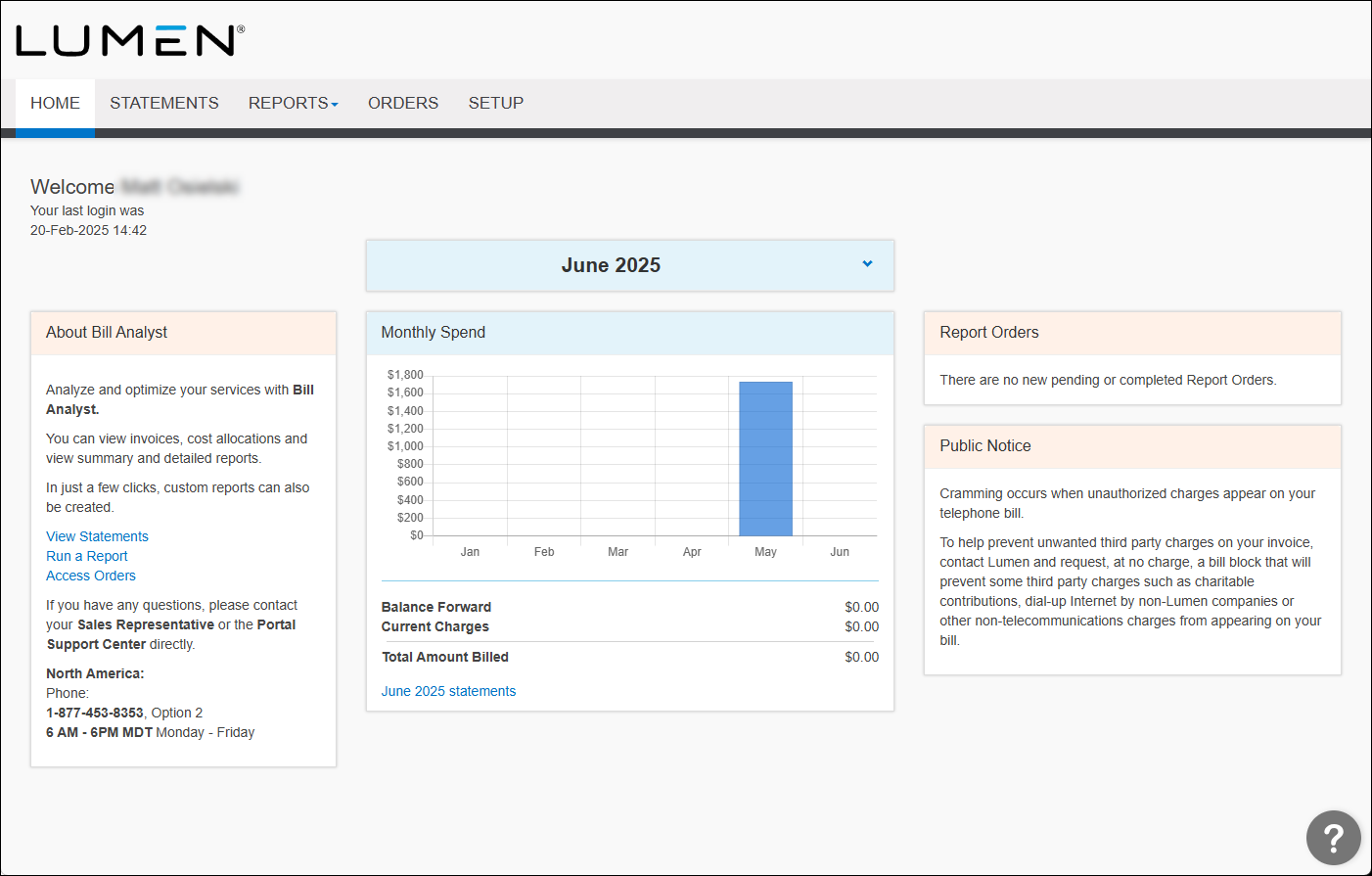
- Click the Statements tab.
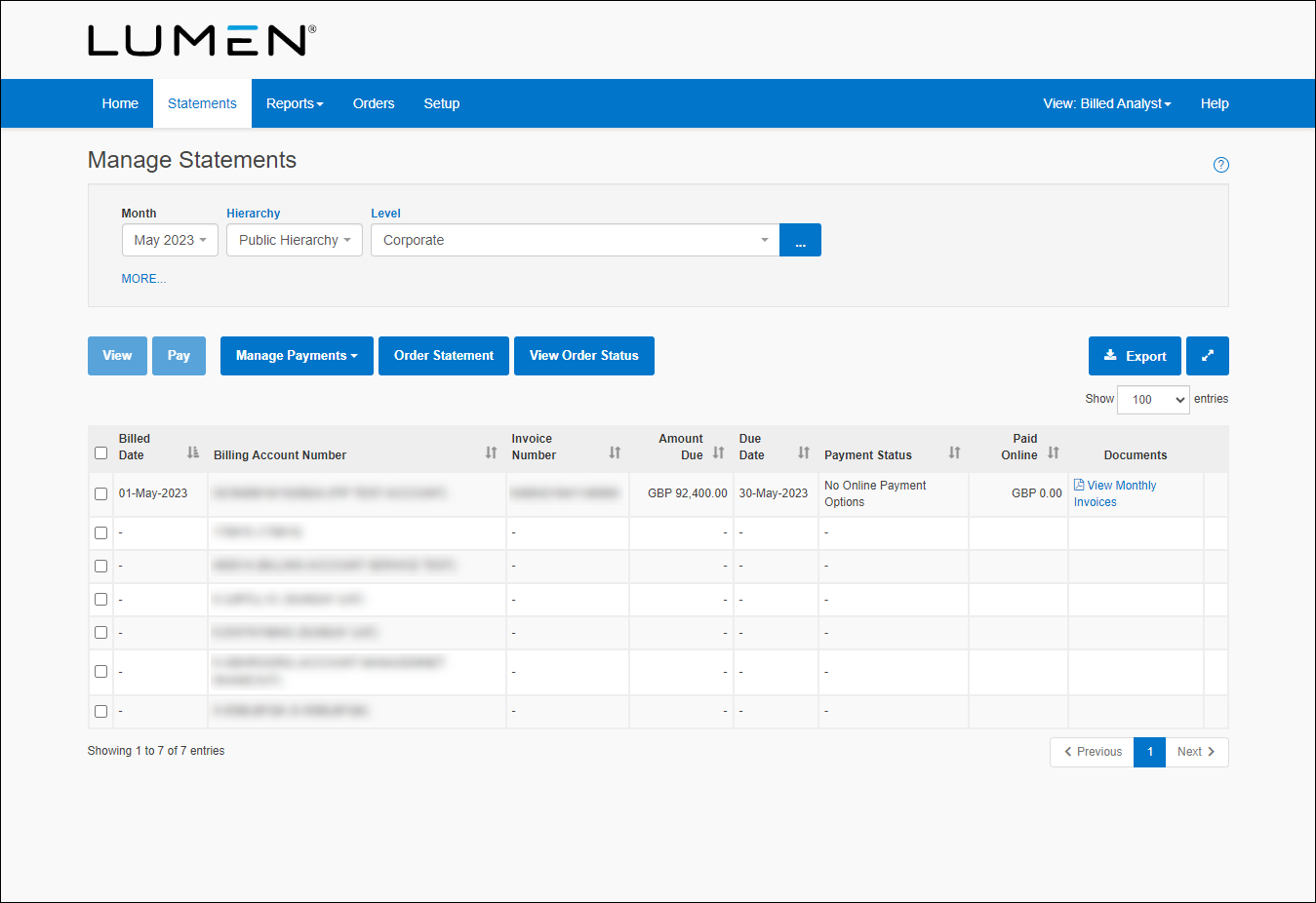
- Click View Order Status.
Bill Analyst shows a list of completed orders. By default, Bill Analyst usually shows completed orders summary reports.
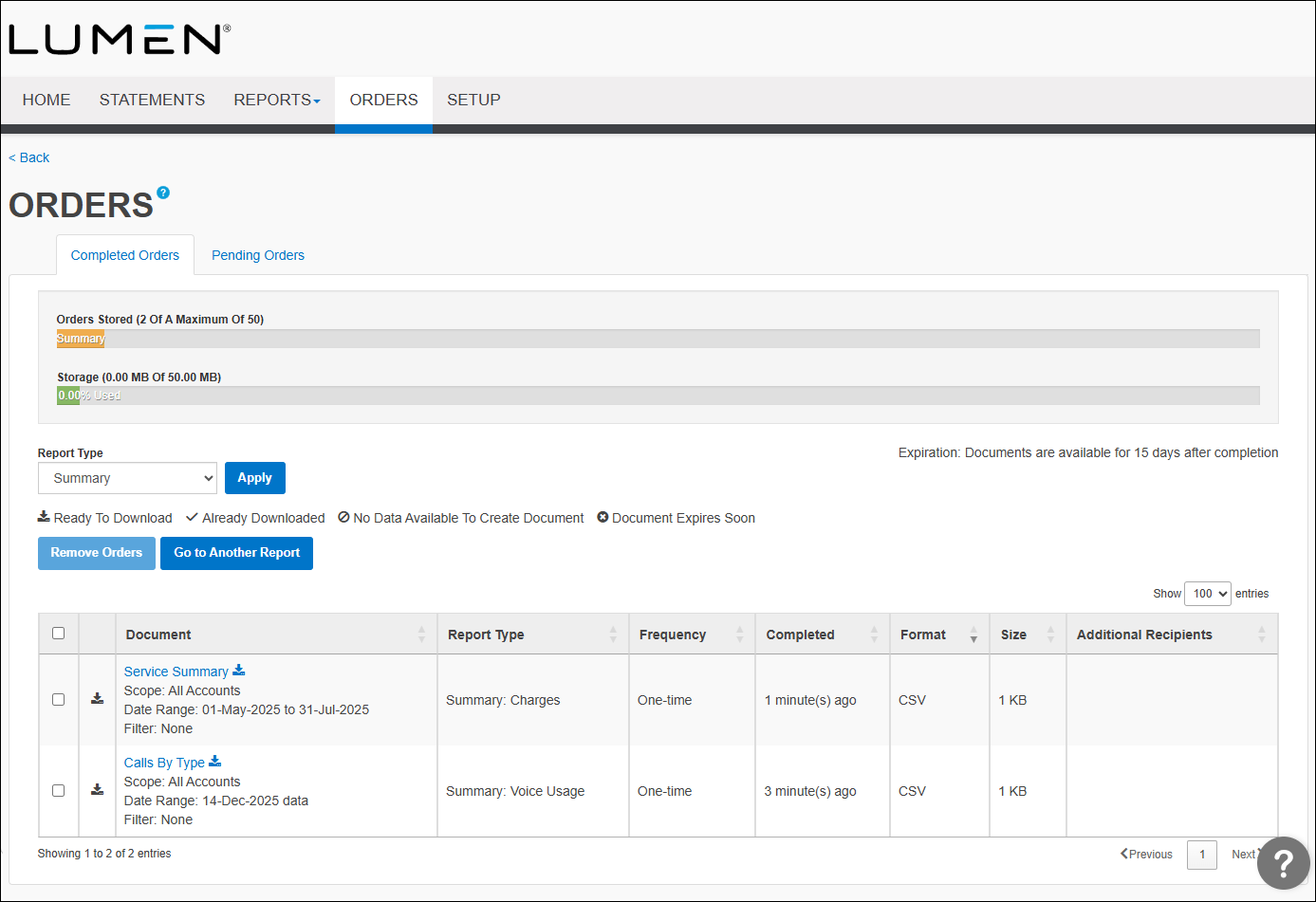
- From the Report Type list, select the type of report you want to download. For example, select All Statements (to view all ordered statements), Summary Reports (to view all ordered summary reports), or Detail Reports (to view all ordered detail reports).
- On the row for the report or statement you want to download, click the report name link in the Document column.



