

Configuring a virtual instance node
For Lumen® SASE Solutions, you can configure a virtual instance node (virtual machine) using Lumen Connect. You can also configure premise‑based nodes and nodes using Lumen hosted gateways.
To configure a virtual instance node:
- Using the left menu, click Services, click Service Tools, then click SASE Management.
Lumen Connect shows details about your service: configured SASE nodes (with a status for each), information about your technology provider, notifications (if any) related to your SASE service, etc.
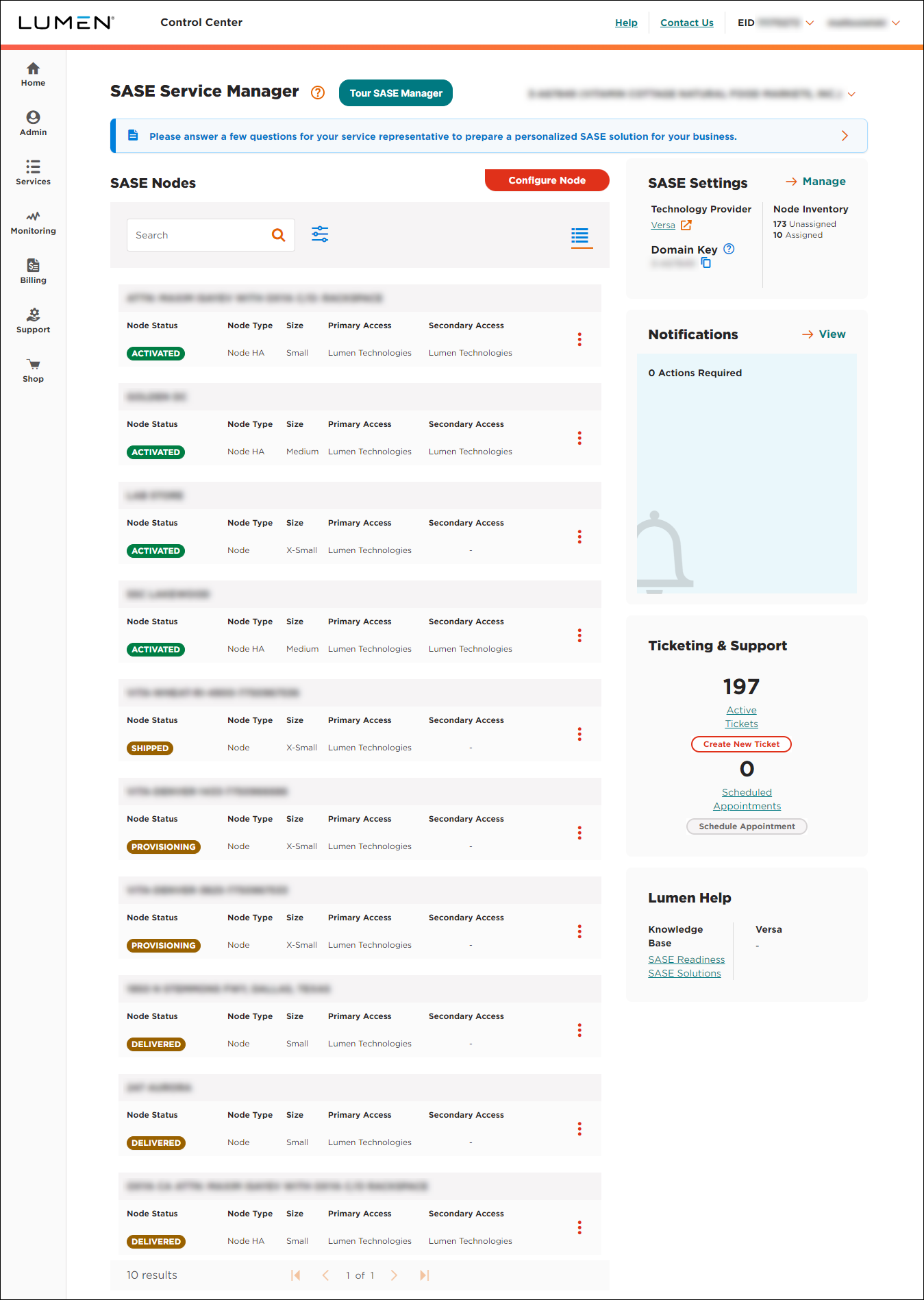
- In the SASE Nodes section, click Configure Node.
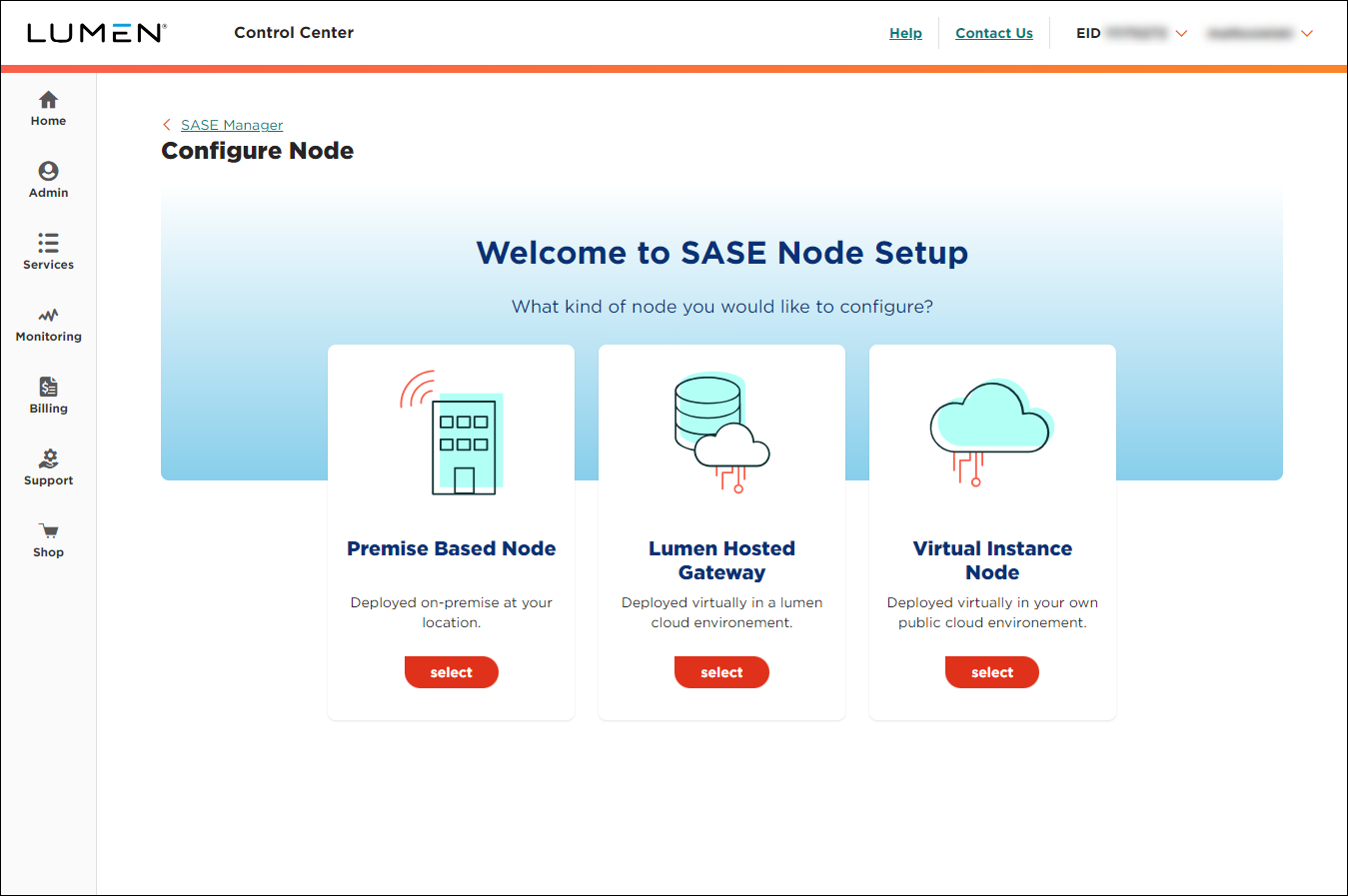
- On the Virtual Instance Node card, click select.
Lumen Connect shows the available size nodes you can configure.
- Select the tile for the size of the node you want to configure.
- Select the cloud provider you want to use for the node. (Currently, Lumen supports Microsoft Azure only.)
- Click CONTINUE.
Lumen Connect shows the default node contacts for your organization.
- Review the primary contact and primary technical contact shown. If you need to make a change for this node, click Yes on the line for the node, then edit the fields to change the contact.
- When you're done, click DEPLOY NODE.



