SD‑WAN with Versa Networks support:
Exploring the Appliance view
Versa Director provides a web-based network management interface (a GUI) that you use to orchestrate the functions of your network. The web interface offers tile and tabular views of network elements, and it provides increasing levels of granularity as you click down to navigate these elements.
The Director GUI has two views:
- Director view—In this view, you configure and manage Versa Director at the global level. Typically, the configuration here applies to the templates that are deployed across organizations (tenants) and appliances.
- Appliance (FlexVNF) view—In this view, you configure and manage specific Versa FlexVNF devices. The configuration here applies to the selected FlexVNF device and its associated tenants.
Appliance view has three main tabs:
Monitor tab
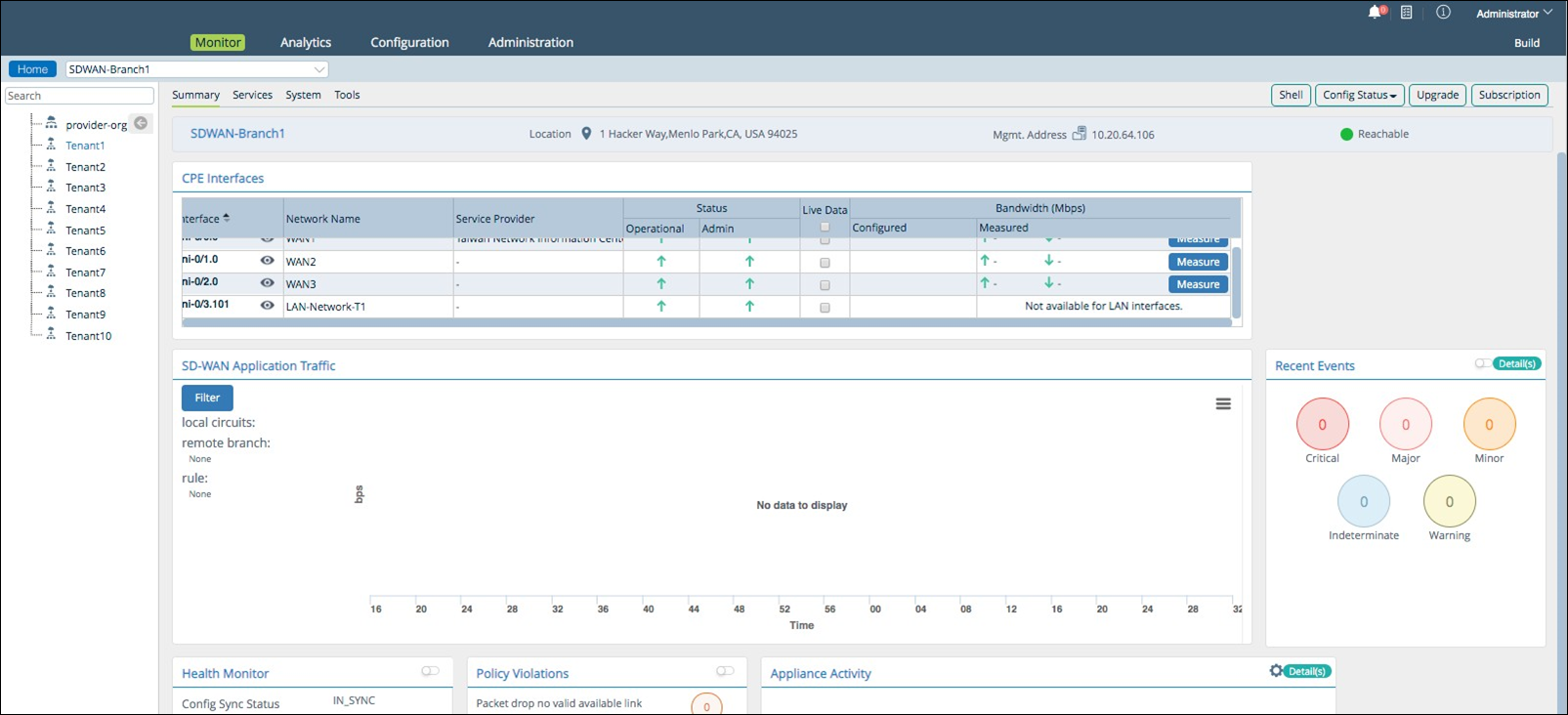
Monitor devices associated with organizations. The Monitor tab has four subtabs:
- Summary subtab: displays status information for a device.
- Services subtab: displays the status of Services (such as SD-WAN, NGFW, CGNAT, etc.,) and Networking items (such as Interfaces, Routes, BGP, etc.).
- System subtab: displays status information for a system.
- Tools subtab: allows you access to the following:
- Ping
- Traceroute
- Tcpdump
- Speed Test
Configuration tab
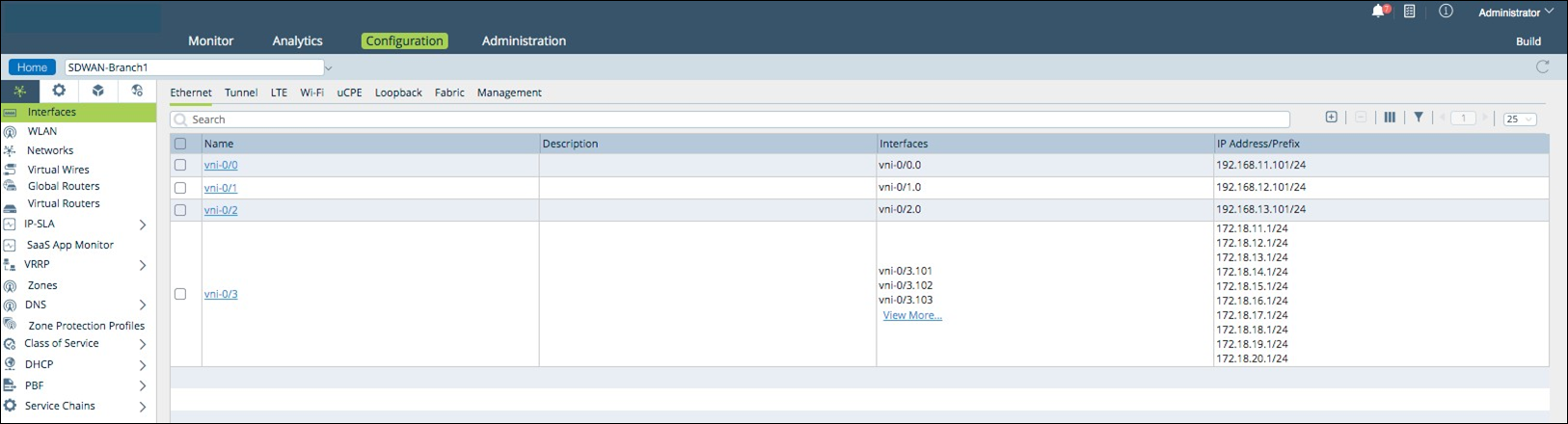
This tab has the following menus on the left panel:
- Networking menu: configure interfaces (Ethernet, Tunnel, Loopback, Fabric, Management) network zones, virtual wires, routers, policies (QoS), zones, zone protection profiles, and DHCP.
- Services menu: configure services such as CGNAT, Next Gen Firewall, IPsec, SD-WAN. Create new instances of network functions, such as Next Gen Firewall, VPN, Carrier-grade NAT (CGNAT), Layer 4 Load Balancer, SD-WAN or Routing services, provisioned virtually through the appliance.
- Objects and Connectors menu: Objects are common network functions or service instances, like address, address groups, schedules. Objects are created exclusively for an organization, but are reusable across network services and child organizations. Objects are visible as optional, while configuring organizations, appliances, or services.
- Others menu: Configure profiles, logs, and certificate servers.
Administration tab
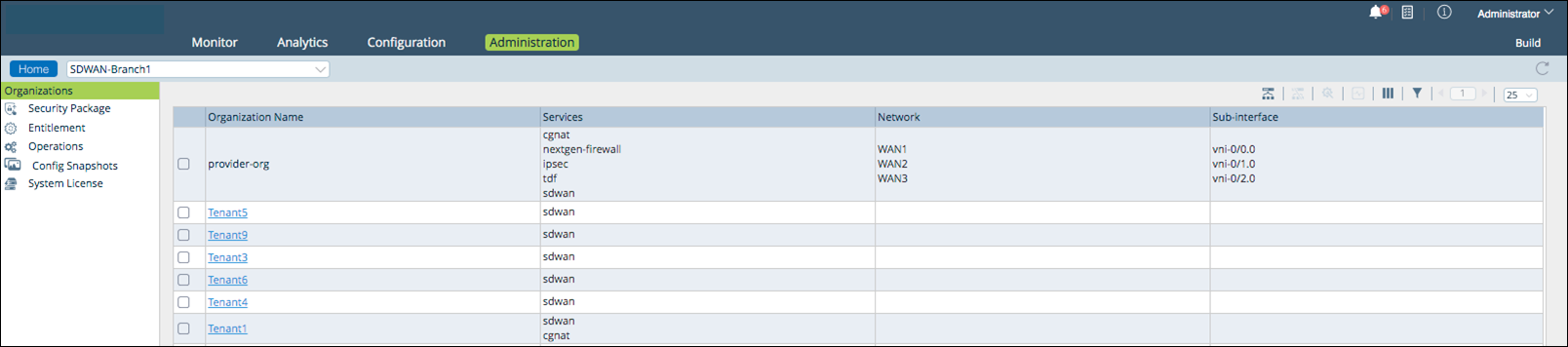
This tab has the following menus on the left panel:
- Organizations menu: manage organizations.
- Security Package menu: configure the security package.
- Entitlement menu: configure the entitlement.
- Operations menu: configure the operations.
- Config Snapshot menu: configure the configuration snapshots.
- System License menu: configure the system license.
Additional navigation
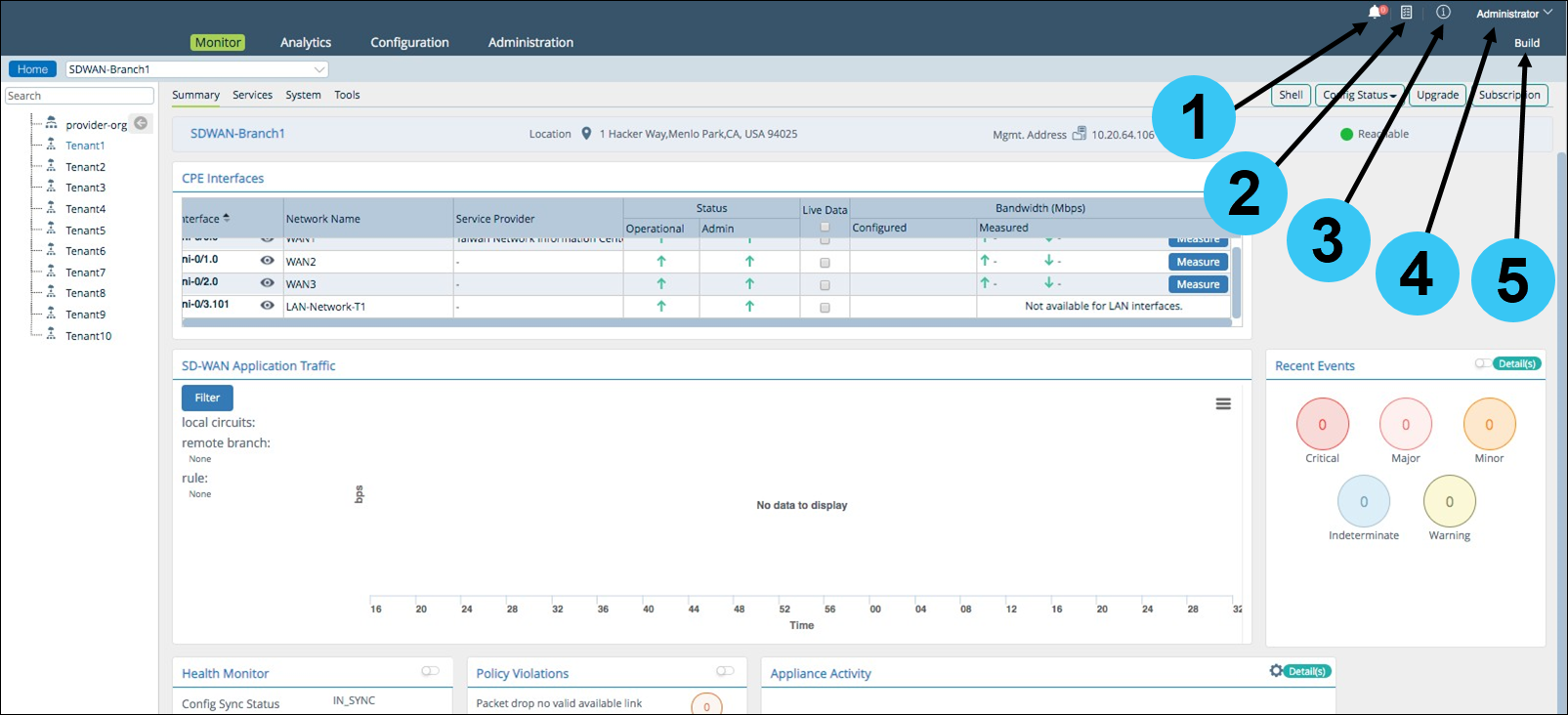
- Notifications icon: view system notifications.
- Tasks icon: view the details and progress of the activities, such as appliances or objects. An error is indicated by an exclamation (!) mark. Expand the relevant activity to view more information, which you can use to analyze and troubleshoot any issues.
- Information icon: click to display the following information about the Versa Director: Package, Release, Release Date, Package ID.
- Administrator menu: click to display the drop-down menu containing the following options: Director CLI (Click to open a CLI window), Change Session Timeout, Change Password, Change Logo, Change Footer, Change Favicon, REST API document, Language, Logout.
- Build menu: allows you to commit or discard all the configuration changes in the current session to the associated appliance.
- Commit: saves all the configuration changes to the appliance.
- Discard: doesn't push the configuration changes to the appliance, retaining the settings from the previous commit.