

Adding busy ring no answer (BRNA®) to a routing plan
If you have an office filled with people who occasionally need to step away from the phones for lunch or meetings, you can use the busy ring no answer (BRNA) feature in Lumen Connect to redirect calls for a Lumen® Toll Free Service. With BRNA, you can use any combination of up to four dedicated or switched numbers. And, if you want your customers to always speak to someone during office hours, and never get a busy signal, you can use BRNA in conjunction with direct‑trunk overflow (DTO).
To add busy ring no answer to a routing plan:
- In the Services widget on the homepage, select Toll Free from the Find by Product or Service Tool list.
Lumen Connect shows all Toll Free services on the enterprise ID.
- Search for the service you want to work with. When you find the service you want to work with, click the hyperlinked service ID or click the icon (in the Actions column), then click View Details.
Lumen Connect shows details for the toll-free service you selected.
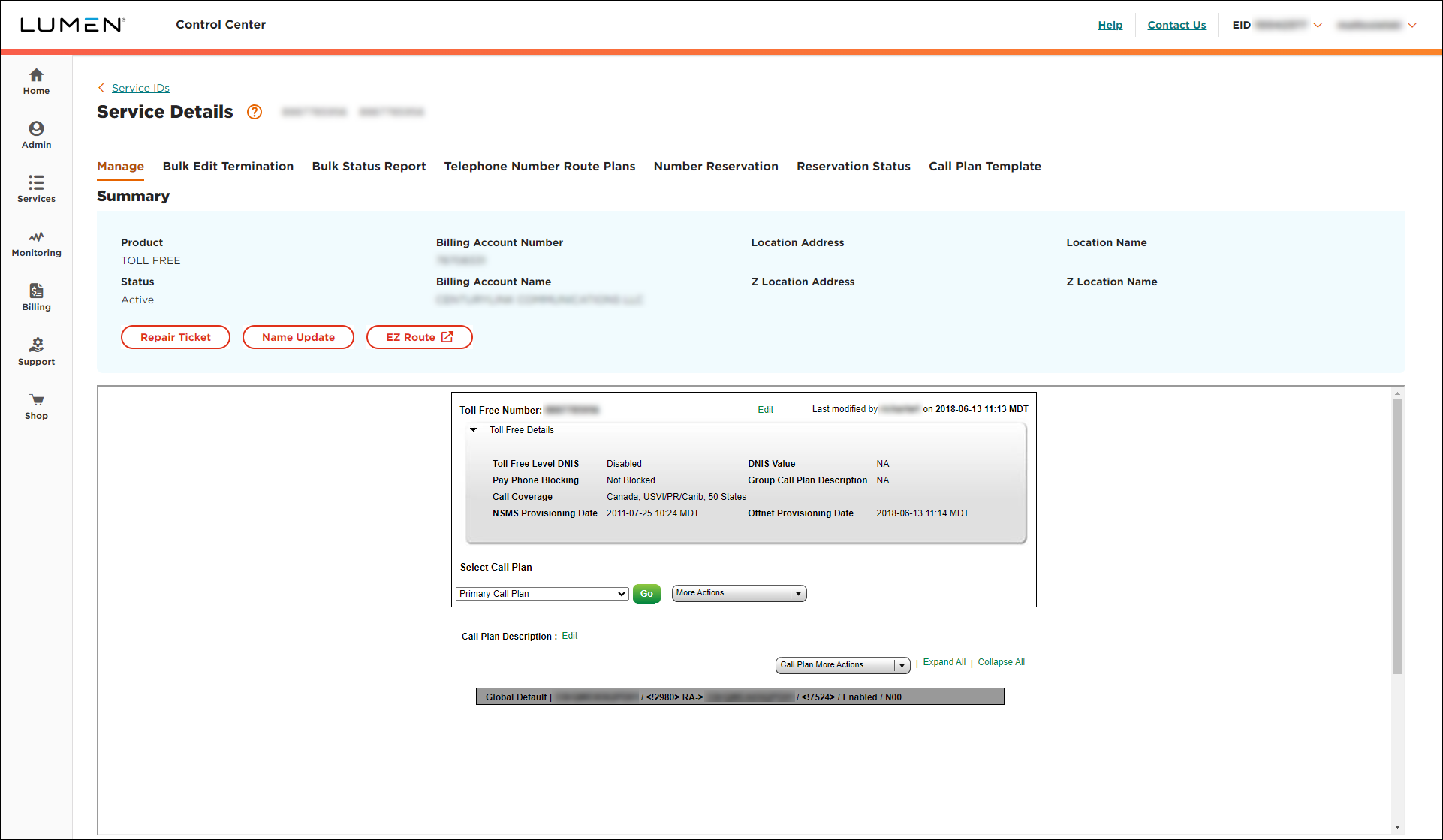
- From the Call Plan More Actions list, select Edit Call Plan.
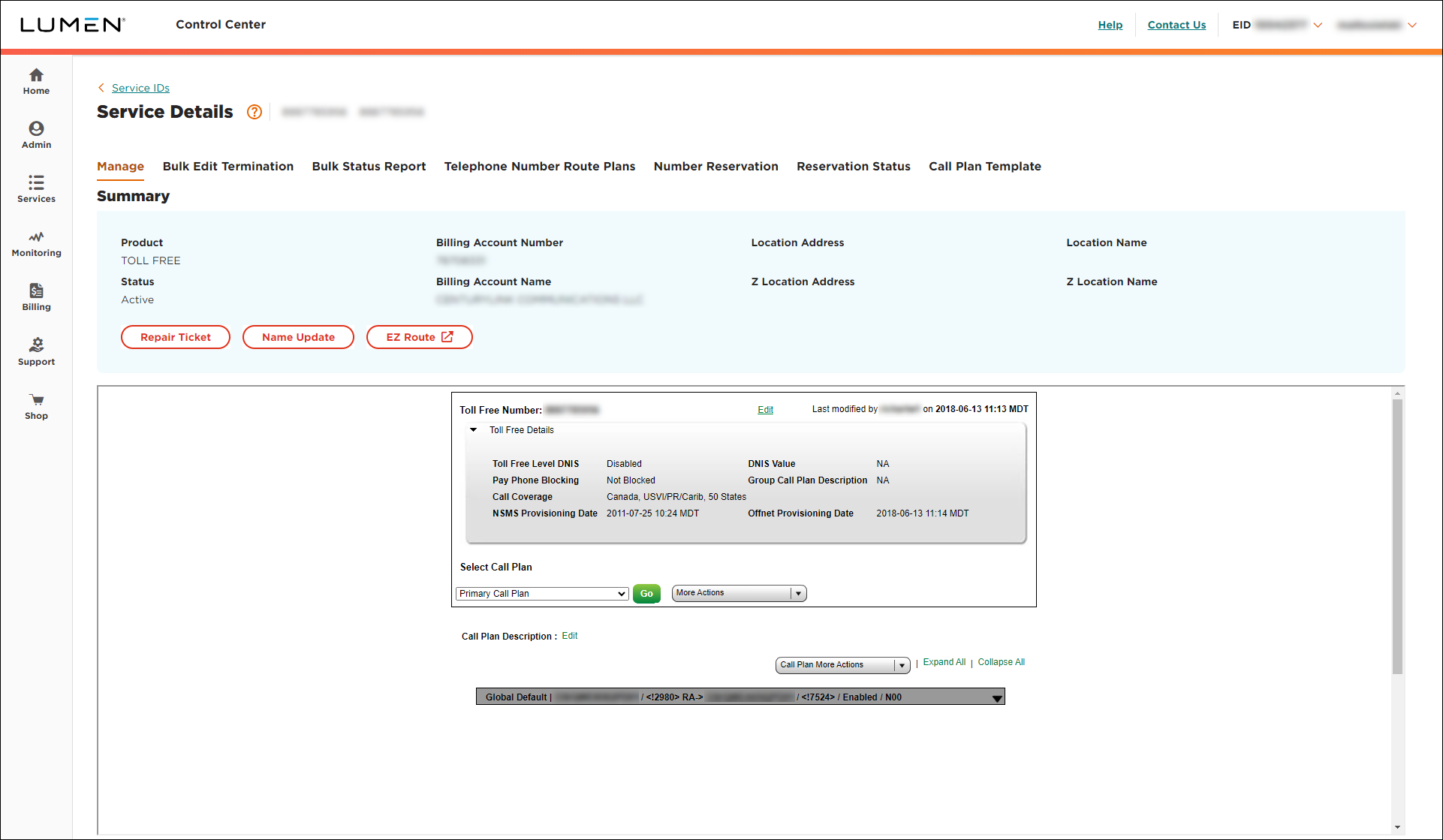
- Click the Global Default dark gray bar.
- In the popup window that appears, click the Add BRNA radio button, then click Select.
- If the Confirm Feature Add/Delete window appears, click Accept.
- Select the terminating route type, either the DED (dedicated) or SWI (switched) radio button.
- From the Primary Trunk list, select the primary trunk for the routing plan.
- In the Timer field, type the number of seconds you want to wait before transferring the call. (The default is fifteen seconds—about three rings.)
- If you want a message played before transferring calls that ring and aren't answered, select an option from the RNA Prompt list.
- If you want a message played before transferring calls that receive a busy trunk, select an option from the Busy Prompt list.
- For the trunk/ANI you want to receive the transferred call to, select either the DED (dedicated) or SWI (switched) radio button.
- To add direct trunk overflow, click the Overflow radio button, then click Select.
- If the Confirm Feature Add/Delete window appears, click Accept.
- Do any of the following (you can do more than one):
- To add an overflow trunk:
- From the first DTO list, select the trunk you want to overflow to first.
- To add a description or DNIS value for the trunk, click Modify, fill in the information, then click Save.
- From the first DTO list, select the trunk you want to overflow to first.
- To add a second overflow trunk:
- From the second DTO list, select a trunk.
- To add a description or DNIS value for the trunk, click Modify, fill in the information, then click Save.
- From the second DTO list, select a trunk.
- To add an overflow ANI:
- From the ANI list, select the ANI you want to overflow to. (If you don't see the ANI you need, click the ADD ANI TO THE LIST button, fill in the fields, then click Add.)
- To add a description or DNIS value for the ANI, click Modify, fill in the information, then click Save.
- From the ANI list, select the ANI you want to overflow to. (If you don't see the ANI you need, click the ADD ANI TO THE LIST button, fill in the fields, then click Add.)
- To add an overflow trunk:
- Scroll to the bottom of the window, then click Done.
- Click Update.
- Scroll to the bottom of the screen, then click Save Changes.



