

Creating a percentage‑allocation routing plan
If your Lumen® Toll Free Service traffic flow consistently needs to be redirected to different locations, use the percentage-allocation routing feature in Lumen Connect to automatically send your inbound calls to where you have the staff. For example, if you have call centers in Colorado, Arizona, and Virginia, but your largest support team is in Colorado, you can set up a rule to divide where calls are sent, such as 50% to Colorado, 35% to Arizona, and 15% to Virginia. You can update the routing plan as your business needs change.
To route call traffic based on percentages:
- In the Services widget on the homepage, select Toll Free from the Find by Product or Service Tool list.
Lumen Connect shows all Toll Free services on the enterprise ID.
- Search for the service you want to work with. When you find the service you want to work with, click the hyperlinked service ID or click the icon (in the Actions column), then click View Details.
Lumen Connect shows details for the toll-free service you selected.
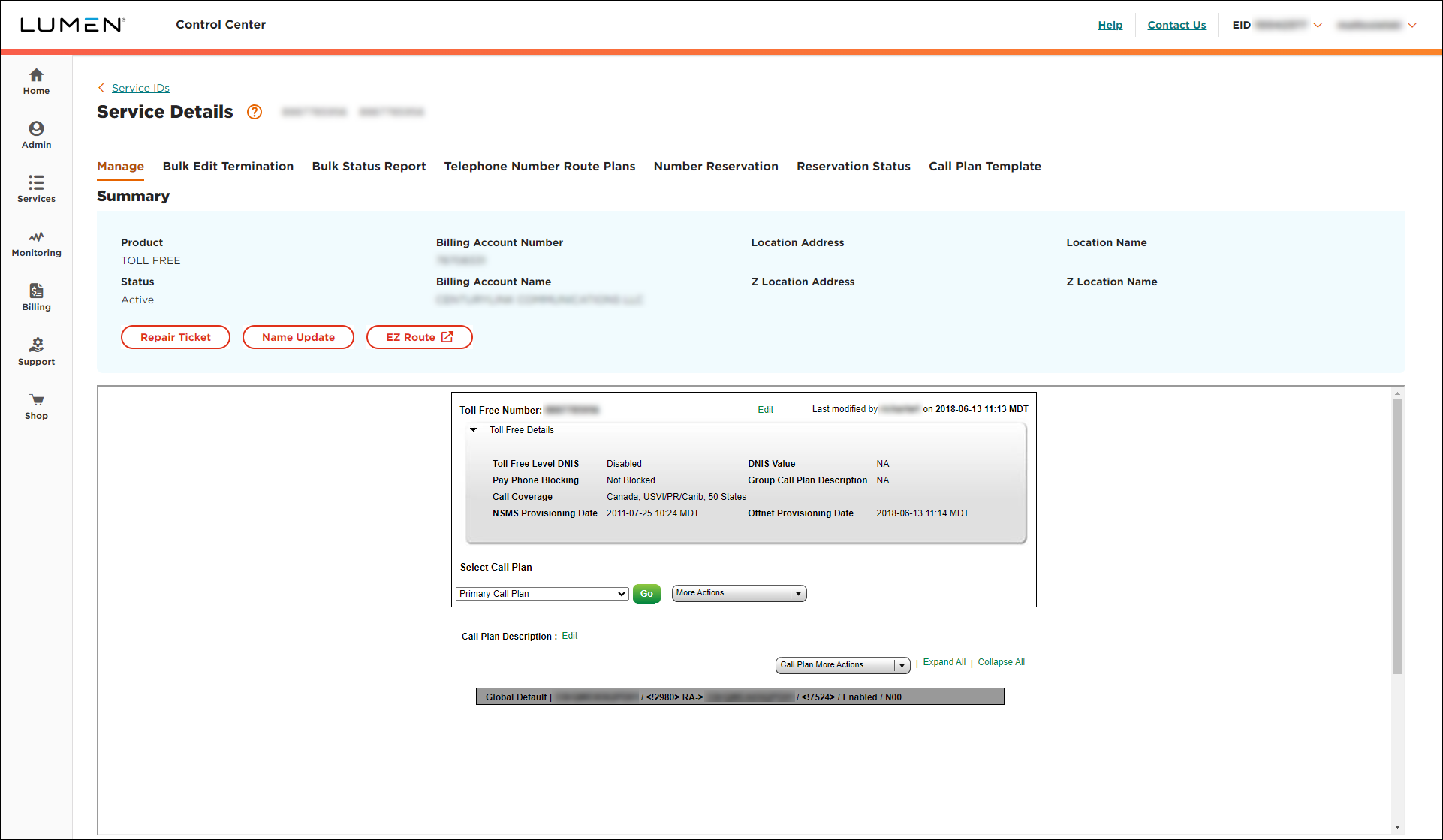
- From the Call Plan More Actions list, select Edit Call Plan.
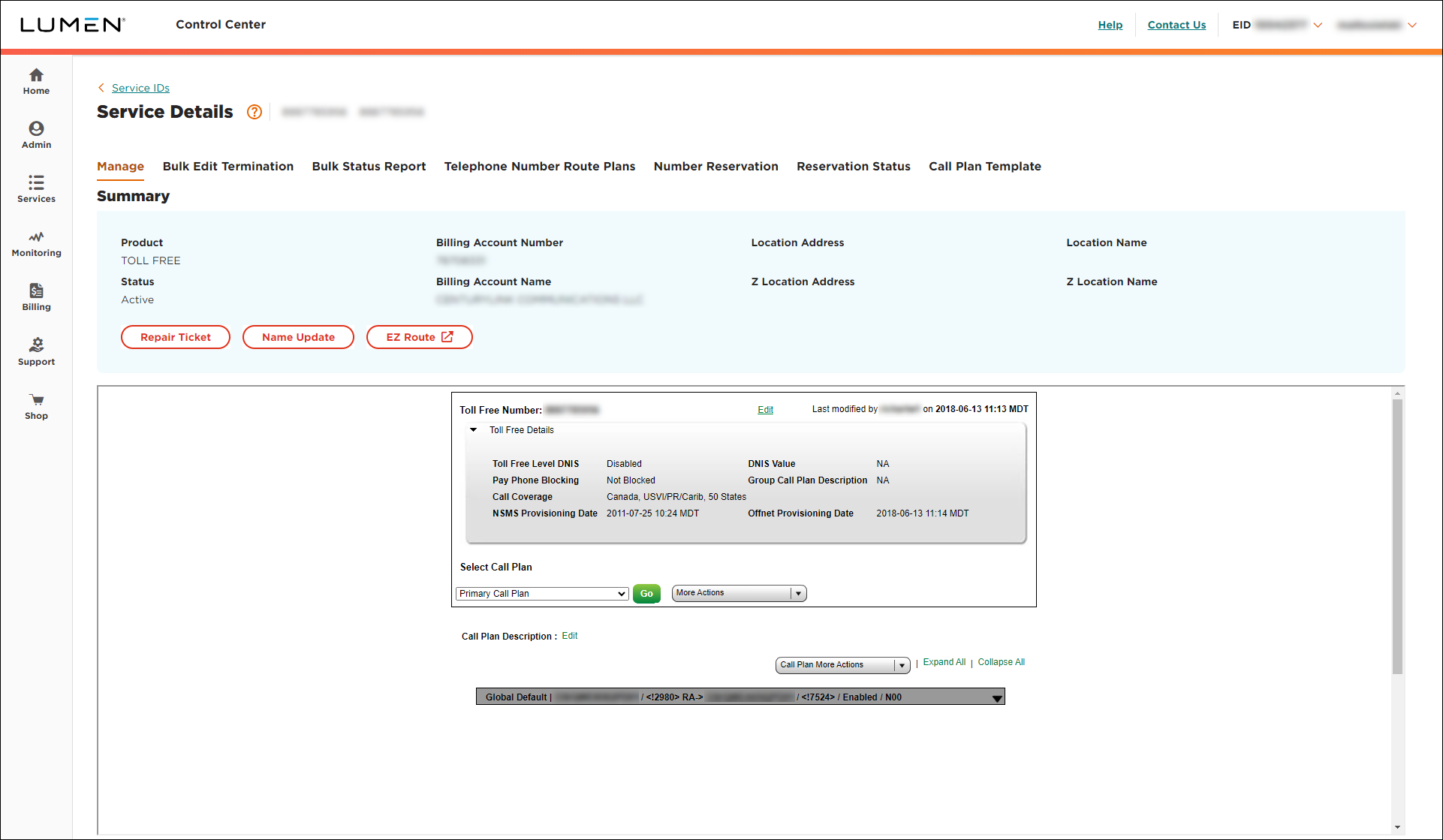
- On the right of the global default (dark gray) bar, click the down arrow, then click Add New Feature.
- In the popup window, from the Select Feature list, select Percent Allocation, then click Submit.
- If the Confirm Feature ADD/Delete window appears, click Accept.
- If you want to route all calls to a single number, select the Uniform checkbox. (Otherwise, leave it empty. If you select the checkbox, Control Center won't let you specify more than one termination or type a percentage.)
- Click Add Rule.
From here, unless you selected Uniform, you're creating a rule to tell the system what to do when someone calls a certain phone number.
- Depending on what kind of number you want to route, in the Terminating Route Type section, do one of the following:
- To add a dedicated trunk:
- Select the DED radio button.
- From the Primary Trunk list, select the trunk.
- Select the DED radio button.
- To add a switched ANI:
- Select the SWI radio button.
- From the ANI list, select the terminating route. (If you don't see the trunk/ANI you need, click the ADD ANI TO THE LIST button, fill in the fields, click Add, then select the number from the list.)
- Select the SWI radio button.
- To add a dedicated trunk:
Note: If you give the ANI a description, describe it so you and your colleagues will remember it. If you leave the description blank, the phone number will show in the list.
- Scroll down in the popup, in the Percentage (%) field, type the percentage of calls you want to route to that number, then click Update.
- From the Percentage Allocation list (blue bar), click Add New Feature.
- From 0% list (gray bar), click Add New Rule.
- Scroll down in the popup, in the Percentage (%) field, type the percentage of calls you want to route to that number, then click Update.
- Continue adding features and rules until your allocation is 100%.
- Click Save Changes (you may need to scroll down in the window).
- Select the date and time you want your changes to take effect, then click Submit.
Important: After you schedule the changes, you cannot edit the plan until the pending changes are activated. You can check the status of the request by selecting Job List from the More Actions list.



