

Updating a day-of-week routing plan
In Lumen Connect, you can change the days of the week you're routing your incoming calls or change the location of calls for Lumen® Toll Free Service. For example, from Monday through Wednesday you can direct calls to your Arizona office or you can change your routing plan to redirect calls to that office on additional days.
To update a day-of-week routing plan:
- In the Services widget on the homepage, select Toll Free from the Find by Product or Service Tool list.
Lumen Connect shows all Toll Free services on the enterprise ID.
- Search for the service you want to work with. When you find the service you want to work with, click the hyperlinked service ID or click the icon (in the Actions column), then click View Details.
Lumen Connect shows details for the toll-free service you selected.
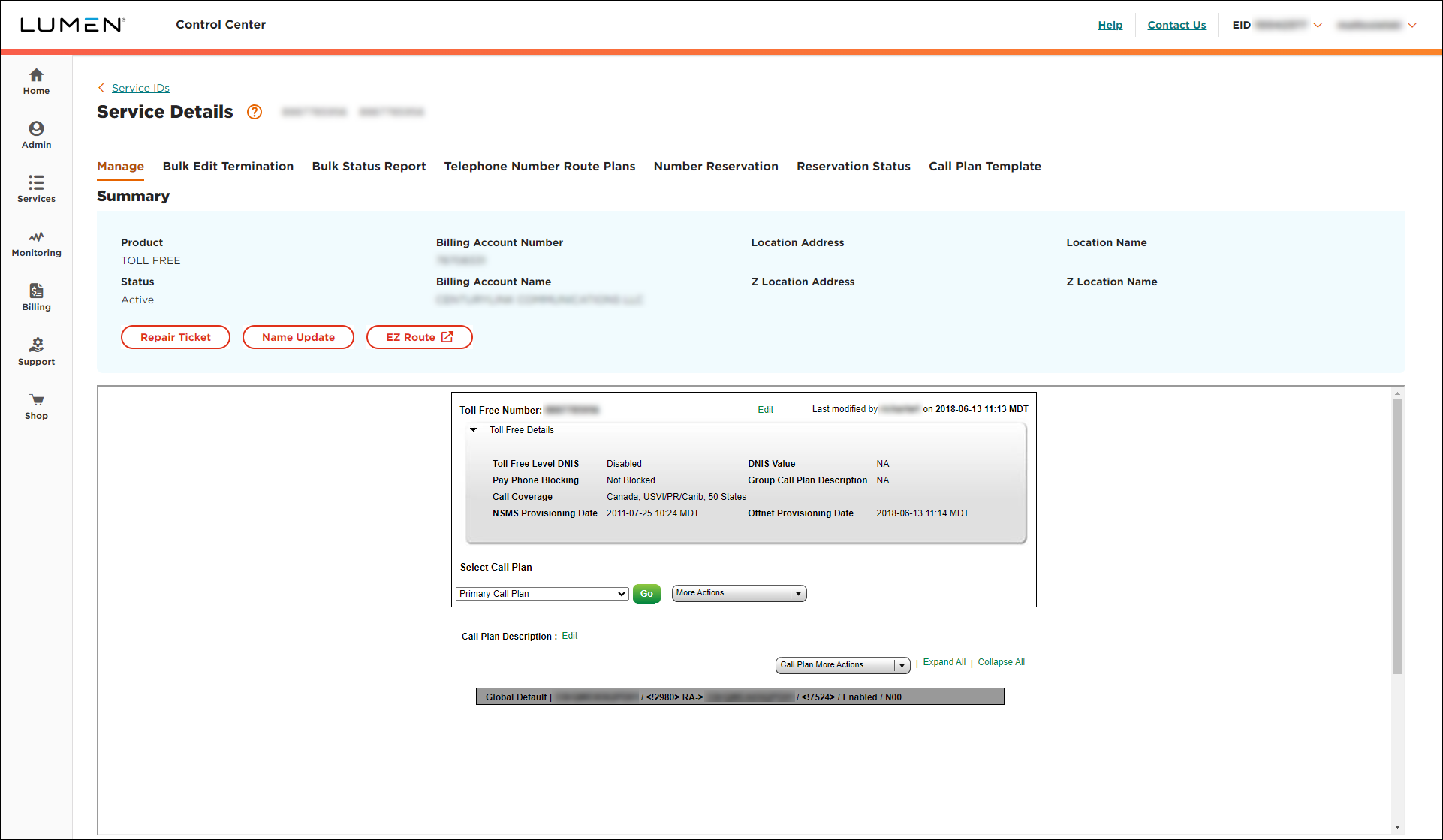
- Click anywhere on the gray Global Default bar. (Do not click on the arrow.)
- Make your changes by doing any of the following:
- To change the time zone for the day‑of‑week routing, click the light blue bar, make your changes, then click Save.
- To remove the day‑of‑week routing entirely, click the light blue bar, then click Delete Feature.
- To remove one of the rules (e.g., routing to Colorado on Thursdays), click the light gray bar for the rule, then click Delete Rule.
- To add another rule (e.g., routing to Virginia on Fridays), do the following:
- Click the light blue bar.
- Click Add Rule.
- Click the light blue bar.
- To add a dedicated trunk:
- Select the DED radio button.
- From the Primary Trunk list, select the trunk.
- Select the DED radio button.
- To add a switched ANI:
- Select the SWI radio button.
- From the ANI list, select the terminating route. (If you don't see the trunk/ANI you need, click the ADD ANI TO THE LIST button, fill in the fields, click Add, then select the number from the list.)
- Select the SWI radio button.
- To change the days for a rule (e.g., routing to Colorado on Wednesdays and Thursdays), do the following:
- Click the light gray bar for the rule.
- Scroll down to the Routing Criteria section.
- Make your changes.
- Click Update.
- Click the light gray bar for the rule.
- To change the terminating number or the terminating route type (e.g., switched or dedicated) for one of the rules, do one of the following:
- Click the light gray bar for the rule:
- To add a dedicated trunk:
- Select the DED radio button.
- From the Primary Trunk list, select the trunk.
- Select the DED radio button.
- To add a switched ANI:
- Select the SWI radio button.
- From the ANI list, select the terminating route. (If you don't see the trunk/ANI you need, click the ADD ANI TO THE LIST button, fill in the fields, click Add, then select the number from the list.)
- Select the SWI radio button.
- To add a dedicated trunk:
- Scroll to the bottom, then click Update.
- Click the light gray bar for the rule:
- To change the time zone for the day‑of‑week routing, click the light blue bar, make your changes, then click Save.
- Click Save Changes (you may need to scroll down in the window).
- Select the date and time you want your changes to take effect, then click Submit.
Important: After you schedule the changes, you cannot edit the plan until the pending changes are activated. You can check the status of the request by selecting Job List from the More Actions list.



