

Creating a digit string
To restrict a number(s) from incoming or outgoing calling plans for Lumen® Voice Complete® phone numbers, you can create a digit string using Voice Complete Feature Manager in Lumen Connect. As your business needs change, you can edit the digit string. If you no longer need the restriction, you can delete the digit string.
To create a digit string:
- Using the left menu, click Services, click Service Tools, then click Voice Complete Features.
Lumen Connect shows the groups associated with your Voice Complete service.
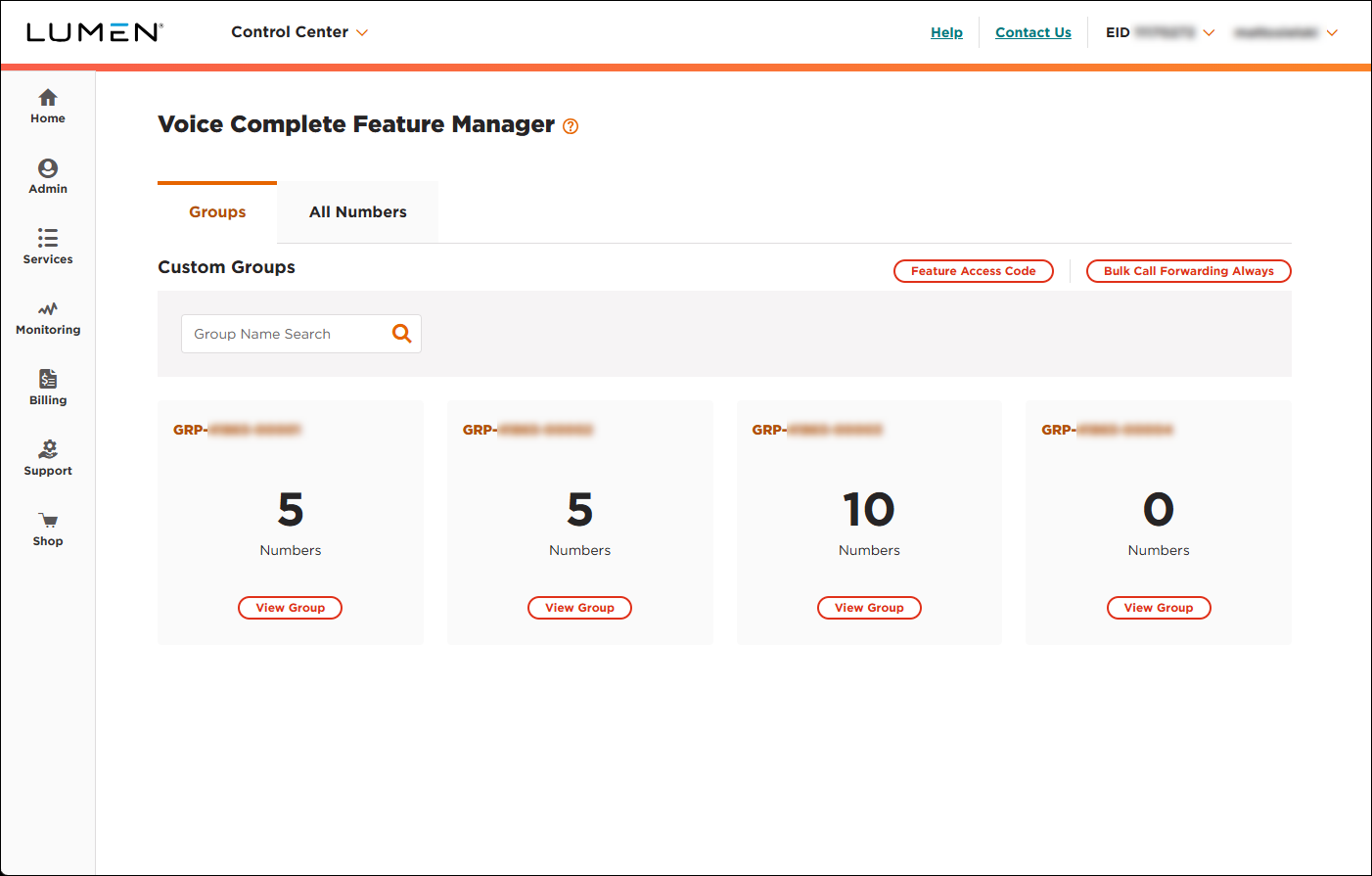
- On the card for the group you want to work with, click View Group.
Lumen Connect lists the phone numbers associated with the group you selected.
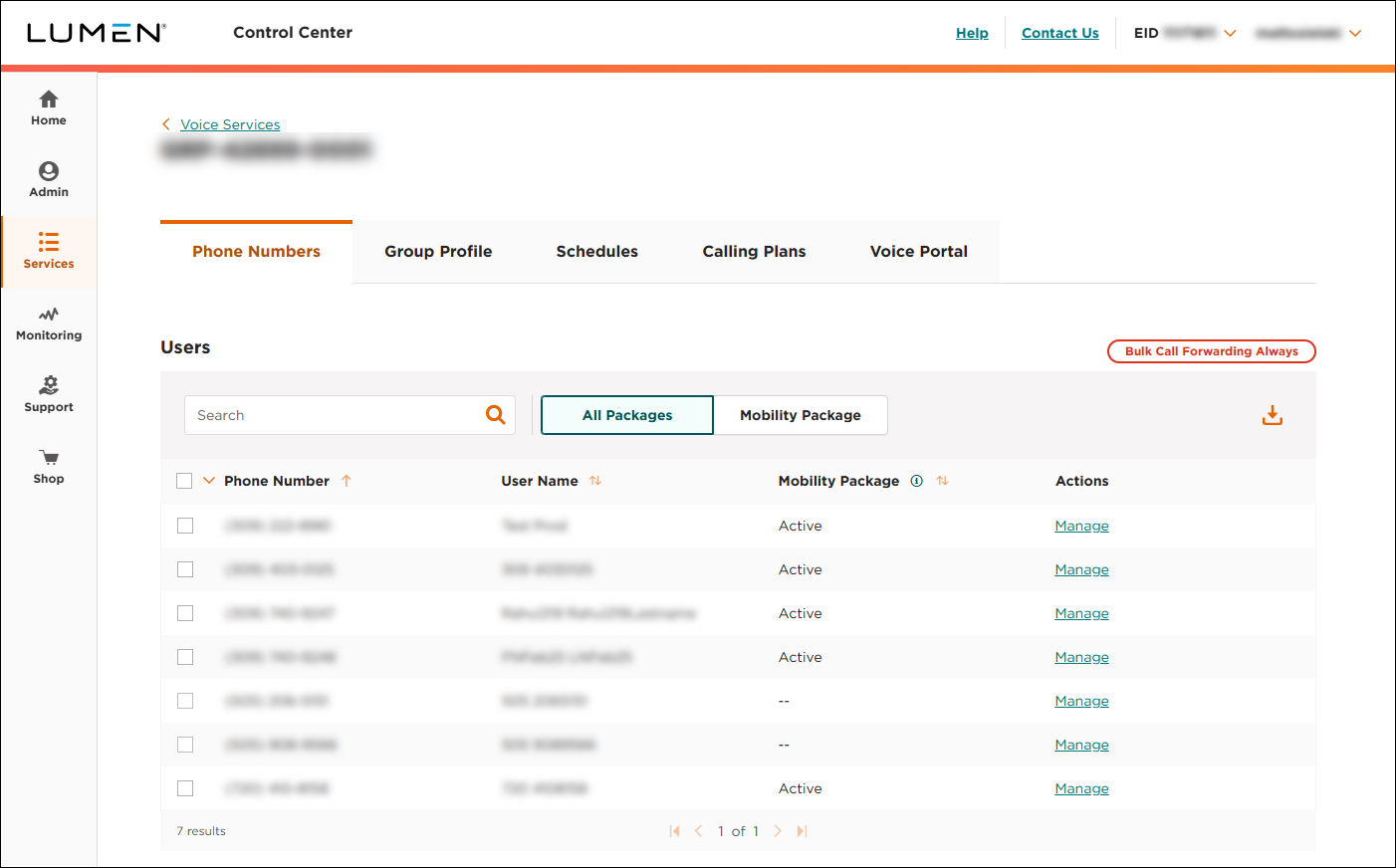
- Click the Calling Plans tab.
Lumen Connect shows the incoming and outgoing calling plans for the group as well as any digit strings created for the group.
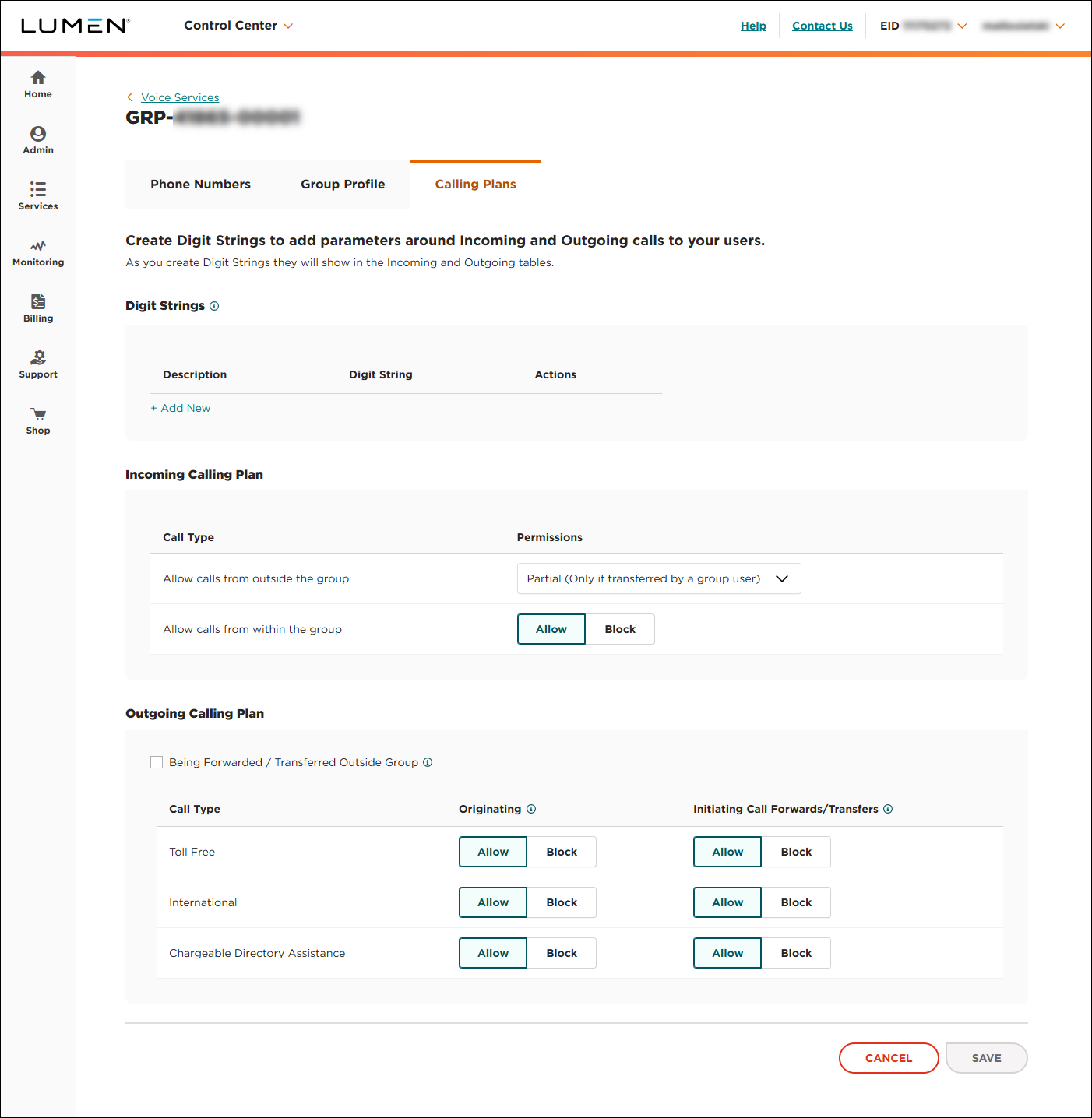
- In the Digit Strings section, click + Add New.
- Fill in the information for the digit string:
- In the Description field, type a name for the digit string. (Use something that will help you easily identify the digit string when you add it to a calling plan.)
- In the Digit String field, type the pattern you want to restrict in the calling plan. You can use any of the following characters to create the digit string: numbers from 0-9, +, ?, and trailing * digit. For more information on what you can put in the field, click the icon next to the section title. (For example, if you want to restrict calls to 800 numbers, type 800* in the field.)
- In the Description field, type a name for the digit string. (Use something that will help you easily identify the digit string when you add it to a calling plan.)
- When you're done, click Save.
Lumen Connect saves the digit string and makes it available to use in the incoming and outgoing calling plans.



