

Creating a holiday schedule for a phone number
As a Voice Complete Feature Manager administrator, you can use Lumen Connect to create time schedules and holiday schedules to drive how calls are routed for Lumen® Voice Complete® phone numbers using the Simultaneous Ring or Sequential Ring features (available with the Mobility Feature Pack). As an administrator, you can create holiday schedules for phone numbers in your organization. As your business needs change, you can also edit the holiday schedule or delete it if you no longer need it.
To create a holiday schedule for a phone number:
- Using the left menu, click Services, click Service Tools, then click Voice Complete Features.
Lumen Connect shows the groups associated with your Voice Complete service.
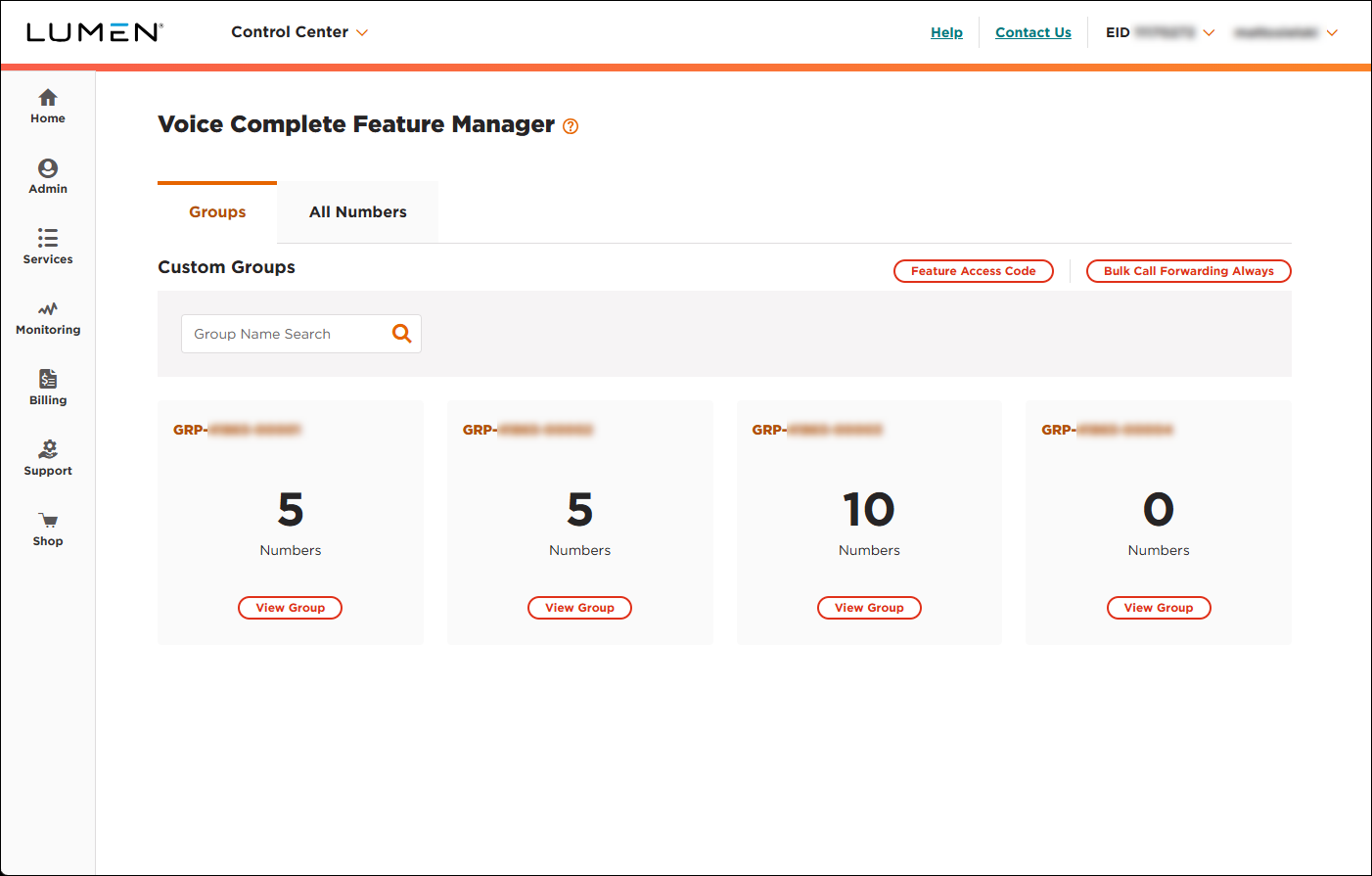
- Search for the phone number you want to work with by doing one of the following:
- If you know the group the phone number belongs to, click View Group on the card for the group.
- Otherwise, click the All Numbers tab, then search for, sort, or filter the list of phone numbers to find the one you're looking for.
- If you know the group the phone number belongs to, click View Group on the card for the group.
- When you find the phone number, click the Manage link (in the Actions column) on the row for the phone number.
Lumen Connect shows the calling features for the phone number.
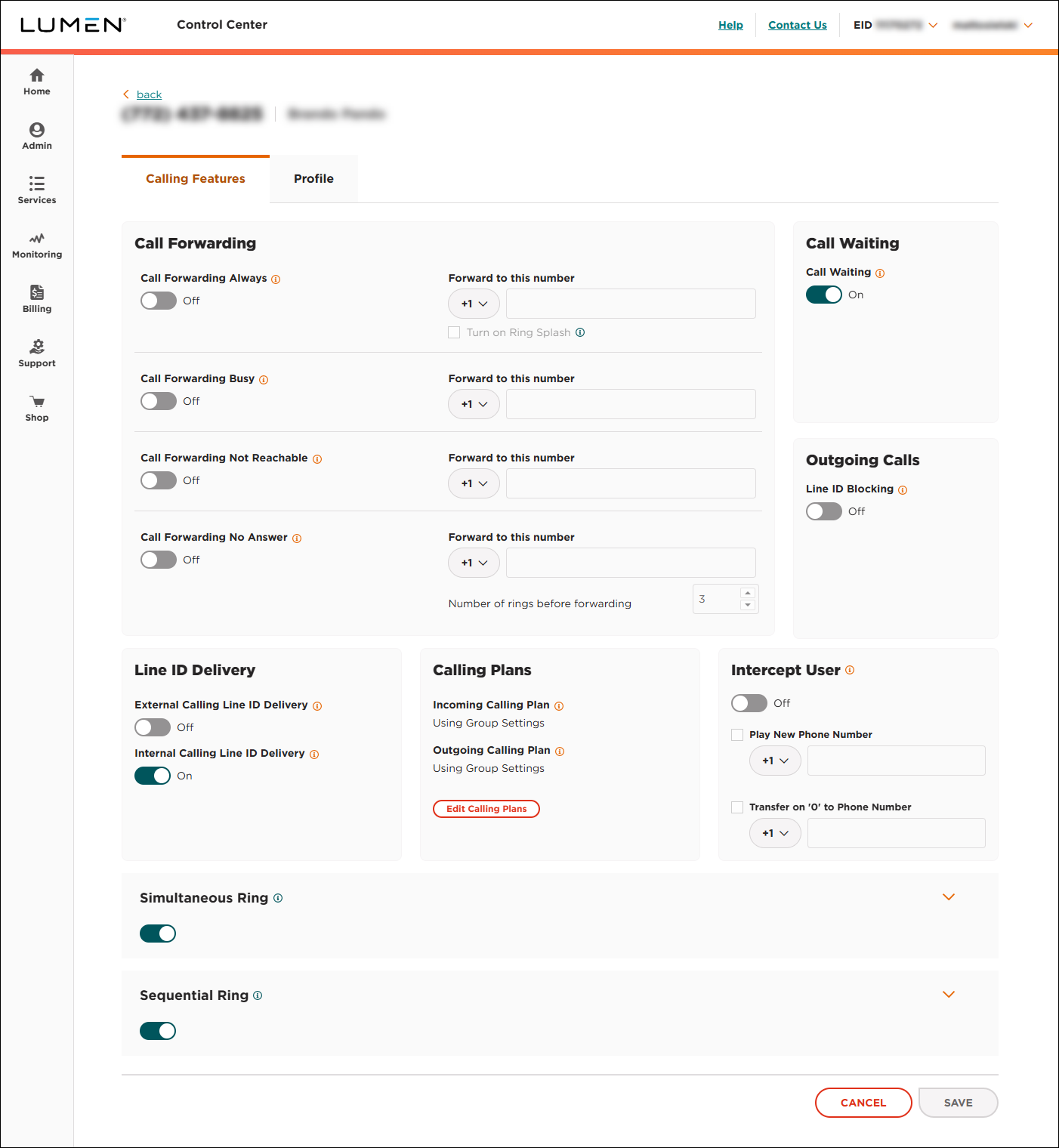
- Click the Schedules tab.
Lumen Connect shows the time schedules for the phone number (if any).
- Click the Holiday Schedules subtab.
Lumen Connect shows the holiday schedules for the group (if any).
- Click Create New Holiday Schedule.
- In the Schedule Name field, type a name for the holiday schedule, then click SAVE.
- Build out the holiday schedule by create time ranges in the applicable boxes for the days of the week:
- In the box for the day you want to add a time range to, click Add Time Range or Add Another Time Range.
- Use the Start Time and End Time fields to select the beginning and ending times for the time range.
- Repeat steps a and b to build out the holiday schedule.
- In the box for the day you want to add a time range to, click Add Time Range or Add Another Time Range.
- When you're done, click SAVE (at the bottom of the holiday schedule).
Lumen Connect saves your changes.



