

Editing a time schedule for a group
As a Voice Complete Feature Manager administrator, you can use Lumen Connect to edit a time schedule for a group of Lumen® Voice Complete® phone numbers as your business needs change. If you no longer need a time schedule, you can delete it.
To edit a time schedule for a group:
- Using the left menu, click Services, click Service Tools, then click Voice Complete Features.
Lumen Connect shows the groups associated with your Voice Complete service.
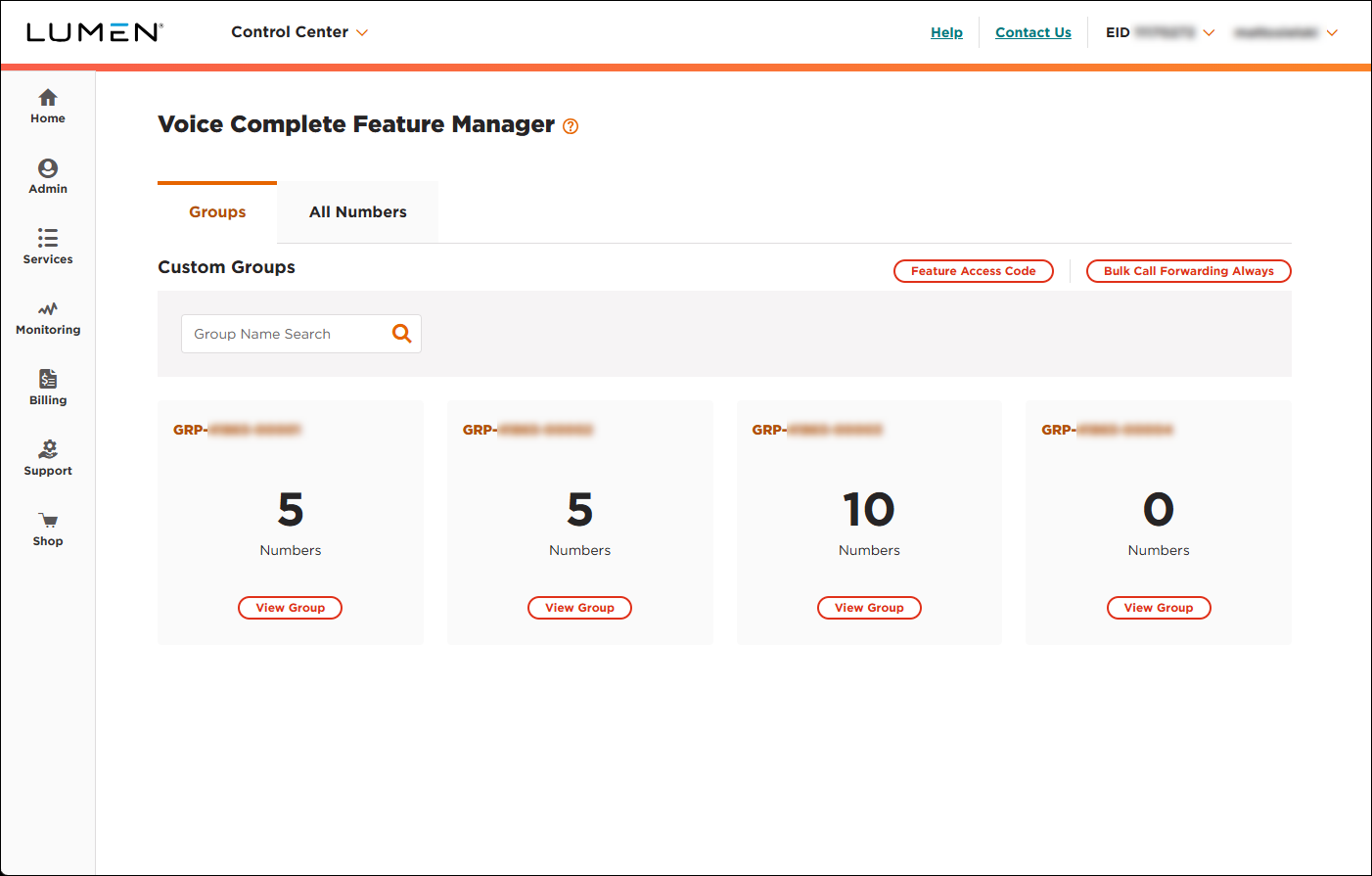
- On the card for the group you want to work with, click View Group.
Lumen Connect lists the phone numbers associated with the group you selected.
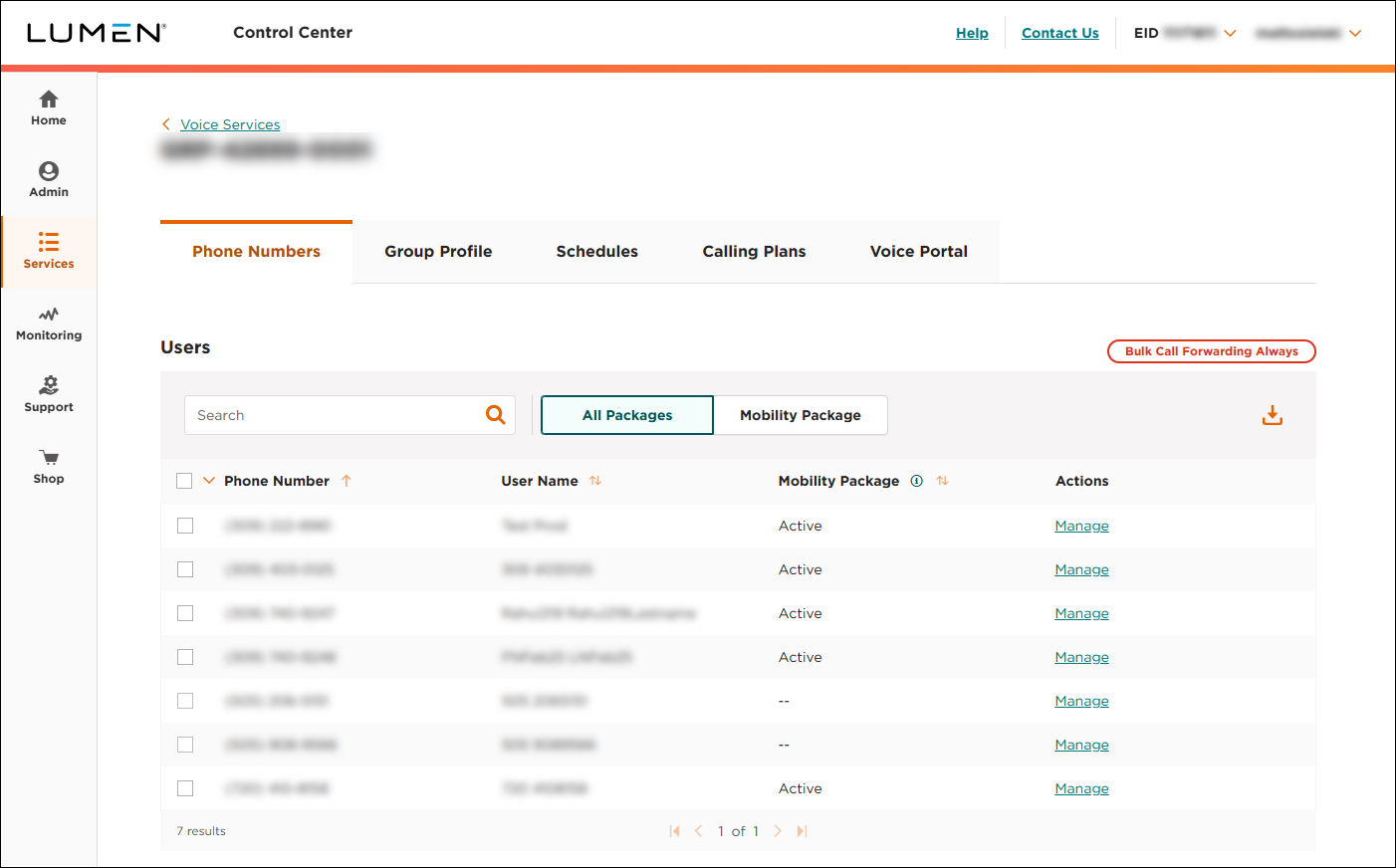
- Click the Schedules tab.
Lumen Connect shows the time schedules for the group (if any).
- In the Existing Schedules list, click the time schedule you want to edit.
Lumen Connect shows details for the time schedule.
- Click Edit.
- Make your changes to the time schedule:
- To change the name of the time schedule, edit the Schedule Name field, then click SAVE (next to the Schedule Name field).
- To add a time range to the schedule, do the following:
- In the box for the day you want to add a time range to, click Add Time Range or Add Another Time Range.
- Use the Start Time and End Time fields to select the beginning and ending times for the time range.
- In the box for the day you want to add a time range to, click Add Time Range or Add Another Time Range.
- To edit a time range, scroll to the day with the time range you want edit, then adjust the Start Time and End Time fields.
- To delete a time range, scroll to the day with the time range you want to delete, then click the next to to the End Time field.
- To change the name of the time schedule, edit the Schedule Name field, then click SAVE (next to the Schedule Name field).
- When you're done, click SAVE (at the bottom of the time schedule).
Lumen Connect saves your changes.



