

Forwarding calls for multiple Voice Complete phone numbers
Using Voice Complete Feature Manager (in Lumen Connect), you can use Call Forwarding Always to forward multiple Lumen® Voice Complete® phone numbers to a single phone number or to different phone numbers using a spreadsheet template (bulk call forwarding). Remember, you can only forward phone numbers with the Mobility feature pack.
Forwarding calls to a single phone number
To forward calls to a single phone number:
- Using the left menu, click Services, click Service Tools, then click Voice Complete Features.
Lumen Connect shows the groups associated with your Voice Complete service.
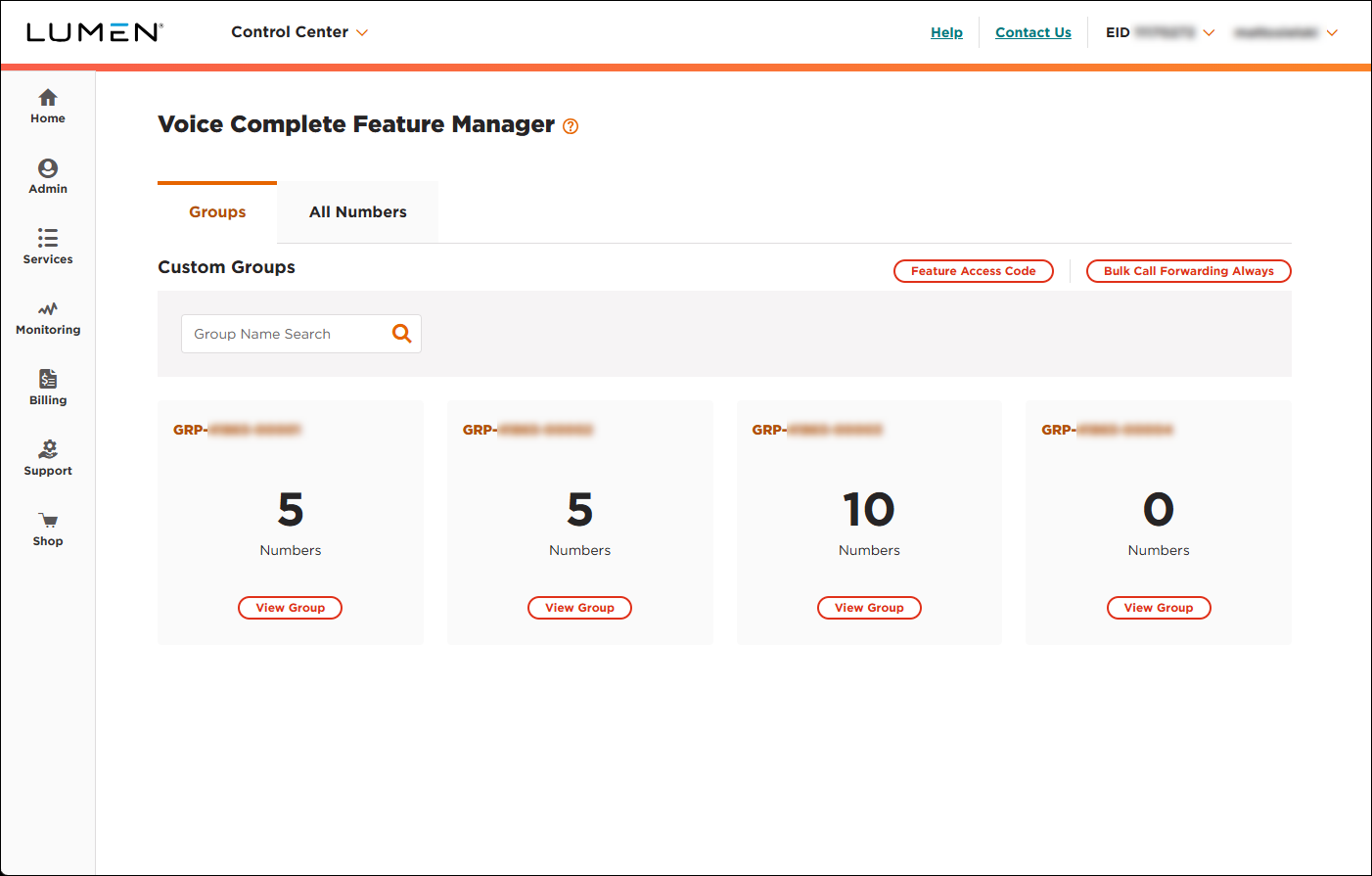
- On the card for the group you want to work with, click View Group.
Lumen Connect lists the phone numbers associated with the group you selected.
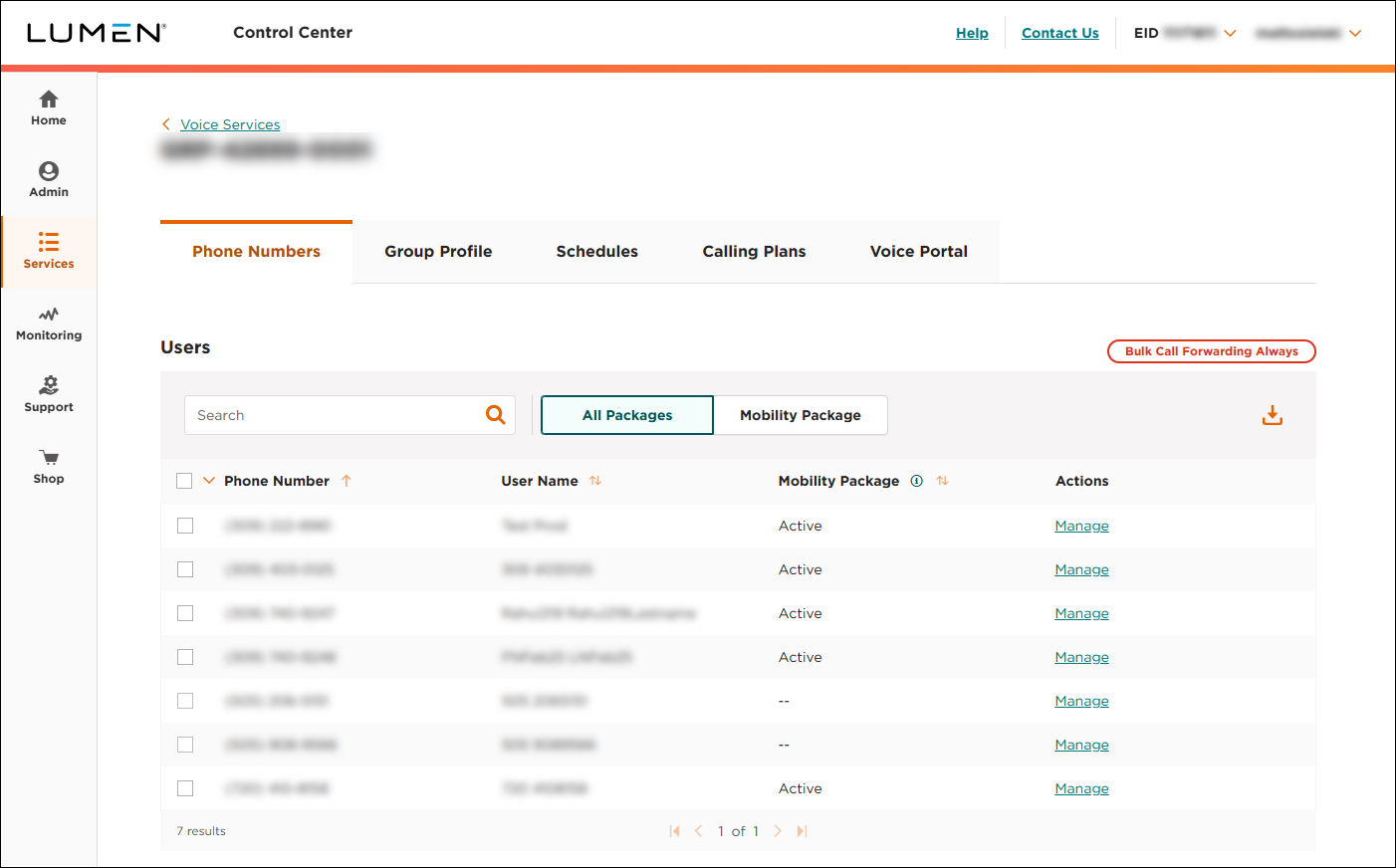
- On the rows for the phone number(s) you want to forward, click the checkbox.
- Click Configure Call Forwarding Always.
- In the window that appears, do the following:
- To turn off Call Forwarding Always, click Off, then click APPLY.
- To turn on Call Forwarding Always, click On, type the phone number you want to forward calls to, select whether you want to use a ring splash (if applicable for your network), then click APPLY.
- To turn off Call Forwarding Always, click Off, then click APPLY.
Forwarding calls to multiple phone numbers
To forward calls to multiple phone numbers:
- Using the left menu, click Services, click Service Tools, then click Voice Complete Features.
Lumen Connect shows the groups associated with your Voice Complete service.
- On the card for the group you want to work with, click View Group.
Lumen Connect lists the phone numbers associated with the group you selected.
- Click Bulk Call Forwarding Always.
- In the window that appears, do the following:
- Download the bulk template by clicking the Bulk Configue Template (CSV) link.
- Open the spreadsheet and fill in the details for each phone number you want to manage Call Forwarding Always for: country code, phone number, whether you're turning on or off Call Forwarding Always for the number, the country code and phone number you want to forward calls to, and whether you want to use a ring splash (if applicable for your network).
- When you're done, save the file.
- In Lumen Connect, click Choose File, browse to locate the template, then click Open.
- Click UPLOAD FILE.
- Download the bulk template by clicking the Bulk Configue Template (CSV) link.



