

Managing Simultaneous Ring for a Voice Complete phone number
As a Voice Complete Feature Manager administrator, you can use Lumen Connect to manage Simultaneous Ring for a Lumen® Voice Complete® phone number in your organization with the Mobility feature Pack active.
To manage Simultaneous Ring for a Voice Complete phone number:
- Using the left menu, click Services, click Service Tools, then click Voice Complete Features.
Lumen Connect shows the groups associated with your Voice Complete service.
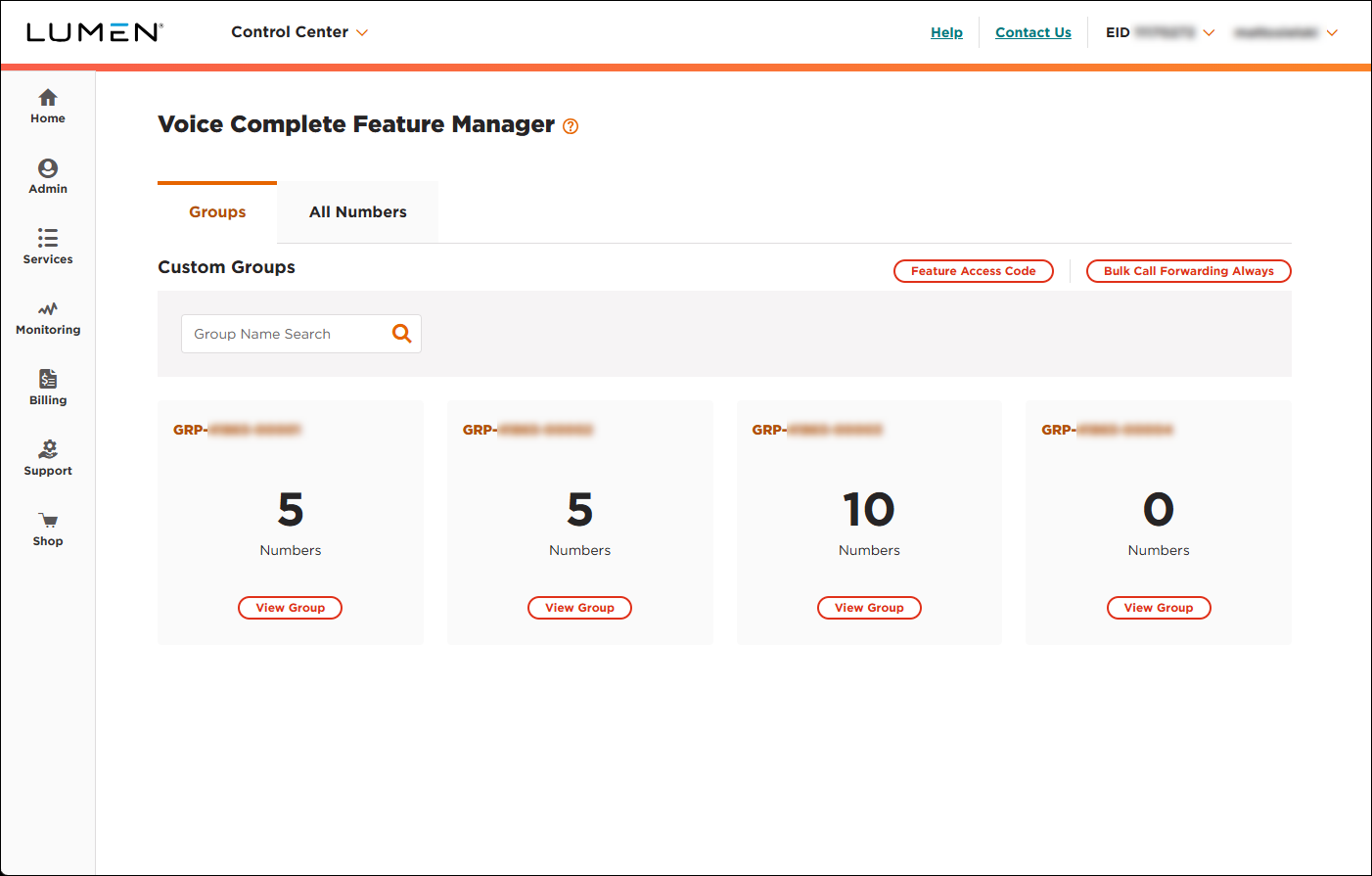
- Search for the phone number you want to work with by doing one of the following:
- If you know the group the phone number belongs to, click View Group on the card for the group.
- Otherwise, click the All Numbers tab, then search for, sort, or filter the list of phone numbers to find the one you're looking for.
- If you know the group the phone number belongs to, click View Group on the card for the group.
- When you find the phone number, click the Manage link (in the Actions column) on the row for the phone number.
Lumen Connect shows the calling features for the phone number.
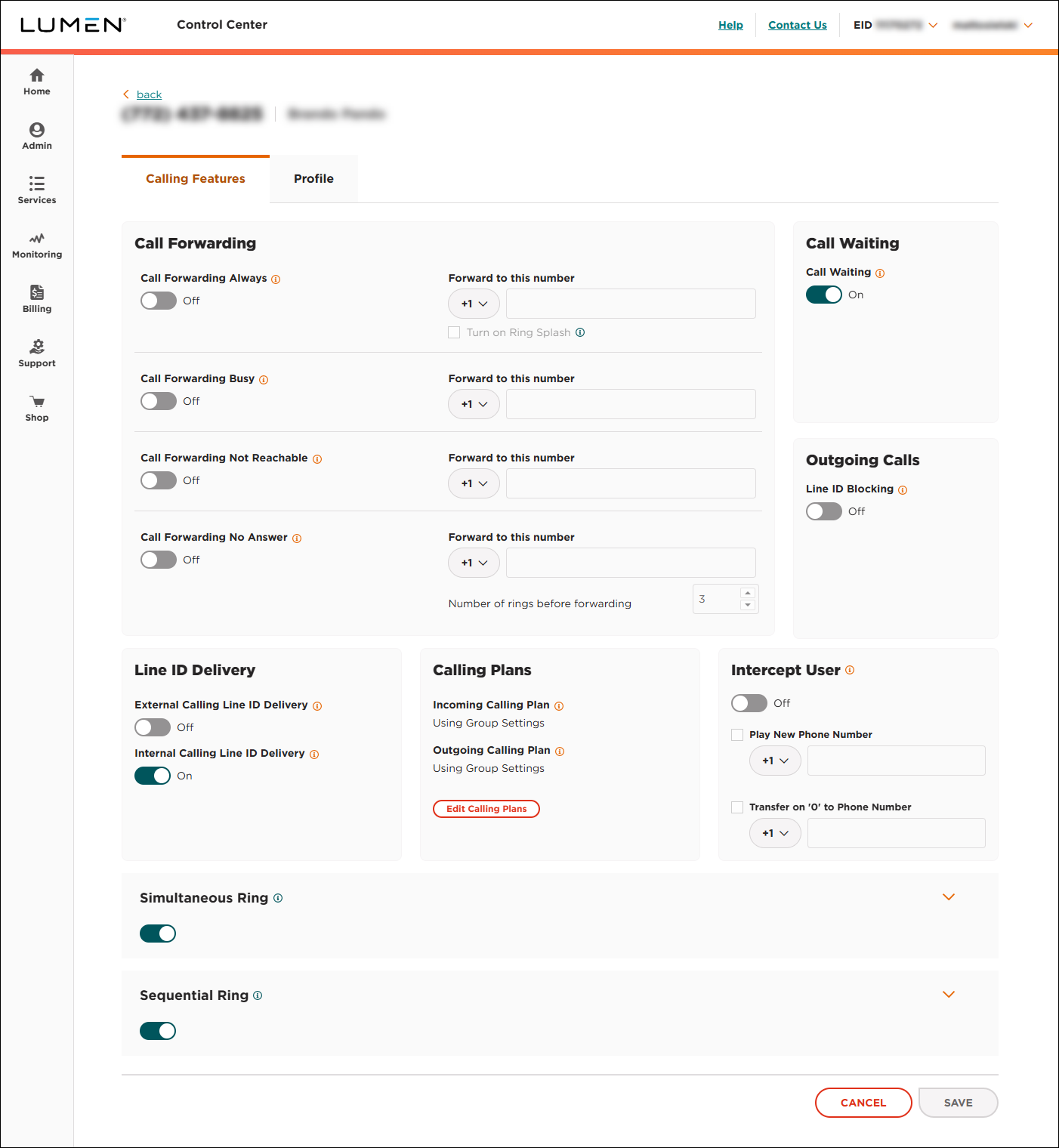
- Scroll down to the Simultaneous Ring section, then click the (on the right side of the section).
Lumen Connect shows details for the Simultaneous Ring feature (if any) for the phone number.
- Do any of the following:
- To turn on Simultaneous Ring, click the Off toggle.
Lumen Connect changes the toggle to On.
- To turn off Simultaneous Ring, click the On toggle.
Lumen Connect changes the toggle to Off.
- To add a rule, do the following:
- Click Add New Rule.
- Type a description for the rule.
- Select whether the rule should ring the numbers in the Simultaneous Phone Numbers list.
- Select a time schedule and a holiday schedule (if applicable) for the rule.
- Select the calls this rule applies to: all calls or a filtered set of calls (e.g., calls from private numbers).
- Click SAVE.
- Click Add New Rule.
- To update a rule, click the icon, make your changes to the rule, then click SAVE.
- To remove a rule, click the icon on the row for the rule.
- To activate a rule, select the Active checkbox on the row for the rule.
- To deactivate a rule, clear the Active checkbox on the row for the rule.
- To add a phone number to the Simultaneous Phone Numbers list, click Add Phone Number, type the phone number, select whether you want to use Answer Confirmation, then click Save.
- To update a phone number to the Simultaneous Phone Numbers list, click the icon, make your changes, then click Save.
- To remove a phone number from the Simultaneous Phone Numbers list, click the icon.
- To turn on Simultaneous Ring, click the Off toggle.



