

Viewing a trunk group utilization report for Voice Complete
Using Lumen Connect, you can view a utilization report for trunk groups for Lumen® Voice Complete®. The report lists each of your Voice Complete trunks along with traffic utilization data.
Note: Lumen Connect stores utilization information for the past six months.
To view a trunk group utilization report for Voice Complete:
- Using the left menu, click Monitoring, click Voice Reports, then click Voice Complete.
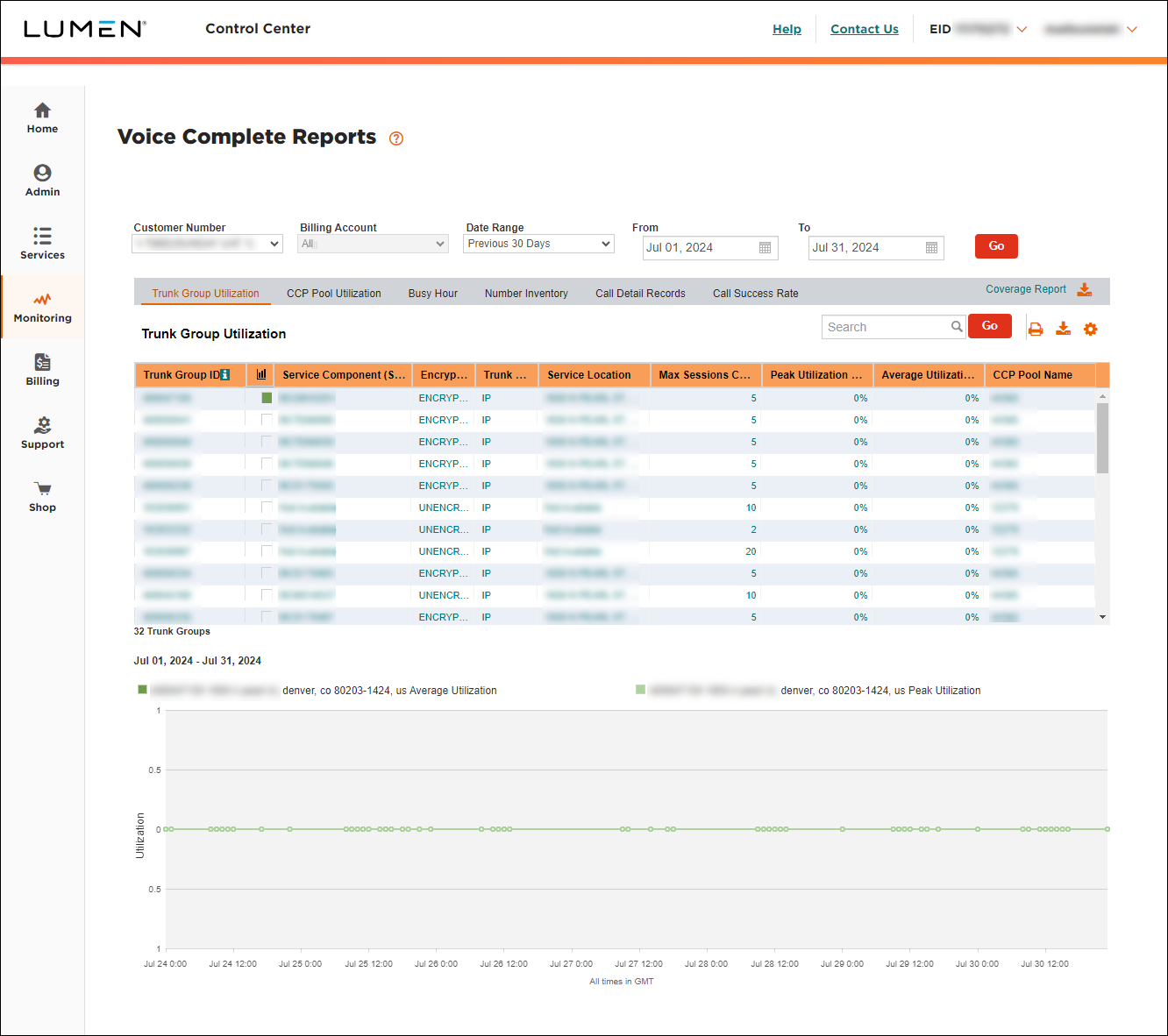
- Select the customer number with the trunk group(s) you want to view traffic utilization for.
- Use the Date Range field to select the time period for the report. (If you select Custom Date Range from the list, use the From and To fields to specify the date range for the report.) Based on the date range you select, Lumen Connect uses hourly or daily increments on the graph. If you select a date range of 7 days or less, Lumen Connect shows data in hourly increments. If you select a date range of 8 days or more, Lumen Connect shows data in single-day increments. To view data for a specific day in hourly increments, hover over the chart at that day and click the link.
- Click Go.
- Select the checkbox (in the column) next to the trunk group(s) you want to view on the graph.
Lumen Connect updates the graph as you select and clear the checkboxes. The color of the checkbox indicates the color used on the graph.
- Trunk Group ID: the identifier for the trunk group.
- Service Component ID (SCID): the individual billable component of service displayed on an invoice.
- Encryption: whether the trunk group is encrypted. (You can add or remove encryption by submitting a change request.)
- Trunk Group Type: whether the trunk group is IP or TDM based.
- Service Location: the service location for each SCID.
- Maximum Sessions Configured: the number of concurrent sessions (calls) the trunk group was configured to support (based on the final date in the report range). The value presented was the configured number of sessions as of the final day in the date range defined. For example, if you set the date range to 7/1/22-7/8/22, Lumen Connect shows the maximum sessions configured on the trunk group as of 7/8/22.
- Peak Utilization %: the highest utilization percentage for the trunk group during the selected date range.
- Average Utilization %: the average utilization percentage for the trunk group during the selected date range. The average is calculated by pulling data at 5-minute intervals across a 24-hour period. If traffic typically occurs only during normal business hours, and is absent throughout the night and weekends, it will likely average a low percentage.
- CCP Pool Name: the name assigned to a concurrent call path pool (a vehicle for voice capacity to dynamically be shared across multiple locations).
- Trunk Group ID: the identifier for the trunk group.
- Do any of the following:
- To print the report, click the icon.
- To download the report, click the icon.
- To customize the columns shown on the report, click the icon, select or clear checkboxes to adjust the columns, then click OK. (To reset to the default view, click Reset Columns.)
- To print the report, click the icon.



