

Using the Home button on your phone (VVX 50x/60x series)
Access home view by pressing the Home button to the left of your display. On this screen, you can change many settings, but default settings typically work for most users. After pressing the Home button, you can exit home view by pressing the Home button again.
Note: If you want to change phone settings, check the 50x/60x help articles first so you don’t make a change that makes your phone inoperable.
Home view: navigation
Home view displays options such as New Call, Messages, Directories, and Settings. The page indicator at the bottom of the display shows the number of pages that are available and which page you're viewing. (Your selection varies based on programming options determined by your organization's administrator.)
- Press the Home button.
The square at the bottom of the screen indicates there are more pages of options. If you have more than one page, swipe the display to the left to view other options. Swipe to the right to return to the first page.
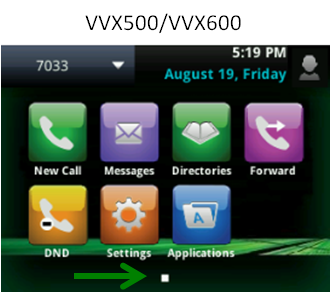
The home view display shows the features below, tap the icon to access the appropriate feature:
- New Call—place a call from your recent calls list
- Messages—access your voicemail
- Directories—access saved contacts and call history logs
- Forward—send callers to another phone
- DND—send callers directly to voicemail
- Settings—change settings options such as ring tones, date/time formatting, etc.
- Applications—link to a browser



