Accessing the call list on your phone (VVX 50x/60x series)
Access call lists to review call records: missed, received, and placed. After opening a call record, you can redial the number, save the call record as a contact in your directory, or delete a record.
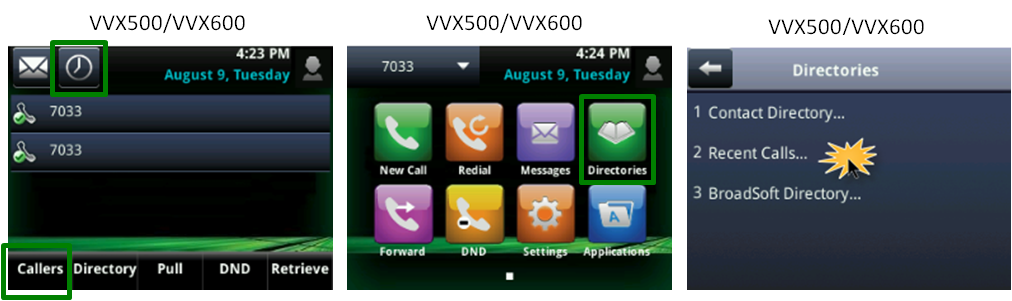
Accessing call lists can be done in several ways:
- Tap the clock icon at the top of the display.
- Tap the Callers soft key at the bottom of the display.
- Press the Home button, tap Directories, then tap Recent Calls from the directories list.
To access the callers list:
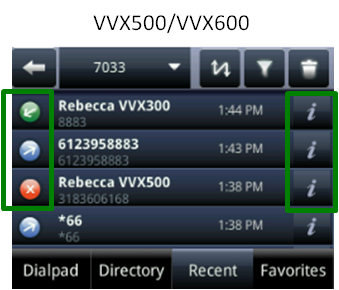
- From your call list, swipe the display up and down to scroll through call records.
You can identify call record types by their unique icons:
- an x icon—a missed call
- a blue arrow pointing up icon—a placed call
- a green arrow pointing down icon—a received call
- an x icon—a missed call
- With a call record highlighted, tap the record to dial your call.
Note: To make a call using a call record, the 10‑digit number must be valid.
- You can also do any of the following:
- To delete a highlighted call record or an entire list, tap the trash can icon in the upper right of the display.
- To rearrange your list, tap the two-way arrow icon in the upper right of the display (you can sort by ascending or descending name).
- To review a specific call list type, tap the filter icon in the upper right of the display.
- To add the caller to your directory, tap the i icon.
- To delete a highlighted call record or an entire list, tap the trash can icon in the upper right of the display.