

Searching for a contact in Receptionist Console
Use the search feature from the Search tab in Receptionist Console to look through all directories at one time. Or, to quickly look up a contact, use the search feature on the directory management bar on the top of each directory.
To search for a contact:
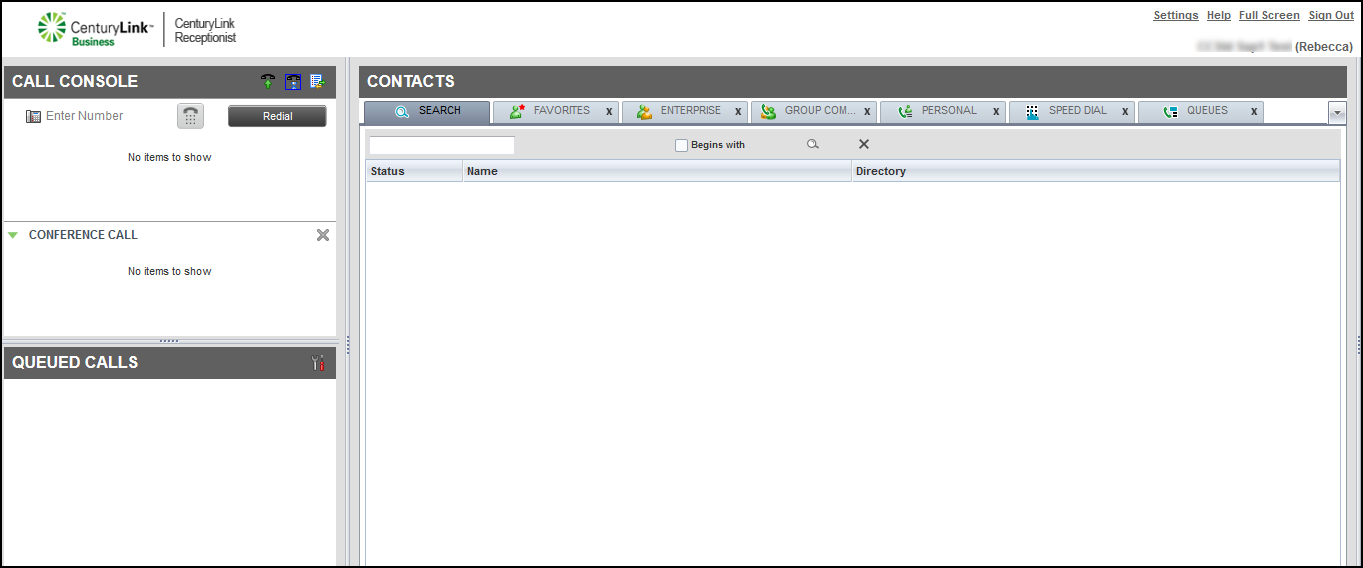
- In the Contacts pane, click the Search tab, then do one of the following in the Search field:
- Type the contact’s first name, last name, phone number, or any other information.
- If you don’t know the contact’s full first or last name, you can type part of the search criteria information.
- Type the contact’s first name, last name, phone number, or any other information.
- After you find the contact, do any of the following:
- To review the contact details (including notes), click on the contact’s record.
- To make a call, click on the contact’s name, then click CALL.
The active call details show in the Call Console.
- To review the contact details (including notes), click on the contact’s record.
- To clear your search and start over, click the X next to the Search field.
To search for a contact using the search feature at the top of a directory management bar:
- In the Contacts pane, click one of the directory tabs to search for the contact.
- Do one of the following in the Search field:
- Type the contact’s first name, last name, phone number, or any other information.
- If you don’t know the contact’s full first or last name, you can type part of the search criteria information.
- Type the contact’s first name, last name, phone number, or any other information.
- After you find the contact, do any of the following:
- To review the contact details (including notes), click on the contact’s record.
- To make a call, click on the contact’s name, then click CALL.
The active call details show in the Call Console.
- To review the contact details (including notes), click on the contact’s record.
- To clear your search and start over, click the X next to the Search field.



