Deleting a threshold alert in Network Visibility
If you no longer need a threshold alert for a service, you can delete it from Network Visibility (within Lumen Connect) so you don't get notifications for it anymore. You can also edit a threshold alert to avoid deleting an alert and creating a new one.
To delete a threshold alert in Network Visibility:
- Using the left menu, click Monitoring, then click Network Visibility.
Lumen Connect opens Network Visibility. On the map, Lumen Connect shows locations with services needing your attention. Tiles show services with high utilization or critical issues, services that are down or have threshold warnings, as well as open tickets and scheduled maintenance for your services. Use the Map View, List View, Backbone Performance, and Summary Reports tabs above the tiles to toggle between views.
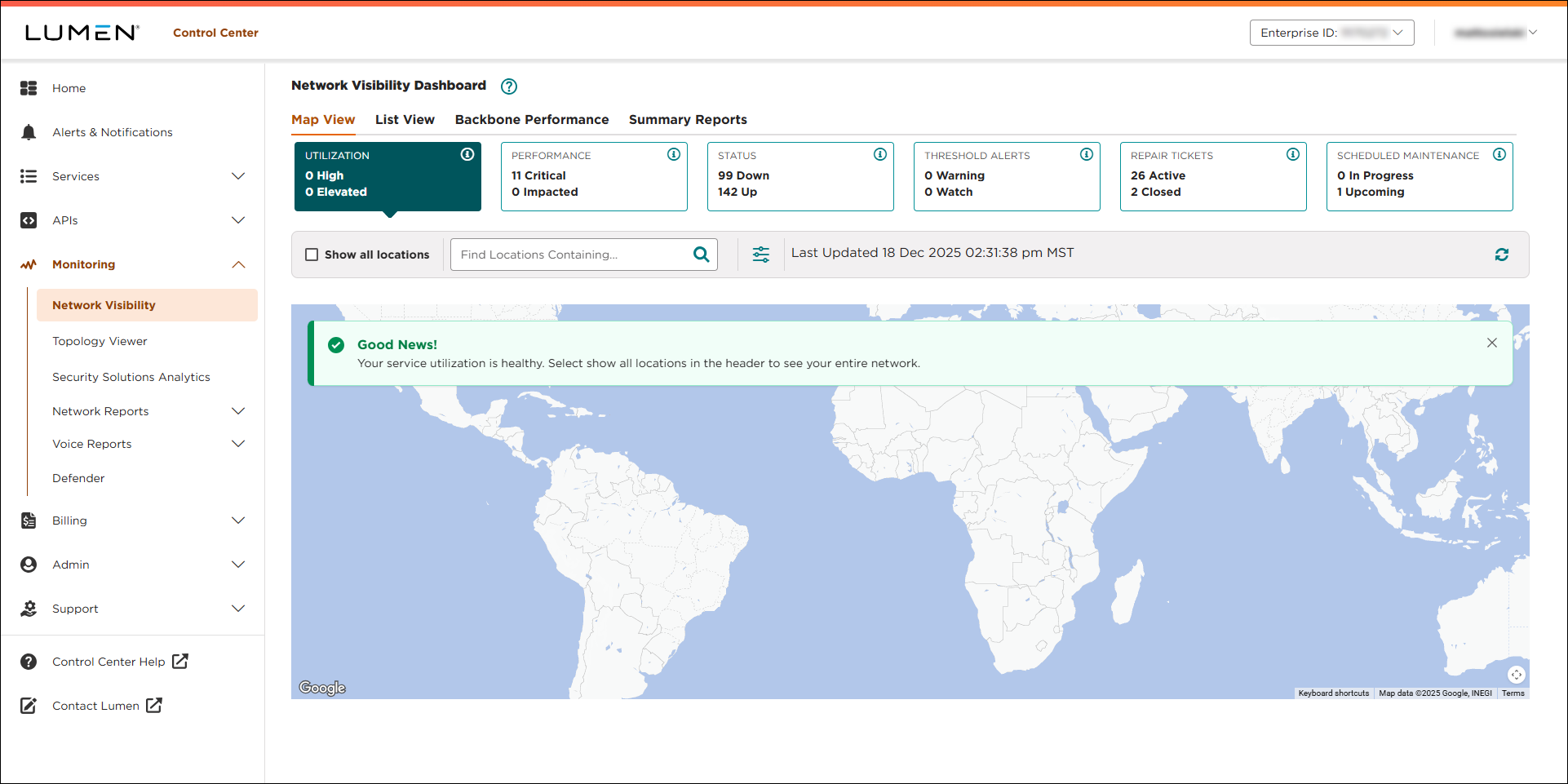
- Click the Threshold Alerts tile.
Lumen Connect shows locations with threshold watches or warnings (if any).
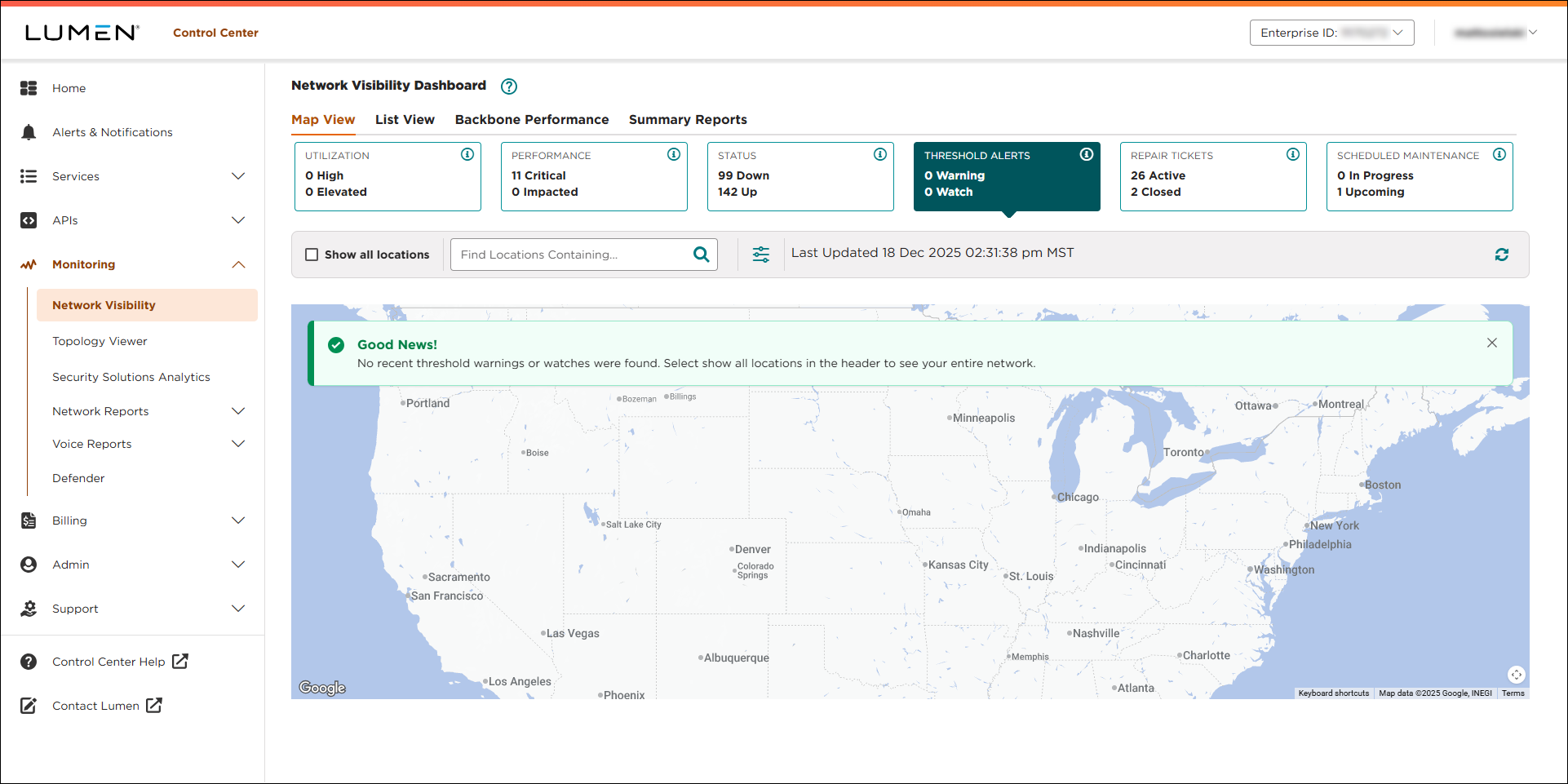
- Select the service you want to manage threshold alerts for by doing one of the following:
- Click a service location on the map (or in the list), then click Threshold Alerts.
- Type a location or service ID in the Find Locations Containing… field, select a location, then click Threshold Alerts.
- Click the Show All Locations checkbox, select a location, then click Threshold Alerts.
- Click a service location on the map (or in the list), then click Threshold Alerts.
- Click Manage Alerts.
If you've threshold alerts for the service, Lumen Connect shows an arrow () on the left of that section containing alerts.
- To delete a threshold alert for the service you selected, click the arrow on the left of the section for the performance metric.
Lumen Connect expands the section to show details for the threshold alerts for the performance metric.
- To delete the threshold alert, click the icon.
Lumen Connect deletes the threshold alert.



