Signing in to Lumen Connect
To access a list of your Lumen services or to manage them online, you must first sign in to Lumen Connect. When you first sign in for your very first time, you'll need to do a few things that you won't need to do on subsequent logins: acknowledging the user agreement and setting a password.
Signing in
To sign in to Lumen Connect:
- Open a browser and go to connect.lumen.com.
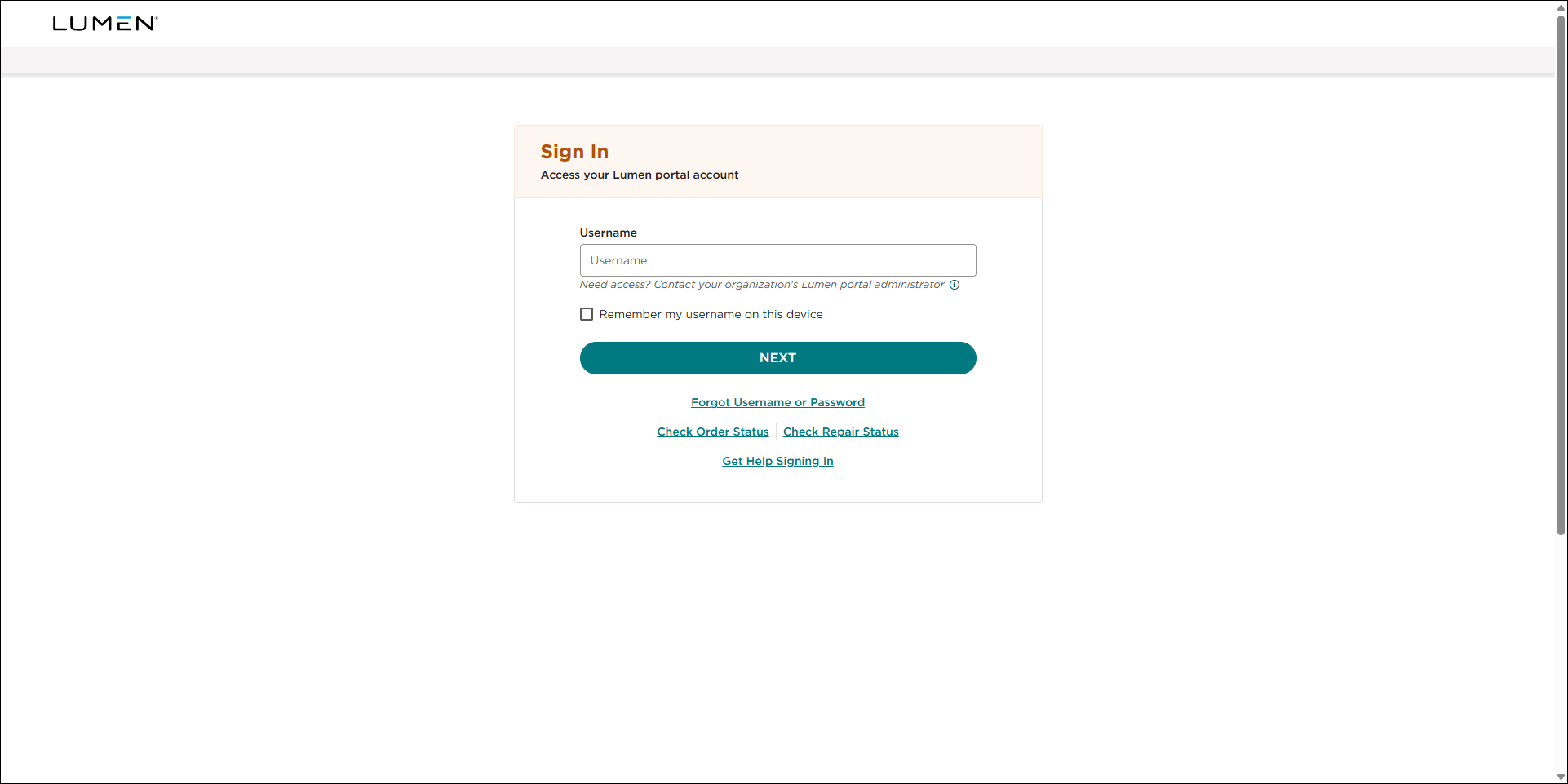
- Type your username, then click NEXT.
- Type your password, then click SIGN IN.
- Do the following to finishing signing in:
- If your user profile is set up to use an authentication app, do the following:
- Open the authentication app you set up to get the six-digit code.
- Type or copy the one-time code from the authentication app into the Verification Code field, then click CONTINUE.
- Open the authentication app you set up to get the six-digit code.
- If your user profile is set up to receive the six-digit code by email, do the following.
- Check your email to locate the six-digit code we sent you.
- Type or copy the one-time code from the email into the Verification Code field, then click CONTINUE.
- Check your email to locate the six-digit code we sent you.
- If your user profile is set up to use an authentication app, do the following:
Signing in for the first time
To sign in to Lumen Connect for the first time:
- Open the email from Lumen Connect and click the Sign in link.
- Type a new password in the New Password and Confirm New Password fields, then click CONTINUE. (Get help choosing a password)
- If a Lumen Connect system administrator added two-factor authentication to your user profile, do the following to sign in and complete the setup for your user profile.
- If your user profile is set up to use an authentication app, do the following:
- Download an authenticator app (such as Twilio Authy or Microsoft Authenticator) and follow the vendor's instructions to install it on your desktop or mobile device.
- Do one of the following set up the authenticator app for Lumen Connect:
- If you installed the authenticator app on your mobile device, scan the QR code.
The authenticator app generates a one-time, six-digit code every 30 seconds.
- If you installed the authenticator app on your desktop, click the link below the QR code, copy the code, then paste it in the authenticator app.
The authenticator app generates a one-time, six-digit code every 30 seconds.
- If you installed the authenticator app on your mobile device, scan the QR code.
- Type or copy the one-time code from the authentication app into the Verification Code field, then click CONTINUE.
- Download an authenticator app (such as Twilio Authy or Microsoft Authenticator) and follow the vendor's instructions to install it on your desktop or mobile device.
- If your user profile is set up to receive the six-digit code by email, do the following.
- Check your email to locate the six-digit code we sent you.
- Type or copy the one-time code from the email into the Verification Code field, then click CONTINUE.
- Check your email to locate the six-digit code we sent you.
- If your user profile is set up to use an authentication app, do the following:
- Select the checkbox to agree to the terms and conditions, then click CONTINUE.
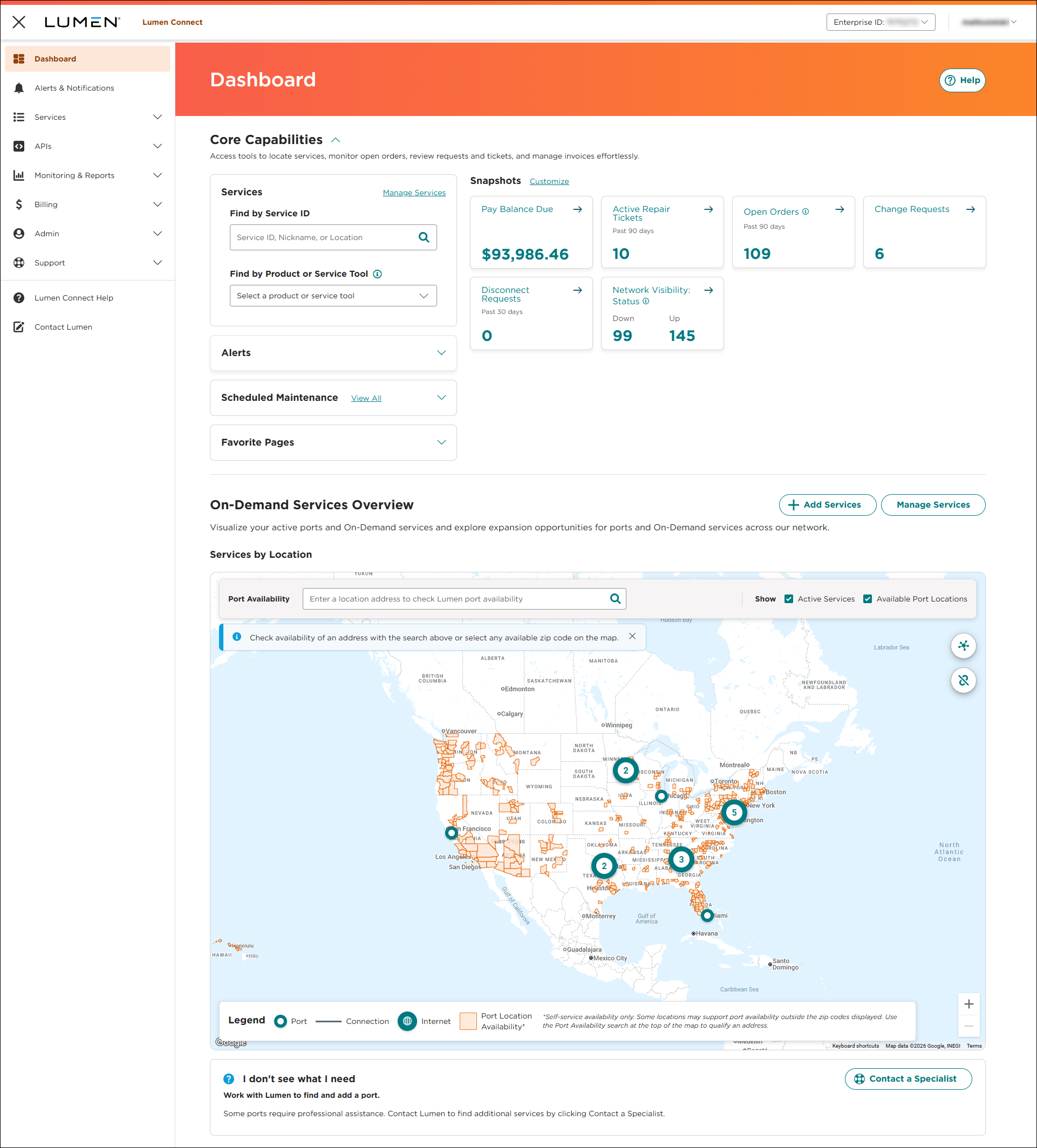
The Lumen Connect dashboard appears. Use the tabs on the left to manage your services: Services, APIs, Monitoring & Reports, Billing, Admin, and Support. (Wholesale customers also have access to the Orders tab.) The dashboard contains widgets and snapshots that help you quickly access data related to your Lumen service, such as open orders and tickets and upcoming network maintenance. Explore the Lumen Connect dashboard
- Next, double‑check the profile information (phone number, address, etc.) your system administrator entered when your account was created. In the upper‑right corner above the main navigation tabs, click your username, then click My Profile.
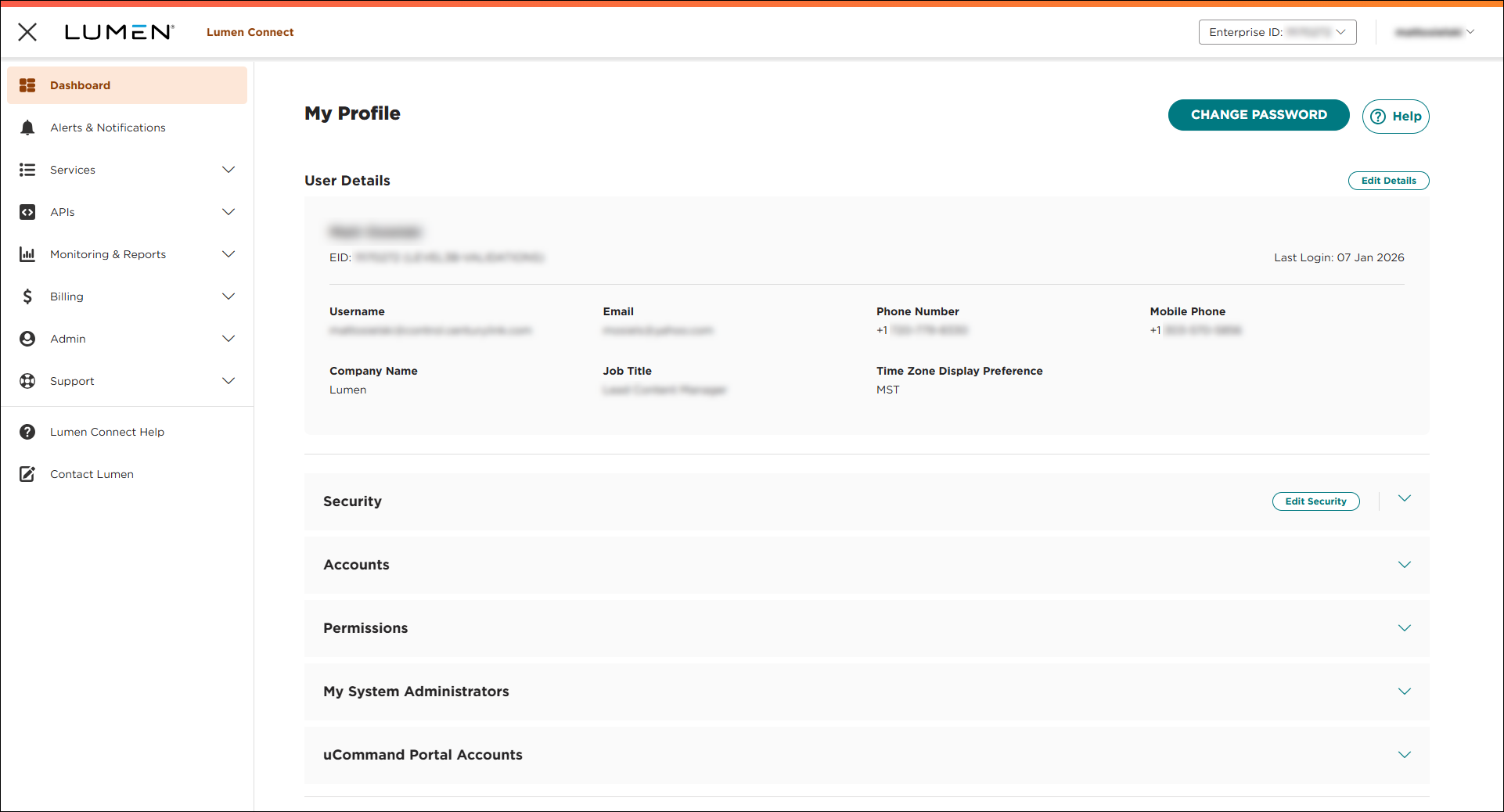
- Verify the information in your profile:
- If everything looks good, you're ready to start using Lumen Connect.
- If you need to make changes, you can edit details or security settings.
- If everything looks good, you're ready to start using Lumen Connect.
Important: To help ensure Lumen Connect user profile(s) remain secure, here is how we actively clean up unused Lumen Connect user profiles:
- After nine months without signing in, we'll deactivate your Lumen Connect user profile. If your user profile has been deactivated, your organization's Lumen Connect system administrator can reactivate your user profile.
- After an additional three months without signing in, we'll delete your Lumen Connect user profile. If your user profile has been deleted, your system administrator can recreate it for you. (Your old username may not be available.)
- We'll email you 30 days before deactivating or deleting your Lumen Connect user profile so you can sign in (if you still need your user account) and reset the counter for deactivation/deletion.



