Viewing a standard detail use report
If you want to understand patterns you're seeing in your use data, run a detail report in Usage Analyst. With it, you can get more details about your telecom use. Examples of popular standard detail reports include call details and longest call duration. You can edit any of the reports or create a custom detail use report to view the data you need. (If you want to understand high‑level trends, view a standard summary use report or create a custom summary use report.)
To view a standard detail use report:
- Using the left menu, click Monitoring, click Voice Reports, then click Usage Analyst.
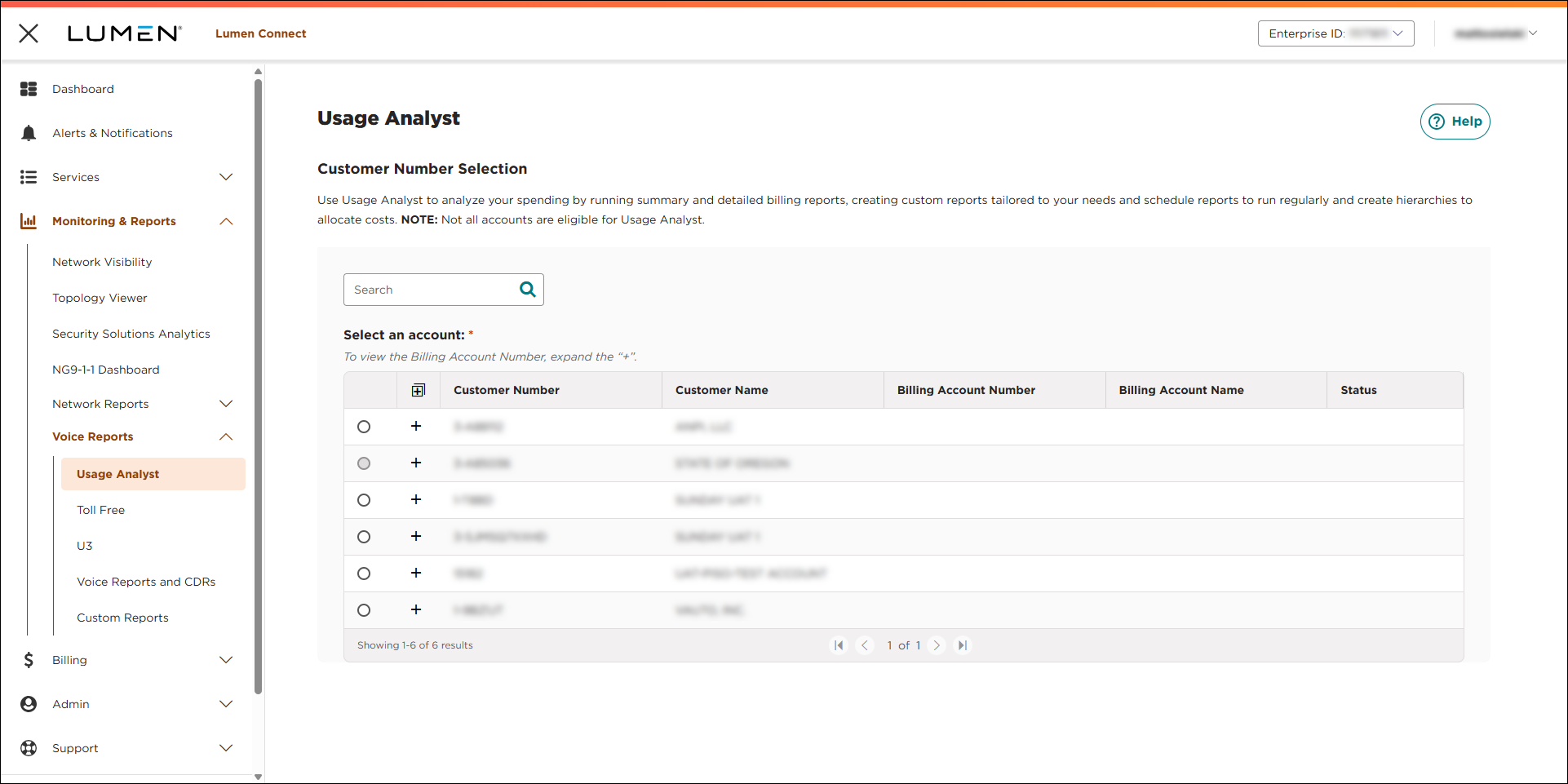
- Select the radio button next to the account you want to view, then click LAUNCH USAGE ANALYST.
Lumen Connect opens Usage Analyst in a new tab.
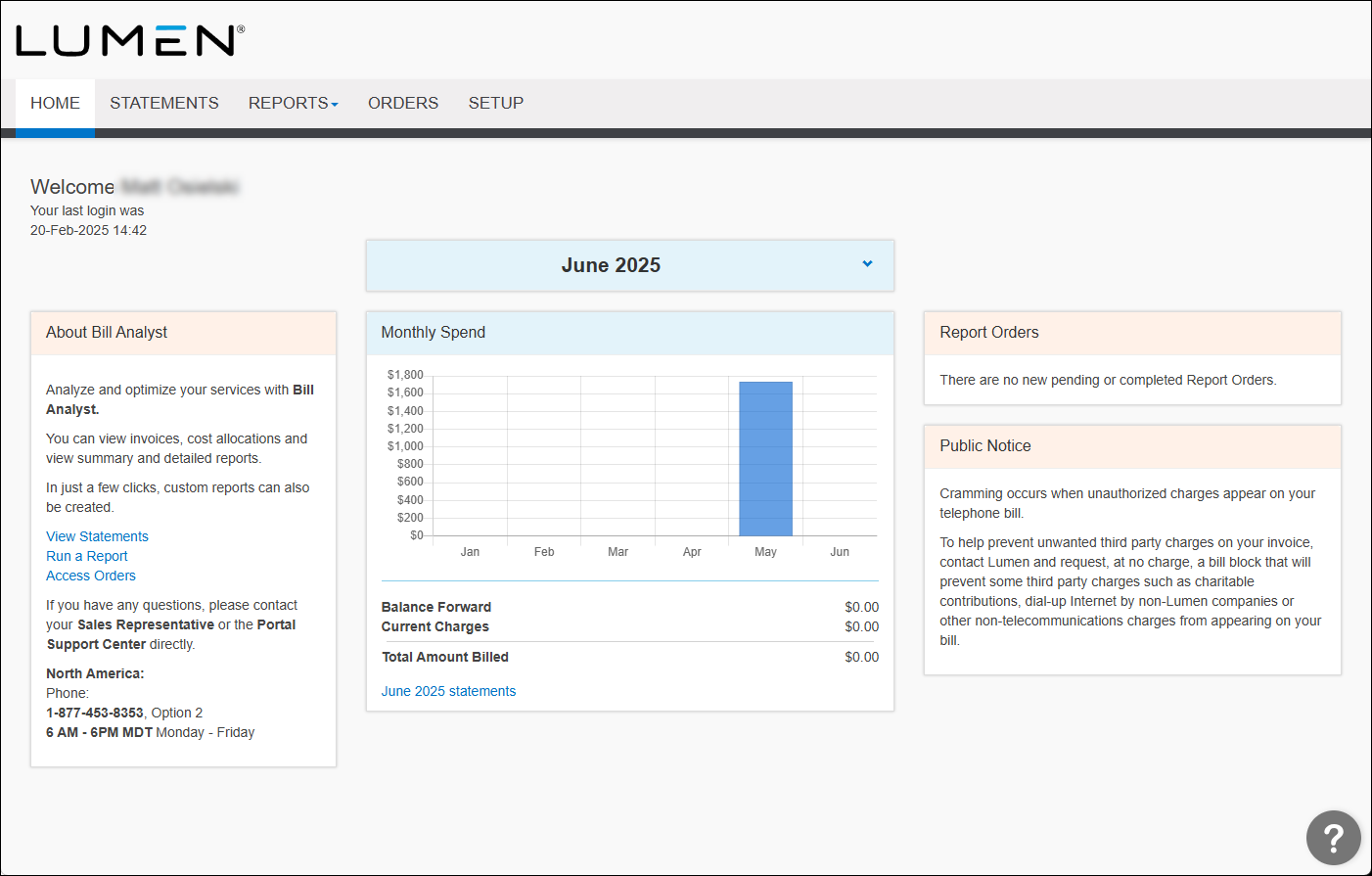
- Click the Reports tab, then click Detail Reports.
- Click the Usage Analyst tab.
Usage Analyst lists the available detail use reports.
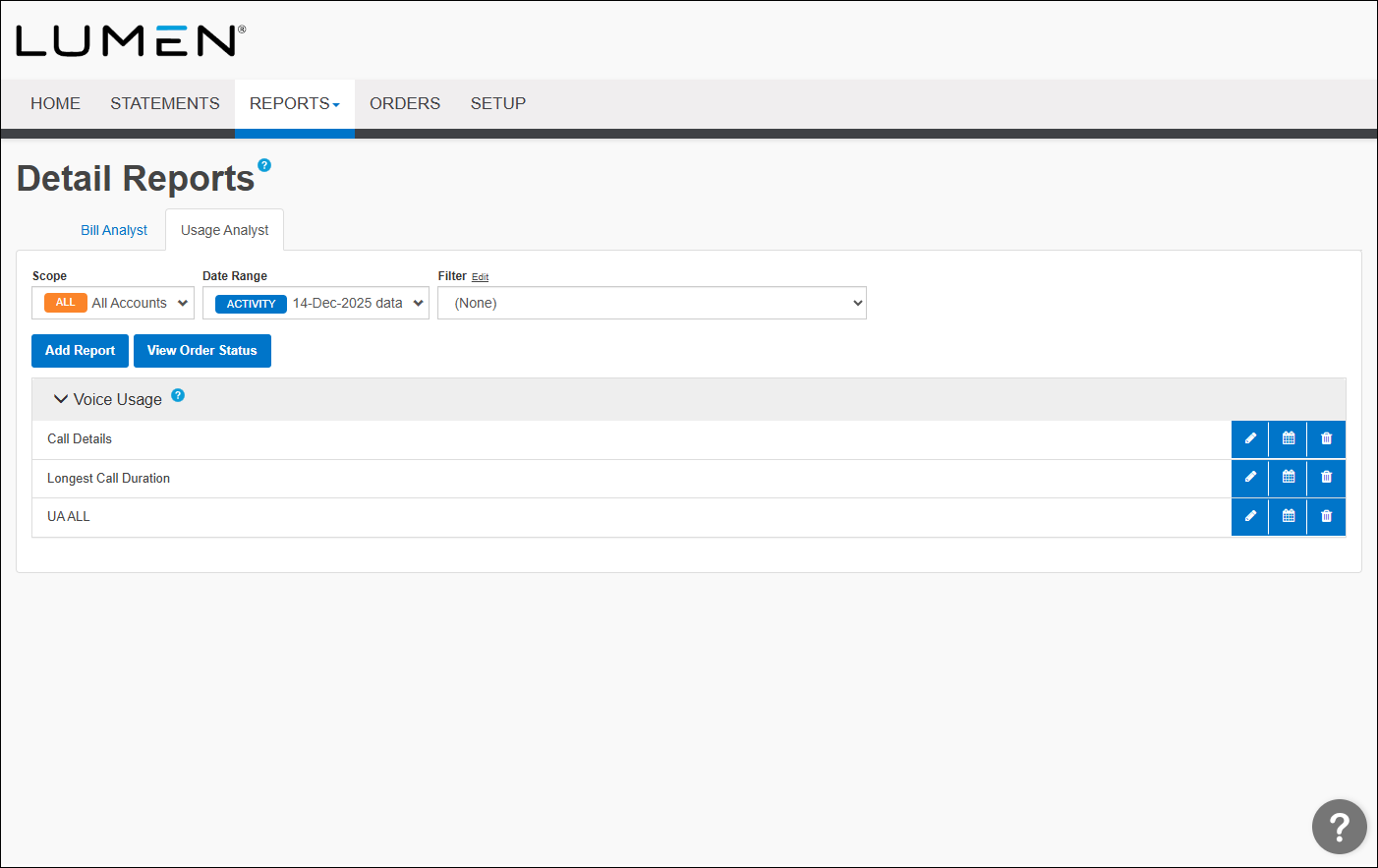
- Click the row for the report you want to view.
Usage Analyst shows the report you selected.
- To refine your search results and reduce the size of your report do one or more of the following:
- From the Data list, select the date for the data you want to see.
- From the Level list, select the level within the organization you want.
- From the Filter list, select the filter you would like to apply.
- From the Data list, select the date for the data you want to see.



