

Using post-submission order status
Post-submission order status provides CORE orders and milestone jobsteps for Dedicated batch, DTFO, and OLOF orders.
To use post-submission order status:
- Using the left menu, click Orders, click Order Status, then click Post-Submission Order Status.
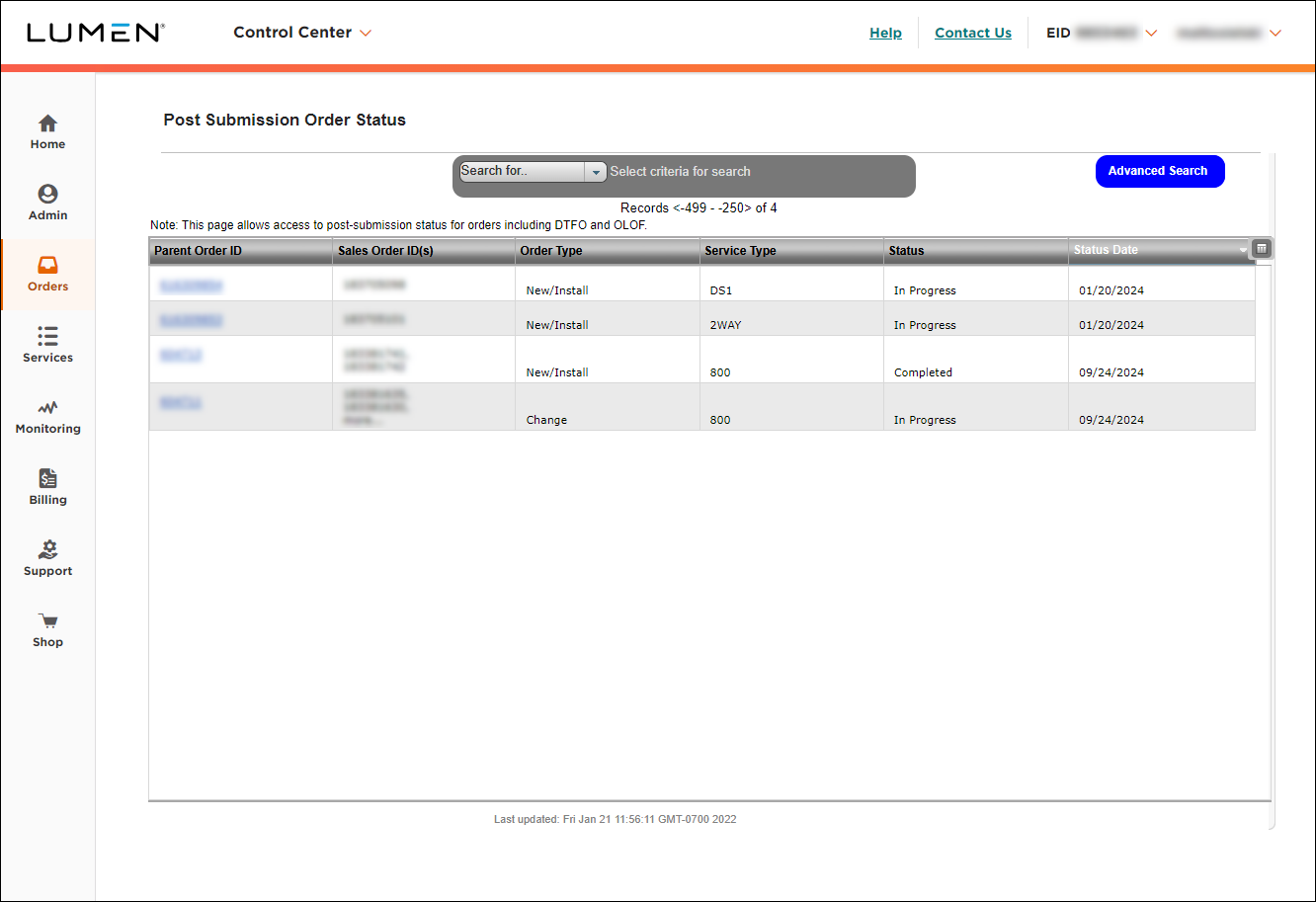
Simple Search (aka “Search for…”)
The simple search allows you to search for orders in multiple ways. Follow the steps in the procedure below to use the simple search functionality.
Click on any one of the options below to open a new search box. The search box will appear to the right of the screen you see below. This allows you to enter the specific criteria.
If you don’t exactly know the information of the search criteria you seek to find, use an asterisk (*) anywhere in the field as a wildcard to enhance your search. Example: *12345, 12345*
Advanced Search
Advanced Search allows you to filter/search in multiple ways:
- parent order ID (single ID or multiple IDs separated by commas)
- sales order ID (single ID or multiple IDs separated by commas)
- order type: New/Install, Change, or Disconnect
- service type: Ethernet Private Line, IQ Networking, Optical Wavelength Service, CPE, or On Demand IVR
- account ID (account name)
- status: In Progress, Completed, or Cancelled
- status date: the date the order moved the that order status
- due date (a date range)
- PON (purchase order number): the PON applied to the order for customer tracking purposes
To use advanced search:
- Click Advanced Search.
- Complete the search fields, then click Apply. (Choosing more than one search criteria will limit your returned results.)
Sorting and customizing your view
By default, Lumen Connect shows the following columns:
- Parent Order—the internal Lumen order number
- Sales Order ID(s)—the sales order
- Order Type—the type of order: New/Install, Change, or Disconnect
- Service Type—Ethernet Private Line, IQ Networking, Optical Wavelength Service, CPE, or On Demand IVR
- Status—In Progress, Cancelled, or Completed
- Status Date—the date the order moved into the status shown
You can customize your view by doing any of the following:
- To sort using a column, click the column heading (except Sales Order ID).
- To adjust the width of a column, drag the line between the column headings.
- To customize the columns shown, click the Customize Columns icon ():
- To add a column to the view, move the column from the Available Columns list to the Current Columns list.
- To remove a column from the view, move the column from the Current Columns list to the Available Columns list.
- To adjust the order of the columns, use the Move Up, Move Down, Move to Second, and Move to Last buttons.
- To save your changes, click Save.
- To restore the default columns, click Reset.
- To add a column to the view, move the column from the Available Columns list to the Current Columns list.
Note: Lumen Connect keeps your settings until you clear your browser cache.
Viewing details for an order
To view details for an order, click the hyperlink in the Parent Order ID column.
Lumen Connect shows details for the order on two tabs: Order Details and Sales and Provisioning Orders. To scoll through details for all your orders, use the Previous and Next buttons at the bottom of the window.
Order Details tab
The Order Details tab shows the parent order ID, order type, service type, status, status date, account name, account ID, and PON.
Sales and Provisioning Orders tab
The Sales and Provisioning Orders tab contains two sections:
- An overview of the sales order: sales order ID, service location, current status and the date for the status.
- An overview of the engineering/provisioning order(s): tracking number (engineering order IDs), service ID, status based on job step, and status date. To view the history of the status changes (with dates—most recent on top) for the engineering/provisioning order(s) and copies of the IPAA, FOCR, HCUT, and LCNR emails (if applicable), click the engineering/provisioning tracking number. (To minimize scrolling, you can turn on Word Wrap when viewing the letters.)
Note: You can sort the two sections using any of the columns.
Job steps
A job step is a significant step Lumen makes in the process of completing your order. Use the table below to understand which job steps trigger an order status change in Lumen Connect. For example, once the OVOE job step has closed in CORE, Lumen Connect shows the status as Provisioning in Progress. That status stays the same until the next job step closes. If an order does not fall into one of the job steps below, it will remain at the previous job step/status.
CORE job step | Lumen Connect status | Job step event |
OVOE | Provisioning in Progess | Closed |
SUPC | Due Date Changed | Closed |
ASRS | Access Service Request Sent | Closed |
LOAS | Letter of Authorization Sent | Closed |
IPAA | IP Assigned | Closed |
FOCR | FOC Received (Wholesale) | Closed |
DLRR | Design Layout Received | Closed |
LCNR | Network Ready | Closed |
SABC | Service Accepted by Customer | Closed |
CRAV | Completed | Closed |
TCDD | Completed | Closed |



