Searching for, sorting, and filtering security repair tickets
If you're tracking a large number of security repair tickets, knowing how to use Lumen Connect to sort, filter, search makes the task simpler.
To search, sort, or filter security repair tickets:
- Using the left menu, click Support, then click Security Repair Tickets.
Lumen Connect lists the security repair tickets you've created in the past 30 days with a status for each ticket, the service ID the ticket is for, the type of ticket, the date the ticket was created, and the date the ticket was last updated.
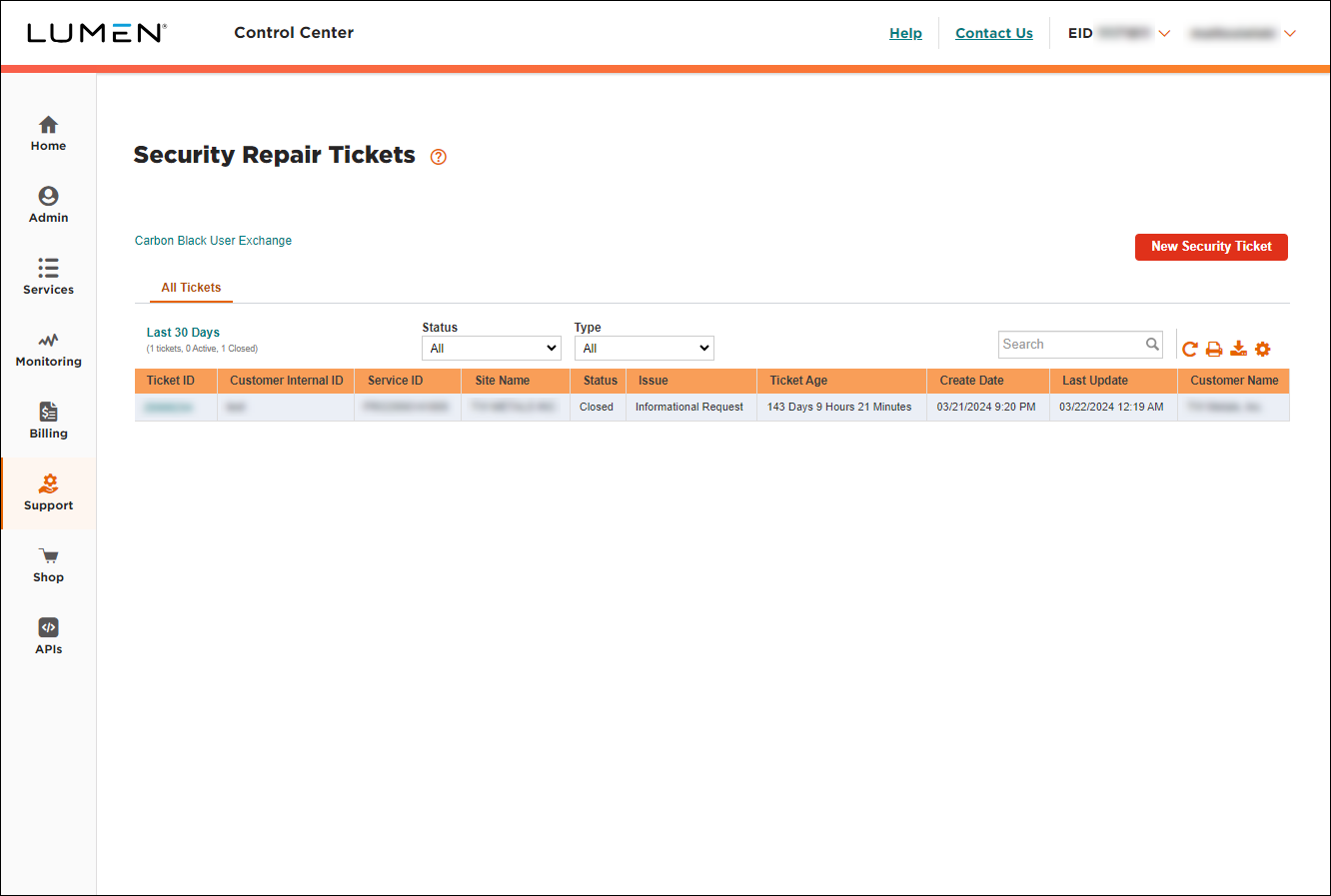
- Use any of the sort, filter, or search tools:
- Sort—to sort the list by a particular column, click the column header. To toggle between ascending and descending order, use the arrow to the right of the header. (By default, Lumen Connect sorts the list of tickets by the date the ticket was created—most recent first.)
- Filter—your tickets based on type, status, or creation date. Select an option from the Status or Type fields or change the date range you're viewing. To change the date range, click the Last 30 Days link, select your date range, then click OK.
- Search—type the search criteria in the field to the right, then press Enter. (Lumen Connect filters the list of tickets as you type.)
- Customize—to customize the columns you see, click the icon, then add, move, or delete columns.
- Sort—to sort the list by a particular column, click the column header. To toggle between ascending and descending order, use the arrow to the right of the header. (By default, Lumen Connect sorts the list of tickets by the date the ticket was created—most recent first.)
You can also save a copy of your search results. Click the icon.



