Configuring a virtual instance node
For Lumen® SASE Solutions, you can configure a virtual instance node (virtual machine) using Lumen Connect. You can also configure premise‑based nodes and nodes using Lumen hosted gateways.
To configure a virtual instance node:
- Using the left menu, click Services, click Service Tools, then click SASE Management.
Lumen Connect shows details about your service: configured SASE nodes (with a status for each), information about your technology provider, notifications (if any) related to your SASE service, etc.
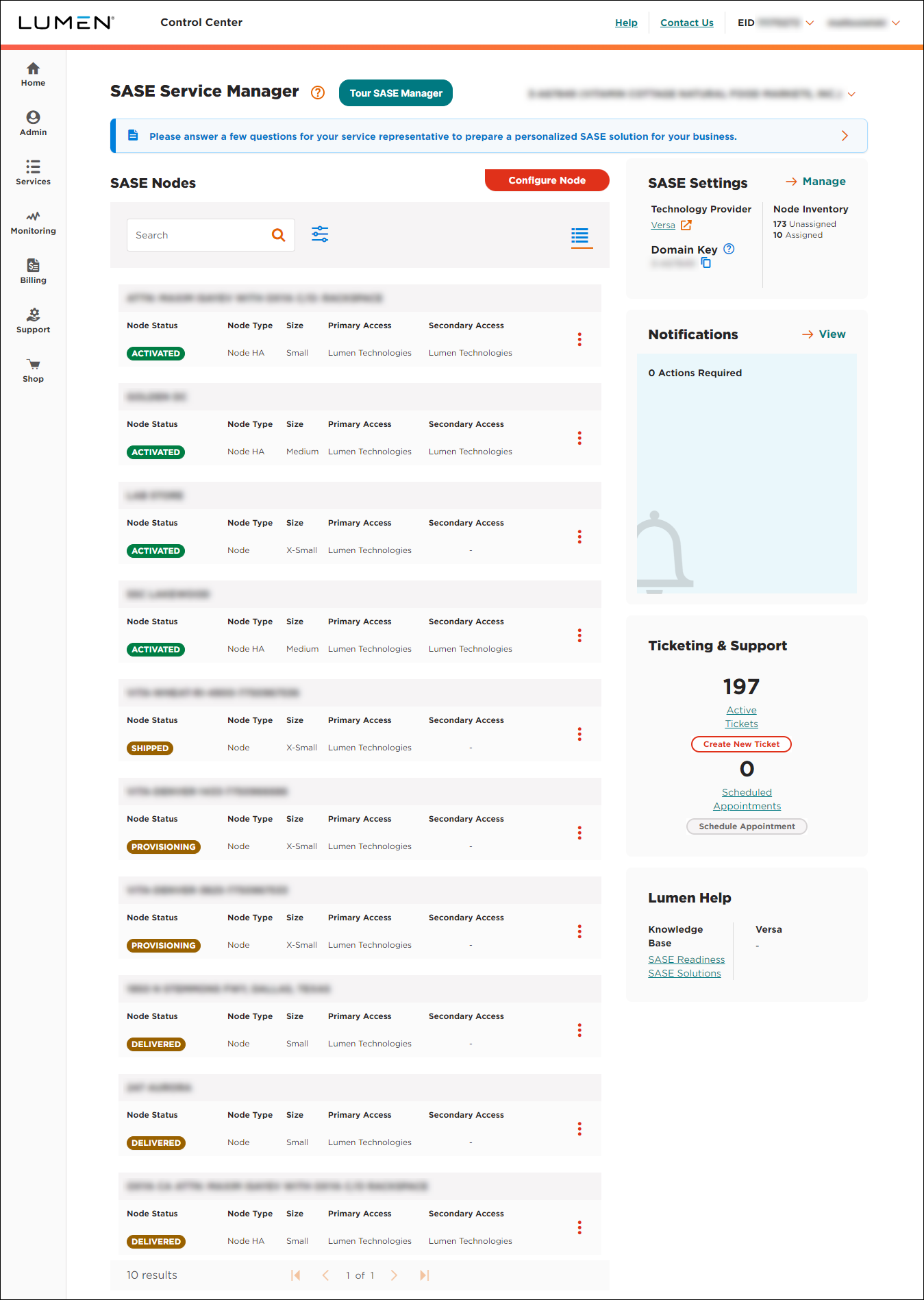
- In the SASE Nodes section, click Configure Node.
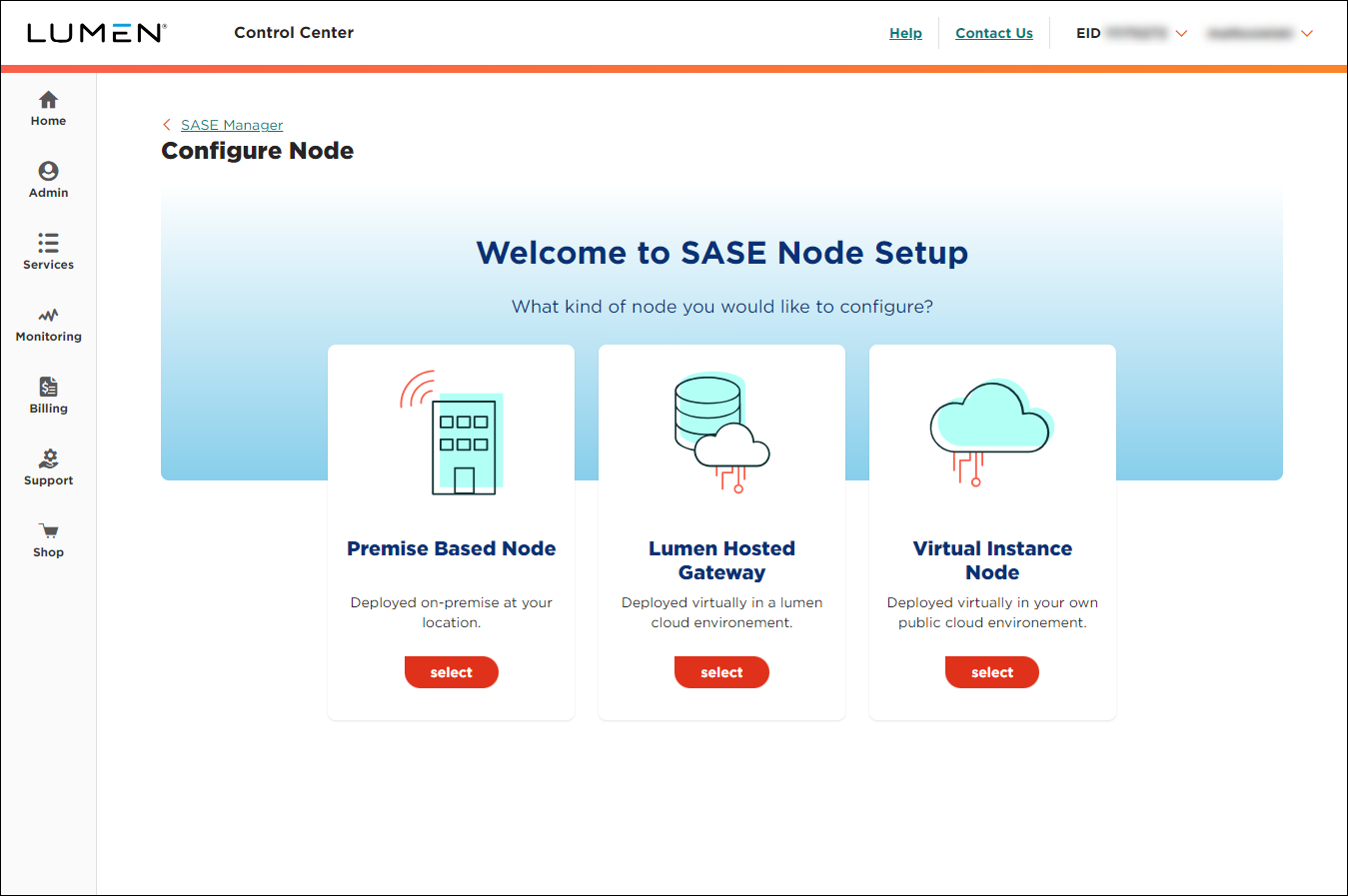
- On the Virtual Instance Node card, click SELECT.
Lumen Connect shows the available size nodes you can configure.
- Select the tile for the size of the node you want to configure.
- Select the type of node you want to configure: hub or branch.
- Select the cloud provider you want to use for the node:
- To use Microsoft, select Microsoft Azure from the list.
- To use Amazon, select Amazon Web Services from the list, select the geolocation, then select the data center region.
- To use Microsoft, select Microsoft Azure from the list.
- Click Continue.
Lumen Connect shows the default node contacts for your organization.
- Review the primary contact and primary technical contact shown. If you need to make a change for this node, click Yes on the line for the node, then edit the fields to change the contact.
- When you're done, click Continue.
Lumen Connect shows a summary of the information for the node.
- Review the information on the screen. If you need to change the information shown, click the icon next to the section you want to update, make your changes, then click Continue. Then, click Continue on successive steps to return to the summary.
- When you're done, click Deploy Node.
Lumen Connect starts configuring the node using the information you provided and places the node in Provisioning status.



