

Adding a network to an existing bare metal server
Use Lumen Connect to add additional networks to Lumen® Edge Bare Metal servers provisioned for your organization. Adding additional networks enhances performance, security, and scalability to allow public internet access while having private connectivity. You must provision networks in the same location as the bare metal server (e.g., Denver, CO). After this is completed, the networks appear in the list for you to add the network to the existing bare metal server. One network must be attached to a server at all times. After Lumen connects the network to the existing bare metal server, you are required to make configuration changes to your server.
Important: Adding a network to an existing bare metal server applies only to how Lumen opens connectivity to the network. After the network is added, you are required to make configuration changes on your server.
To add a network to an existing bare metal server:
- Click the Servers tab.
Lumen Connect shows the servers created for your organization with a status and brief summary for each server (name, location, IP address, server ID, and tags assigned to the server).
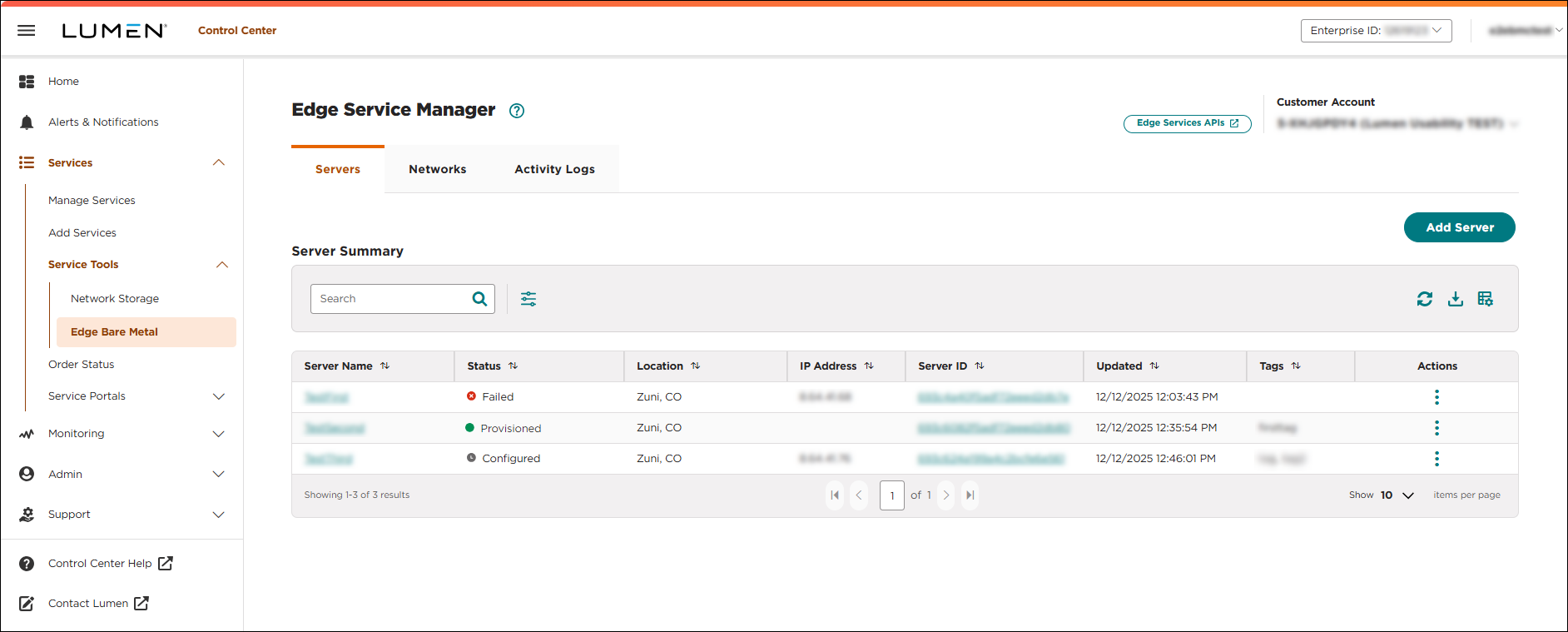
- Click the server name you want to work with to view details for that server.
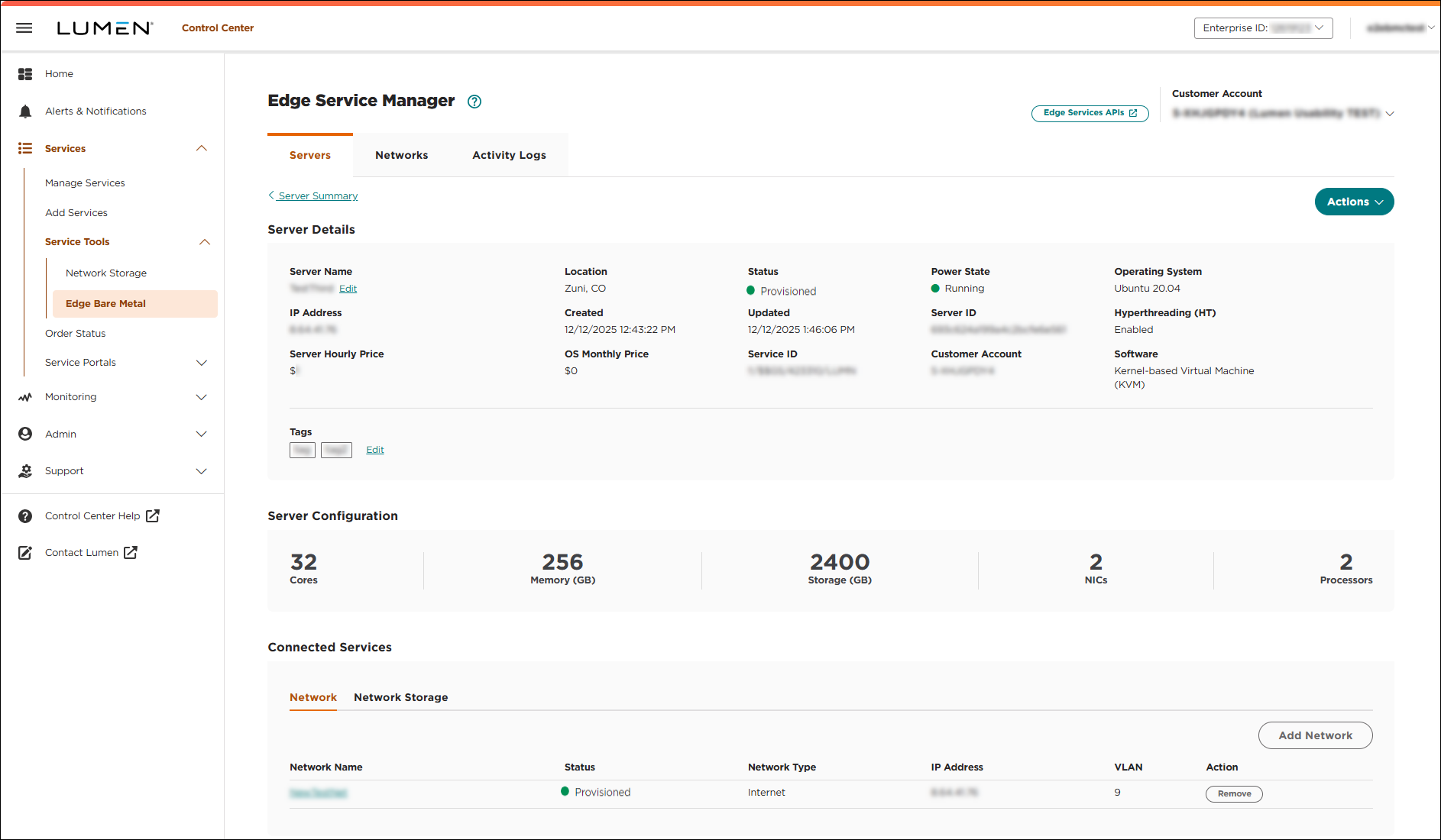
- Click ADD NETWORK.
- Select a network from the Networks drop‑down, then click CONFIRM. If you create a dual-stack network:
- To assign an IPv4/IPv6 address to the network, click Yes. If you choose this option, Lumen Connect reserves an IPv6 address for the server and assigns an IPv4 address to the server. You must manually assign all IPv6 addresses within the server's configuration file.
- To assign an IPv4 address to the network and not reserve an IPv6 address for the server, click No.
- To assign an IPv4/IPv6 address to the network, click Yes. If you choose this option, Lumen Connect reserves an IPv6 address for the server and assigns an IPv4 address to the server. You must manually assign all IPv6 addresses within the server's configuration file.
Lumen Connect adds the network to the server. When the process is complete, a success message shows on the Server Details page. When a server is added to a network, any IP in the network subnet can be configured on a server. The routing is in place and applies to both IPv4 and IPv6 addresses. To remove a network from a server, click REMOVE.
Lumen does not track additional IP addresses assigned to servers after initial server provisioning. You are responsible for managing any IPs assigned to servers outside of Lumen Connect.
Important: Because system automation assigns IP addresses in succession, you should assign IP addresses to virtual machines or containers from the end of the available subnet. When you add existing servers to a provisioned network within Lumen Connect, Lumen automatically uses the next IP address to configure the server. If you are already using this IP address, make sure to release this IP address to resolve any conflict.



