

Provisioning a bare metal server network
Use Lumen Connect to provision Lumen® Edge Bare Metal server networks using Lumen public IPv4 and IPv4/IPv6 dual-stack network blocks. Configure a private network to establish a secure and isolated network connection across multiple endpoints using a VRF (virtual routing and forwarding). Multiple routing table instances exist in a virtual router and work simultaneouly to segment network paths on a single device. You must provision a network before you provision a bare metal server. After you configure a network, Lumen Connect can take up to 10 minutes to provision the network.
Provisioned networks are available for use and you can select them when provisioning a bare metal server. You can also provision a network while provisioning a bare metal server. Provisioned networks can be added to an existing bare metal server. You can view and download the activity on the networks. You can also view network details, edit network name, or delete a network you no longer need.
After you provision a network, the remaining IP addresses in the subnet, that are not used for infrastructure configuration, are yours to use as you need. Learn more about managing IP addresses
You cannot edit network configurations. If you need to make changes to a network, you must delete the network and provision a replacement network. Delete all the bare metal servers from a network before deleting the network.
To provision a bare metal server network and manage IP addresses:
Step 1. Provision a bare metal server network
To provision a bare metal server network:
Important: You must provision a bare metal server in the same location (e.g., Denver, CO) as the provisioned network.
- Click the Networks tab.
Lumen Connect shows the networks created for your organization with a status and brief summary for each network (location, network type, and IP block).
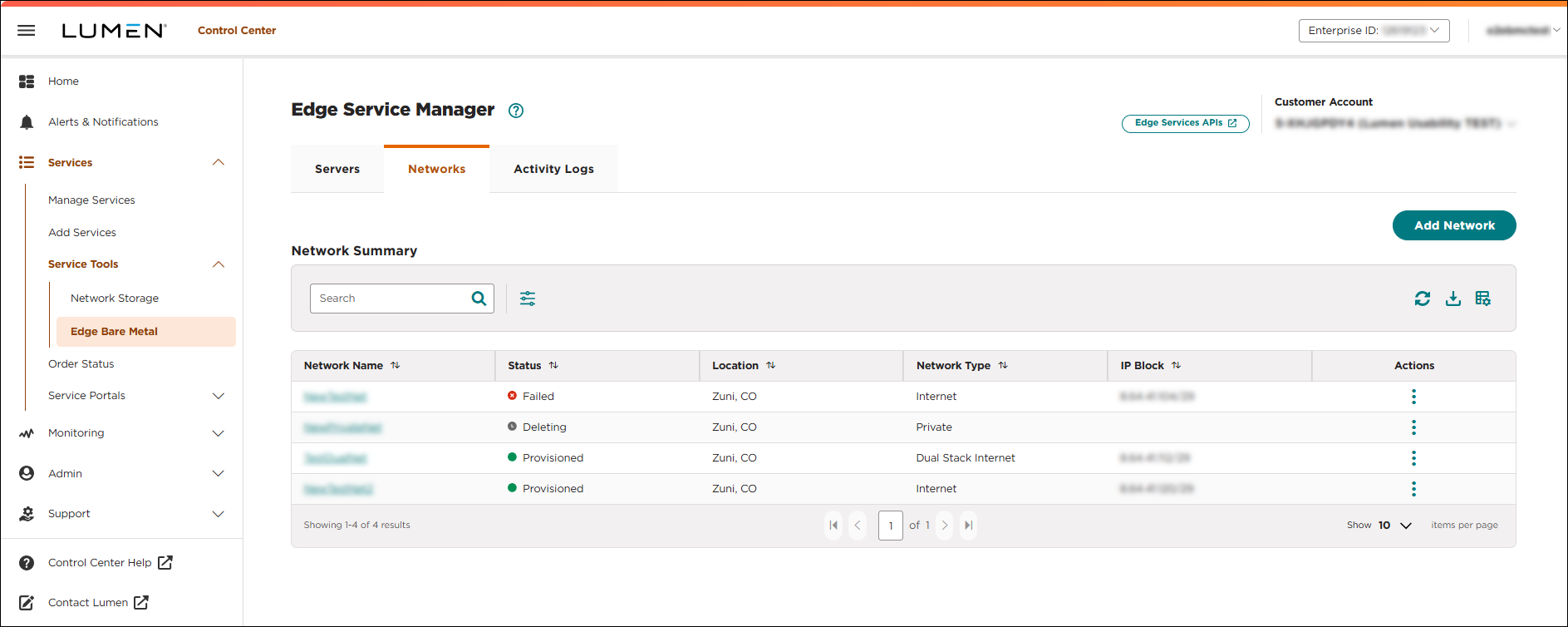
- Click ADD NETWORK.
The Select Location section appears.
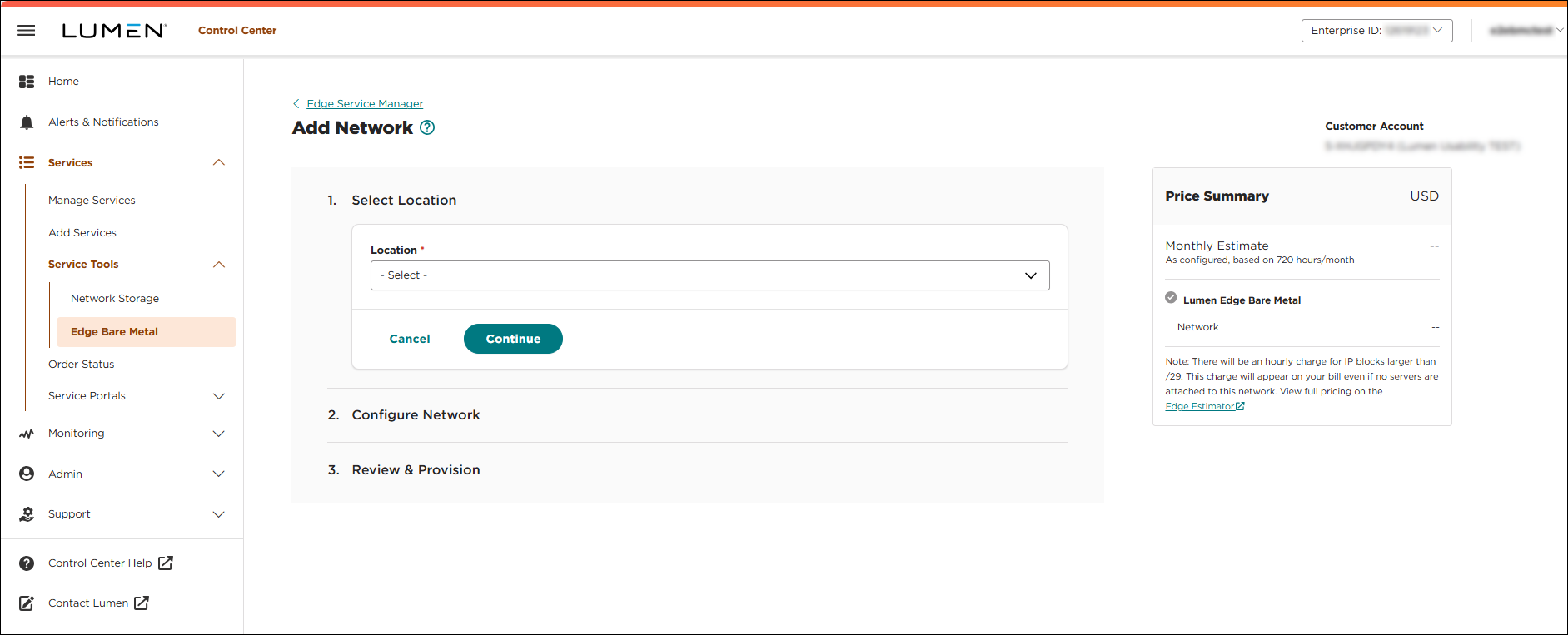
- Select a physical location for the network, then click CONTINUE. Bare metal servers must be in the same location as the assigned network.
The Configure Network section appears.
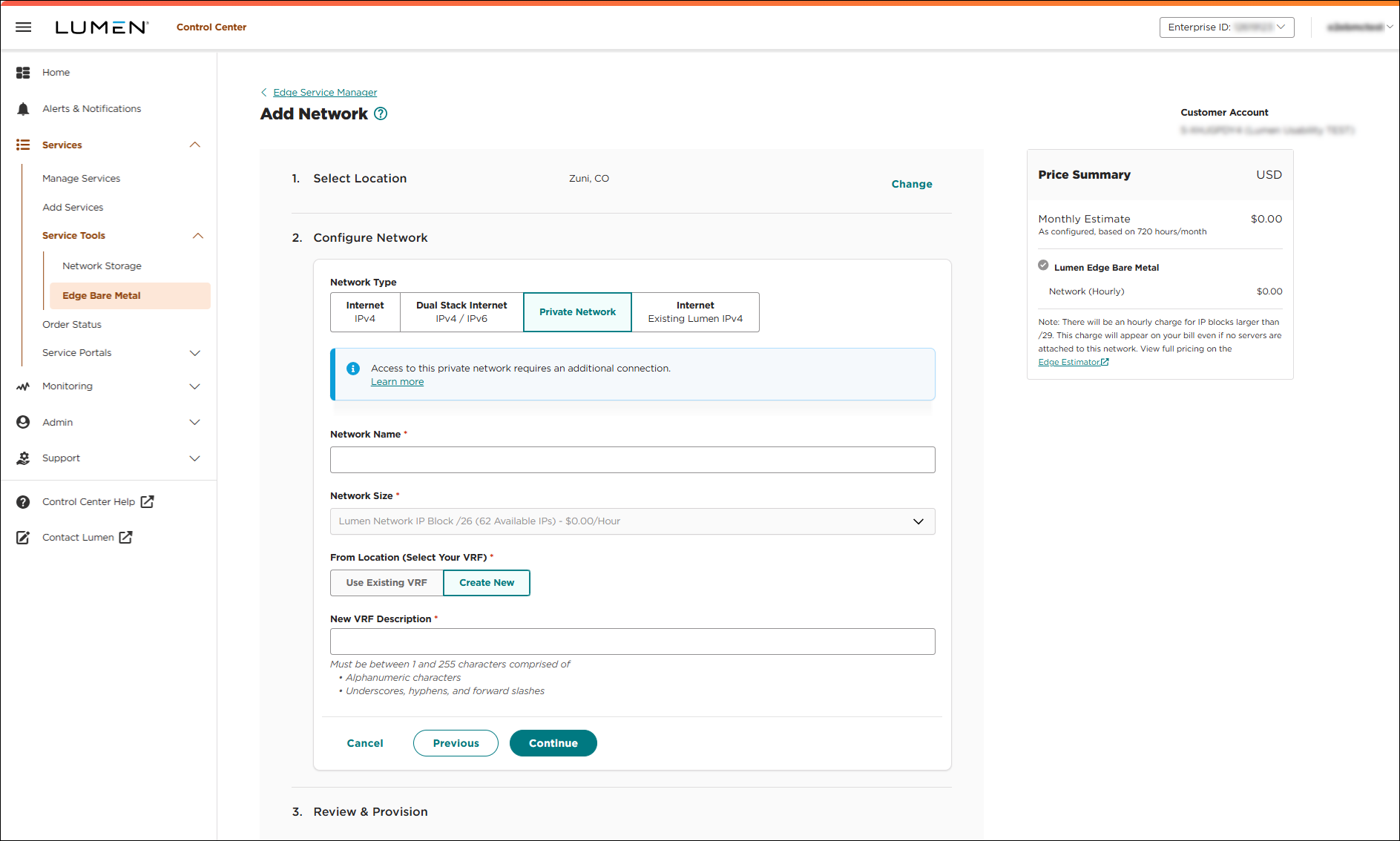
- Complete the following fields in the Configure Network section to select your network configuration:
- In the Network Type section, select one of the following:
- Internet—Creates an IPv4 network block.
- Dual Stack Internet—Creates a dual‑stack IPv4/IPv6 network block. If you choose this option, Lumen Connect reserves an IPv6 address for the server and assigns an IPv4 address to the server. You must manually assign all IPv6 addresses within the server's configuration file.
- Internet—Creates an IPv4 network block.
- Network Name—Type a name for the network.
- Network Size—Select a network size in CIDR (Classless Inter‑Domain Routing) length based on the IP address. The size of the network determines the number of IP addresses available for server use. By default, we include a /29 subnet at no charge. You can select a larger CIDR block for an additional charge.
Here are some things you should know when choosing a network size:
- Each network is assigned its own IPv4 subnet (/29‑/26) where /29 has fewer networks and hosts than /26.
- Lumen uses the first four addresses and the last IP address for infrastructure configuration. The remaining IP addresses are free for you to use. For example, if you choose a /29 subnet there are eight IP addresses. The first four IP addresses will be used for network address, router default gateway, and routers. The last IP address will be used for the network broadcast address. That leaves the 5‑7th IP addresses free for you to use.
- If you create a dual‑stack network, the IPv6 subnet will always be /64 regardless of the size of the IPv4 subnet you select. This means that the first 64 bits of the 128‑bit IPv6 address are fixed. The remaining bits are flexible and free for you to use.
- Each network is assigned its own IPv4 subnet (/29‑/26) where /29 has fewer networks and hosts than /26.
- In the Network Type section, select Private Network. If you provision a server with a private network, you need to have another accessible endpoint to access that network and server (such as a server connected to public internet). You can add this private network to an existing bare metal server.
- Network Name—Type a name for the network.
- Network Size—By default, private networks are only available as /26 network blocks with 59 IP addresses for use. You cannot make changes to the network size.
- In the From Location (Select Your VRF) section, select or create a VRF for the other end of your connection:
- To use an existing VRF, select or search for the VRF to use in the Virtual Routing and Forwarding (VRF) Inventory section.
- To create a VRF, click Create New, then type a description in the New VRF Description field.
- To use an existing VRF, select or search for the VRF to use in the Virtual Routing and Forwarding (VRF) Inventory section.
- When you are done, click CONTINUE.
- Review your selections, then click PROVISION NOW. Lumen Connect starts to provision the network. This process can take up to 10 minutes to complete. Track the progress of the provisioning and view the estimated time to completion on the Networks tab. When provisioning is complete, a success message shows on the Networks tab.
Step 2. Manage IP addresses
When you create a network for Edge Bare Metal using Lumen public IPv4, IPv4/IPv6 dual-stack, or private network blocks, you are responsible for assigning the remaining IP addresses not used for configuration. You can configure any IP address in the network subnet using the different operating systems available. IPv4 and IPv4/IPv6 dual-stack networks are configured as a VLAN (virtual local area network), and routing is in place for any IP address you assign within the network. Private networks are configured with a dedicated VRF and VNI (Virtual Network Identifier) for routing and isolation.
Apart from the five addresses that Lumen uses to set up the network, we do not track the additional IP addresses. You are responsible for managing any IP addresses assigned to servers outside of Lumen Connect.
Depending on the subnet you choose (IPv4, IPv4/IPv6 dual-stack, or private), each network size selection provides a specific number of IP addresses contained in that block. Here are a few things to know about each configuration:
- Private networks are only available as /26 network blocks. You get the remaining IP addresses not used for infrastructure configuration to use for your needs.
- IPv4 network:
- Network size selections range from /29 to /26, each giving you a different amount of IP addresses in each subnet to use for your needs.
- You are responsible for assigning the remaining IP addresses on your IPv4 subnet.
- Network size selections range from /29 to /26, each giving you a different amount of IP addresses in each subnet to use for your needs.
- IPv4/IPv6 dual-stack network:
- You get the IPv4 network selection you chose. You get the remaining IP addresses not used for infrastructure configuration to use for your needs.
- Lumen Connect configures the IPv4 subnet and reserves an IPv6 address.
- You must manually assign all IPv6 addresses within the server's configuration file. Before making any changes to the configuration file, here are a few things you should know:
- You must back up your configuration files before making any changes.
- You must contact support to perform console actions. We do not offer console access to manage your networks and servers.
- You are responsible for backing up your critical data and applications. In case of a failure, we will do our best to recover your server and restore access. You may have to delete the server and provision a new server.
- You must back up your configuration files before making any changes.
- You get the IPv4 network selection you chose. You get the remaining IP addresses not used for infrastructure configuration to use for your needs.
Edge Bare Metal networks are constantly monitored, highly redundant, and resilient. Maintenance windows are scheduled for required maintenance and upgrades. When scheduled maintenance impacts your service, we will notify you by email in advance.
Learn more about maintenance windows and SLAs (service level agreement)
If you have a performance issue or an outage, contact our Edge Customer Care team and provide the tenant (account) name.



