

Creating an LNP status report
Using Lumen Connect, you can create a local number portability (LNP) status report for Lumen® VoIP Enhanced Local (ELS) or Lumen® Local Inbound (LI) porting orders. You can also request customer service records for ELS and LI phone numbers.
To create an LNP status report:
- Using the left menu, click Services, click Service Tools, then click ELS & LI Management.
- If you have more than one customer number on your enterprise ID, select the customer number you want to work with, then click PROCEED.
- Click the Reports tab.
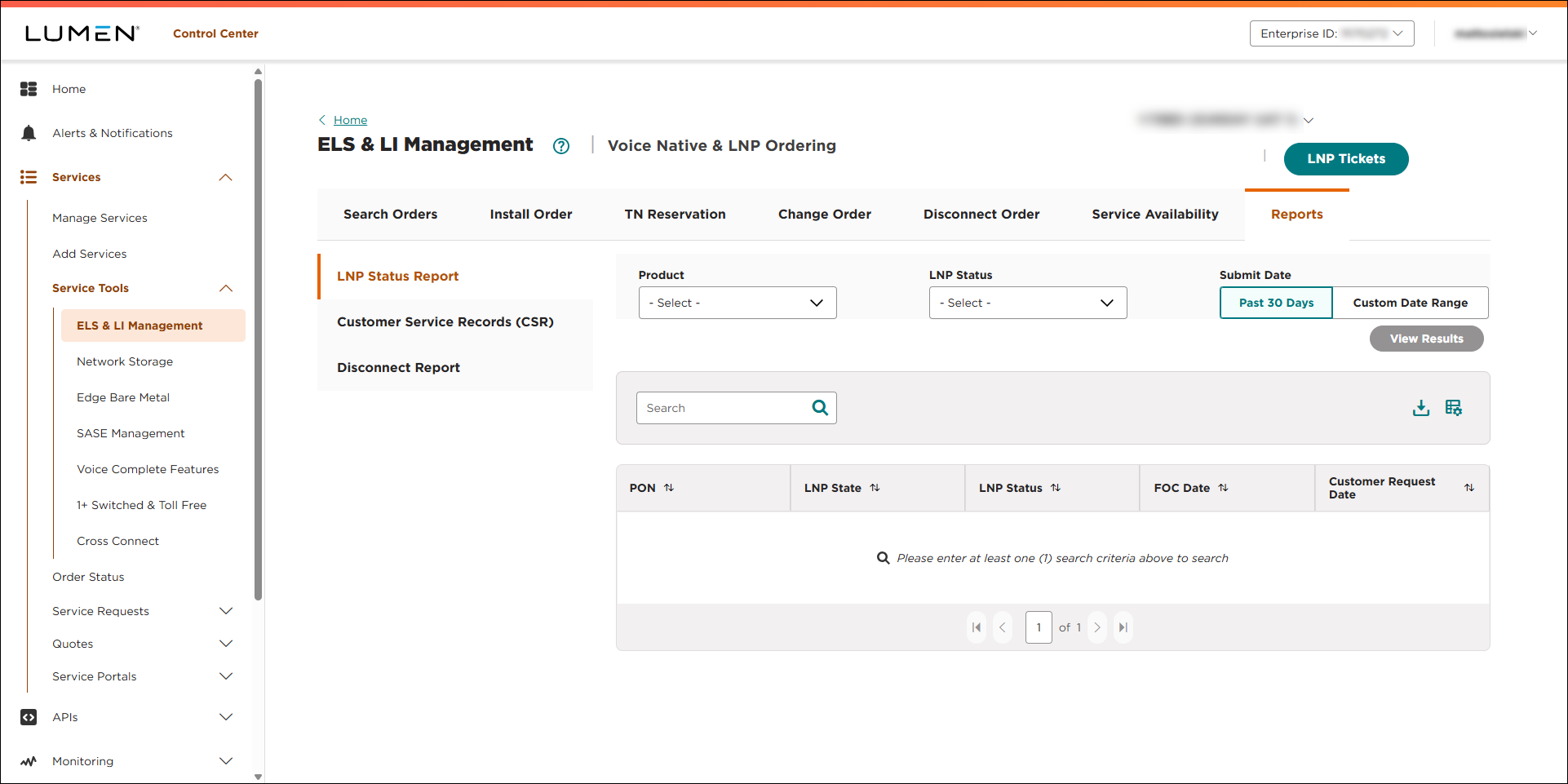
- From the Product list, select whether you want to view a report for ELS or LI.
- From the LNP Status list, select the status for the porting order. To view a report of all orders for the product, select Any.
- In the Submit Date field, do one of the following:
- To view porting orders from the past 30 days, select Past 30 Days.
- To view porting orders from another time period, select Custom Date Range, then type or select the date range (using the icon) you want to view orders for.
- To view porting orders from the past 30 days, select Past 30 Days.
- Click View Reports.
Lumen Connect shows a list of orders matching your search criteria. For each order, Lumen Connect shows the PON, LNP state, LNP status, FOC date, and customer request date.
- Do either (or both) of the following to customize the report:
- To download the report as a .CSV file, click the icon.
- To customize the columns shown on the report, click the icon, then use the arrows to add/remove columns from the report. When you're done, click SAVE. You can add any of the following additional columns:
- To download the report as a .CSV file, click the icon.
- Service Class of TN
- Activation Time
- Activation Type
- Auto-Port/Cancel
- Customer Name
- Feature Information
- Jeopardy Code
- Jeopardy Description
- Last Update Date
- LATA
- LEC Response Date
- LNP Events
- LNP Option
- Order Date
- Product
- Rate Center
- Reason Code
- Service Address
- Service Package
- State
- Telephone Number
- Telephone Number Order ID
- Warning Code
- Warning Description



