

Viewing the status of an order for ELS or LI
Use Lumen Connect to track the status of orders (including historical orders) for Lumen® VoIP Enhanced Local (ELS) or Lumen® Local Inbound (LI). You can track the following types of orders:
To view the status of an order for ELS or LI:
- Using the left menu, click Services, click Service Tools, then click ELS & LI Management.
- If you have more than one customer number on your enterprise ID, select the customer number you want to work with, then click PROCEED.
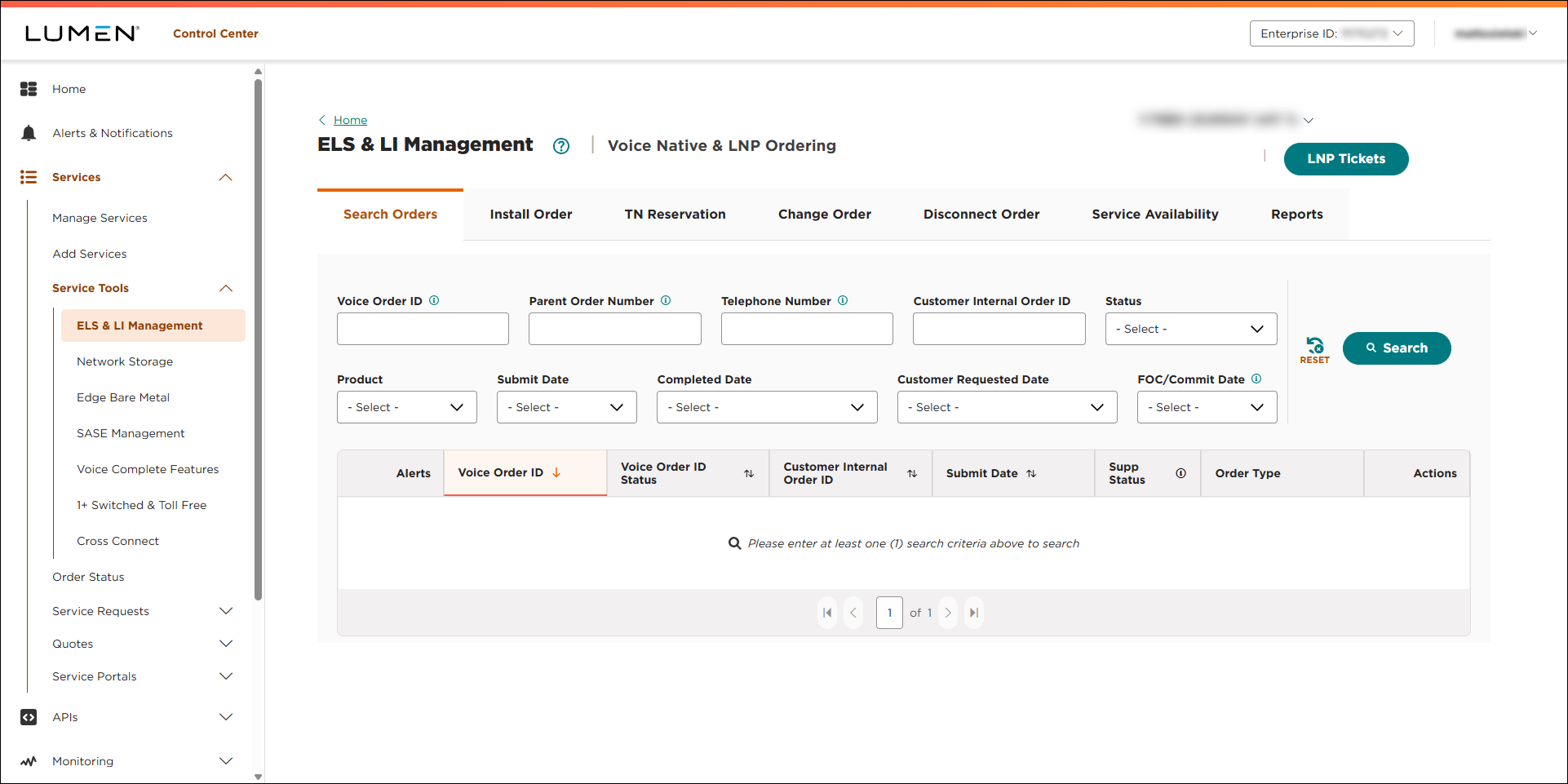
- Use the fields to search for the order you want to check the status of:
- To search by order number, type the order number in the Voice Order ID field, then click SEARCH.
- To search by the parent order number, type the parent order number in the Parent Order Number field, then click SEARCH.
- To search by a phone number associated with the order, type the number in the Telephone Number field, then click SEARCH.
- To search by your internal order ID associated with the order, type the number in the Customer Internal Order ID field, then click SEARCH.
- To see all of your orders in a certain status, select an option from the Status list.
- To see all orders for VoIP Enhanced Local, select ELS from the Product list.
Lumen Connect filters to show all VoIP Enhanced Local orders.
- To see all orders for the Local Inbound, select LI from the Product list.
Lumen Connect filters to show all Local Inbound orders.
- To see all orders submitted within the past 30 days, select Past 30 Days from the Submit Date list. (To see orders submitted in a specifc date range, select Custom Date Range, select a start and end date, then click APPLY.)
- To see all orders completed within the past 30 days, select Past 30 Days from the Completed Date list. (To see orders completed in a specifc date range, select Custom Date Range, select a start and end date, then click APPLY.)
- To see all orders with requested due dates within the past 30 days, select Past 30 Days from the Customer Requested Date list. (To see orders with requested due dates in a specifc date range, select Custom Date Range, select a start and end date, then click APPLY.)
- To see all orders with a commit (firm order confirmation) date within the past 30 days, select Past 30 Days from the Submit Date list. (To see orders with a commit (firm order confirmation) date in a specifc date range, select Custom Date Range, select a start and end date, then click APPLY.)
Lumen Connect shows all orders matching your search criteria.
- To search by order number, type the order number in the Voice Order ID field, then click SEARCH.
- Do any of the following:
- To view details for the order, click the icon (in the Actions column).
- To download the results of your search (as a .xlsx file), click Download.
- To view details for the order, click the icon (in the Actions column).
| Status code | Status message | Order type | Meaning |
| 901 | Submitted | TN reservation, native install, LNP, SUPP, change, or disconnect | Voice order was submitted successfully. |
| 902 | Installed | LNP and SUPP | Voice order was installed successfully. |
| 903 | FOC Received | LNP and SUPP | We received the firm order commit (FOC) from the losing carrier. |
| 912 | Completed | TN reservation, LNP, and SUPP | We completed the parent order ID port. |
| 914 | Jeopardy | LNP only | We received a reject from the losing carrier. Correct error and retry port request. |
| 915 | Cancel | LNP only | We completed the request to cancel the port. |
| 10002 | Customer order ID {order ID} is complete. | TN reservation, native install, LNP, SUPP, change, or disconnect | Voice order was completed for the specified order. |
| 900 | Error/Rejection | TN reservation, native install, LNP, SUPP, change, or disconnect | A processing error has been encountered. See error message for instructions. |
| All other codes | Error/Rejection | System generated errors when an error with processing has been detected. See error message for instructions. |



